Duet 2 and Duet Web Control
Network configuration
The Duet controller is attached to Raspberry Pi by USB and by LAN to router. This gives great flexibility. The LAN settings can be done like described in Duet 2 Ethernet Web Control (DWC).
Sample configuration for LAN
;Networking Stuff

;Web Interface / IP-Adress
M552                   ; show status of network interface
M552 S0			       ; disable network interface
M552 S1 P0.0.0.0 R565  ; wait 10-30 seconds to obtain an IP address (Port 565)

M586                   ; show status of telnet interface
M586 P2 S1 T0          ; enable Telnet (SSH not implemented yet) (Port 23 if not changed)
Telnet
Telnet is highly insecure that's why we do not use it. But we tested it. Only one Telnet connection can be established at a time. If the console output "telnet: Unable to connect to remote host: Connection refused", then it is likely that Repetier Server is trying to establish a connection. This can be easily disabled in Repetier Server.
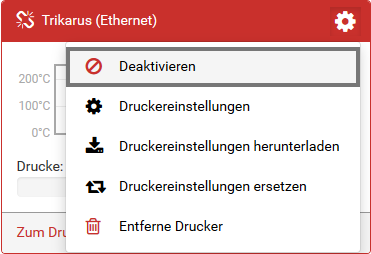
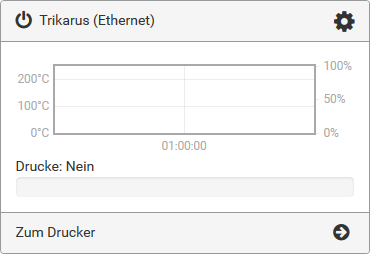
Connecting by telnet is easy:
telnet duetboard.fritz.box 23
Trying 192.168.1.67...
Connected to due.fritz.box.
Escape character is '^]'.
RepRapFirmware Telnet interface

Please enter your password:
> ULTRAHARDTOCRACKPASSWORD
Log in successful!
Telnet should not be used due to its plaintext unsecure communication → https://netsyshorizon.blogspot.com/2015/03/capture-sniffing-telnet-password-capturing.html
USB Serial Connection from bash
screen /dev/ttyUSB-DUET2ETHERNET 115200

#enter some GCode like M552 to test it
#unsvoled nasty thing: how to correctly set tty to do newlines? textual output is fragmented

#get regular temperature info from Duet by simple cat:
cat /dev/ttyUSB-DUET2ETHERNET
ok T:24.1 /0.0 T0:24.1 /0.0
IP address, MAC address and device name
Sometimes Freifunk DNS or other services fail. It's required to access the devices by their IP address then. By using Freifunk it's not so easy to get the current IP address of Duet 2 Ethernet board.
A lot of commands were tested
- "batctl dc" on Freifunk Router does not always work. It sometimes returns no value for the known (fixed) device MAC address
- "batctl ping <MAC|IP>" on Freifunk Router does not work because it does not return results for clients but for originators
- "arp" on Freifunk Router does not return usable values (only in rare cases)
- "arp" on Raspberry Pi works only for known IP addresses
- "traceroute" on Freifunk Router does not work for MAC addresses but IP addresses. Without knowing the recent IP it's not useful
- "arp-scan" on Raspberry Pi works best, but comsumes a lot of CPU compute power
- Sending M-command to Duet and grab the result from Repetier Server console (remember that it's not possible to send M command to Duet's DWC API URL over network if it cannot be resolved. So the only proper way is to utilize the USB connection by Repetier Server!)
Freifunk network mode switch and automatic mode detection
Duet 2 is configured to get an IP address from Freifunk dynamically. This IP address can also set to be static. Because it's sometimes instable to work in ffcmesh domain we have to make the LAN clients available to each other without lagging. This can be done by setting the router into switch mode. To have a network communication and to make Duet Web Control accesible it's advised to reconfigure Duet by command M552. It was tested that Duet does not automatically obtain an IP address from Freifunk router in case the switch mode was activated. So we apply a static IP address manually. This was added as Macro in Repetier Server. As soon as Duet obtained it's IP DWC interface will be available again. For better handling a cronjob was created which runs a script which checks the current network state and adjusts the mode automatically:
vim /etc/cron.d/duet_network_modeSHELL=/bin/bash
PATH=/usr/lib/sysstat:/usr/sbin:/usr/sbin:/usr/bin:/sbin:/bin
* * * * * root /opt/duet_network_mode.sh > /dev/null 2>&1vim /opt/duet_network_mode.sh#!/bin/bash
#IP_ADDR=$(/sbin/ip route | awk '/default/ { print $3 }')
IP_ADDR=$(ip route | grep default | grep -oE '[0-9]{1,3}\.[0-9]{1,3}\.[0-9]{1,3}\.[0-9]{1,3}')
echo current hangdevice IP is $IP_ADDR
SCRIPT_FILE="$(basename "$(test -L "$0" && readlink "$0" || echo "$0")")"
CONCURRENT=$(ps -C ${SCRIPT_FILE} --no-headers | wc -l) #get the count of recently running script instances
if [[ $CONCURRENT != 0 ]]; then
echo "Already running. Cannot execute start script multiple times simultaneously"
exit 1
else
source /opt/repetier-conf.sh
#echo "Pinging Duet 2"
#if [[ $IP_ADDR == "169.254.XXX."* ]]; then #if local net (switch mode) ping must respond quickly
# ping -c 1 yourduet
#else #if mesh mode the latency might get huge so we allow timeout of 5 seconds
# ping -c 1 -w 5 yourduet
#fi
echo "Checking Duet state by curl within max 1 second"
CURL_DATA=$(curl --silent --max-time 1 "yourduet/rr_connect?password=thePassword")
if [[ -z ${CURL_DATA} ]]; then
ERROR_STATE=1
else
jq -r '.' <<< $(echo ${CURL_DATA})
ERROR_STATE=$?
fi
if [[ $ERROR_STATE != 0 ]]; then # Duet is not reachable or json output could not be parsable ("Warning: Binary output can mess up your terminal")
# by checking the mode we can send the correct network GCode to Duet to fix the network state
if [[ $IP_ADDR == "169.254.XXX."* ]]; then #check if IP begins with 169.254.XXX. This means switch mode
echo "Setting Duet to switch mode"
send_gcode "M552 S0 ;disable network"
send_gcode "M553 P255.255.255.0 ;set netmask"
send_gcode "M552 S1 P169.254.XXX.XXX ;set static IP"
echo "" | mail -s "Setting Duet to switch mode" some_mail@domain.de
#update etc hosts file accordingly
sed -i -e '7d' "/etc/hosts"
echo " 169.254.XXX.XXX yourduet.ffcmesh yourduet" >> "/etc/hosts" #define static IP in hosts
sleep 5 #wait some seconds until Duet is online
else
echo "Setting Duet to mesh mode. Please wait 60 seconds"
send_gcode "M552 S0 ;disable network"
send_gcode "M552 S1 P0.0.0.0"
echo "" | mail -s "Setting Duet to mesh mode" some_mail@domain.de
sleep 60 #wait a minute to let optain new public IP address
#sed -i -e '7d' "/etc/hosts" #clear old ip
ping -c 1 yourduet #trying another ping - this might still fail if /etc/hosts did not update in the meantime
fi
else
echo "Duet 2 was pinged successfully"
exit 0 #everyting is fine. Nothing to do
fi
fiOther scripts
#get MAC address -> M550 configures the device name yourduet
arp | grep yourduet.ffcmesh #might fail due to old cache on DNS server

#get IP address by ping / check state
ping yourduet.ffcmesh #might me not available if ffcmesh domain keeps older IP address for the device name

#Portscan on Duet - just to ensure some things against it's own configuration
apt install knocker
knocker --host $DUET_IP_ADDR

#manually update DNS if Duet is not available on ffcmesh domain
#delete line number 7 from hosts file; then add new host entry with recent IP address. Ensure it's always on line 7
sed -i -e '7d' /etc/hosts && DUET_IP_ADDR=$(arp -a | grep "<DUET-MAC>" | awk -F ' ' '{print $2}') && DUET_IP_ADDR=${DUET_IP_ADDR:1:-1} && echo $DUET_IP_ADDR "yourduet.ffcmesh yourduet" >> /etc/hosts

#flush DNS cache
ip -s -s neigh flush all
arp -n
Duet Web Control forwarding and security
vim ports.conf# If you just change the port or add more ports here, you will likely also
# have to change the VirtualHost statement in
# /etc/apache2/sites-enabled/000-default.conf
<IfModule ssl_module>
Listen 81 # Duet Web Control
</IfModule>
<IfModule mod_gnutls.c>
</IfModule>
# vim: syntax=apache ts=4 sw=4 sts=4 sr noetApache virtual host
See mkcert & Go for SSL cert generation
vim /etc/apache2/sites-available/dwc.conf<VirtualHost *:81>
ServerName localhost
ServerAdmin some_mail@domain.de
SSLEngine on
SSLCertificateFile /etc/ssl/certs/trikarus.pem
SSLCertificateKeyFile /etc/ssl/private/trikarus-key.pem
<Location "/">
AuthType Basic
AuthName "Authentication Required"
AuthUserFile "/etc/apache2/htusers"
Require valid-user
ProxyPass http://yourduet.ffcmesh/
ProxyPassReverse http://yourduet.ffcmesh/
</Location>
ErrorLog ${APACHE_LOG_DIR}/error-dwc.log
CustomLog ${APACHE_LOG_DIR}/access-dwc.log combined
</VirtualHost>#generate user
htpasswd -B -c /etc/apache2/htusers THEUSERNAME
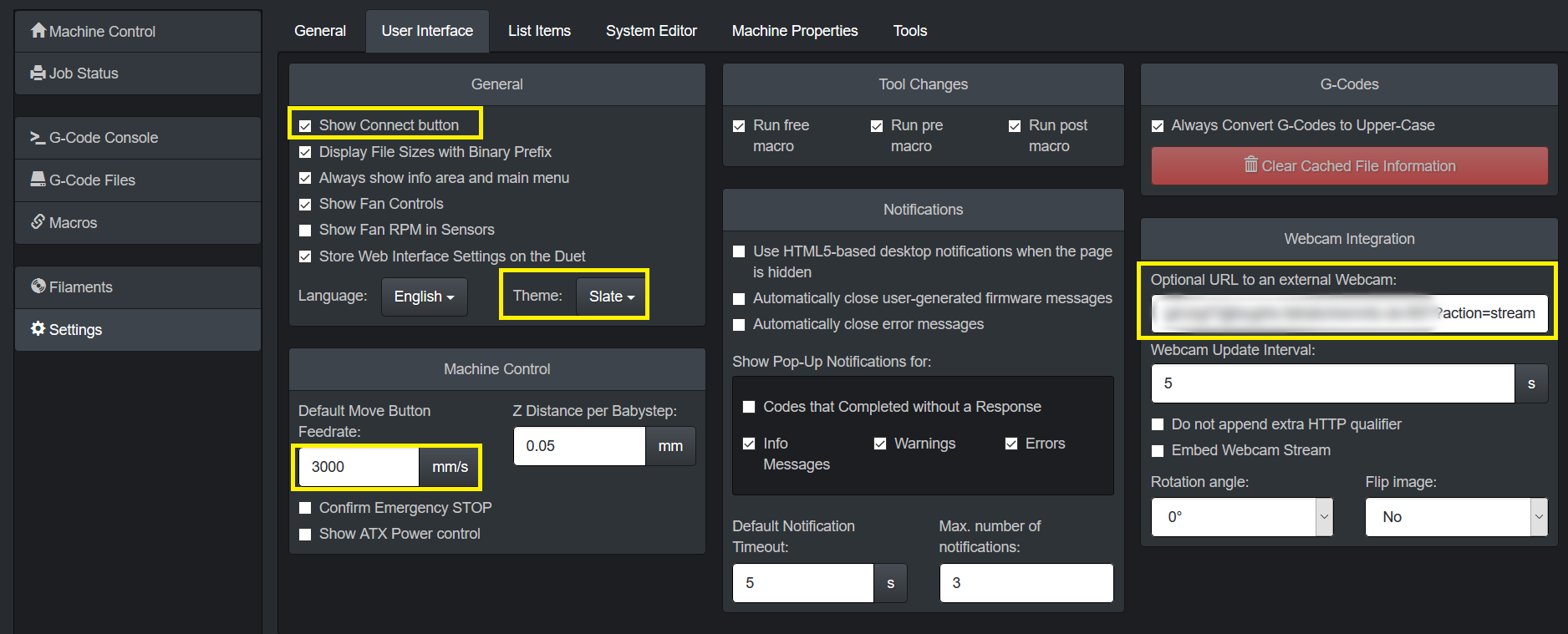
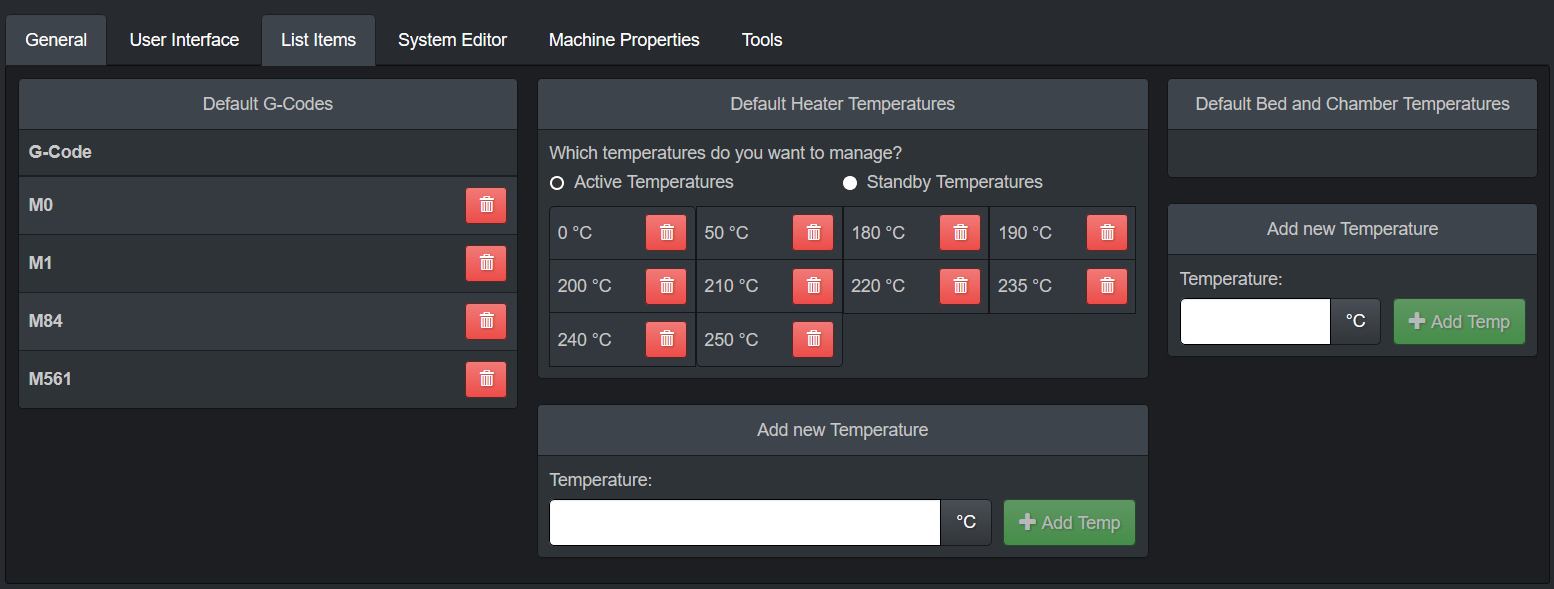
Strange looking values
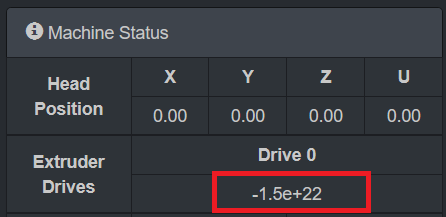
This is normal → "G92 E0 resets the virtual extruder position. This command is generated by slicers frequently when they use absolute extrusion, to avoid the build up of rounding error. However, the virtual extruder position is not useful to an end user, so DWC shows the total net extrusion instead, separately for each extruder. If you really want to check the virtual extruder position, use M114."
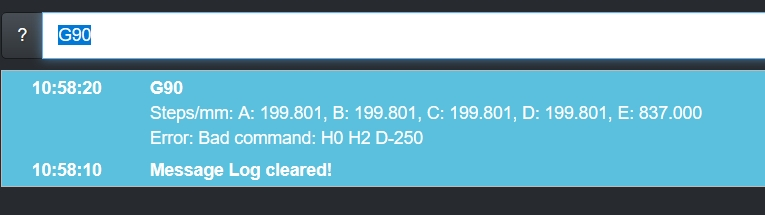
Troubleshooting "Error: Bad command"
This message sometimes happens permanently on every entered command after one command before was typed wrong. There is no known solution yet.
Security and access by external tools
Duet can be secured by password to omit unauthorized access. This prevents unwanted re-configuring by person from the local network.
# authorize first
curl -u 'someUser:somePassword' --insecure https://hangdevice:81/rr_connect?password=thePassword

# response from above should be:
"{"err":0,"sessionTimeout":8000,"boardType":"duetethernet102"}"

# do some things (examples)
curl -u 'user:password' --insecure http://yourduet.local/rr_gcode?gcode=M114
curl -u 'user:password' --insecure http://yourduet.local/rr_download?name=0:/sys/config.g
curl -u 'user:password' --insecure http://yourduet.local/rr_status?type=3
curl -u 'user:password' --insecure http://yourduet.local/rr_filelist?dir=sys
Troubleshooting
"The connection between the browser and your machine has been interrupted."
Sometimes DWC can not be accessed because "Reason: Unknown (SyntaxError: JSON.parse: unterminated fractional number at line 1 column 125 of the JSON data)" occcures. This can be fixed by sending "G92 X0 Y0 Z0" by Repetier Server console or by DWC JSON API (required to be authenticated previously)
curl -k yourduet.ffcmesh/rr_gcode?gcode=G92+X0+Y0+Z0You can check unparsable JSON at https://jsonlint.com.
You are about to log in to the site "$" with the username "$", but the website does not require authentication. This may be an attempt to trick you
You are about to log in to the site "$" with the username "$", but the website does not require authentication. This may be an attempt to trick you
The following message might appear in Firefox

Solution:
- Go to "about:config"
- Enter "network.http.phishy-userpass-length" and create a new value with "Number". Put in "255"
- Restart Firefox


Description
- Board is not available on LAN and does not update dynamic IP address, or
- Repetier does not show Duet fully available (if correctly available the symbol is green but in this case it is red "broken" or orange "trying to connect")




Solution
-
turn off PSU and turn off USB - we need to perform hard reset
#we use the aliases of root user
psu_off
usb_off
#wait some time
psu_on
usb_on
Communication to the firmware
- https://devhub.io/repos/chrishamm-DuetWebControl
- https://github.com/chrishamm/DuetWebControl/blob/master/src/store/machine/connector/PollConnector.js
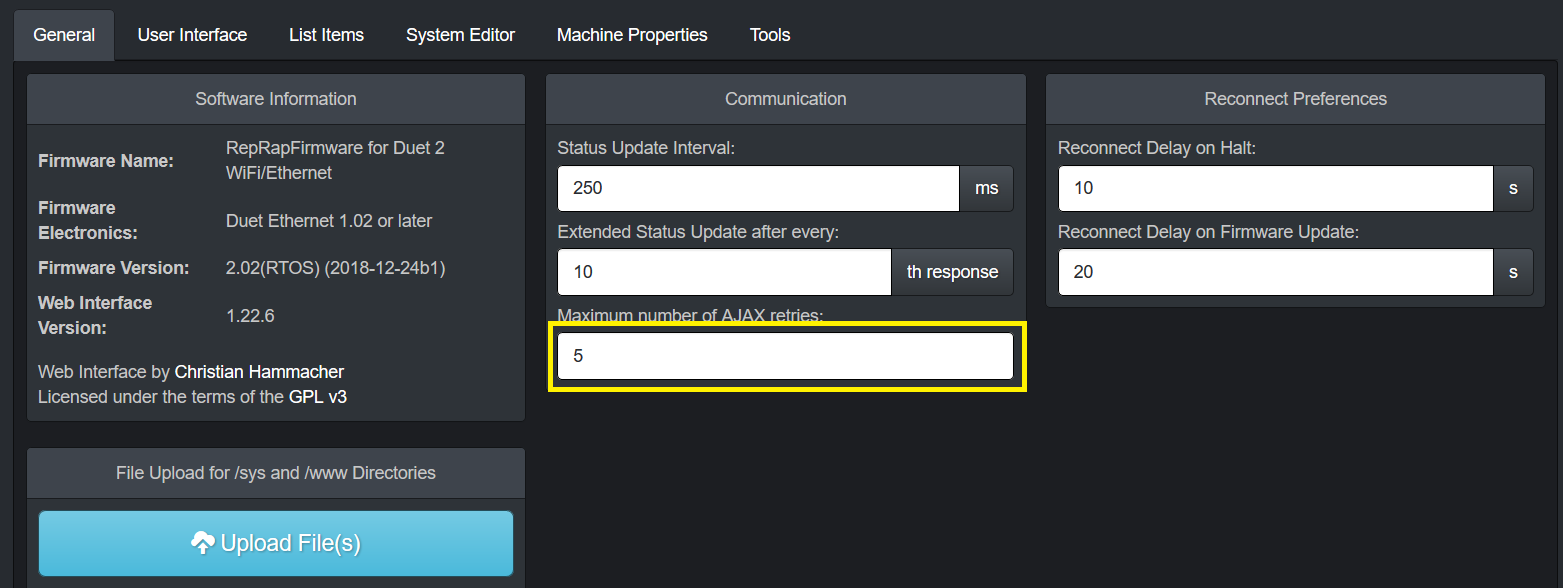
Since RepRapFirmware can only process one HTTP request at a time (excluding rr_fileinfo and rr_upload on certain platforms), DuetWebControl should attempt to avoid parallel requests. In general, the communication between the web interface and RepRapFirmware looks like this:
- Establish a connection (via rr_connect)
- Send an extended status request (rr_status?type=2) and start status update loop
- Load macros (rr_filelist?dir=/macros)
- (User switches to “G-Code Files” tab)
- Stop automatic status updates
- Load G-code filelist (rr_filelist?dir=/gcodes)
- File info about each file is requested (unless cached values are available)
- Start automatic status requests again
- (User does something else)
- DWC disconnects (via rr_disconnect)
Note the interrupt of live updates while multiple long requests are processed. DWC implements two particular functions (stopUpdates and startUpdates) which can - and should - be used to stop status requests while long-running HTTP requests are being executed. The update loop is stopped when file uploads are started, too, however it is not required to interrupt the update loop while short requests (e.g. rr_gcode) are sent.
Some requests may send or expect date and time values. These values are represented by the format “YYYY-MM-DDTHH:MM:SS” similar to the ISO-8601 format.
List of HTTP requests
All HTTP requests, except for rr_upload, are simple GET requests that return JSON objects, which makes it easy to deal with them using JavaScript code. Here the list of all currently used requests:
rr_connect?password=XXX&time=YYY
Create an initial connection between DWC and RRF. - On success, the firmware sends out a response like: {“err”:0,“sessionTimeout”:[time in ms],“boardType”:“[board type]”} This way DWC can adjust the AJAX timeout value and set board-specific options. The “time” value should represent the client’s date and time to set the on-board RTC if necessary. - If anything goes wrong, the firmware only responds with an {“err”:[code]} object. If code is 1, then the specified password is wrong. If it is 2, then the firmware cannot allocate enough resources to accomodate another session.
rr_disconnect
Delete an existing HTTP session. This should be used to log off manually, however sessions are usually purged automatically if no communication takes place within the time specified in “sessionTimeout” above.
rr_status?type=XXX
Request a status response from the firmware which usually includes all the machine parameters that are expected to change from time to time. This makes it possible to display live values like XYZ position and heater temperatures. This type of request is usually sent to the firmware in rather short intervals (250ms by default). At this time there are three different supported status request types, which may be polled in different intervals:
- Type 1: Regular status request. The response for this is usually rather compact and only includes values that are expected to change quickly. The following types 2 and 3 include those values under any circumstances to keep the web interface up-to-date.
- Type 2: Extended status request. This type of request is polled right after a connection has been established. This response provides information about the tool mapping and values that can change.
- Type 3: Print status request. Unlike type 2, this type of request is always polled when a file print is in progress. It provides print time estimations and other print-related information which can be shown on the print status page.
rr_code?gcode=XXX
Send a G-code to the firmware. Since RepRapFirmware is generally only controlled by G-codes, this provides an interface to transmit codes from the web interface. This request returns the amount of currently available buffer space for incoming G-codes, however DWC does not actively use this response yet.
rr_upload?name=XXX&time=YYY
Upload a file to path XXX with the last modified date and time using an HTTP POST request. This is the only supported POST request in RepRapFirmware, however be aware that the POST request is no standard HTTP request. To make this work in the firmware, the payload (ie. file) has to be send in one chunk right after the HTTP header without any encapsulation. This mechanism is used to speed up transfers. Once complete, the firmware responds with {“err”:[code]}. If everything goes well, the error code will be 0 and 1 on failure.
rr_download?name=XXX
Download a specified file from the SD card.
rr_delete?name=XXX
Delete a file from the SD card. The firmware responds again with {"err":[code]} and the error code will be 0 on success.
rr_filelist?dir=XXX
Request a file list from the directory XXX. Unlike rr_files, which was used in past web interface versions, this request returns a JSON object which encapsulates each file in the following format:
{"type":[type],"name":"[name]","size":[size],"lastModified":"[datetime]"}
Type can be either ’d’ if it is a directory or ‘f’ if it is a regular file. The size is reported in bytes.
If an error occurs, the firmware will respond with {"err":[code]}. If the code is 1, the directory doesn’t exist. If it is 2, the requested volume is not mounted.
rr_fileinfo?name=XXX
Parse G-code file information from file XXX or return file information about the file being printed if the key is omitted. RepRapFirmware implements a dedicate function to retrieve information from a G-code file (see also M36) which may be used on the G-code file list and on the print status page.
rr_move?old=XXX&new=YYY
Move a file on the SD card from XXX to YYY. Returns {“err”:[code]} after completion where code will be 0 if the request was successful.
rr_mkdir?dir=XXX
Create a new directory. Returns {“err”:[code]} with code being 0 if the directory could be created.
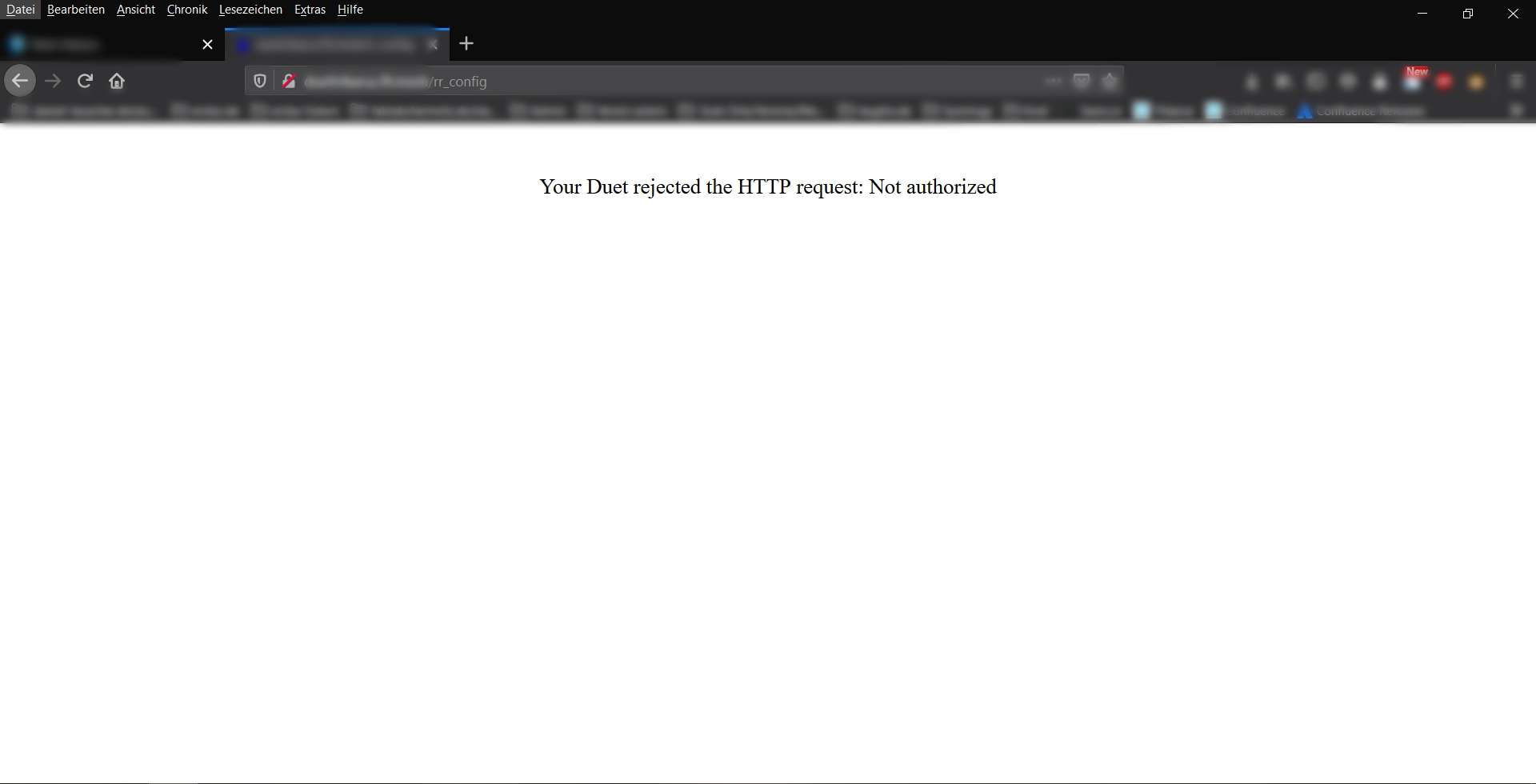
rr_config
Get the configuration response. Some printer information do not need to be requested for regular usag but to obtain machine properties and firmware versions this request can be used.
Upload by PrusaSlicer

For this job two syntax variants can be used
- Enter https://htupser:htpassword@your.domain.de/rr_connect?password=yourpassword in URL field and leave password field empty
- Enter https://htupser:htpassword@your.domain.de and enter your Duet password in "password" field