Network infrastructure and software
- arp-scan
- AutoHotkey Emergency Button script
- Backups and misc cron jobs
- Clearing the swap
- Duet 2 and Duet Web Control
- Duet Web Control and Repetier Server Macros
- Duet Web Control vs Repetier Server
- Freifunk Mesh Repeater / Access Point
- mkcert & Go
- Mobile access using tablet
- Monitoring and alerting
- Monitoring and alerting | Filament sensing with KY-040 Rotary Encoder
- Monitoring and alerting | GPIO Status of Relays
- Monitoring and alerting | InfluxDB
- Monitoring and alerting | Longterm monitoring of Duet 2 and automatic Hotend PowerOff/Movement Stop
- Monitoring and alerting | MPU 6050 (GY-521) Gyro + Accelerometer monitoring
- Monitoring and alerting | Repetier Server integrated monitoring
- Monitoring and alerting | collectd
- Monitoring and alerting | Grafana
- Monitoring and alerting | Monitoring iostat
- Monitoring and alerting | Monitoring systemctl units
- Monitoring and alerting | Monitoring USB device availability
- Monitoring and alerting | Raspberry Pi CPU temperature
- Monitoring and alerting | Repetier Server Monitor Desktop App
- Monitoring and alerting | Smart Stepper value monitoring
- Monitoring and alertings | Raspberry Pi Power States
- Python 3.7
- Raspberry Pi 3 B - GPIO config
- Raspberry Pi 3 B - power optimizations and boot adjustments
- Raspberry Pi 3 B - system wide USB handling
- Raspberry Pi 3 B - watchdog
- Raspbian buster basic OS configuration
- Repetier Server
- Smart Stepper - calibration and control modes (sPID mode, pPID mode and torque mode)
- Smart Stepper - flashing the firmware
- Smart Stepper - USB, Soft and hard reset
- Updating software
- Used Software / Firmware stack
- Webcam streaming with mjpg-streamer
- Wireguard Server/Client
arp-scan
Monitoring the network neighbours can possibly help to find attack vectors in Freifunk Network. On Linux, the onboard arp tool will only show the IP/MAC combinations that the system has already used. So, it will only show the Raspberry Pi in that list if you have already 'contacted' it via it's IP address (via commands like ssh, telnet, ping, http, nc, etc). arp-scan, however, will actively search for unknown IP/MAC combinations on your LAN/WLAN.
Linux
https://github.com/royhills/arp-scan
cd /opt
apt-get install automake libpcap-dev
git clone https://github.com/royhills/arp-scan.git
cd arp-scan/
aclocal
autoheader
autoreconf -i
automake
autoconf
./configure
make
ARP_SHARE="/usr/local/share/arp-scan/"
mkdir -p $ARP_SHARE
cp /opt/arp-scan/ieee-oui.txt $ARP_SHARE
cp /opt/arp-scan/ieee-iab.txt $ARP_SHARE
cp /opt/arp-scan/mac-vendor.txt $ARP_SHARE
cd /usr/bin && ln -sf /opt/arp-scan/arp-scan arp-scanarp-scan --help
arp-scan --localnet --interface=eth0 > ./arp-scan.txt
Ending arp-scan 1.9.7: 4096 hosts scanned in 18.442 seconds (222.10 hosts/sec). 484 respondedWindows
https://github.com/QbsuranAlang/arp-scan-windows
arp-scan.exe -t 10.149.2.89/16 > arp-scan.txt
AutoHotkey Emergency Button script
We use this script in local mode to have a quick emergency halt possibilty. Never use this over internet. Only use local network connection!
Download portable AutoHotKey
https://www.autohotkey.com/download/
https://github.com/Lexikos/AutoHotkey_L/releases
Extract the files to some safe place
Download curl.exe for Windows
Create script directory and files
create TrikarusEmergencyStop.ahk
^j:: ; use "`" to escape percent sign! ; you may need to apply this script to your firewall rules to work correctly because there's an outgoing connection Run,curl.exe "https://hangdevice:3345/printer/api/Trikarus?apikey=THEKEY&a=emergencyStop&data=" --max-time 1 --insecure MsgBox, Triggered emergency stop! Please wait ~15 seconds until Duet 2 recovered return
This script uses curl command to send emergency halt command to Repetier Server (USB) connection. That means it will also work even if Duet is not reachable over ethernet (which sometimes fails).
Put curl.exe and curl-ca-bundle.crt in script dir
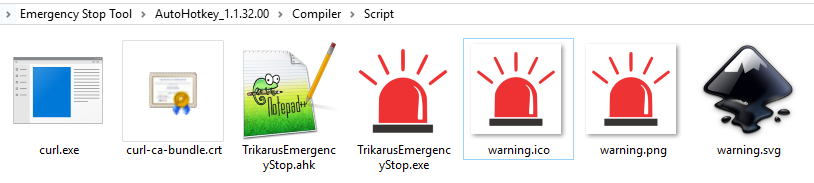
Create an icon file (optional step)

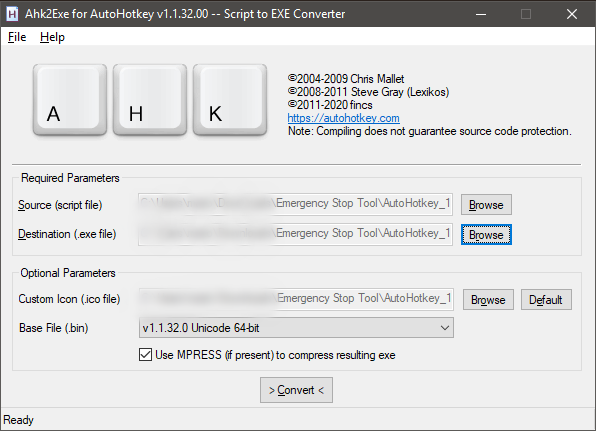
Compile TrikarusEmergencyStop.exe
Run Ahk2Exe.exe to configure the output conversion parameters
Use it
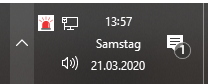
It will listen to CTRL + J
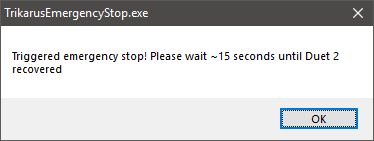
You might need to allow firewall exceptions to use this!
If it works it will reset the controller accordingly
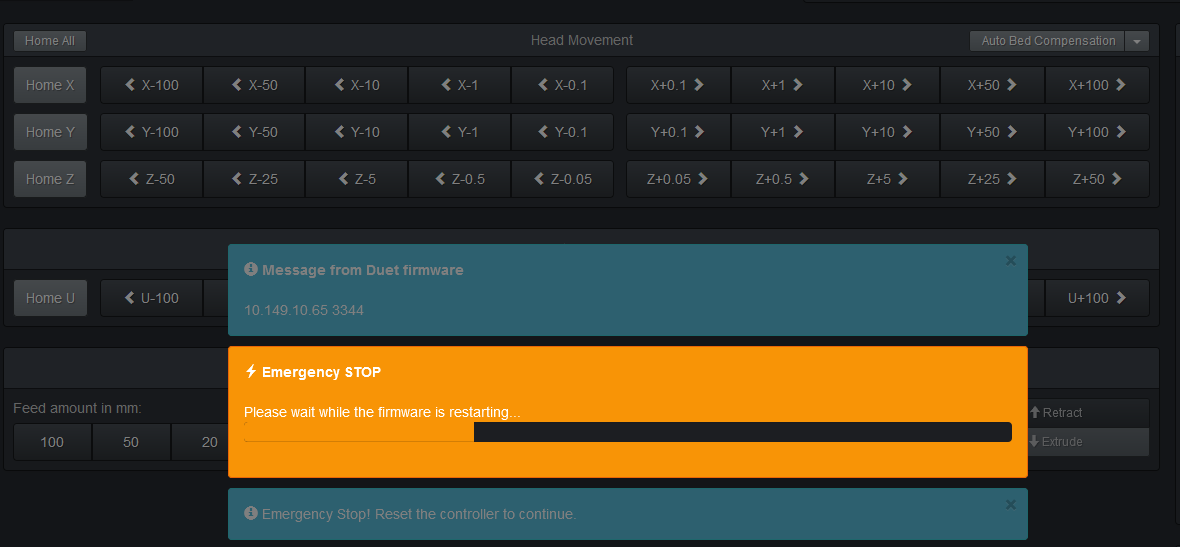
Backups and misc cron jobs
Mount USB stick (backup stick)
#format SD card
mkfs.ext4 /dev/sdavim /etc/fstabconfigure fstab to skip mount errors because if USB stick is not available boot fails or is really slow due to mount timeout (default seemsto be 90 seconds). More info at https://www.blogperle.de/raspberry-pi-emergency-mode-and-root-account-locked-mounting-usb-disk-with-fstab/
/dev/sda //mnt/external_usb32g ext4 defaults,nofail,x-systemd.device-timeout=5 0 0mkdir -p /mnt/external_usb32g
mount -a
cd /
ln -sf /mnt/external_usb32g backupTroubleshooting USB stick file system
vim /opt/repairUSBstick.sh#!/bin/bash
umount /mnt/external_usb32g
fsck -y /dev/sda
mount -achmod +x repairUSBstick.shDaily repair cronjob
vim /etc/cron.d/repairusbstickSHELL=/bin/bash
PATH=/usr/lib/sysstat:/usr/sbin:/usr/sbin:/usr/bin:/sbin:/bin
#daily repairing of USB stick
0 6 * * * root /opt/repairUSBStick.sh > /dev/null 2>&1Daily Backup
Backup runs daily at 18:15 (after daily regular closing of the museum)
/etc/cron.d/backuphost
SHELL=/bin/bash
PATH=/usr/lib/sysstat:/usr/sbin:/usr/sbin:/usr/bin:/sbin:/bin
15 18 * * * root /opt/backuphost.sh > /dev/null 2>&1/opt/backuphost.sh
#!/bin/bash
CUR="$( cd "$( dirname "${BASH_SOURCE[0]}" )" >/dev/null && pwd )"
DTS=$(date +"%Y%m%d_%H%M")
BUP="/backup"
#rsync switches
# D - keep device files
# o - copy owner rights
# g - copy group rights
# r - recursive
# R - copy with folder structure
# L - copy files behind symlinks
# t - keep timestamp
# l - copy symlinks
# p - keep file permissions
# a = Dgloprt
#installed packages
dpkg -l > "$BUP"/dpkg.list
#some extra options for all rsync - can be used to debug
#RP="-v --progress -stats"
RP=
RSYNC="rsync $RP"
#home, skel, postfix, apache, motd, ssl, init.d, systemd, resolv.conf, interfaces, ...
$RSYNC -lrR /home/ "$BUP"
$RSYNC -aRL /etc/ "$BUP"
$RSYNC -rptR /boot/ "$BUP"
#cron
$RSYNC -laRL /var/spool/cron/crontabs/ "$BUP"
#user
$RSYNC -lrptR /usr/local/ "$BUP"
#get host-specific backup jobs
$RSYNC -lrptR /var/lib/Repetier-Server/ "$BUP"
$RSYNC -lrptR /usr/local/Repetier-Server/ "$BUP"
$RSYNC -lrptR /usr/local/Repetier-Setup/ "$BUP"
$RSYNC -lrptR /usr/local/share/mjpg-streamer/ "$BUP"
#opt
$RSYNC -lrptR /opt/ "$BUP"
#sh usage of /backup
SIZE=$(cd "$BUP";echo $(du --apparent-size -sh)|cut -d ' ' -f1) #use apparent size to display correct size of NAS! otherwise ~200 MB will show as ~3.5 GB
#mail
printf "[$DTS] rsync-Backup of $(hostname -f) was done! \nSize:"$SIZE"" | mail -s "$(hostname -f)" target@mail.addressRemote Backup
Additionally a remote host is copying the backup files by pulling with rsync over SSH.
Cleaning old InfluxDB dumps
/etc/cron.d/clean-influx-bup
SHELL=/bin/bash
PATH=/usr/lib/sysstat:/usr/sbin:/usr/sbin:/usr/bin:/sbin:/bin
0 21 * * * root find /mnt/external_usb32g/db/ -mtime +14 -exec rm {} \; > /dev/null
Troubleshooting Postfix (Restart Postfix)
Because sometimes mailq is not emptied we are going to force sending out mails every 5 minutes. Sometimes the message "postqueue: warning: Mail system is down -- accessing queue directly" is shown when typing command "mailq".
/etc/cron.d/restartpostfix
SHELL=/bin/bash
PATH=/usr/lib/sysstat:/usr/sbin:/usr/sbin:/usr/bin:/sbin:/bin
#*/5 * * * * root systemctl restart postfix
*/5 * * * * root postsuper -r ALL > /dev/null 2>&1Send dmesg log by mail
/etc# cat rc.local
#!/bin/sh -e
#
# rc.local
#
# This script is executed at the end of each multiuser runlevel.
# Make sure that the script will "exit 0" on success or any other
# value on error.
#
# In order to enable or disable this script just change the execution
# bits.
#
# By default this script does nothing.
# Print the IP address
_IP=$(hostname -I) || true
if [ "$_IP" ]; then
printf "My IP address is %s\n" "$_IP"
fi
# send dmesg log by mail once per reboot
dmesg | mail -s "dmesg log from session" target@mail.address
exit 0Switch off LED stripes and spot from Trikarus
Saves energy and prolongs the life of the LEDs
/etc/cron.d/led_off_trikarus
# this script switches off the LED stripes and spot from Trikarus at 18:00 every day
SHELL=/bin/sh
PATH=/usr/local/sbin:/usr/local/bin:/sbin:/bin:/usr/sbin:/usr/bin
0 17 * * * root python3.7 /opt/gpio/ledspot-off.pySwitch on LED stripes and spot from Trikarus
This script switches on the LEDs once per hour. It should not autotrigger every minute because the userdefined request to turn them off should be respected too (from bash or from Repetier Server UI)!
/etc/cron.d/led_on_trikarus
# this script switches on the LED stripes and spot from Trikarus #"At every minute past every hour from 9 through 17 on Tuesday, Wednesday, Thursday, Friday, Saturday, and Sunday." SHELL=/bin/sh PATH=/usr/local/sbin:/usr/local/bin:/sbin:/bin:/usr/sbin:/usr/bin 0 9-17 * * 2,3,4,5,6,7 root python3.7 /opt/gpio/ledspot-on.py
Hourly calendar event upload
As we need to switch to Trikanet when running the printer locally, we use the predetermined calendar dates, parsed by main server, then uploaded to hangprinter raspberry pi. From this it get's synced to the Freifunk Router
/etc/cron.d/hangprinter-shows
SHELL=/bin/bash PATH=/usr/lib/sysstat:/usr/sbin:/usr/sbin:/usr/bin:/sbin:/bin #hourly try to upload calendar data from hangprinterbackup account. that file gets created on main server, CalDAV server 0 * * * * root scp -v -6 -i /root/.ssh/c-MaschinenBoom-FLC /home/hangprinterbackup/sonstiges.cron root@[2001:bc8:3f13:ffc2:ee08:6bff:feb8:1778]:/etc/crontabs/root > /dev/null 2>&1
See FCI:Diverse Scripts on how Neycerha pushed calendar data to hangprinter.
Clearing the swap
vim /opt/swappy.sh#!/bin/bash
free_data="$(free)"
mem_data="$(echo "$free_data" | grep 'Mem:')"
free_mem="$(echo "$mem_data" | awk '{print $4}')"
buffers="$(echo "$mem_data" | awk '{print $6}')"
cache="$(echo "$mem_data" | awk '{print $7}')"
total_free=$((free_mem + buffers + cache))
used_swap="$(echo "$free_data" | grep 'Swap:' | awk '{print $3}')"
echo -e "Free memory:\t$total_free kB ($((total_free / 1024)) MB)\nUsed swap:\t$used_swap kB ($((used_swap / 1024)) MB)"
if [[ $used_swap -eq 0 ]]; then
echo "Congratulations! No swap is in use."
elif [[ $used_swap -lt $total_free ]]; then
echo "Freeing swap..."
sudo swapoff -a #maybe useless line
sudo swapon -a #maybe useless line
service dphys-swapfile restart
else
echo "Not enough free memory. Exiting."
exit 1
fichmod +x /opt/swappy.shDuet 2 and Duet Web Control
Network configuration
The Duet controller is attached to Raspberry Pi by USB and by LAN to router. This gives great flexibility. The LAN settings can be done like described in Duet 2 Ethernet Web Control (DWC).
Sample configuration for LAN
;Networking Stuff
;Web Interface / IP-Adress
M552 ; show status of network interface
M552 S0 ; disable network interface
M552 S1 P0.0.0.0 R565 ; wait 10-30 seconds to obtain an IP address (Port 565)
M586 ; show status of telnet interface
M586 P2 S1 T0 ; enable Telnet (SSH not implemented yet) (Port 23 if not changed)Telnet
Telnet is highly insecure that's why we do not use it. But we tested it. Only one Telnet connection can be established at a time. If the console output "telnet: Unable to connect to remote host: Connection refused", then it is likely that Repetier Server is trying to establish a connection. This can be easily disabled in Repetier Server.
Connecting by telnet is easy:
telnet duetboard.fritz.box 23
Trying 192.168.1.67...
Connected to due.fritz.box.
Escape character is '^]'.
RepRapFirmware Telnet interface
Please enter your password:
> ULTRAHARDTOCRACKPASSWORD
Log in successful!Telnet should not be used due to its plaintext unsecure communication → https://netsyshorizon.blogspot.com/2015/03/capture-sniffing-telnet-password-capturing.html
USB Serial Connection from bash
screen /dev/ttyUSB-DUET2ETHERNET 115200
#enter some GCode like M552 to test it
#unsvoled nasty thing: how to correctly set tty to do newlines? textual output is fragmented
#get regular temperature info from Duet by simple cat:
cat /dev/ttyUSB-DUET2ETHERNET
ok T:24.1 /0.0 T0:24.1 /0.0IP address, MAC address and device name
Sometimes Freifunk DNS or other services fail. It's required to access the devices by their IP address then. By using Freifunk it's not so easy to get the current IP address of Duet 2 Ethernet board.
A lot of commands were tested
- "batctl dc" on Freifunk Router does not always work. It sometimes returns no value for the known (fixed) device MAC address
- "batctl ping <MAC|IP>" on Freifunk Router does not work because it does not return results for clients but for originators
- "arp" on Freifunk Router does not return usable values (only in rare cases)
- "arp" on Raspberry Pi works only for known IP addresses
- "traceroute" on Freifunk Router does not work for MAC addresses but IP addresses. Without knowing the recent IP it's not useful
- "arp-scan" on Raspberry Pi works best, but comsumes a lot of CPU compute power
- Sending M-command to Duet and grab the result from Repetier Server console (remember that it's not possible to send M command to Duet's DWC API URL over network if it cannot be resolved. So the only proper way is to utilize the USB connection by Repetier Server!)
Freifunk network mode switch and automatic mode detection
Duet 2 is configured to get an IP address from Freifunk dynamically. This IP address can also set to be static. Because it's sometimes instable to work in ffcmesh domain we have to make the LAN clients available to each other without lagging. This can be done by setting the router into switch mode. To have a network communication and to make Duet Web Control accesible it's advised to reconfigure Duet by command M552. It was tested that Duet does not automatically obtain an IP address from Freifunk router in case the switch mode was activated. So we apply a static IP address manually. This was added as Macro in Repetier Server. As soon as Duet obtained it's IP DWC interface will be available again. For better handling a cronjob was created which runs a script which checks the current network state and adjusts the mode automatically:
vim /etc/cron.d/duet_network_modeSHELL=/bin/bash
PATH=/usr/lib/sysstat:/usr/sbin:/usr/sbin:/usr/bin:/sbin:/bin
* * * * * root /opt/duet_network_mode.sh > /dev/null 2>&1vim /opt/duet_network_mode.sh#!/bin/bash
#IP_ADDR=$(/sbin/ip route | awk '/default/ { print $3 }')
IP_ADDR=$(ip route | grep default | grep -oE '[0-9]{1,3}\.[0-9]{1,3}\.[0-9]{1,3}\.[0-9]{1,3}')
echo current hangdevice IP is $IP_ADDR
SCRIPT_FILE="$(basename "$(test -L "$0" && readlink "$0" || echo "$0")")"
CONCURRENT=$(ps -C ${SCRIPT_FILE} --no-headers | wc -l) #get the count of recently running script instances
if [[ $CONCURRENT != 0 ]]; then
echo "Already running. Cannot execute start script multiple times simultaneously"
exit 1
else
source /opt/repetier-conf.sh
#echo "Pinging Duet 2"
#if [[ $IP_ADDR == "169.254.XXX."* ]]; then #if local net (switch mode) ping must respond quickly
# ping -c 1 yourduet
#else #if mesh mode the latency might get huge so we allow timeout of 5 seconds
# ping -c 1 -w 5 yourduet
#fi
echo "Checking Duet state by curl within max 1 second"
CURL_DATA=$(curl --silent --max-time 1 "yourduet/rr_connect?password=thePassword")
if [[ -z ${CURL_DATA} ]]; then
ERROR_STATE=1
else
jq -r '.' <<< $(echo ${CURL_DATA})
ERROR_STATE=$?
fi
if [[ $ERROR_STATE != 0 ]]; then # Duet is not reachable or json output could not be parsable ("Warning: Binary output can mess up your terminal")
# by checking the mode we can send the correct network GCode to Duet to fix the network state
if [[ $IP_ADDR == "169.254.XXX."* ]]; then #check if IP begins with 169.254.XXX. This means switch mode
echo "Setting Duet to switch mode"
send_gcode "M552 S0 ;disable network"
send_gcode "M553 P255.255.255.0 ;set netmask"
send_gcode "M552 S1 P169.254.XXX.XXX ;set static IP"
echo "" | mail -s "Setting Duet to switch mode" some_mail@domain.de
#update etc hosts file accordingly
sed -i -e '7d' "/etc/hosts"
echo " 169.254.XXX.XXX yourduet.ffcmesh yourduet" >> "/etc/hosts" #define static IP in hosts
sleep 5 #wait some seconds until Duet is online
else
echo "Setting Duet to mesh mode. Please wait 60 seconds"
send_gcode "M552 S0 ;disable network"
send_gcode "M552 S1 P0.0.0.0"
echo "" | mail -s "Setting Duet to mesh mode" some_mail@domain.de
sleep 60 #wait a minute to let optain new public IP address
#sed -i -e '7d' "/etc/hosts" #clear old ip
ping -c 1 yourduet #trying another ping - this might still fail if /etc/hosts did not update in the meantime
fi
else
echo "Duet 2 was pinged successfully"
exit 0 #everyting is fine. Nothing to do
fi
fiOther scripts
#get MAC address -> M550 configures the device name yourduet
arp | grep yourduet.ffcmesh #might fail due to old cache on DNS server
#get IP address by ping / check state
ping yourduet.ffcmesh #might me not available if ffcmesh domain keeps older IP address for the device name
#Portscan on Duet - just to ensure some things against it's own configuration
apt install knocker
knocker --host $DUET_IP_ADDR
#manually update DNS if Duet is not available on ffcmesh domain
#delete line number 7 from hosts file; then add new host entry with recent IP address. Ensure it's always on line 7
sed -i -e '7d' /etc/hosts && DUET_IP_ADDR=$(arp -a | grep "<DUET-MAC>" | awk -F ' ' '{print $2}') && DUET_IP_ADDR=${DUET_IP_ADDR:1:-1} && echo $DUET_IP_ADDR "yourduet.ffcmesh yourduet" >> /etc/hosts
#flush DNS cache
ip -s -s neigh flush all
arp -nDuet Web Control forwarding and security
vim ports.conf# If you just change the port or add more ports here, you will likely also
# have to change the VirtualHost statement in
# /etc/apache2/sites-enabled/000-default.conf
<IfModule ssl_module>
Listen 81 # Duet Web Control
</IfModule>
<IfModule mod_gnutls.c>
</IfModule>
# vim: syntax=apache ts=4 sw=4 sts=4 sr noetApache virtual host
See mkcert & Go for SSL cert generation
vim /etc/apache2/sites-available/dwc.conf<VirtualHost *:81>
ServerName localhost
ServerAdmin some_mail@domain.de
SSLEngine on
SSLCertificateFile /etc/ssl/certs/trikarus.pem
SSLCertificateKeyFile /etc/ssl/private/trikarus-key.pem
<Location "/">
AuthType Basic
AuthName "Authentication Required"
AuthUserFile "/etc/apache2/htusers"
Require valid-user
ProxyPass http://yourduet.ffcmesh/
ProxyPassReverse http://yourduet.ffcmesh/
</Location>
ErrorLog ${APACHE_LOG_DIR}/error-dwc.log
CustomLog ${APACHE_LOG_DIR}/access-dwc.log combined
</VirtualHost>#generate user
htpasswd -B -c /etc/apache2/htusers THEUSERNAME
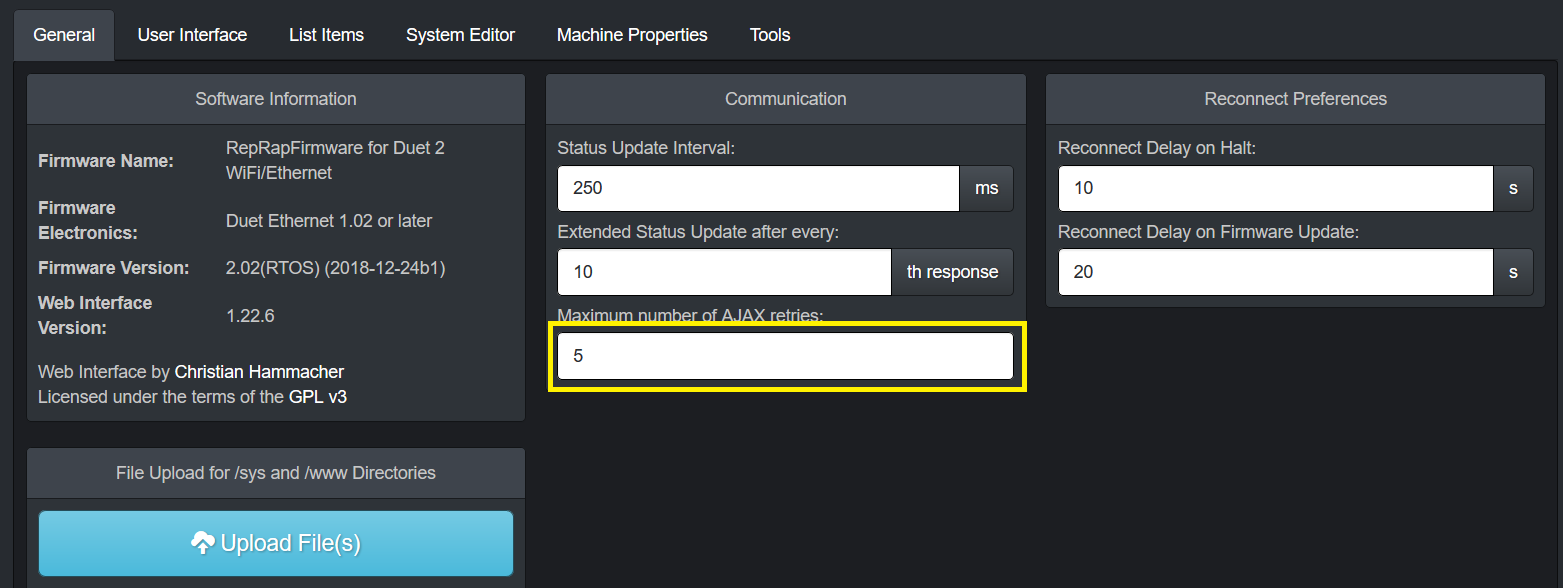
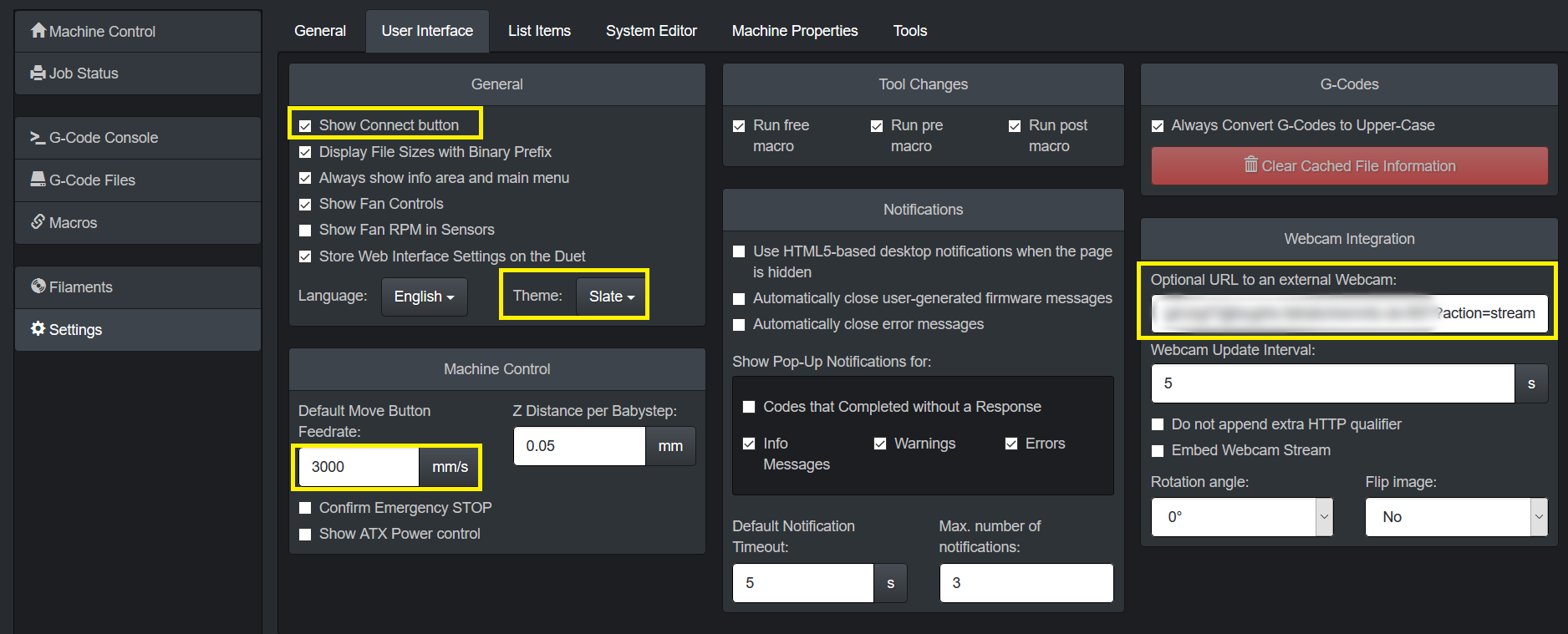
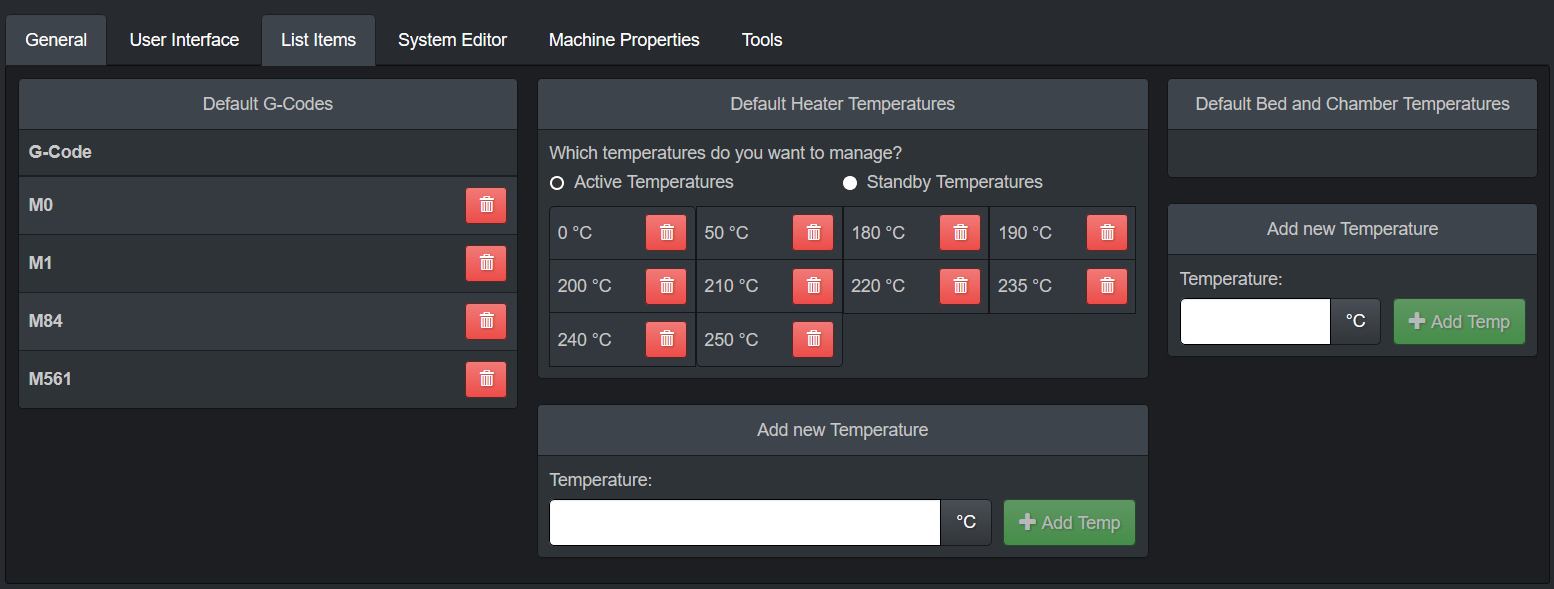
Strange looking values
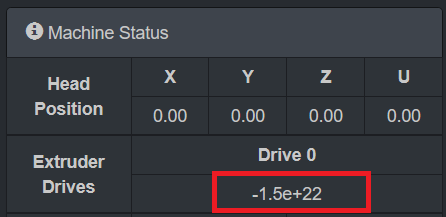
This is normal → "G92 E0 resets the virtual extruder position. This command is generated by slicers frequently when they use absolute extrusion, to avoid the build up of rounding error. However, the virtual extruder position is not useful to an end user, so DWC shows the total net extrusion instead, separately for each extruder. If you really want to check the virtual extruder position, use M114."
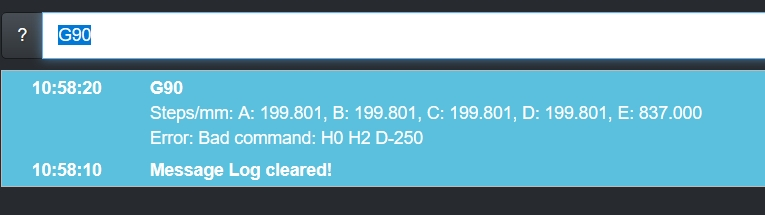
Troubleshooting "Error: Bad command"
This message sometimes happens permanently on every entered command after one command before was typed wrong. There is no known solution yet.
Security and access by external tools
Duet can be secured by password to omit unauthorized access. This prevents unwanted re-configuring by person from the local network.
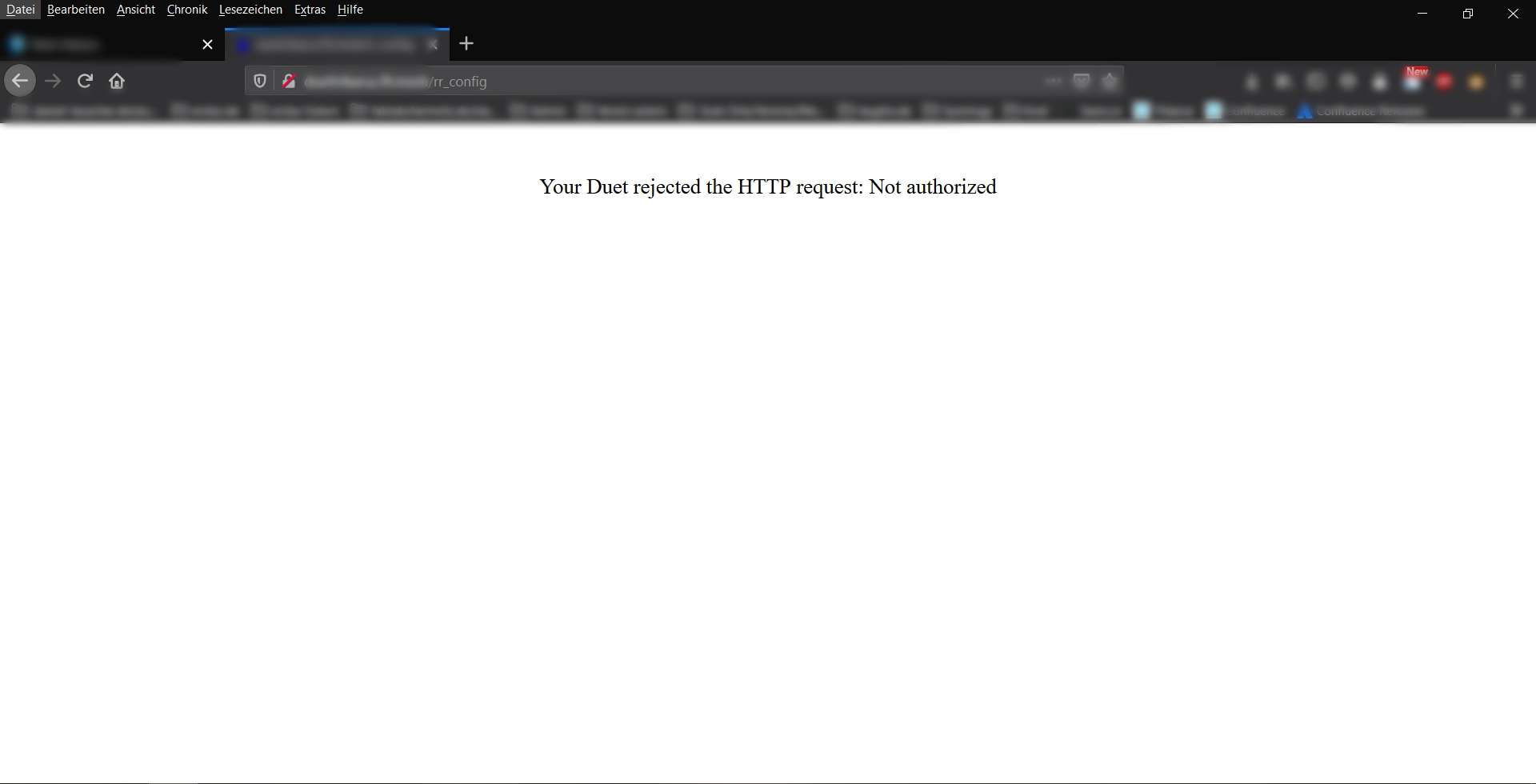
# authorize first
curl -u 'someUser:somePassword' --insecure https://hangdevice:81/rr_connect?password=thePassword
# response from above should be:
"{"err":0,"sessionTimeout":8000,"boardType":"duetethernet102"}"
# do some things (examples)
curl -u 'user:password' --insecure http://yourduet.local/rr_gcode?gcode=M114
curl -u 'user:password' --insecure http://yourduet.local/rr_download?name=0:/sys/config.g
curl -u 'user:password' --insecure http://yourduet.local/rr_status?type=3
curl -u 'user:password' --insecure http://yourduet.local/rr_filelist?dir=sysTroubleshooting
"The connection between the browser and your machine has been interrupted."
Sometimes DWC can not be accessed because "Reason: Unknown (SyntaxError: JSON.parse: unterminated fractional number at line 1 column 125 of the JSON data)" occcures. This can be fixed by sending "G92 X0 Y0 Z0" by Repetier Server console or by DWC JSON API (required to be authenticated previously)
curl -k yourduet.ffcmesh/rr_gcode?gcode=G92+X0+Y0+Z0You can check unparsable JSON at https://jsonlint.com.
You are about to log in to the site "$" with the username "$", but the website does not require authentication. This may be an attempt to trick you
You are about to log in to the site "$" with the username "$", but the website does not require authentication. This may be an attempt to trick you
The following message might appear in Firefox

Solution:
- Go to "about:config"
- Enter "network.http.phishy-userpass-length" and create a new value with "Number". Put in "255"
- Restart Firefox


Description
- Board is not available on LAN and does not update dynamic IP address, or
- Repetier does not show Duet fully available (if correctly available the symbol is green but in this case it is red "broken" or orange "trying to connect")




Solution
-
turn off PSU and turn off USB - we need to perform hard reset
#we use the aliases of root user
psu_off
usb_off
#wait some time
psu_on
usb_onCommunication to the firmware
- https://devhub.io/repos/chrishamm-DuetWebControl
- https://github.com/chrishamm/DuetWebControl/blob/master/src/store/machine/connector/PollConnector.js
Since RepRapFirmware can only process one HTTP request at a time (excluding rr_fileinfo and rr_upload on certain platforms), DuetWebControl should attempt to avoid parallel requests. In general, the communication between the web interface and RepRapFirmware looks like this:
- Establish a connection (via rr_connect)
- Send an extended status request (rr_status?type=2) and start status update loop
- Load macros (rr_filelist?dir=/macros)
- (User switches to “G-Code Files” tab)
- Stop automatic status updates
- Load G-code filelist (rr_filelist?dir=/gcodes)
- File info about each file is requested (unless cached values are available)
- Start automatic status requests again
- (User does something else)
- DWC disconnects (via rr_disconnect)
Note the interrupt of live updates while multiple long requests are processed. DWC implements two particular functions (stopUpdates and startUpdates) which can - and should - be used to stop status requests while long-running HTTP requests are being executed. The update loop is stopped when file uploads are started, too, however it is not required to interrupt the update loop while short requests (e.g. rr_gcode) are sent.
Some requests may send or expect date and time values. These values are represented by the format “YYYY-MM-DDTHH:MM:SS” similar to the ISO-8601 format.
List of HTTP requests
All HTTP requests, except for rr_upload, are simple GET requests that return JSON objects, which makes it easy to deal with them using JavaScript code. Here the list of all currently used requests:
rr_connect?password=XXX&time=YYY
Create an initial connection between DWC and RRF. - On success, the firmware sends out a response like: {“err”:0,“sessionTimeout”:[time in ms],“boardType”:“[board type]”} This way DWC can adjust the AJAX timeout value and set board-specific options. The “time” value should represent the client’s date and time to set the on-board RTC if necessary. - If anything goes wrong, the firmware only responds with an {“err”:[code]} object. If code is 1, then the specified password is wrong. If it is 2, then the firmware cannot allocate enough resources to accomodate another session.
rr_disconnect
Delete an existing HTTP session. This should be used to log off manually, however sessions are usually purged automatically if no communication takes place within the time specified in “sessionTimeout” above.
rr_status?type=XXX
Request a status response from the firmware which usually includes all the machine parameters that are expected to change from time to time. This makes it possible to display live values like XYZ position and heater temperatures. This type of request is usually sent to the firmware in rather short intervals (250ms by default). At this time there are three different supported status request types, which may be polled in different intervals:
- Type 1: Regular status request. The response for this is usually rather compact and only includes values that are expected to change quickly. The following types 2 and 3 include those values under any circumstances to keep the web interface up-to-date.
- Type 2: Extended status request. This type of request is polled right after a connection has been established. This response provides information about the tool mapping and values that can change.
- Type 3: Print status request. Unlike type 2, this type of request is always polled when a file print is in progress. It provides print time estimations and other print-related information which can be shown on the print status page.
rr_code?gcode=XXX
Send a G-code to the firmware. Since RepRapFirmware is generally only controlled by G-codes, this provides an interface to transmit codes from the web interface. This request returns the amount of currently available buffer space for incoming G-codes, however DWC does not actively use this response yet.
rr_upload?name=XXX&time=YYY
Upload a file to path XXX with the last modified date and time using an HTTP POST request. This is the only supported POST request in RepRapFirmware, however be aware that the POST request is no standard HTTP request. To make this work in the firmware, the payload (ie. file) has to be send in one chunk right after the HTTP header without any encapsulation. This mechanism is used to speed up transfers. Once complete, the firmware responds with {“err”:[code]}. If everything goes well, the error code will be 0 and 1 on failure.
rr_download?name=XXX
Download a specified file from the SD card.
rr_delete?name=XXX
Delete a file from the SD card. The firmware responds again with {"err":[code]} and the error code will be 0 on success.
rr_filelist?dir=XXX
Request a file list from the directory XXX. Unlike rr_files, which was used in past web interface versions, this request returns a JSON object which encapsulates each file in the following format:
{"type":[type],"name":"[name]","size":[size],"lastModified":"[datetime]"}
Type can be either ’d’ if it is a directory or ‘f’ if it is a regular file. The size is reported in bytes.
If an error occurs, the firmware will respond with {"err":[code]}. If the code is 1, the directory doesn’t exist. If it is 2, the requested volume is not mounted.
rr_fileinfo?name=XXX
Parse G-code file information from file XXX or return file information about the file being printed if the key is omitted. RepRapFirmware implements a dedicate function to retrieve information from a G-code file (see also M36) which may be used on the G-code file list and on the print status page.
rr_move?old=XXX&new=YYY
Move a file on the SD card from XXX to YYY. Returns {“err”:[code]} after completion where code will be 0 if the request was successful.
rr_mkdir?dir=XXX
Create a new directory. Returns {“err”:[code]} with code being 0 if the directory could be created.
rr_config
Get the configuration response. Some printer information do not need to be requested for regular usag but to obtain machine properties and firmware versions this request can be used.
Upload by PrusaSlicer

For this job two syntax variants can be used
- Enter https://htupser:htpassword@your.domain.de/rr_connect?password=yourpassword in URL field and leave password field empty
- Enter https://htupser:htpassword@your.domain.de and enter your Duet password in "password" field
Duet Web Control and Repetier Server Macros
Baby Stepping - clear (set zero)
M290 R0 S0 ;clear babysteppingBaby Stepping - Down 0.1 mm
M290 S-0.1Show network config
M552
M540Change to static IP address (switch mode)
This macro makes only sense in Repetier Server!
For Duet of Trikarus we use 169.254.XXX.XXX. This also could be integrated/replaced in config.g file.
M552 S0 ;disable network
;M553 P255.255.0.0
M553 P255.255.255.0 ;set netmask
M552 S1 P169.254.XXX.XXX ;set static IPChange to static IP address (mesh mode)
In mesh mode Duet receives a changing IP by DHCP all the time. But you can also set a static IP address if that IP is free and not conflicting with other devices. It can be a good idea to use IP addresses in range 10.149.0.2 - 10.149.0.254. For Duet of Trikarus we use 10.149.YYY.YYY. This also could be integrated/replaced in config.g file. Please note that hangdevice needs to be in the same network (e.g. 10.149.YYY.YYY), otherwise it is not reachable!
At the moment this mode is not used
;M552 S0 ;disable network
;M553 P255.255.0.0
;M553 P255.255.255.0 ;set netmask
;M552 S1 P10.149.YYY.YYY ;set static IP
M117 "Not used at the moment. Please use dynamic IP address"Change to dynamic IP address (mesh mode)
M552 S0 ;disable network
M552 S1 P0.0.0.0Allow outbound movements
M564 S0 H0Disallow outbound movements
M564 S1 H0Enable Smart Steppers
G0 H2 A0.01
G0 H2 B0.01
G0 H2 C0.01
G0 H2 D0.01Diagnostics (M122)
M122rotaryEncoderTest
;heat up the nozzle to 205 °C and wait for it
G10 P0 R140 S205
T0
M116
;50 times extrude and retract 5 mm with 60 mm/s
G1 E-5 F3600
G1 E+5 F3600
G1 E-5 F3600
G1 E+5 F3600
G1 E-5 F3600
G1 E+5 F3600
G1 E-5 F3600
G1 E+5 F3600
G1 E-5 F3600
G1 E+5 F3600
G1 E-5 F3600
G1 E+5 F3600
G1 E-5 F3600
G1 E+5 F3600
G1 E-5 F3600
G1 E+5 F3600
G1 E-5 F3600
G1 E+5 F3600
G1 E-5 F3600
G1 E+5 F3600
G1 E-5 F3600
G1 E+5 F3600
G1 E-5 F3600
G1 E+5 F3600
G1 E-5 F3600
G1 E+5 F3600
G1 E-5 F3600
G1 E+5 F3600
G1 E-5 F3600
G1 E+5 F3600
G1 E-5 F3600
G1 E+5 F3600
G1 E-5 F3600
G1 E+5 F3600
G1 E-5 F3600
G1 E+5 F3600
G1 E-5 F3600
G1 E+5 F3600
G1 E-5 F3600
G1 E+5 F3600
G1 E-5 F3600
G1 E+5 F3600
G1 E-5 F3600
G1 E+5 F3600
G1 E-5 F3600
G1 E+5 F3600
G1 E-5 F3600
G1 E+5 F3600
G1 E-5 F3600
G1 E+5 F3600
G1 E-5 F3600
G1 E+5 F3600
G1 E-5 F3600
G1 E+5 F3600
G1 E-5 F3600
G1 E+5 F3600
G1 E-5 F3600
G1 E+5 F3600
G1 E-5 F3600
G1 E+5 F3600
G1 E-5 F3600
G1 E+5 F3600
G1 E-5 F3600
G1 E+5 F3600
G1 E-5 F3600
G1 E+5 F3600
G1 E-5 F3600
G1 E+5 F3600
G1 E-5 F3600
G1 E+5 F3600
G1 E-5 F3600
G1 E+5 F3600
G1 E-5 F3600
G1 E+5 F3600
G1 E-5 F3600
G1 E+5 F3600
G1 E-5 F3600
G1 E+5 F3600
G1 E-5 F3600
G1 E+5 F3600
G1 E-5 F3600
G1 E+5 F3600
G1 E-5 F3600
G1 E+5 F3600
G1 E-5 F3600
G1 E+5 F3600
G1 E-5 F3600
G1 E+5 F3600
G1 E-5 F3600
G1 E+5 F3600
G1 E-5 F3600
G1 E+5 F3600
G1 E-5 F3600
G1 E+5 F3600
G1 E-5 F3600
G1 E+5 F3600
G1 E-5 F3600
G1 E+5 F3600
G1 E-5 F3600
G1 E+5 F3600Turn off Laser Pointers
In Repetier Server this works not fine out of the box using the "fan control", so we use a special macro (not required for Duet Web Control).
Duet Web Control vs Repetier Server
The following table compares some essential features required for Trikarus project.
| Feature | DWC | Repetier Server |
| API /remote access | ✅ JSON |
✅ http, websocket |
| Webcam Support | ✅ | ✅ |
| Timelapse videos | ⛔ | ✅ |
| Job Management | ✅ | ✅ |
| OS System commands | ⛔ not possible due to missing underlying Linux system | ✅ |
| Mesh Bed Compensation / Grid View | ✅ | ⛔ https://forum.repetier.com/discussion/6968/visual-bed-levels |
| Exclude GCode regions | ⛔ | ✅ |
| GCode Macros | ✅ | ✅ |
| LUA Scripting | ⛔ | ✅ |
Why to use both software products?
Both software pieces have advantages and disadvantages over each other in the concrete setup. For example sometimes Duet fails to announce it's IP address in the network correctly while Repetier Server is still able to communicate with Duet by USB. DWC also sometimes crashes by some bugs which prevent to access the user interface. So it's good to have 2 independent solutions which do not block each other.
Freifunk Mesh Repeater / Access Point
Trikarus uses Freifunk firmware router to build up a network which can be used remotely. The router can be accessed from outside by SSH or just by another Freifunk router, also by SSH. You can also access the Freifunk router by the connected Raspberry Pi which has external connection with wireguard. This allows to build a long communication road (client computer → Wireguard server → Wiregard client @ Raspberry Pi → Freifunk router)
ssh root@<DEVICE-IPV6>Reasons to access Trikarus devices from external / outside
- Access to the web services (Raspberry Pi, Repetier Server, Duet Web Control, Grafana, InfluxDB, webcam, ...)
-
Access to the Freifunk node via SSH key
SSH Access
Freifunk router can be accessed from wide web and from localhost network over IPv6. Using the IPv4 network does not work (either from localhost nor from outside). This was tested from different clients with result of a "permission denied". Guess it's a configuration setting in dropbear which i did not change and which i don't want or need to change.
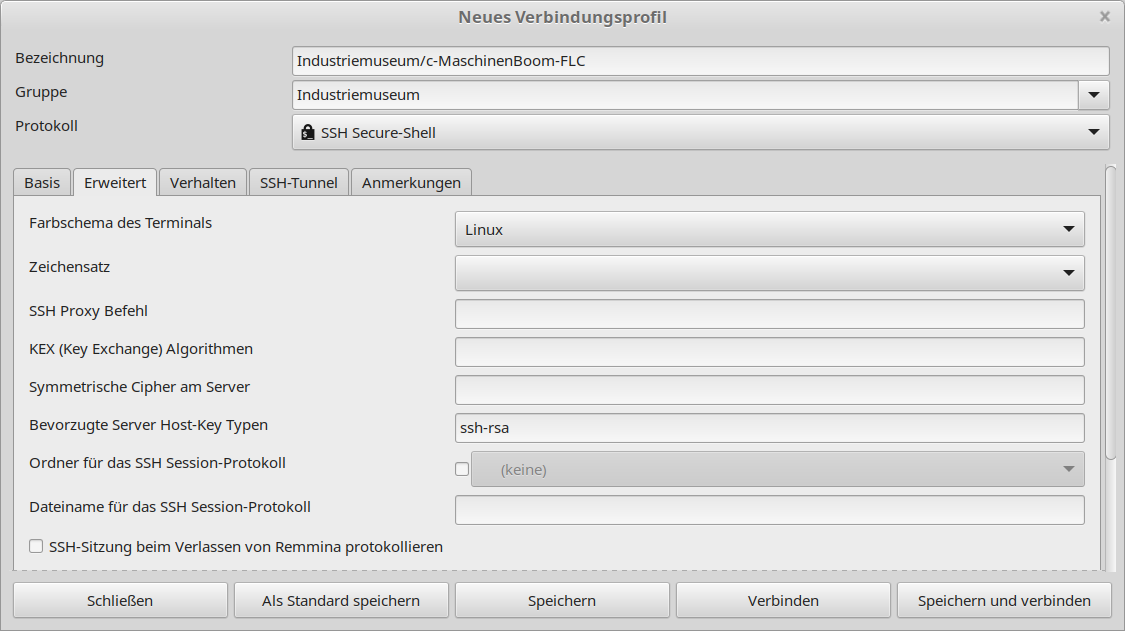
Accessing Freifunk via Remmina might require to use password only, because it does not accept the right KEX algorithms (some strange behaviour with dropbear). We might also need to add "ssh-rsa" to host key types. While Remmina might fail regular gnome shell should work flawlessly.
#helpful debugging for KEX algorithms:
ssh -vvv root@<DEVICE-IPV6>Overview
- Hardware: Router TL-WR842N by TP-Link
- Firmware: firmware.chemnitz.freifunk.net/chemnitz/stable/factory/gluon-ffc-b20171101%2Brly20200120%2Bv2017.1.8-tp-link-tl-wr842n-nd-v3.bin
Configuring device name
https://wiki.freifunk.net/Konsole#Routernamen_.C3.A4ndern
uci set system.@system[0].hostname='theHostName'
uci commit system
rebootSetting datetime
It might happen that the router is up and running fine but time is not up to date. If the time is not set properly cronjobs will fail.
date
#Tue Aug 7 19:44:38 CEST 2018
#fix the time to match with recent time (enter manually). You could also sync with a time server
date --set '2020-06-21 00:38:00'GEO coordinates
We can get latitude and longitude by mapcoordinates.net for example.
uci set gluon-node-info.@location[0]='location'
uci set gluon-node-info.@location[0].share_location='0'
uci set gluon-node-info.@location[0].latitude='someValue'
uci set gluon-node-info.@location[0].longitude='someValue'
uci commit#Flush firewall rules temporarily or allow everything
iptables -F
iptables -P INPUT ACCEPT
iptables -P FORWARD ACCEPT
iptables -P OUTPUT ACCEPT
#Some testings
ping -6 <DEVICE-IPV6>
telnet <DEVICE-IPV6> 22
telnet <DEVICE-IPV6> 80
swconfig dev switch0 show | grep 'link:'
# Read global IPv6 address
ifconfig | grep Global
#Find IP addresses of devices with a given MAC address
batctl dc | grep "<RASPI-MAC>" | awk -F ' ' '{print $2}' #hangdevice
batctl dc | grep "<DUET2-MAC>" | awk -F ' ' '{print $2}' #Duet 2 Ethernet - see config.g
vim /etc/config/uhttpdRemove unrequired SSH keys from unkown admins
vim /etc/dropbear/authorized_keysNotes
 it seems that Ed25519 key pairs on Freifunk Gluon using dropbear, which were generated with KiTTY Keygen and uploaded to server + client, cause undefinable bugs with SSH connection. RSA key pairs work properly.
- IPv6 sometimes fails so router is not always available from regular web. SSH sometimes fails to access from outside which makes it harder to maintain.
- Freifunk Chemnitz does not work in other cities. It cannot easily mesh to other Freifunk nodes than. A better approach to be fully mobile would be use a router with SIM card or to have some WAN access to plug an uplink cable into the router. Maybe another device could be utilized with IC-VPN
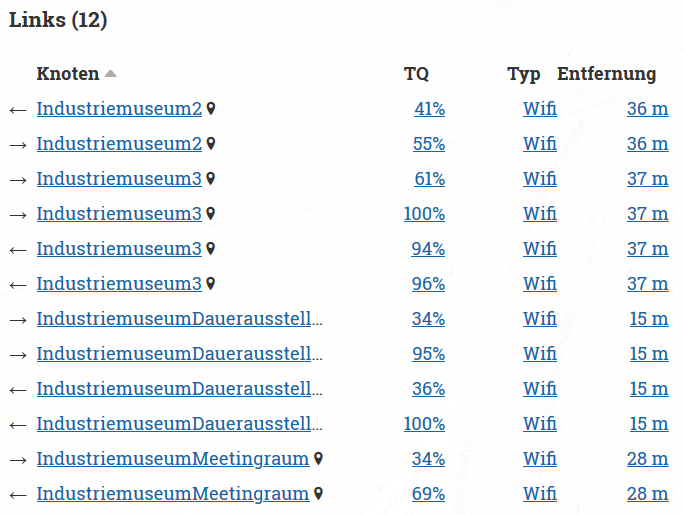
- Meshing is often unstable when TQ (transfer quality) value is low. It results in dropping packages and lower bandwidth

DNS / resolving of hostnames
device names / host names are not announced in Freifunk network to have better anonymity. There is only IPv4 and IPv6 to communicate (e.g. "nslookup 10.149.11.71" returns "Server: UnKnown"). To get all devices from .ffcmesh you can run arp-scan from any Windows or Linux client. This way it can be monitored device availibility from outside by comparing recent IP addresses with fixed MAC addresses.
Private SSID (second SSID next to chemnitz.freifunk.net)
SSID="SSID"
KEY="KEY"
uci set wireless.wan_radio0=wifi-iface
uci set wireless.wan_radio0.device=radio0
uci set wireless.wan_radio0.network=wan
uci set wireless.wan_radio0.mode=ap
uci set wireless.wan_radio0.encryption=psk2
uci set wireless.wan_radio0.ssid="$SSID"
uci set wireless.wan_radio0.key="$KEY"
uci set wireless.wan_radio0.disabled=0
#uci set wireless.wan_radio0.hidden=1 #do NOT hide SSID because it won't be found
uci set wireless.wan_radio0.macaddr=$(lua -e "print(require('gluon.util').generate_mac(3))")
uci commit wireless
wifigood tool to check SSIDs → https://www.nirsoft.net/utils/wifi_information_view.html
Switch mode vs mesh mode and over night security
In default mode the Freifunk router lets connect all Wifi and LAN clients to the Layer 2 switch of the Freifunk net. Sometimes this is unstable and even local clients cannot connect to each other on the same local switch. Furthermore it's possible to do port scans from all other Freifunk nodes to the locally connected devices (exposed hosts). To prevent attacks and port scans over night, the idea is to disable the Raspberry Pi and Duet devices to be in Freifunk network in a defined time slot. To do this we can move the eth0 interface from LAN to WAN. Then they will talk only like at a regular switch and they will have no access to the internet. The switching mode defaults the locally connected devices (Raspberry Pi, Duet, client computer) to be in IP range 169.254.XXX.XXX instead of 10.149.XXX.XXX.
See also
- Network overview and hardening
- Duet Web Control and Repetier Server Macros
- Duet 2 and Duet Web Control
Mode swichting manually
Check the current state
uci get network.client.ifname
uci get network.wan.ifnameswitch mode: WAN at all LAN ports (undo mesh mode)
uci set network.client.ifname=bat0
uci set network.wan.ifname='eth0 eth1'
uci commit network
/etc/init.d/network restartMesh mode (default mode): client network on LAN ports (undo switch mode)
uci set network.client.ifname='bat0 eth0'
uci set network.wan.ifname=eth1
uci commit network
/etc/init.d/network restartAs all-in-one command from hangdevice
vim /opt/switchmode.shsource /opt/repetier-conf.sh
timeout 5 ssh -i /root/.ssh/theHostName <root@DEVICE-IPV6> "uci set network.client.ifname=bat0 && uci set network.wan.ifname='eth0 eth1' && uci commit network && /etc/init.d/network restart"
if [[ $? != 0 ]]; then #check error code. might return 255 for "no route to host" or similar
send_gcode 'M291 P\"Switch mode script failed\"'
echo "Switch mode script failed"
fichmod +x /opt/switchmode.shThis is configured as alias "swimo" in /root/.bash_aliases
To switch back from switch mode to mesh mode you need to connect to the router from outside localhost! You should be able to do this by just connecting to chemnitz.freifunk.net by Wifi instead by LAN.
Over night change to swichting mode
The scripts as crontab
In Gluon there is no /etc/cron.d directory
#edit crontab - do this always this way. otherwise a file named "crontab.update" is left over all the time and changes are not recognized. As long as the crontab.update file exists the crontab is not updated accordingly.
crontab -e# Disable LAN devices to be part of Freifunk network after 20:00
0 20 * * * uci set network.client.ifname=bat0 && uci set network.wan.ifname='eth0 eth1' && uci commit network && /etc/init.d/network restart
# Enable LAN devices to be part of Freifunk network after 7:00
0 7 * * * uci set network.client.ifname='bat0 eth0' && uci set network.wan.ifname=eth1 && uci commit network && /etc/init.d/network restart
# debugging crontab - use this if crontab is not triggered accordingly
#* * * * * env > /tmp/env.outputFor better debugging we can also try to grab the output by accessing Freifunk router externally using ssh. Because dropbear ssh has no rsync we cannot use rsync synchronization between hangdevice and Freifunk router. But we can use regular ssh command to do like this:
ssh -i /root/.ssh/theHostName <root@DEVICE-IPV6> 'cat /tmp/env.output'USB slot / mount point
Note: USB devices on the Freifunk router are not directly possible to workby default, but can be activated later via detours. This requires a deeper recofiguration.
More info
- https://forum.freifunk.net/t/zugriff-auf-geraet-hinterm-freifunk-router/10596/10
- https://forum.freifunk-muensterland.de/t/was-bedeutet-der-tq-wert/975
- https://forum.freifunk.net/t/gluon-keine-namensaufloesung-an-br-wan/15288/5
- https://forum.ffrn.de/t/warum-funktioniert-das-dns-auf-meinem-knoten-nicht/587
- https://kbu.freifunk.net/wiki/index.php?title=Pimp_my_Node
- https://wiki.freifunk-3laendereck.net/Router:_Manuelle_Konfiguration#Router_als_Switch_-_WAN-_und_Switch
- https://github.com/freifunk-gluon/gluon/wiki/Commandline-administration
mkcert & Go
We use mkcert tool to make secure localhost connections. For mkcert we need Go language installed.
Installation
wget https://dl.google.com/go/go1.18.1.linux-armv6l.tar.gz
sudo tar -C /usr/local -xvf go1.18.1.linux-armv6l.tar.gz
cat >> ~/.bashrc << 'EOF'
export GOPATH=$HOME/go
export PATH=/usr/local/go/bin:$PATH:$GOPATH/bin
EOF
source ~/.bashrc
go version
sudo ln -sf /usr/local/go/bin/{go,godoc,gofmt} /usr/local/bin/apt install libnss3-tools
cd /opt
git clone https://github.com/FiloSottile/mkcert && cd mkcert
go build -ldflags "-X main.Version=$(git describe --tags)"
#remove previously generated cert stuff if exist
cd ~/.local/share/mkcert/
rm rootCA-key.pem
rm rootCA.pem
#stay in this dir and generate new certs
/opt/mkcert/mkcert -install "hangdevice" "hangdevice.ffcmesh" "yourduet" "yourduet.ffcmesh" "localhost" "127.0.0.1"
mv hangdevice+*-key.pem trikarus-key.pem
mv hangdevice+*.pem trikarus.pem
#get the output for client (Firefox, Chrome, ...)
cat rootCA.pem
cat hangdevice+5-key.pem
cat hangdevice+5.pem
#the root CA can also be found by
ll /etc/ssl/certs | grep mkcert_development_CA_+
#put the generated certs into target dir
cp trikarus-key.pem /etc/ssl/private/
cp trikarus.pem /etc/ssl/certs/
#Using Root CA, cert and key you get the complete bundleImport custom cert into Windows client certificate storage
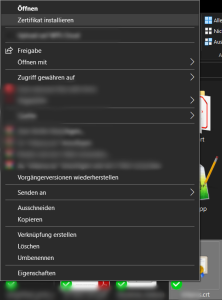
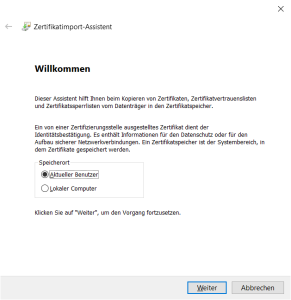
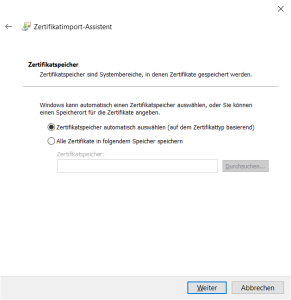
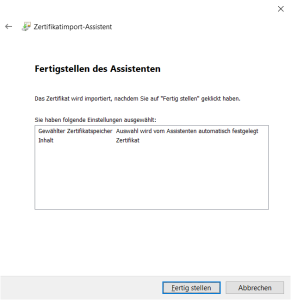
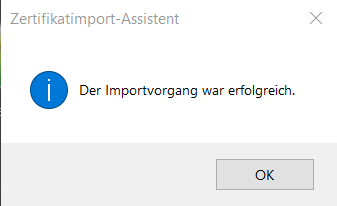
Import custom cert into Firefox
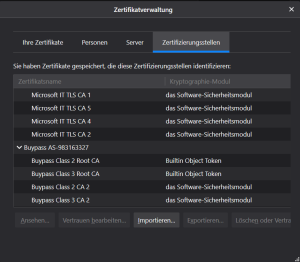
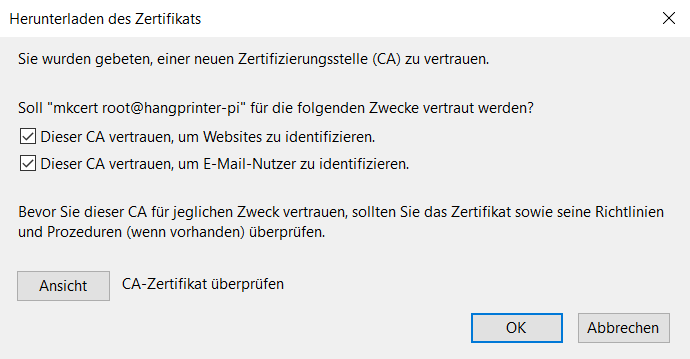

Import custom cert into Google Chrome
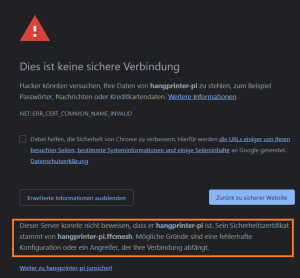
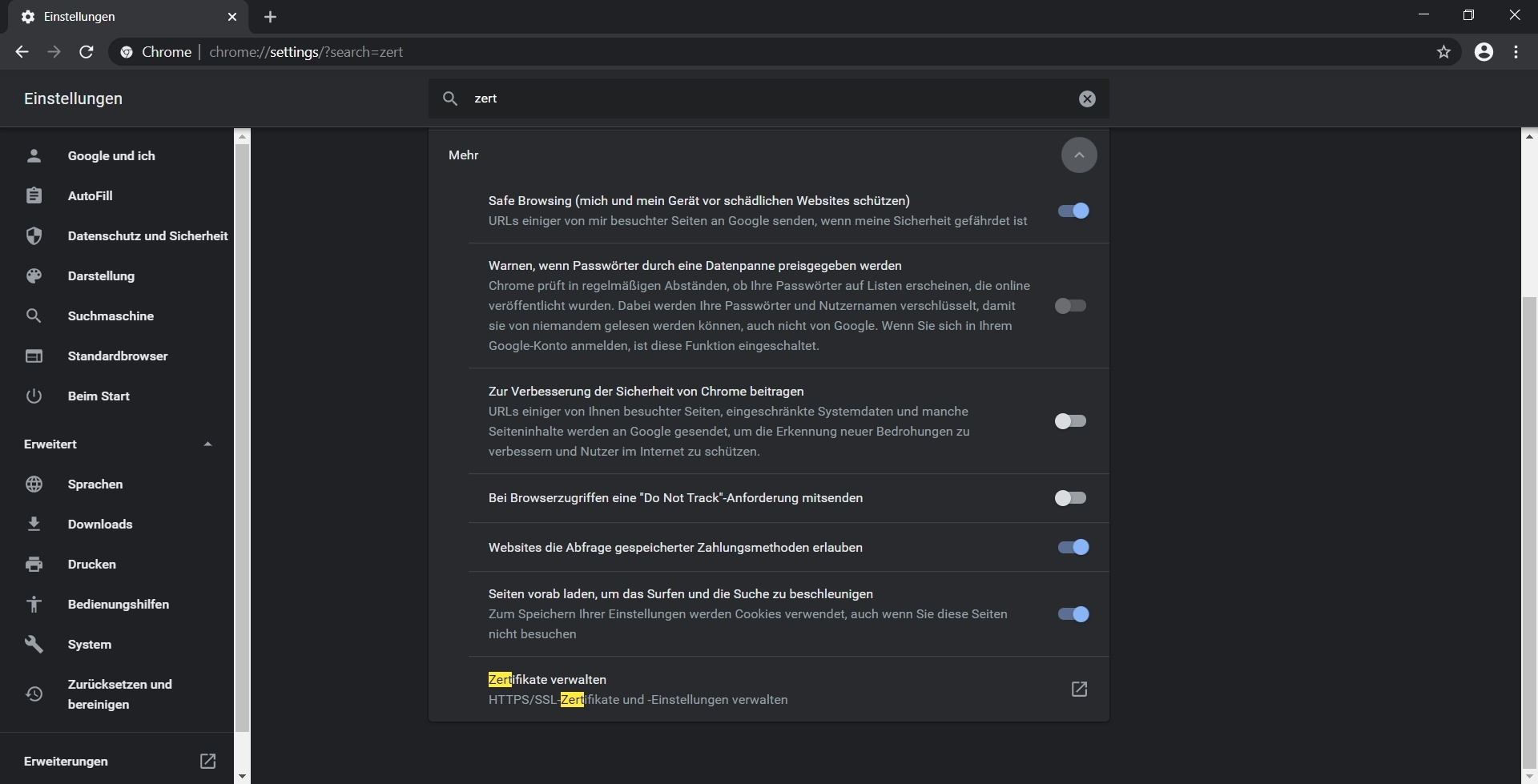
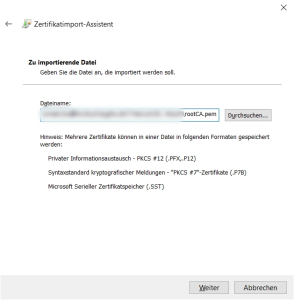
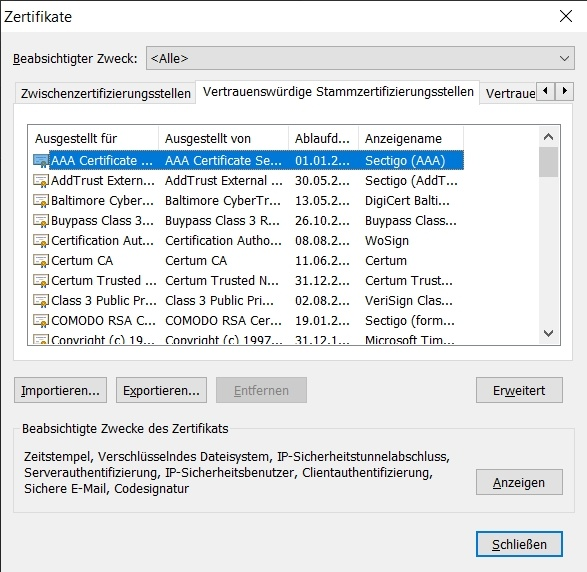
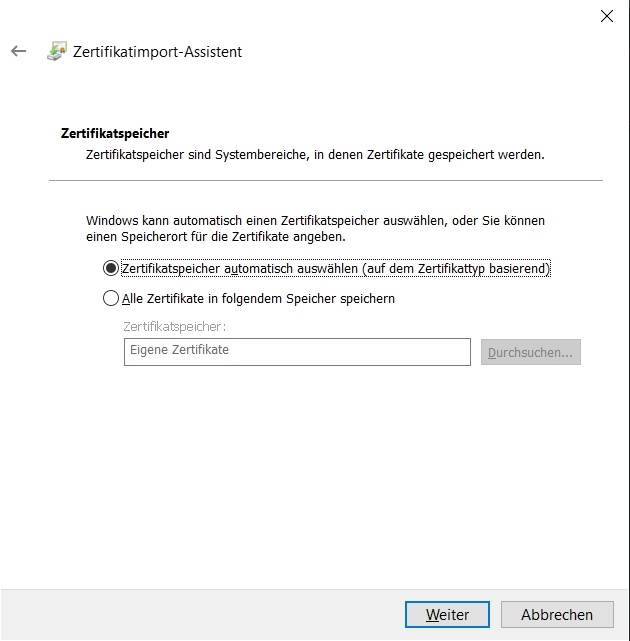
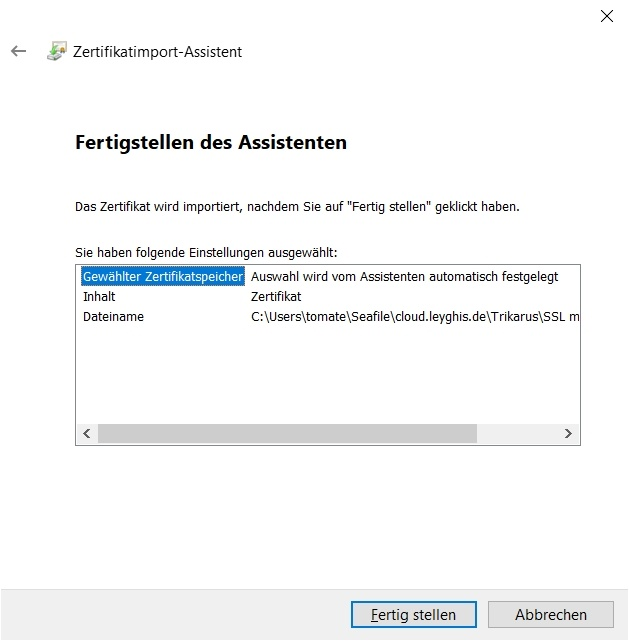
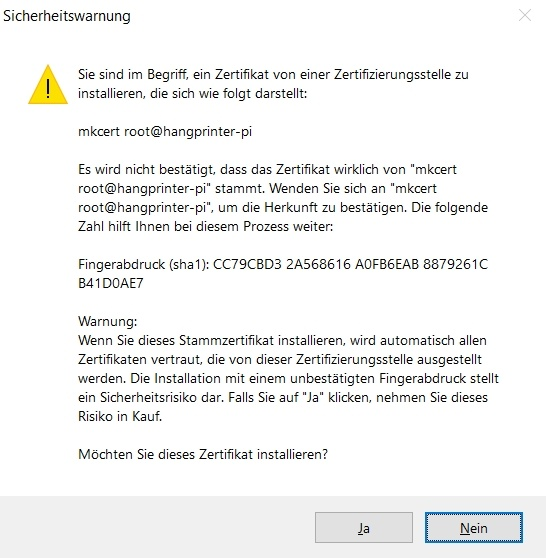
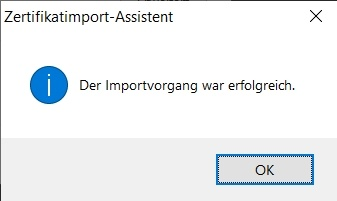
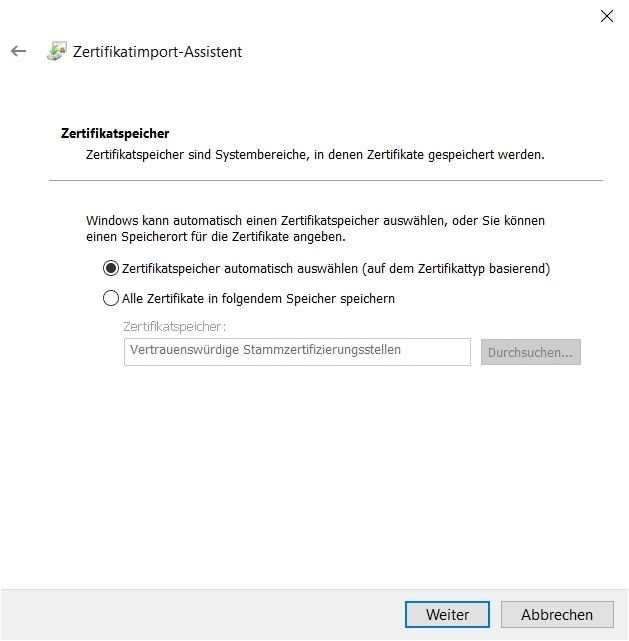
Mobile access using tablet
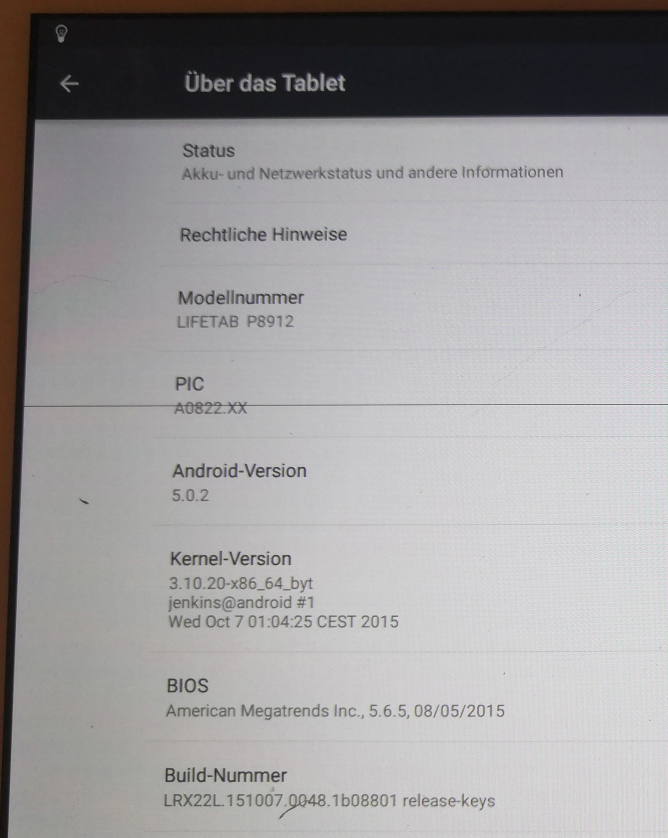
Trikarus uses a Tablet Lifetab P9812 by Medion to show the Repetier Server frontend and Grafana. For security reason the tablet is fully encrypted and secured py PIN.
Android version is 5 (Lollipop) → Installed Update is P891x_Update_4.zip
Network configuration
- The wifi on the device is configured to be connected to local Wifi SSID from the router only. If you connect to freifunk.chemnitz.net ensure that the network is not stored or auto connection to this network is disabled. Otherwise connection might fail.
- the tablet is intended only for local use (no network forwarded communication over Freifunk or Wireguard)
- IP configuration is static (because in DHCP mode it does not obtain an IP). For every device we connect to the SSID we have to configure static settings manually:
- IP: 169.254.XXX.XXX
- Gateway: 169.254.XXX.1
- DNS: 169.254.XXX.1
- Prefix length: 24
- using the static IP the device does not know about the host names of Raspberry Pi or Duet, but it can connect to IP addresses.
- using USB debugging the /etc/hosts file on the tablet could be adjusted manually
-
if the Wifi does not work
- go to the center of the printer. The Wifi range is so poor that it does not work for more than 2 meters distance sometimes
- correctly anymore reboot the tablet!
F-Droid Classic Installer
https://archive.org/details/eu.bubu1.fdroidclassic_1106
Firefox Browser for Android
DIY Unlocker
→ Stadtfabrikanten e.V. Bild anzeigen als Werbung
MacroDroid
Automatically turn light on in the morning (and keep it) and turn off again when museum is closing.
Monitoring and alerting
Hangprinter consists of a lot of electronic components which can be monitored in different ways. Due to its network infrastructure and device use there are some web pages to get metrics or general information from. The target of Trikarus infrastructure is to monitor different activities and to visualize the data in an easy way. The exact purpose is to use this data for analyzing and improving Hangprinter. A good overview of system stability and concurrent events which might interfere while doing prints or calibration is really important. So a lot of longterm data can be more helpful than volatile data (data in the moment it happens). We can see if devices reach the end of their life or components getting too hot for example. With certain sets of information we can handle advanced actions like triggering emergency halt, pause the print or do things like send warning emails (alerts), SMS or other push notifications. Mainly the data comes from collectd and InfluxDB storage. Different plugins and scripts (bash, Python) do the readout of regarding system states and store them to the according databases. Next to a standard monitoring of some basic system metrics like processes, CPU utilization, uptime, swap, etc. the following things are going to be monitored.
Monitoring and alerting | Filament sensing with KY-040 Rotary Encoder
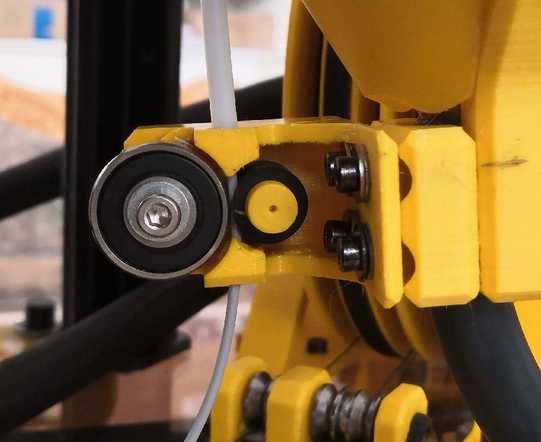
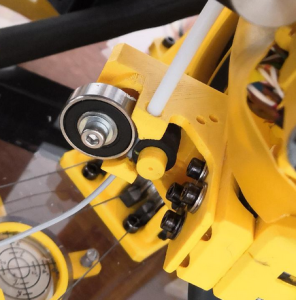
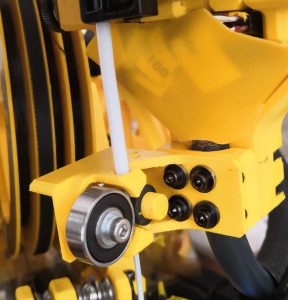
The encoder is not mounted at the moment because hardware failed (but software works well)
Targets
The rotary encoder can be used to monitor the direction and speed of filament feeding or retracting (mm/s), or at least the amount of moved filament (mm). If it does not give rotational feedback while Trikarus is printing that will be useful information. The information can be used to trigger events like pausing the print job or similar:
- the hotend is not warm enough to extrude
- the filament is slipping or grinding at the gears
- filament is just empty
- filament diameter is too thick → clogged
- something else happened that prevents rotating the axis of the encoder. It might also be an encoder problem itself. The movement of the encoder axis is done by a small rubber cylinder. That rubber part might get rubbish after some kilometers of movement due to wear. It seems that the used rubber gets more softly when moving all the time. Thus leads to raw filament string slipping.
The filament sensor can also be used to analyse how much filament per second the extruder can push through the nozzle at a defined temperature and steps/mm. If you try to punch the filament through the nozzle with exceeding speeds, the encoder will not rotate like theoretically exspected. The deviation between real and desired value can be easily measured with this sensing tool. So it was done. It figured out that Super Volcano cannot push filament with 60 mm/s through nozzle at heating temperature of 240 °C. A good upper limit is around 30 mm/s. You can read about here too: Printer profiles, slicing and filaments
Encoders are imperfect, there will be a position error that we just have to expect and accept. With a constant Δt approach, this translates into a constant worst-case speed error, independent of speed. The choice of Δt:
- If we choose a large Δt, we get a low bandwidth and large time lag, but we get very low speed error
- If we choose a small Δt, we get very high bandwidth and small time lag, but we get high speed estimation error
The rotary encoder is also used to switch the Smart Stepper modes. It's button is wired up and monitored by a python detection script which will change the modes accordingly. See Smart Stepper - Overview for more information on how to do this.
Setting up
Based on https://pypi.org/project/pigpio-encoder
The switch (knob function) of the KY040 Encoder is wired up too, but it is not used. IT could be implemented to perform some gimmick like triggering an action if some specific trigger pattern or behaviour was recognized - for example (e.g. pressing 3 times could quickly put Smart Stepper into torque mode or back to normal operation).
To monitor slow filament feeding, the debouncing has to be really low. It was tested with default values which did not trigger properly. I ended up using 10 ms as a good woring value for feed speeds from 1 mm/s up to to 30 mm/s. The monitoring happens in different parts. At first a Python service script is created and running all the time to monitor filament movement. It will calculate data like rounds per minute, speed and more. The data will be written to journald (systemd unit). A second python script will grab that data by hooking up the journald output stream
apt install python3-pip
pip3.7 install pigpio
pip3.7 install influxdb
pip3.7 install systemdvim /opt/gpio/rotaryEncoder.pyimport pigpio
from datetime import *
from time import sleep
import time, math
import logging
from systemd.journal import JournaldLogHandler
from influxdb import InfluxDBClient
import urllib3
urllib3.disable_warnings(urllib3.exceptions.InsecureRequestWarning)
logger = logging.getLogger('rotaryEncoder')
logger.addHandler(JournaldLogHandler())
logger.setLevel(logging.DEBUG)
sequence = []
sequence_up = ['dt1', 'clk1', 'dt0', 'clk0']
sequence_down = ['clk1', 'dt1', 'clk0', 'dt0']
debounce = 10
clk = 12
dt = 6
clk_input = pigpio.pi()
dt_input = pigpio.pi()
clk_input.set_glitch_filter(clk, debounce)
dt_input.set_glitch_filter(dt, debounce)
# process params
dist_meas_mm = 0.00
olddist_meas_mm = 0.00 # last loop
mm_per_s = 0
rpm = 0
elapse = 0
pulse = 0
gust = 0 # last gust
avg = 0 # last average
sleeptime = 0.1 # secs between reporting loop
gustint = 3 # secs to calc gust (>sleeptime)
avgint = 5 # secs to trigger average calc (>gustint)
secsnoread = 6 # number of seconds rotor is stationary before a 'no read' is declared and set result to zero
loopcount = 0 # a'nothing is happening' counter
d_eff = 11.5 # mm effective diameter of the rubber wheel where filament strives over
lmove = math.pi * d_eff / 12 # mm circumference which are rotated at the encoder by one tick
start_timer = time.time() # for interrupt function
gust_timer = time.time() # start of this gust timing
gustm_start = dist_meas_mm # start of this gust distance
avg_timer = time.time() # start of this average timing
avgm_start = dist_meas_mm # start of average distance
# build some database connection
client = InfluxDBClient(host='localhost', port=8086, username='username', password='password', ssl=False, verify_ssl=False)
#client.ping()
client.switch_database('trikarus')
#print(client.query('SHOW DATABASES'))
#print(client.query('SHOW MEASUREMENTS'))
def clk_fall(gpio, level, tick):
if len(sequence) > 2:
sequence.clear()
sequence.append('clk1')
# interrupt
def clk_rise(gpio, level, tick):
sequence.append('clk0')
if sequence == sequence_up:
sequence.clear()
calculate_elapse(1)
def dt_fall(gpio, level, tick):
if len(sequence) > 2:
sequence.clear()
sequence.append('dt1')
# interrupt
def dt_rise(gpio, level, tick):
sequence.append('dt0')
if sequence == sequence_down:
sequence.clear()
calculate_elapse(-1)
# callback function
def calculate_elapse(increment):
global pulse, start_timer, elapse
pulse += increment # increase/decrease pulse whenever interrupt occurred
elapse = time.time() - start_timer # elapsed time
start_timer = time.time() # let current time equals to start_timer
def calculate_speed():
global rpm, olddist_meas_mm, dist_meas_mm, mm_per_s
try:
rpm = 1 / elapse * 60
mm_per_s = lmove / elapse
dist_meas_mm = lmove * pulse # measure distance traverse
if dist_meas_mm == olddist_meas_mm:
mm_per_s = 0
rpm = 0
if dist_meas_mm < olddist_meas_mm: # this indicates the switch between cw and ccw rotation
mm_per_s = -1 * mm_per_s
return mm_per_s
except ZeroDivisionError:
pass
# gust is synonym for onrush
def calcgust():
global gust_timer, gustm_start, avg_timer, avgm_start, gust, avg
gustime = time.time() - gust_timer # how long since start of gust check?
if gustime >= gustint: # then calc average speed over gust time
gustmm = (dist_meas_mm - gustm_start) # how far since start of gust check
thisgust = gustmm / gustime
# print('gust', gustime, gustmm, thisgust, gust)
if thisgust > gust:
gust = thisgust
gust_timer = time.time() # reset
gustm_start = dist_meas_mm
avgtime = time.time() - avg_timer # how long since start of avg check?
if avgtime >= avgint: # then calc average speed over avg time
avgmm = (dist_meas_mm - avgm_start) # how far since start of avgcheck
thisavg = avgmm / avgtime
# print('avg', avgtime, avgint, avgmm, thisavg)
avg = thisavg
avg_timer = time.time() # reset
avgm_start = dist_meas_mm
gust_timer = time.time()
gustm_start = dist_meas_mm
if avg != 0:
report('average')
gust = 0 # reset max gust over average duration as well
avg = 0 # and reset avg in case of calm
def report(mode):
if mode == 'realtime':
json_body = [
{
"measurement": "rotary_encoder",
"tags": {
"host": "hangdevice.fablabchemnitz.de"
},
"time": datetime.utcnow().strftime('%Y-%m-%dT%H:%M:%SZ'),
"fields": {
"rpm": float(rpm),
"mm_per_s": float(mm_per_s),
"dist_meas_mm": float(dist_meas_mm),
"pulse": float(pulse),
"elapse": float(elapse * 1000.0) #report them as milliseconds to the InfluxDB
}
},
]
client.write_points(json_body)
logger.info("rpm:{0:.0f} mm_per_s:{1:.1f} dist_meas_mm:{2:.2f} pulse:{3} elapse:{4}".format(rpm, mm_per_s, dist_meas_mm, pulse, elapse))
elif mode == 'average':
json_body = [
{
"measurement": "rotary_encoder",
"tags": {
"host": "hangdevice.fablabchemnitz.de"
},
"time": datetime.utcnow().strftime('%Y-%m-%dT%H:%M:%SZ'),
"fields": {
"gust": float(gust),
"avg": float(avg)
}
},
]
client.write_points(json_body)
logger.info("{0:.1f} Gust (mm/s), {1:.1f} Average (mm/s)".format(gust, avg))
elif mode == 'error':
logger.info("dead calm or connection fault")
else:
logger.warning('bad report mode')
if __name__ == '__main__':
clk_falling = clk_input.callback(clk, pigpio.FALLING_EDGE, clk_fall)
clk_rising = clk_input.callback(clk, pigpio.RISING_EDGE, clk_rise)
dt_falling = dt_input.callback(dt, pigpio.FALLING_EDGE, dt_fall)
dt_rising = dt_input.callback(dt, pigpio.RISING_EDGE, dt_rise)
while True:
olddist_meas_mm = dist_meas_mm
calculate_speed()
calcgust()
if olddist_meas_mm != dist_meas_mm:
loopcount = 0
report('realtime')
else:
loopcount += 1
if loopcount == secsnoread / sleeptime: # its stopped
report('realtime')
if loopcount == 20 / sleeptime: # if secsnoread is reached report error
loopcount = secsnoread / sleeptime + 1 # reset loopcount
#report('error')
report('realtime') #always report realtime instead of error to have better output for InfluxDB
json_body = [
{
"measurement": "rotary_encoder",
"tags": {
"host": "hangdevice.fablabchemnitz.de"
},
"time": datetime.utcnow().strftime('%Y-%m-%dT%H:%M:%SZ'),
"fields": {
"gust": float(0),
"avg": float(0)
}
},
]
client.write_points(json_body)
sleep(sleeptime)Create and enable pigpiod daemon (required to run pigpio things)
apt install pigpiodvim /etc/systemd/system/pigpiod.service[Unit]
Description=Pigpio daemon
[Service]
Type=forking
#disallow port 8888 from outside
ExecStart=/usr/bin/pigpiod -l
[Install]
WantedBy=multi-user.targetsystemctl enable pigpiod.service
systemctl start pigpiod.service
service pigpiod restartRun the encoder script for testing
python3.7 /opt/gpio/rotaryEncoder.py #do not use Python2 because it will failInstall encoder script as service
The service will automatically restart after 10 seconds in cause of failure, e.g. if InfluxDB is down or host not reachable. This will trigger things like refused connection. The data flows into separately created InfluxDB database.
vim /opt/gpio/rotaryEncoder.service[Unit]
After=network.target
Description=Rotary Encoder Service
[Service]
Type=simple
ExecStart=/usr/bin/python3.7 /opt/gpio/rotaryEncoder.py
KillMode=process
Restart=on-failure
RestartSec=10
RemainAfterExit=no
User=root
Group=root
[Install]
WantedBy= multi-user.targetsystemctl enable /opt/gpio/rotaryEncoder.service
systemctl daemon-reload && service rotaryEncoder restart && journalctl -f -u rotaryEncoder.servicePhysical Measurements
To write the monitoring script and to check against it's good practice to do a lot of measurements.
Notes:
- KY-040: one full rotation is expressed by 12 pulses (low resolution encoder). So $n_f = 12$. See Encoder KY-040 by Keyes - filament monitor
- the effective diameter $d_{eff}$ of the rubber cylinder (filament feed) is ~11.5 mm
- values are sorted by count increments
$l_{move} = \pi \cdot \ d_{eff} \cdot \frac{c_{inc}}{n_{f}}$
| test results for 50 mm extrusion with 15 mm/s @ 240°C | test results for 50 mm extrusion with 15 mm/s @ 240°C | test results for 100 mm extrusion with 15 mm/s @ 240°C | test results for 100 mm extrusion with 15 mm/s @ 240°C | test results for 500 mm extrusion with 30 mm/s @ 240°C | test results for 500 mm extrusion with 30 mm/s @ 240°C | ||||||
|---|---|---|---|---|---|---|---|---|---|---|---|
| # |
count increments |
full rotations |
move length |
# |
count increments |
full rotations |
move length |
# |
count increments |
full rotations |
move length |
| 1 | 15 | 1,25 | 45,16 mm | 1 | 27 | 2,25 | 81,29 mm | 1 | 14 | 1,17 | 42,15 mm |
| 2 | 15 | 1,25 | 45,16 mm | 2 | 28 | 2,33 | 84,30 mm | 2 | 14 | 1,17 | 42,15 mm |
| 3 | 16 | 1,33 | 48,17 mm | 3 | 28 | 2,33 | 84,30 mm | 3 | 15 | 1,25 | 45,16 mm |
| 4 | 16 | 1,33 | 48,17 mm | 4 | 29 | 2,42 | 87,31 mm | 4 | 16 | 1,33 | 48,17 mm |
| 5 | 16 | 1,33 | 48,17 mm | 5 | 31 | 2,58 | 93,33 mm | 5 | 16 | 1,33 | 48,17 mm |
| 6 | 17 | 1,42 | 51,18 mm | 6 | 32 | 2,67 | 96,34 mm | 6 | 17 | 1,42 | 51,18 mm |
| 7 | 17 | 1,42 | 51,18 mm | 7 | 32 | 2,67 | 96,34 mm | 7 | 18 | 1,50 | 54,19 mm |
| 8 | 17 | 1,42 | 51,18 mm | 8 | 33 | 2,75 | 99,35 mm | 8 | 18 | 1,50 | 54,19 mm |
| 9 | 18 | 1,50 | 54,19 mm | 9 | 34 | 2,83 | 102,36 mm | 9 | 19 | 1,58 | 57,20 mm |
| 10 | 34 | 2,83 | 102,36 mm | 10 | 21 | 1,75 | 63,22 mm | ||||
| 11 | 35 | 2,92 | 105,37 mm | 11 | 21 | 1,75 | 63,22 mm | ||||
| 12 | 35 | 2,92 | 105,37 mm | 12 | 22 | 1,83 | 66,24 mm | ||||
| 13 | 36 | 3,00 | 108,38 mm | ||||||||
| 14 | 39 | 3,25 | 117,42 mm | ||||||||
| mean values | 16,33 | 1,36 | 49,17 mm | 32,36 | 2,70 | 97,42 mm | 17,58 | 1,47 | 52,94 mm | ||
Stress test macro on Duet Web Control / Repetier Server
You can use the following macro to test the wear of the rubber cylinder of the filament feed sensor. The macro will quickly move the filament up and down. Measure the filament at some defined point (e.g. 2 cm above entry of feed sensor) and check if the same measurement can be taken after running it. In parallel you can check the encoder values. If everything runs fine you start with zero and end with zero (or near zero).
;heat up the nozzle to 205 °C and wait for it
G10 P0 R140 S205
T0
M116
;50 times extrude and retract 5 mm with 60 mm/s
G1 E-5 F3600
G1 E+5 F3600
G1 E-5 F3600
G1 E+5 F3600
G1 E-5 F3600
G1 E+5 F3600
G1 E-5 F3600
G1 E+5 F3600
G1 E-5 F3600
G1 E+5 F3600
G1 E-5 F3600
G1 E+5 F3600
G1 E-5 F3600
G1 E+5 F3600
G1 E-5 F3600
G1 E+5 F3600
G1 E-5 F3600
G1 E+5 F3600
G1 E-5 F3600
G1 E+5 F3600
G1 E-5 F3600
G1 E+5 F3600
G1 E-5 F3600
G1 E+5 F3600
G1 E-5 F3600
G1 E+5 F3600
G1 E-5 F3600
G1 E+5 F3600
G1 E-5 F3600
G1 E+5 F3600
G1 E-5 F3600
G1 E+5 F3600
G1 E-5 F3600
G1 E+5 F3600
G1 E-5 F3600
G1 E+5 F3600
G1 E-5 F3600
G1 E+5 F3600
G1 E-5 F3600
G1 E+5 F3600
G1 E-5 F3600
G1 E+5 F3600
G1 E-5 F3600
G1 E+5 F3600
G1 E-5 F3600
G1 E+5 F3600
G1 E-5 F3600
G1 E+5 F3600
G1 E-5 F3600
G1 E+5 F3600
G1 E-5 F3600
G1 E+5 F3600
G1 E-5 F3600
G1 E+5 F3600
G1 E-5 F3600
G1 E+5 F3600
G1 E-5 F3600
G1 E+5 F3600
G1 E-5 F3600
G1 E+5 F3600
G1 E-5 F3600
G1 E+5 F3600
G1 E-5 F3600
G1 E+5 F3600
G1 E-5 F3600
G1 E+5 F3600
G1 E-5 F3600
G1 E+5 F3600
G1 E-5 F3600
G1 E+5 F3600
G1 E-5 F3600
G1 E+5 F3600
G1 E-5 F3600
G1 E+5 F3600
G1 E-5 F3600
G1 E+5 F3600
G1 E-5 F3600
G1 E+5 F3600
G1 E-5 F3600
G1 E+5 F3600
G1 E-5 F3600
G1 E+5 F3600
G1 E-5 F3600
G1 E+5 F3600
G1 E-5 F3600
G1 E+5 F3600
G1 E-5 F3600
G1 E+5 F3600
G1 E-5 F3600
G1 E+5 F3600
G1 E-5 F3600
G1 E+5 F3600
G1 E-5 F3600
G1 E+5 F3600
G1 E-5 F3600
G1 E+5 F3600
G1 E-5 F3600
G1 E+5 F3600
G1 E-5 F3600
G1 E+5 F3600Validation of single extrusion command against output of rotary encoder script
G1 E+25 F900 ; = 15mm/spython3 /opt/gpio/rotaryEncoder_recent.py
Mon Apr 20 12:33:22 2020 rpm:0 mm_per_s:0.0 dist_meas_mm:0.00 pulse:0 elapse:0
Mon Apr 20 12:33:26 2020 rpm:6 mm_per_s:0.3 dist_meas_mm:3.01 pulse:1 elapse:10.136061668395996
Mon Apr 20 12:33:26 2020 rpm:300 mm_per_s:15.1 dist_meas_mm:6.02 pulse:2 elapse:0.19987750053405762
Mon Apr 20 12:33:26 2020 rpm:347 mm_per_s:17.4 dist_meas_mm:9.03 pulse:3 elapse:0.17283368110656738
Mon Apr 20 12:33:27 2020 rpm:315 mm_per_s:15.8 dist_meas_mm:12.04 pulse:4 elapse:0.19038128852844238
Mon Apr 20 12:33:27 2020 rpm:117 mm_per_s:5.9 dist_meas_mm:15.05 pulse:5 elapse:0.511589527130127
Mon Apr 20 12:33:27 2020 rpm:300 mm_per_s:15.1 dist_meas_mm:18.06 pulse:6 elapse:0.19991707801818848
Mon Apr 20 12:33:28 2020 rpm:308 mm_per_s:15.5 dist_meas_mm:21.07 pulse:7 elapse:0.19481205940246582
Mon Apr 20 12:33:31 2020 7.0 Gust (mm/s), 4.2 Average (mm/s)
Mon Apr 20 12:33:34 2020 rpm:0 mm_per_s:0.0 dist_meas_mm:21.07 pulse:7 elapse:0.19481205940246582Dropping old values
use trikarus
drop series from rotary_encoder
show series
show measurementsAdvanced script
The rotaryEncoder.py could be developed with some advanced code to store and restore values like pulse (position) to do accumulative or continuous reading which continues after restarting the service or whole Raspberry Pi. But due the fact the the feed sensor is not that exact, storing these values won't be that important to do so. However, saving previous values into json object seems to be straight forward and easy: https://stackabuse.com/reading-and-writing-json-to-a-file-in-python. Additionally the script can be used to trigger actions by using Repetier Server API. It easily be used to perform pause or stop commands or to just print some information to print console or display. To keep the rotaryEncoder.py speedy just let the python script write it's values to journald like before but connect another script to read out the values again from journald. Or you can add some asynchronous procedures (e.h. nohup) to the rotaryEncoder.py script to make it work and keep it quick.
Monitoring and alerting | GPIO Status of Relays
Relay for the LED lighting
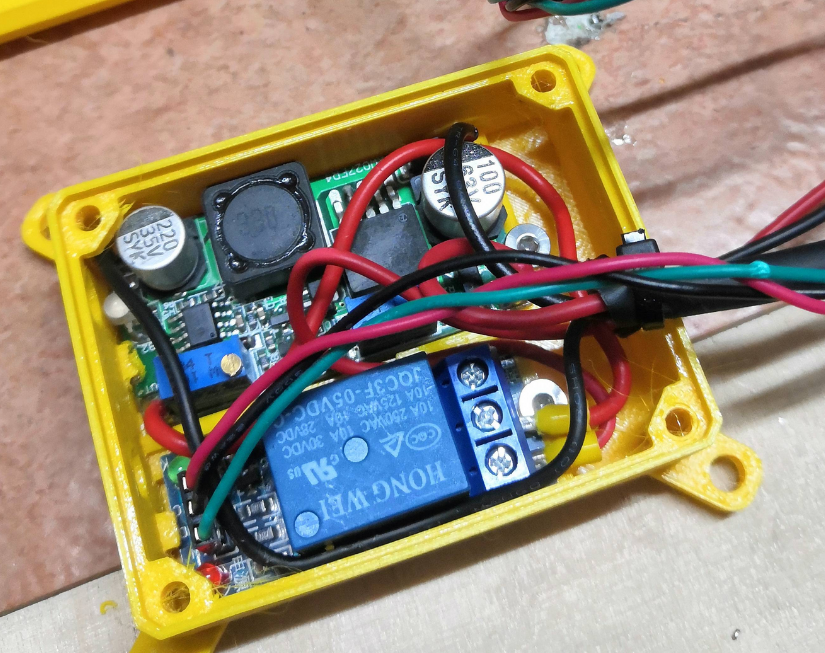
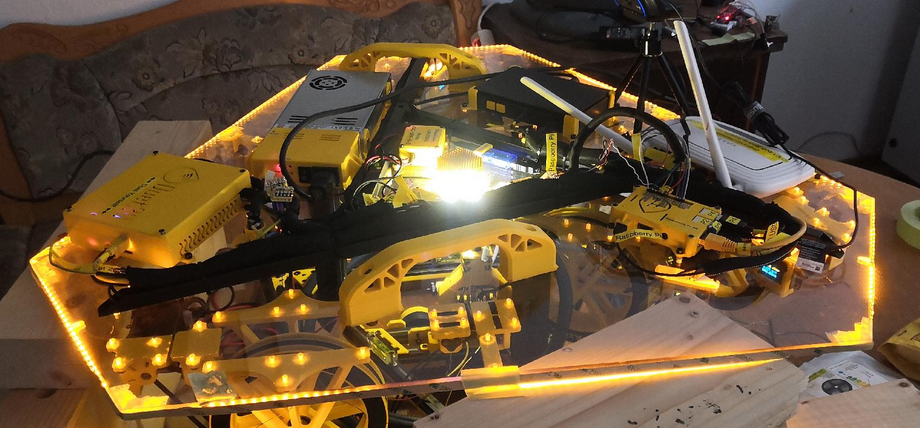
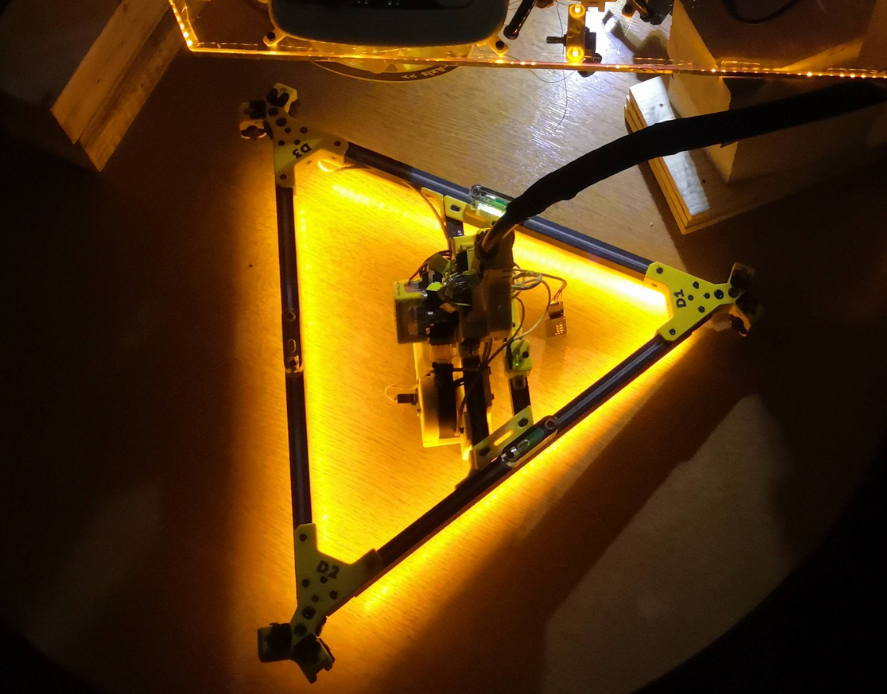
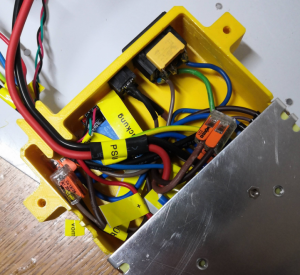
Relay for the power supply unit
collectd Python plugin script
Use Python3 interpreter! It's not tested with old legacy Python 2.X. Please not that this script does not work by calling it manually with "python relay_states.py" because the register_* functions lead to execution error if not called by collectd.
Preparations
#install collectd library
pip3.7 install collectdCreate plugin file
mkdir -p /opt/collectd_plugins
cd /opt/collectd_plugins
vim relay_states.pyrelay_states.py
import collectd
def read_func():
try:
with open ("/var/lib/Repetier-Server/GPIO_27.pinstate", "r") as GPIO_27:
P27=GPIO_27.readline().rstrip()
if P27 == '0':
pin_psu = 0
if P27 == '1':
pin_psu = 1
#collectd.info('relay_states GPIO pin plugin: pin_psu = %s' % pin_psu)
collectd.Values(plugin='relay_states', type='gauge', type_instance='pin_psu', values=[pin_psu]).dispatch()
#print(pin_psu)
except Exception as e:
print('exception: %s' % e)
pass
try:
with open ("/var/lib/Repetier-Server/GPIO_22.pinstate", "r") as GPIO_22:
P22=GPIO_22.readline().rstrip()
if P22 == '0':
pin_ledspot = 0
if P22 == '1':
pin_ledspot = 1
#collectd.info('relay_states GPIO pin plugin: pin_ledspot = %s' % pin_ledspot)
collectd.Values(plugin='relay_states', type='gauge', type_instance='pin_ledspot', values=[pin_ledspot]).dispatch()
#print(pin_psu)
except Exception as e:
#print('exception: %s' % e)
collectd.error('relay_states GPIO pin plugin: exception: %s' % e)
pass
collectd.register_read(read_func,1) # read every 1 seconds
#read_func()Note that the states are written into /var/lib/Repetier-Server because the scripts to turn on/off PSU and LEDs are mostly called by Repetier Server frontend. Repetier Server cannot access directory /opt so just write the files to the user "repetierserver" home directory
Configure collectd to add the script
vim /etc/collectd/collectd.confAdd the following lines to the end of the config (or at the according place where Python plugins are put)
LoadPlugin python
<Plugin python>
ModulePath "/opt/collectd_plugins"
Import "relay_states"
<Module relay_states>
</Module>
</Plugin>Restart collectd
service collectd restart
journald -f -u collectd.serviceThe following warning can be safely ignored
python plugin: Found a configuration for the "relay_states" plugin, but the plugin isn't loaded or didn't register a configuration callback.Check out if values from collectd correctly flow into InfluxDB
If you have access to the influxdb server you can run on the server directly (localhost)
# /opt/influxdb/influx
> USE collectd
> SHOW SERIES
> SHOW MEASUREMENTSIf you want to send a remote curl command, do the following
curl -cacert /etc/ssl/certs/site.de.ca.crt --cert /etc/ssl/certs/site.de.crt --key /etc/ssl/private/site.de.key https://site.de:8086/query --data-urlencode "db=collectd" --data-urlencode "q=SHOW SERIES" --user admin:password | jq . | grep relay
Grafana query testing
some example queries
select last(value) from "relay_states_value" WHERE "type_instance" = 'pin_ledspot' AND "host" =~ /^$host$/ AND $timeFilter GROUP BY time($interval)
select last(value) from "relay_states_value" WHERE "type_instance" = 'pin_psu' AND "host" =~ /^$host$/ AND $timeFilter GROUP BY time($interval)Purge old data
If you want to reset data you can send some API call for example.
curl -cacert /etc/ssl/certs/site.de.ca.crt --cert /etc/ssl/certs/site.de.crt --key /etc/ssl/private/site.de.key https://site.de:8086/query --data-urlencode "db=collectd" --data-urlencode "q=DROP SERIES FROM relay_states_value" --user admin:password| jq . | grep relayAdd some retention policy to keep clean your harddrive (optional)
Collecting a lot of data results in huge amount of needed memory. To avoid this think about adding some auto-clean policy (called retention policy) in InfluxDB.
This configuration is not part of Hangprinter project. At the moment the InfluxDB we use is one of the instances that FabLab Chemnitz uses. It's configured to keep 14 days of data
Monitoring and alerting | InfluxDB
Install InfluxDB instance
- local database on Raspberry Pi
A remote database, which is used also, allows to monitor Trikarus network status. The installation of this second database is not described in this documentation.
https://www.influxdata.com/blog/getting-started-python-influxdb
sudo su
curl -sL https://repos.influxdata.com/influxdb.key | sudo apt-key add -
echo "deb https://repos.influxdata.com/debian buster stable" | sudo tee /etc/apt/sources.list.d/influxdb.list
apt update
apt-get install influxdb
systemctl enable influxdb
systemctl start influxdb
#the service file can be found in
/lib/systemd/system/influxdb.service
chown -R influxdb:influxdb /etc/influxdb
chown -R influxdb:influxdb /var/lib/influxdb
service influxdb startCreate trikarus database
A collectd database gets created automatically by collectd service. You only need to add database "trikarus", which is used by Python monitoring scripts for things like Filament sensing with KY-040 Rotary Encoder and much more.
#open InfluxDB shell
influxCREATE USER trikaflux WITH PASSWORD 'password'
SHOW USERS
CREATE DATABASE trikarus
GRANT ALL ON "trikarus" TO "trikaflux"Retention policies for databases collectd and trikarus
This is used to automatically cleanup old data from database.
CREATE USER "admin" WITH PASSWORD 'password' WITH ALL PRIVILEGES
CREATE RETENTION POLICY "collectd_policy_14d" ON "collectd" DURATION 14d REPLICATION 1 DEFAULT
SHOW RETENTION POLICIES ON "collectd"
CREATE USER trikaflux WITH PASSWORD 'password'
SHOW USERS
CREATE DATABASE trikarus
GRANT ALL ON "trikarus" TO "trikaflux"
CREATE RETENTION POLICY "trikarus_policy_14d" ON "trikarus" DURATION 14d REPLICATION 1 DEFAULT
SHOW RETENTION POLICIES ON "trikarus"Purge old data
If you want to reset data you can send some API call for example.
use collectd
DROP SERIES FROM mpu6050_valueOr by API call:
curl -cacert /etc/ssl/certs/site.de.ca.crt --cert /etc/ssl/certs/site.de.crt --key /etc/ssl/private/site.de.key https://site.de:8086/query --data-urlencode "db=collectd" --data-urlencode "q=DROP SERIES FROM mpu6050_value" --user admin:password| jq . | grep mpu6050Monitoring and alerting | Longterm monitoring of Duet 2 and automatic Hotend PowerOff/Movement Stop
To monitor some important values from Duet Trikarus project is going to monitor different values like MCU temperature or general printer status. This is done by triggering M408 S4 GCode. In Repetier Server a callback function is registered to monitor this command and append the output to the callback log / websocket stream. A bash script takes this information and parses it. The parsed data will be pushed into InfluxDB. The data is graphically evaluated by Grafana instance.
We are using this script to monitor if the printer idles but hotend is still active, too. In case Duet is running a GCode sequence, it's status is "busy". While heating up it's "idle". Because the old Duet firmware has no built-in watcher to check if the printer is heating while not printing. Our script is not 100% safe because we need to trust into a working network connection (we already defined an extra value "-2" for Duet polling). But it still helps to perform emergency shutdowns in case we forgot to turn off the printer correctly.
Another job is to monitor if Repetier Server is still sending job data even the printer controller got not enough voltage to run the motors (e.g. power loss or emergency stop button pushed). In this case the print job silently continues which creates unusuably situation and it would mean if the power comes back the printer would just move to some unknown weird position. We omit this by triggering the @pause command which gets interpreted by Repetier Server to stop the gcode data feed. By the way "Warning: VIN under-voltage event" message get's written into log line by Duet.
We could also use Smart Stepper ABCD position data to check if the printer really moves while it is printing.
Warning. Under some circumstances "Warning: Communication timeout - resetting communication buffer." will appear. Then you might need to reset Duet by web interface (in case Repetier Server interface reset does not properly work and no USB response)
Create Repetier Server callback
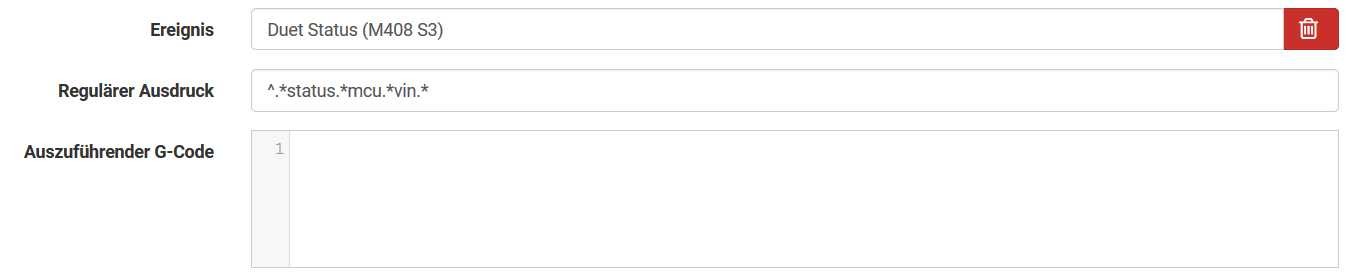
The bash script
vim /opt/duet_status.sh#!/bin/bash
# this script will read the current IP Adress by using a pre-defined custom event in Repetier Server. Please see documentation for more details on how to do that
source "/opt/repetier-conf.sh" #source config for Repetier Server instance
PID_FILE="/opt/duet_status.pid"
case "$1" in
start)
#get the scripts own PID number
echo $$>"$PID_FILE"
IDLE_TIMEOUT=900 #We turn off the extruder after 15 minutes (15 * 60 = 900 seconds)
LAST_IDLE_TIME="" #we store the last timestamp where printer was in an idling state
while true; do
echo "_______________________________"
echo LAST_IDLE_TIME=$LAST_IDLE_TIME
#LAST_IDLE_TIME="" #we store the last timestamp where printer was in an idling state
STATUS="-999" #reset status because we are in a while loop
#authenticate
curl --silent "duetdevice/rr_connect?password=somePw" > /dev/null
if [ $? == 7 ]; then
STATUS="-2" #network connection could not be established
fi
#get status response from Duet (note that if previous authentication is some seconds too old it will fail because you need to re-authenticate) - regular output is "{"err":0,"sessionTimeout":8000,"boardType":"duetethernet102"}"
LOG_LINE=$(curl --silent "duetdevice/rr_status?type=2")
#echo $LOG_LINE
#status mapping (InfluxDB cannot store characters):
# -1=O=Offline
# 0=I=idle
# 1=P=printing from SD card
# 2=S=stopped (i.e. needs a reset)
# 3=C=running config file (i.e starting up)
# 4=A=paused
# 5=D=pausing
# 6=R=resuming from a pause
# 7=B=busy (e.g. running a macro)
# 8=F=performing firmware update
# 9=T=changing tool
# 10=M=simulating
# 11=H=halt
# Warning: the following lines will fail if the configuration of firmware changes (number of hotends for example)
if [[ ! $STATUS == "-2" ]]; then
STATUS=$(jq -r '.|{status}|.status' <<< ${LOG_LINE})
fi
MCU_TEMP=$(jq -r '.|{temps}|.[]|{extra}|.[]|.[]|.temp' <<< ${LOG_LINE})
HOTEND_ACTIVE=$(jq -r '.|{temps}|.[]|{tools}|.[]|{active}|.[]|.[]|.[]' <<< ${LOG_LINE})
HOTEND_TEMP=$(jq -r '.|{temps}|.[]|{current}|.[]|.[0]' <<< ${LOG_LINE})
SPEEDFACTOR=$(jq -r '.|{params}|.[]|{speedFactor}|.speedFactor' <<< ${LOG_LINE})
EXTRFACTOR=$(jq -r '.|{params}|.[]|{extrFactors}|.[]|.[0]' <<< ${LOG_LINE})
BABYSTEP=$(jq -r '.|{params}|.[]|{babystep}|.[]' <<< ${LOG_LINE})
VIN=$(jq -r '.|.vin|{cur}|.[]' <<< ${LOG_LINE})
Z_COORD=$(jq -r '.|{coords}|.[]|{xyz}|.[]|.[2]' <<< ${LOG_LINE})
#now replace Status with integer values for InfluxDB
STATUS=$(echo ${STATUS/O/-1})
STATUS=$(echo ${STATUS/I/0})
STATUS=$(echo ${STATUS/P/1})
STATUS=$(echo ${STATUS/S/2})
STATUS=$(echo ${STATUS/C/3})
STATUS=$(echo ${STATUS/A/4})
STATUS=$(echo ${STATUS/D/5})
STATUS=$(echo ${STATUS/R/6})
STATUS=$(echo ${STATUS/B/7})
STATUS=$(echo ${STATUS/F/8})
STATUS=$(echo ${STATUS/T/9})
STATUS=$(echo ${STATUS/M/10})
STATUS=$(echo ${STATUS/H/11})
# note that space white characters destroy the --data-binary. So watch them exactly!
# if errors occure values might need to be converted from int to float! (missing yet)
if [[ $STATUS == "-2" ]]; then
echo "Duet is not connected by LAN"
#MCU_TEMP=99999
#HOTEND_ACTIVE=99999
#HOTEND_TEMP=99999
#SPEEDFACTOR=99999
#EXTRFACTOR=99999
#BABYSTEP=99999
#VIN=99999
#Z_COORD=99999
# note that space white characters destroy the --data-binary. So watch them exactly!
curl --silent -k -XPOST "http://localhost:8086/write?db=trikarus" --data-binary "duet_ethernet,host=hangdevice.fablabchemnitz.de status=${STATUS}" --user dbUser:dbPass > /dev/null
else
#################
# Movement Watchdog (pause print iff Duet status is "OFFLINE" and VIN is below minimum
#################
if [[ $STATUS == -1 ]] && [[ $VIN < 23 ]]; then
echo "Current VIN is below the supply voltage required to be able to print. Pausing print (if a print job is running at the moment)"
send_gcode '@pause' #ToDo: add some check if already paused to avoid @pause spamming
fi
#################
# Hotend Watchdog
#################
echo "Hotend Watchdog is active"
if [[ $HOTEND_ACTIVE == "0" ]]; then
echo "ok" > /dev/null #everything fine. Hotend is off (target temperature is exactly zero).
echo "Hotend is off. everything fine"
LAST_IDLE_TIME="" #okidoki. We reset the timestamp again to clear the last information
else
echo "Hotend is active (target temperature is $HOTEND_ACTIVE degrees). Checking if i should turn off"
#Hotend is on. Checking whats up.
if [[ $STATUS == "0" ]] || [[ $STATUS == "2" ]] || [[ $STATUS == "8" ]]; then #Duet is still/again idling, stopped or is doing firmware upgrade.
echo "Duet is still/again idling"
if [[ -z "$LAST_IDLE_TIME" ]]; then #only if LAST_IDLE_TIME is empty we overwrite with a new time information
LAST_IDLE_TIME=$(date '+%s') #We store that timestamp
echo LASTIDLE_TIME=$LAST_IDLE_TIME
fi
else
if [[ $STATUS == "7" ]]; then
echo "Printer is printing at the moment!"
fi
LAST_IDLE_TIME="" #okidoki. We reset the timestamp again to clear the last information
fi
fi
if [[ ! -z "$LAST_IDLE_TIME" ]]; then #if LAST_IDLE_TIME is not empty
CURRENT_TIME=$(date '+%s')
TIME_DIFF=$(($CURRENT_TIME - $LAST_IDLE_TIME))
echo TIME_DIFF=$TIME_DIFF
if [[ "$TIME_DIFF" -gt "$IDLE_TIMEOUT" ]]; then #We turn off the extruder after reaching timeout
send_gcode "M104 S0" #turn off the extruder remotely
send_gcode "M106 S0" #turn off the part cooling fan remotely
echo "Heater was turned off by script (idle)"
echo "" | mail -s "Heater was turned off by script (idle)" somemail@somedomain.de
fi
fi
#################
# Write InfluxDB
#################
#echo "Writing regular Duet values to InfluxDB"
echo STATUS=$STATUS
echo MCU_TEMP=$MCU_TEMP
echo HOTEND_ACTIVE=$HOTEND_ACTIVE
echo HOTEND_TEMP=$HOTEND_TEMP
echo SPEEDFACTOR=$SPEEDFACTOR
echo EXTRFACTOR=$EXTRFACTOR
echo BABYSTEP=$BABYSTEP
echo VIN=$VIN
echo Z_COORD=$Z_COORD
curl --silent -k -XPOST "http://localhost:8086/write?db=trikarus" --data-binary "duet_ethernet,host=device.fablabchemnitz.de status=${STATUS},mcu_temp=${MCU_TEMP},hotend_temp=${HOTEND_TEMP},speedfactor=${SPEEDFACTOR},extrfactor=${EXTRFACTOR},babystep=${BABYSTEP},vin=${VIN},z_coord=${Z_COORD}" --user dbUser:dbPass> /dev/null
fi
sleep 1 #wait to generate not too much data
done #end of while loop
;;
stop)
pkill -P `cat "$PID_FILE"`
rm "$PID_FILE"
;;
restart)
$0 stop
$0 start
;;
status)
if [ -e "$PID_FILE" ]; then
echo Service is still running, pid=`cat "$PID_FILE"`
else
echo Service is NOT running
exit 1
fi
;;
*)
echo "Usage: $0 {start|stop|status|restart}"
esac
exit 0chmod +x /opt/duet_status.shInstall as service
vim /opt/duet_status.service[Unit]
After=network.target
Description=Duet Ethernet Controller Status Service
[Service]
Type=simple
ExecStart=/opt/duet_status.sh start
ExecStop=/opt/duet_status.sh stop
KillMode=process
Restart=on-failure
RestartSec=10
RemainAfterExit=no
User=root
Group=root
[Install]
WantedBy= multi-user.targetsystemctl enable /opt/duet_status.service
service duet_status restart && journalctl -f -u duet_status.serviceDropping old values
influx
use trikarus
drop series from duet_ethernet
show series
show measurementsCreate Grafana dashboard
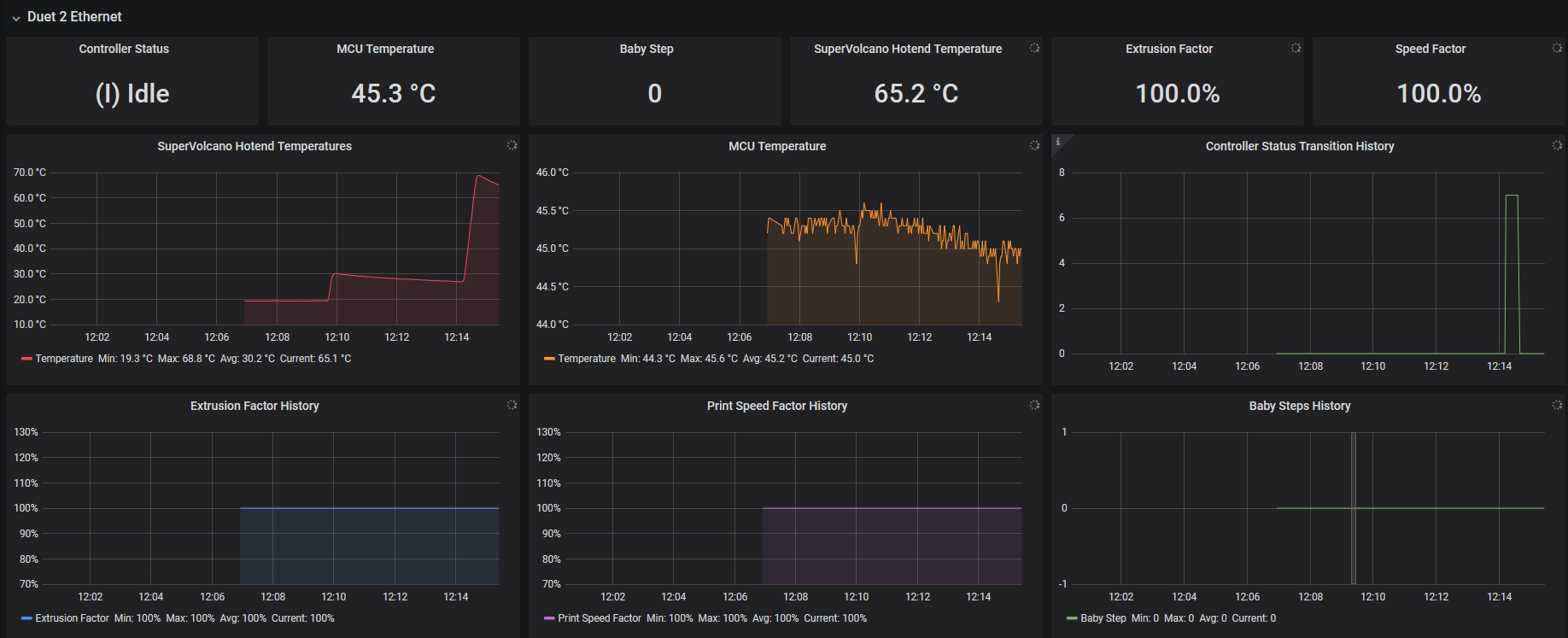
Monitoring and alerting | MPU 6050 (GY-521) Gyro + Accelerometer monitoring
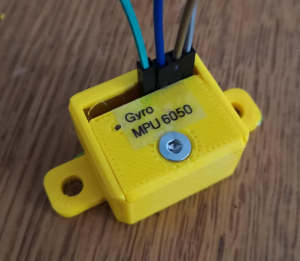
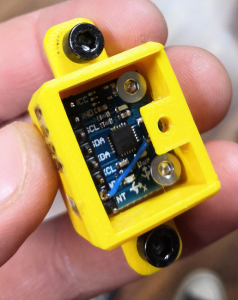
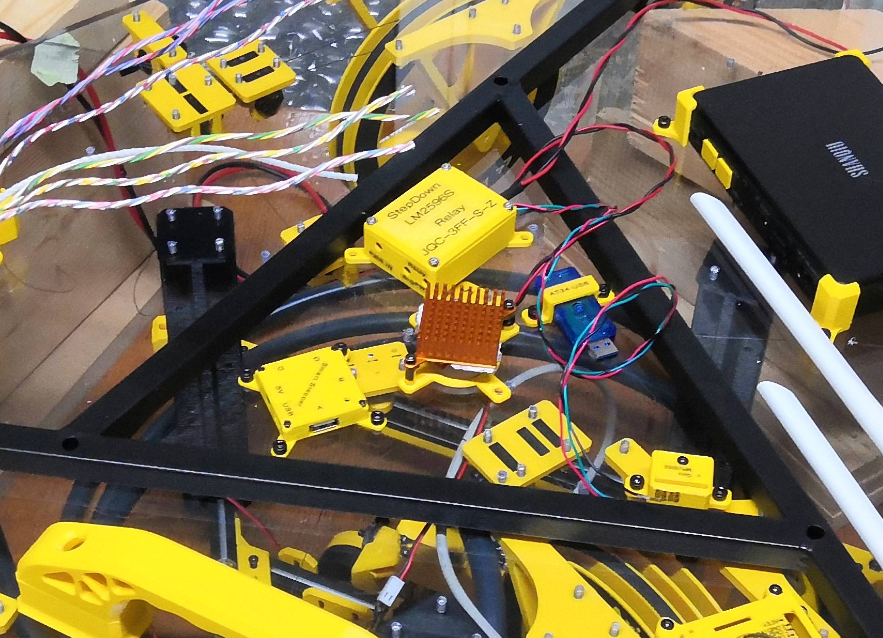
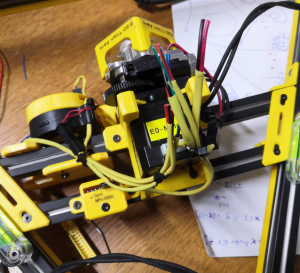
Hardware → Gyroscope and acceleration sensor GY-521 (MPU6050) and basic configuration for Raspberry Pi
Features for Hangprinter
The MPU 6050 is a gyro which is used to measure room temperature and vibrations at the installation location. It helps to check for occured events like layer shifting by looking into the monitoring (InfluxDB + Grafana). It does not help to prevent them but is an experimental tool for analysing. Due to the very difficult exact positioning, a gyro is not suitable for longterm checking of absolute positions XYZ or absolute speeds, since the deviations add up over a short period of time. An angle error of even one degree will cause the estimated velocity to be off by some meters per seconds after a short period of elapsed time. After a single minute, one degree of angle error will cause the position estimate to be off by kilometers. For more details see http://www.chrobotics.com/library/accel-position-velocity. For this reason an Inertial Measurement Unit MPU 9250 / GY-250 InvenSense was installed on effector side.
Having gyro sensors in Hangprinter means in theory that ...
- the effector and frame can be better leveled when Hangprinter gets installed in a new location
- the sensor helps with remote monitoring in the sense of simple motion tracking and emergency sensor for sensing out
- tilts / misalignments of effector while printing caused by lost lines from bearings (shearing off), unevenly line tripping, obstacles, winding spools or blocking drives (possibly despite the closed loop system)
- as soon as one this things or a mix of multiple causes happe, the sensor data will have really high and short peaks in relation to regular movements. Suche events usually are a mix of changed speed, acceleration and jerk, force and geometrical tilts
- If the minimum or maximum tilts are exceeded this can trigger events like emergency halt or baby stepping ABCD drives to fix the effector tilt when printing
- room vibrations (e.g. trams or trucks on the street) or other vibrations can be registered and visualized
- tilts / misalignments of effector while printing caused by lost lines from bearings (shearing off), unevenly line tripping, obstacles, winding spools or blocking drives (possibly despite the closed loop system)
- analysing the surrounding temperature of the effector area is possible due to the simple fact that each GY-521 integrates a temperature sensor (could be as some kind of really cheap solution for fire hazard detection)
Wiring address
The MPU 6050 has primary address 0x68 or secondary address 0x69, depending on it's pin configuration
- 0x69
Troubleshooting
Module has wrong address
Module has wrong address
The MPU 6050 is a sensible I2C module which was connected to Raspberry Pi by slightly longer, unshielded cables. It figured out that there may occure bad side effects, for example if the main power chord (230 V) is to near to the cables. Then it can happen that the module gets a wrong address like 0x0c or that the module will fail by other unkown effects.
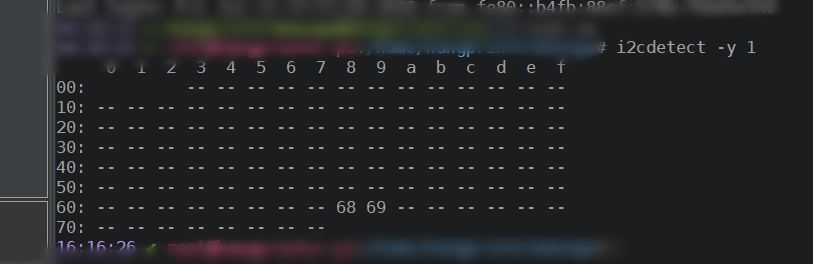
Python script to read the data
Trikarus uses a collectd script to collect the sensor data like regular system hardware metrics. This allows to visualize them in third party software. We use InfluxDB and Grafana to make graphs from sensor data and to make use of the data to perform printer relevant Repetier Server API calls.
Good sources to look at:
- https://www.twobitarcade.net/article/3-axis-gyro-micropython
- https://pypi.org/project/mpu6050-raspberrypi/#files
- https://github.com/KavinduZoysa/arduino/blob/master/MPU_6050/MPU_6050.ino
- https://how2electronics.com/measure-tilt-angle-using-mpu6050-gyro-accelerometer-arduino
- https://github.com/adamjezek98/MPU6050-ESP8266-MicroPython/blob/master/mpu6050.py
- https://github.com/rocheparadox/Kalman-Filter-Python-for-mpu6050/blob/master/AngleOMeter.py
- https://github.com/rocheparadox/Kalman-Filter-Python-for-mpu6050/blob/master/Kalman.py
- https://github.com/thisisG/MPU6050-I2C-Python-Class
- https://github.com/richardghirst/PiBits/tree/master/MPU6050-Pi-Demo
collectd Python plugin script
Preparations
Use Python3 interpreter! It's not tested with old legacy Python 2.X. Please not that this script does not work by calling it manually with "python mpu6050.py" because the register_* functions lead to execution error if not called by collectd.
#install collectd library
pip3.7 install collectd smbus
#fix a nasty uppercase/lowercase issue in that module
/usr/local/lib/python3.5/dist-packages/collectd.py
#change "from Queue import Queue, Empty"
#to "from queue import Queue, Empty"Create plugin file
mkdir -p /opt/collectd_plugins
cd /opt/collectd_plugins
vim mpu6050.py#!/usr/bin/python
import smbus
import math
import collectd
address=0x68
ADLOWHIGH=0
bus = smbus.SMBus(1) # bus = smbus.SMBus(0) for revision 1
def config_func(config):
hw_address_set = False
for node in config.children:
key = node.key.lower()
val = node.values[0]
if key == 'adlowhigh':
global ADLOWHIGH
ADLOWHIGH = val
hw_adress_set = True
else:
collectd.info('mpu6050 plugin: Unknown config key "%s"' % key)
if hw_address_set:
collectd.info('mpu6050 plugin: Using overridden address %s' % ADLOWHIGH)
else:
collectd.info('mpu6050 plugin: Using default address %s' % ADLOWHIGH)
def read_byte(reg):
return bus.read_byte_data(address, reg)
def read_word(reg):
h = bus.read_byte_data(address, reg)
l = bus.read_byte_data(address, reg+1)
value = (h << 8) + l
return value
def read_word_2c(reg):
val = read_word(reg)
if (val >= 0x8000):
return -((65535 - val) + 1)
else:
return val
def dist(a,b):
return math.sqrt((a*a)+(b*b))
def get_y_rotation(x,y,z):
radians = math.atan2(x, dist(y,z))
return -math.degrees(radians)
def get_x_rotation(x,y,z):
radians = math.atan2(y, dist(x,z))
return math.degrees(radians)
def read_func():
#collectd.info("gyro plugin: ADLOWHIGH = %s" % ADLOWHIGH)
try:
# https://medium.com/@kavindugimhanzoysa/lets-work-with-mpu6050-gy-521-part1-6db0d47a35e6
scale_gyro = 131
scale_accel = 16384.0
earth_g = 9.80665 # m/s^2
# collectd.info('gyro plugin: hardware address = %s' % address)
bus = smbus.SMBus(1) # bus = smbus.SMBus(0) for revision 1
if ADLOWHIGH == '0':
address=0x68
else:
address=0x69
bus.write_byte_data(0x68, 0x6b, 0) # activate the module to talk to it
gyro_x = read_word_2c(0x43)
gyro_y = read_word_2c(0x45)
gyro_z = read_word_2c(0x47)
# this converts the gyro values with deg/s unit
gyro_x_scaled = gyro_x / scale_gyro
gyro_y_scaled = gyro_y / scale_gyro
gyro_z_scaled = gyro_z / scale_gyro
accel_x = read_word_2c(0x3b)
accel_y = read_word_2c(0x3d)
accel_z = read_word_2c(0x3f)
# this converts the gyro values with mm/s^2 unit
accel_x_scaled = accel_x / scale_accel * earth_g
accel_y_scaled = accel_y / scale_accel * earth_g
accel_z_scaled = accel_z / scale_accel * earth_g
temp = (read_word_2c(0x41) / 340) + 36.53
# put values to collectd
collectd.Values(plugin='mpu6050', plugin_instance='gyro0', type='gauge', type_instance='temp', values=[temp]).dispatch()
collectd.Values(plugin='mpu6050', plugin_instance='gyro0', type='gauge', type_instance='gyro_x', values=[gyro_x]).dispatch()
collectd.Values(plugin='mpu6050', plugin_instance='gyro0', type='gauge', type_instance='gyro_y', values=[gyro_y]).dispatch()
collectd.Values(plugin='mpu6050', plugin_instance='gyro0', type='gauge', type_instance='gyro_z', values=[gyro_z]).dispatch()
collectd.Values(plugin='mpu6050', plugin_instance='gyro0', type='gauge', type_instance='gyro_x_scaled', values=[gyro_x_scaled]).dispatch()
collectd.Values(plugin='mpu6050', plugin_instance='gyro0', type='gauge', type_instance='gyro_y_scaled', values=[gyro_y_scaled]).dispatch()
collectd.Values(plugin='mpu6050', plugin_instance='gyro0', type='gauge', type_instance='gyro_z_scaled', values=[gyro_z_scaled]).dispatch()
collectd.Values(plugin='mpu6050', plugin_instance='gyro0', type='gauge', type_instance='accel_x', values=[accel_x]).dispatch()
collectd.Values(plugin='mpu6050', plugin_instance='gyro0', type='gauge', type_instance='accel_y', values=[accel_y]).dispatch()
collectd.Values(plugin='mpu6050', plugin_instance='gyro0', type='gauge', type_instance='accel_z', values=[accel_z]).dispatch()
collectd.Values(plugin='mpu6050', plugin_instance='gyro0', type='gauge', type_instance='accel_x_scaled', values=[accel_x_scaled]).dispatch()
collectd.Values(plugin='mpu6050', plugin_instance='gyro0', type='gauge', type_instance='accel_y_scaled', values=[accel_y_scaled]).dispatch()
collectd.Values(plugin='mpu6050', plugin_instance='gyro0', type='gauge', type_instance='accel_z_scaled', values=[accel_z_scaled]).dispatch()
#collectd.info('gyro plugin: gyro_x = %s' % gyro_x)
print("XYZ gyroscope:","{:.0f}".format(gyro_x)," (" , gyro_x_scaled,") |","{:.0f}".format(gyro_y),"(",gyro_y_scaled,") |","{:.0f}".format(gyro_z),"(",gyro_z_scaled,") | XYZ acceleration:","{:.0f}".format(accel_x)," (" , accel_x_scaled,") |","{:.0f}".format(accel_y),"(",accel_y_scaled,") |","{:.0f}".format(accel_z),"(",accel_z_scaled,") | XY Rotations: " , get_x_rotation(accel_x_scaled, accel_y_scaled, accel_z_scaled), " | " , get_y_rotation(accel_x_scaled, accel_y_scaled, accel_z_scaled), " | temp ", temp)
except Exception as e:
collectd.error('mpu6050 plugin: exception: %s' % e)
pass
collectd.register_config(config_func)
collectd.register_read(read_func,1) # read every 1 secondsConfigure collectd to add the script
vim /etc/collectd/collectd.conf
Add the following lines to the end of the config (or at the according place where Python plugins are put)
LoadPlugin python
<Plugin python>
ModulePath "/opt/collectd_plugins"
Import "mpu6050"
<Module mpu6050>
</Module>
</Plugin>service collectd restart && journalctl -f -u collectd.serviceCheck out if values from collectd correctly flow into InfluxDB
# /opt/influxdb/influx
> USE collectd
> SHOW SERIES
> SHOW MEASUREMENTSIf you want to send a remote curl command, do the following
curl -cacert /etc/ssl/certs/site.de.ca.crt --cert /etc/ssl/certs/site.de.crt --key /etc/ssl/private/site.de.key https://site.de:8086/query --data-urlencode "db=collectd" --data-urlencode "q=SHOW SERIES" --user admin:password | jq . | grep mpu6050
some example queries
SELECT last(value) FROM "mpu6050_value" WHERE "type_instance" = 'gyro_x' AND "host" =~ /^$host$/ AND $timeFilter GROUP BY time($interval)
SELECT last(value) FROM "mpu6050_value" WHERE "type_instance" = 'gyro_y' AND "host" =~ /^$host$/ AND $timeFilter GROUP BY time($interval)
SELECT last(value) FROM "mpu6050_value" WHERE "type_instance" = 'gyro_z' AND "host" =~ /^$host$/ AND $timeFilter GROUP BY time($interval)
SELECT last(value) FROM "mpu6050_value" WHERE "type_instance" = 'accel_x' AND "host" =~ /^$host$/ AND $timeFilter GROUP BY time($interval)
SELECT last(value) FROM "mpu6050_value" WHERE "type_instance" = 'accel_y' AND "host" =~ /^$host$/ AND $timeFilter GROUP BY time($interval)
SELECT last(value) FROM "mpu6050_value" WHERE "type_instance" = 'accel_z' AND "host" =~ /^$host$/ AND $timeFilter GROUP BY time($interval)
SELECT last(value) FROM "mpu6050_value" WHERE "type_instance" = 'temp' AND "host" =~ /^$host$/ AND $timeFilter GROUP BY time($interval)Monitoring and alerting | Repetier Server integrated monitoring
Repetier Server offers a new quick status monitoring of the system since version 0.94.0
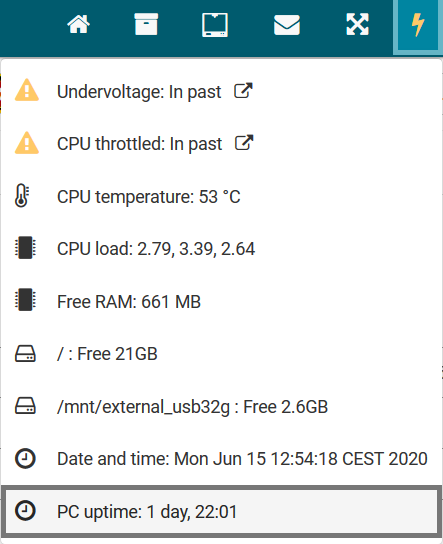
Monitoring and alerting | collectd
apt install collectdvim /etc/collectd/collectd.confFQDNLookup true
BaseDir "/var/lib/collectd"
PluginDir "/usr/lib/collectd"
TypesDB "/usr/share/collectd/types.db"
LoadPlugin syslog
MaxPacketSize 1452
<Plugin syslog>
LogLevel info
</Plugin>
LoadPlugin battery
LoadPlugin cpu
LoadPlugin df
LoadPlugin disk
LoadPlugin entropy
LoadPlugin interface
LoadPlugin irq
LoadPlugin load
LoadPlugin memory
LoadPlugin network
LoadPlugin ping
LoadPlugin processes
LoadPlugin rrdtool
LoadPlugin swap
LoadPlugin users
LoadPlugin uptime
<Plugin df>
FSType rootfs
FSType sysfs
FSType proc
FSType devtmpfs
FSType devpts
FSType tmpfs
FSType fusectl
FSType cgroup
IgnoreSelected true
</Plugin>
<Plugin interface>
Interface "eth0"
IgnoreSelected false
</Plugin>
<Plugin load>
ReportRelative true
</Plugin>
<Plugin network>
Server "localhost" "25826"
</Plugin>
<Plugin rrdtool>
DataDir "/var/lib/collectd/rrd"
</Plugin>
<Include "/etc/collectd/collectd.conf.d">
Filter "*.conf"
</Include>
LoadPlugin python
<Plugin python>
ModulePath "/opt/collectd_plugins"
Import "mpu6050"
<Module mpu6050>
</Module>
Import "cpu_temp"
<Module cpu_temp>
</Module>
Import "relay_states"
<Module relay_states>
</Module>
Import "pwr_states"
<Module pwr_states>
</Module>
</Plugin>
<Plugin ping>
Host "yourduet"
Host "<DEVICE-IPV6>" #the Freifunk router
Interval 1
</Plugin>Ping Plugin
We use this plugin to test if Duet and the gateway router are online. If one of the ping hosts is unavailable it will create a massive output in InfluxDB error log because collectd messes around with NaN values which InfluxDB cannot handle.
collectd name=ping_value error="NaN is an unsupported value for field value"You can safely ignore this. See also https://github.com/influxdata/influxdb/issues/4874
Monitoring and alerting | Grafana
Setup
apt-get install -y adduser libfontconfig1
wget https://dl.grafana.com/oss/release/grafana_6.7.3_armhf.deb
dpkg -i grafana_6.7.3_armhf.deb
rm grafana_6.7.3_armhf.debEnable as service
systemctl enable grafana-server.service
service grafana-server startConfiguration
vim /etc/grafana/grafana.ini[server]
root_url = someDomain
[security]
allow_embedding = true
[smtp]
enabled = true
host = smtp.host.de:25
user = user@host.de
password = password
from_address = printer@host.de
from_name = Grafana
[panels]
disable_sanitize_html = trueUpgrading
visit https://grafana.com/grafana/download?platform=arm
#make backup of Grafana SQLite Database
sudo cp /var/lib/grafana/grafana.db ~/grafana.db.bak
#visit https://grafana.com/grafana/download/5.2.0-beta1?platform=arm
LATEST_RELEASE=$(curl --silent "https://api.github.com/repos/grafana/grafana/releases/latest" | jq -r .tag_name | sed -e 's/v//')
LATEST_RELEASE=${LATEST_RELEASE/\-/\~} #replace - with ~ to allow installation of beta packages
echo $LATEST_RELEASE
wget https://dl.grafana.com/oss/release/grafana_"$LATEST_RELEASE"_armhf.deb
sudo dpkg -i grafana_"$LATEST_RELEASE"_armhf.deb
rm grafana_"$LATEST_RELEASE"_armhf.deb
sudo service grafana-server restartApache virtual host
See mkcert & Go for SSL cert generation
vim /etc/apache2/sites-enabled/grafana.conf<VirtualHost *:3001>
ServerName localhost
ServerAdmin some_mail@domain.de
SSLEngine on
SSLCertificateFile /etc/ssl/certs/trikarus.pem
SSLCertificateKeyFile /etc/ssl/private/trikarus-key.pem
ProxyPass / http://localhost:3000/
ProxyPassReverse / http://localhost:3000/
ProxyPreserverHost On
ErrorLog ${APACHE_LOG_DIR}/error-grafana.log
CustomLog ${APACHE_LOG_DIR}/access-grafana.log combined
RewriteEngine On
RewriteCond %{HTTP:Upgrade} =websocket [NC]
RewriteRule /(.*) ws://localhost:3000/$1 [P,L]
</VirtualHost>vim /etc/apache2/ports.confListen 3001
Grafana Image renderer plugin
This is not included in Raspbian arm version of Grafana because usually arm devices have not the minimum requirements of 16 GB of RAM as official documentation says. So without image rendering plugin we cannot send alert images by email sadly. It could be done by remote rendering using another machine to run the renderer as service. At the moment this is not used but possible → https://github.com/grafana/grafana-image-renderer/blob/master/docs/remote_rendering_using_docker.md
To compile as unsigned plugin is possible upon this but useless. This step documentation is based on https://community.openhab.org/t/tutorial-grafana-rendering-on-raspberry-pi/71777

grafana-cli plugins install grafana-image-renderer #this command fails
#clone git repository of the plugin
cd /var/lib/grafana/plugins
git clone https://github.com/grafana/grafana-image-renderer
cd grafana-image-renderer
#install yarn
curl -sS https://dl.yarnpkg.com/debian/pubkey.gpg | sudo apt-key add -
echo "deb https://dl.yarnpkg.com/debian/ stable main" | sudo tee /etc/apt/sources.list.d/yarn.list
apt update
apt install yarn
#install nodejs
wget https://nodejs.org/dist/latest-v12.x/node-v12.18.0-linux-armv7l.tar.gz
tar -xvf node-v12.18.0-linux-armv7l.tar.gz
sudo mv node-v12.18.0-linux-armv7l /opt/
sudo ln -s /opt/node-v12.18.0-linux-armv7l /opt/node
sudo chown -R root:root /opt/node*
sudo ln -s /opt/node/bin/node /usr/bin/node
sudo ln -s /opt/node/bin/npm /usr/bin/npm
#compile the plugin
yarn global add typescript
yarn install
yarn run build
#rename to match the archictecture
cp plugin_start_linux_amd64 plugin_start_linux_armvim /etc/grafana/grafana.ini
#restart Grafana and check if the plugin is available in the plugin list
systemctl restart grafana-server.serviceError:
t=2020-06-06T01:44:31+0200 lvl=eror msg="Render request failed" logger=plugins.backend pluginId=grafana-image-renderer error="Error: Failed to launch chrome!\n/var/lib/grafana/plugins/grafana-image-renderer/node_modules/puppeteer/.local-chromium/linux-706915/chrome-linux/chrome: 1: /var/lib/grafana/plugins/grafana-image-renderer/node_modules/puppeteer/.local-chromium/linux-706915/chrome-linux/chrome: Syntax error: \")\" unexpected\n\n\nTROUBLESHOOTING: https://github.com/GoogleChrome/puppeteer/blob/master/docs/troubleshooting.md\n" url="http://localhost:3000/d-solo/xW5kn7zRz/collectd-influxdb-metrics?orgId=1&panelId=48&render=1"
Monitoring and alerting | Monitoring iostat
A simple script is checking if the Smart Steppers are connected by USB.
vim /opt/iostat.sh#!/bin/bash
while true; do
VAL_USER=$(iostat -c|awk '/^ /{print $1}')
VAL_NICE=$(iostat -c|awk '/^ /{print $2}')
VAL_SYSTEM=$(iostat -c|awk '/^ /{print $3}')
VAL_IOWAIT=$(iostat -c|awk '/^ /{print $4}')
VAL_STEAL=$(iostat -c|awk '/^ /{print $5}')
VAL_IDLE=$(iostat -c|awk '/^ /{print $6}')
curl -k -XPOST "http://localhost:8086/write?db=trikarus" --data-binary "iostat,host=hangdevice.fablabchemnitz.de val_user=${VAL_USER},val_nice=${VAL_NICE},val_system=${VAL_SYSTEM},val_iowait=${VAL_IOWAIT},val_steal=${VAL_STEAL},val_idle=${VAL_IDLE}" --user user:password
sleep 10
donechmod +x /opt/iostat.shvim /opt/iostat.service[Unit]
After=network.target
Description=iostat Monitoring Service
[Service]
Type=simple
ExecStart=/opt/iostat.sh
KillMode=process
Restart=on-failure
RestartSec=10
RemainAfterExit=no
User=root
Group=root
[Install]
WantedBy= multi-user.targetsystemctl enable /opt/iostat.service
service start iostat.service && journalctl -f -u iostat.serviceMonitoring and alerting | Monitoring systemctl units
vim /opt/monitorSystemctl.sh#!/bin/bash
MAIL="/opt/monitorSystemctl.mail"
FAILED=$(systemctl list-units --failed)
if [[ $FAILED == *"failed"* ]]; then
systemctl list-units --failed > $MAIL
cat $MAIL | mail -s "systemctl service(s) failed @ hangprinter" project_hangprinter@fablabchemnitz.de
else
echo "systemctl units are fine ..."
fivim /etc/cron.d/monitor-systemctlSHELL=/bin/sh
PATH=/usr/local/sbin:/usr/local/bin:/sbin:/bin:/usr/sbin:/usr/bin
* * * * * root /opt/monitorSystemctl.sh > /dev/null
Monitoring and alerting | Monitoring USB device availability
A simple script is checking if the Smart Steppers are connected by USB.
vim /opt/monitorUSBdevices.sh#!/bin/bash
while true; do
A_MOT=$(ls -alF /dev |grep "ttyUSB-SMART-A-AXIS")
B_MOT=$(ls -alF /dev |grep "ttyUSB-SMART-B-AXIS")
C_MOT=$(ls -alF /dev |grep "ttyUSB-SMART-C-AXIS")
D_MOT=$(ls -alF /dev |grep "ttyUSB-SMART-D-AXIS")
DUET=$(ls -alF /dev |grep "ttyUSB-DUET2ETHERNET")
WEBCAM=$(ls -alF /dev |grep "ttyUSB-LOGITECH-C920")
HUB=$(ls -alF /dev |grep "ttyUSB-MINI-4PORT-HUB")
if [[ ! -z $A_MOT ]]; then
A_AVAIL=1
else
A_AVAIL=0
fi
if [[ ! -z $B_MOT ]]; then
B_AVAIL=1
else
B_AVAIL=0
fi
if [[ ! -z $C_MOT ]]; then
C_AVAIL=1
else
C_AVAIL=0
fi
if [[ ! -z $D_MOT ]]; then
D_AVAIL=1
else
D_AVAIL=0
fi
if [[ ! -z $DUET ]]; then
DUET_AVAIL=1
else
DUET_AVAIL=0
fi
if [[ ! -z $WEBCAM ]]; then
WEBCAM_AVAIL=1
else
WEBCAM_AVAIL=0
fi
if [[ ! -z $HUB ]]; then
HUB_AVAIL=1
else
HUB_AVAIL=0
fi
curl -k -XPOST "http://localhost:8086/write?db=trikarus" --data-binary "usb_devices,host=hangdevice.fablabchemnitz.de a_avail=${A_AVAIL},b_avail=${B_AVAIL},c_avail=${C_AVAIL},d_avail=${D_AVAIL},duet_avail=${DUET_AVAIL},webcam_avail=${WEBCAM_AVAIL},hub_avail=${HUB_AVAIL}" --user user:password
sleep 1
donechmod +x /opt/monitorUSBdevices.shvim /opt/monitorUSBdevices.service[Unit]
After=network.target
Description=USB device availability Monitoring Service
[Service]
Type=simple
ExecStart=/opt/monitorUSBdevices.sh
KillMode=process
Restart=on-failure
RestartSec=10
RemainAfterExit=no
User=root
Group=root
[Install]
WantedBy= multi-user.targetsystemctl enable /opt/monitorUSBdevices.service
service restart monitorUSBdevices && journalctl -f -u monitorUSBdevices.serviceMonitoring and alerting | Raspberry Pi CPU temperature
This is a bare copy of https://github.com/dbrgn/collectd-python-plugins/blob/master/cpu_temp.py
/opt/collectd_plugins/cpu_temp.py
import collectd
PATH = '/sys/class/thermal/thermal_zone0/temp'
def config_func(config):
path_set = False
for node in config.children:
key = node.key.lower()
val = node.values[0]
if key == 'path':
global PATH
PATH = val
path_set = True
else:
collectd.info('cpu_temp plugin: Unknown config key "%s"' % key)
if path_set:
collectd.info('cpu_temp plugin: Using overridden path %s' % PATH)
else:
collectd.info('cpu_temp plugin: Using default path %s' % PATH)
def read_func():
# Read raw value
with open(PATH, 'rb') as f:
temp = f.read().strip()
# Convert to degrees celsius
deg = float(int(temp)) / 1000
# Dispatch value to collectd
val = collectd.Values(type='temperature')
val.plugin = 'cpu_temp'
val.dispatch(values=[deg])
collectd.register_config(config_func)
collectd.register_read(read_func)Configure collectd
<Plugin python>
ModulePath "/opt/collectd_plugins"
Import "cpu_temp"
<Module cpu_temp>
</Module>
</Plugin>Grafana query from InfluxDB
SELECT last(value) FROM "cpu_temp_value" WHERE "type" = 'temperature' AND "host" =~ /^$host$/ AND $timeFilter GROUP BY time($interval) The CPU temperature is also monitored by Repetier Server integrated monitoring
Monitoring and alerting | Repetier Server Monitor Desktop App
This application is perfect for multiple servers or just for displaying some stats remotely or doing quick control. For Trikarus it is used just sometimes, for example for some testing purposess. It does not replace the browser view completely because it does not deal with the printer's control tab - you will need to open this as a popup. Repetier Server Monitor can connect to local addresses like http://raspberrypi:3344 but it's more intended to deal with remote-only ressources.
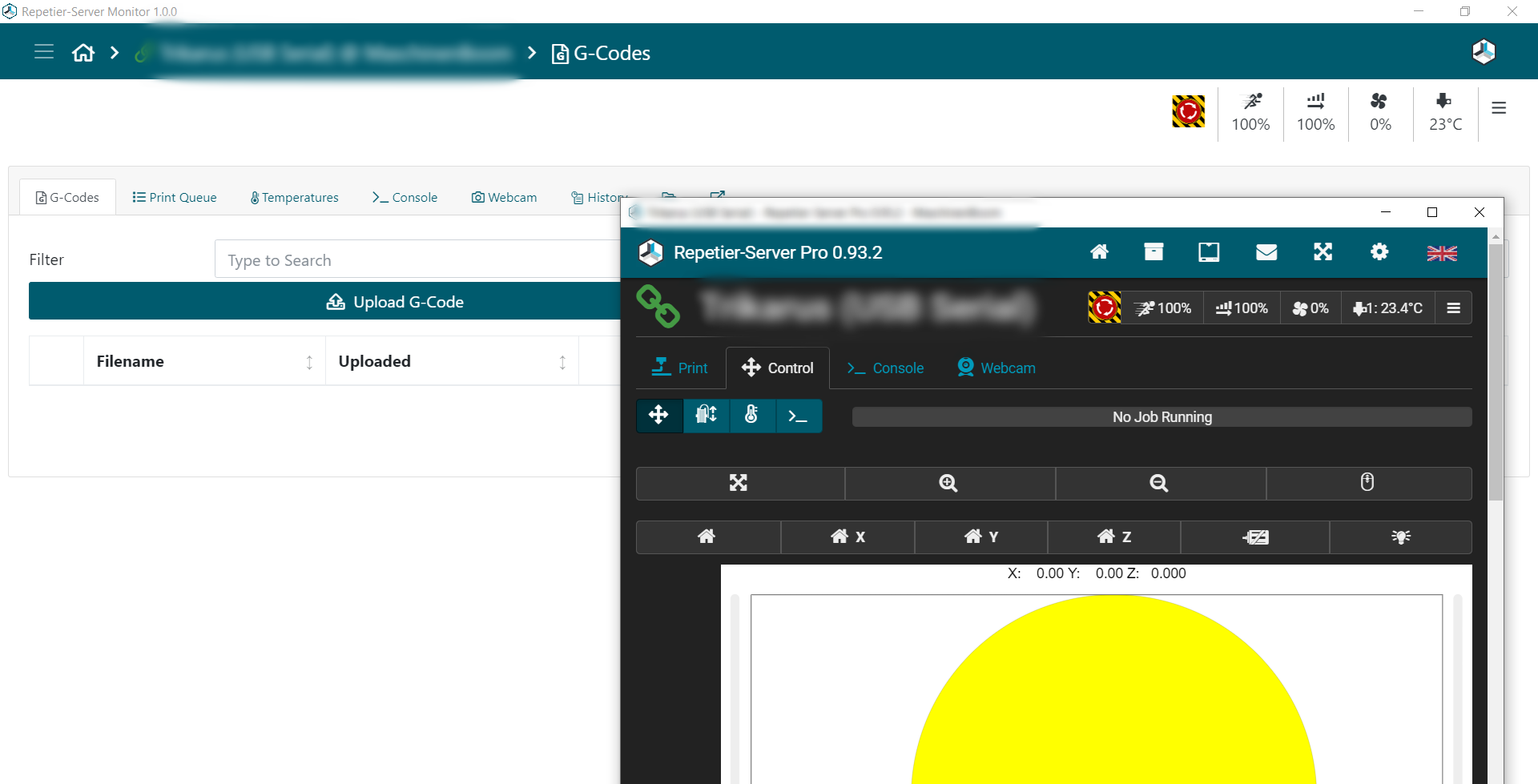
Caveats of Repetier Server Monitor 1.1.0
- At the moment one Repetier Server instance cannot be configured multiple times by different addresses (like external address and local address at the same time). This makes it sometimes choosing not the quickest route
- local address does not work if encrypted by insecure SSL (like https://raspberrrypi:3345)
Configuration
%AppData%\Repetier-Server-Monitor\serverlist.json
Monitoring and alerting | Smart Stepper value monitoring
For debugging purposes we monitor Smart Stepper values by the provided Python control service. See Smart Stepper - calibration and control modes (sPID mode, pPID mode and torque mode) for code.
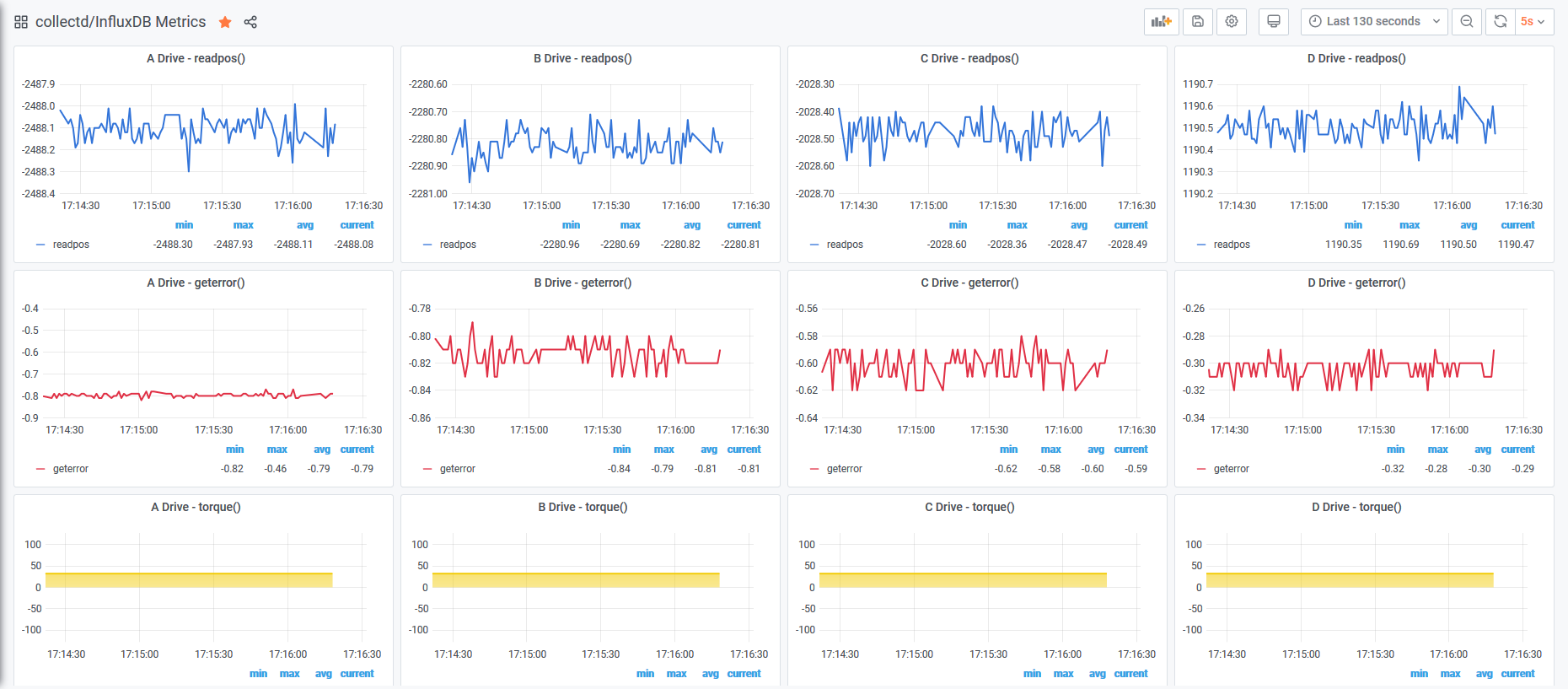
Monitoring and alertings | Raspberry Pi Power States
This is based on https://harlemsquirrel.github.io/shell/2019/01/05/monitoring-raspberry-pi-power-and-thermal-issues.html
Make vcgencmd available
apt install libraspberrypi-bin/opt/collectd_plugins/pwr_states.py
'''
Returns the throttled state of the system. This is a bit pattern - a bit being set indicates the following meanings:
0x50000 = 0101 0000 0000 0000 0000
Adding the bit numbers along the top we get:
19 18 17 16 15 14 13 12 11 10 9 8 7 6 5 4 3 2 1 0
0 1 0 1 0 0 0 0 0 0 0 0 0 0 0 0 0 0 0 0
From this we can see that bits 18 and 16 are set, indicating that the Pi has previously been throttled due to under-voltage, but is not currently throttled for any reason.
'''
import collectd
import subprocess
def read_func():
undervoltage = 0
armfreq_capped = 0
throttled = 0
soft_temp_limit = 0
GET_THROTTLED_CMD = 'vcgencmd get_throttled'
MESSAGES = {
0: 'Under-voltage!',
1: 'ARM frequency capped!',
2: 'Currently throttled!',
3: 'Soft temperature limit active',
16: 'Under-voltage has occurred since last reboot.',
17: 'Throttling has occurred since last reboot.',
18: 'ARM frequency capped has occurred since last reboot.',
19: 'Soft temperature limit has occurred'
}
throttled_output = subprocess.check_output(GET_THROTTLED_CMD, shell=True)
throttled_binary = bin(int(throttled_output.decode('utf8').split('=')[1], 0))
# print general information
#for position, message in MESSAGES.items():
# Check for the binary digits to be "on" for each warning message
#if len(throttled_binary) > position and throttled_binary[0 - position - 1] == '1':
#print(message)
# relevant for monitoring are only the current possible states, which are 0,1,2,3 (16,17,18,19 are past values)
for position, message in MESSAGES.items():
if len(throttled_binary) > position and throttled_binary[0 - position - 1] == '1':
if position == 0:
undervoltage = 1
if position == 1:
armfreq_capped = 1
if position == 2:
throttled = 1
if position == 3:
soft_temp_limit = 1
collectd.Values(plugin='pwr_states', type='gauge', type_instance='undervoltage', values=[undervoltage]).dispatch()
collectd.Values(plugin='pwr_states', type='gauge', type_instance='armfreq_capped', values=[armfreq_capped]).dispatch()
collectd.Values(plugin='pwr_states', type='gauge', type_instance='throttled', values=[throttled]).dispatch()
collectd.Values(plugin='pwr_states', type='gauge', type_instance='soft_temp_limit', values=[soft_temp_limit]).dispatch()
# debug print
#collectd.info("undervoltage = %s" % undervoltage)
#collectd.info("armfreq_capped = %s" % armfreq_capped)
#collectd.info("throttled = %s" % throttled)
#collectd.info("soft_temp_limit = %s" % soft_temp_limit)
#print("undervoltage = ", undervoltage)
#print("armfreq_capped = ", armfreq_capped)
#print("throttled = ", throttled)
#print("soft_temp_limit = ", soft_temp_limit)
collectd.register_read(read_func,1) # read every 1 seconds
#read_func()Configure collectd
<Plugin python>
ModulePath "/opt/collectd_plugins"
Import "pwr_states"
<Module pwr_states>
</Module>
</Plugin>Restart collectd
service collectd restart
journald -f -u collectd.serviceThe following warning can be safely ignored
python plugin: Found a configuration for the "pwr_states" plugin, but the plugin isn't loaded or didn't register a configuration callback.Grafana query from InfluxDB
select last(*) from "pwr_states_value" WHERE "type_instance" = 'throttled' AND "host" =~ /^$host$/ AND $timeFilter GROUP BY time($interval)
select last(*) from "pwr_states_value" WHERE "type_instance" = 'armfreq_capped' AND "host" =~ /^$host$/ AND $timeFilter GROUP BY time($interval)
select last(*) from "pwr_states_value" WHERE "type_instance" = 'undervoltage' AND "host" =~ /^$host$/ AND $timeFilter GROUP BY time($interval)
select last(*) from "pwr_states_value" WHERE "type_instance" = 'soft_temp_limit' AND "host" =~ /^$host$/ AND $timeFilter GROUP BY time($interval)The power states are also monitored by Repetier Server integrated monitoring
Python 3.7
Trikarus uses Python 3.7 scripts. Before using Raspbian buster release the stretch version was used. It did not include Python 3.7, but Python 3.5
Fixes
might be obsolete
ln -s /usr/share/pyshared/lsb_release.py /usr/local/lib/python3.7/site-packages/lsb_release.pyReconfigure environment
cd /usr/bin ln -sf /usr/local/bin/pip3.7 pip3
Install required libraries for Trikarus
pip3.7 install collectd
pip3.7 install gevent_ticker
pip3.7 install influxdb
pip3.7 install numpy
pip3.7 install smbus
pip3.7 install smbus2
pip3.7 install systemd
pip3.7 install pigpio
pip3.7 install pigpio_encoder
pip3.7 install pyserial
pip3.7 install RPi.GPIO
pip3.7 install websocketsRaspberry Pi 3 B - GPIO config
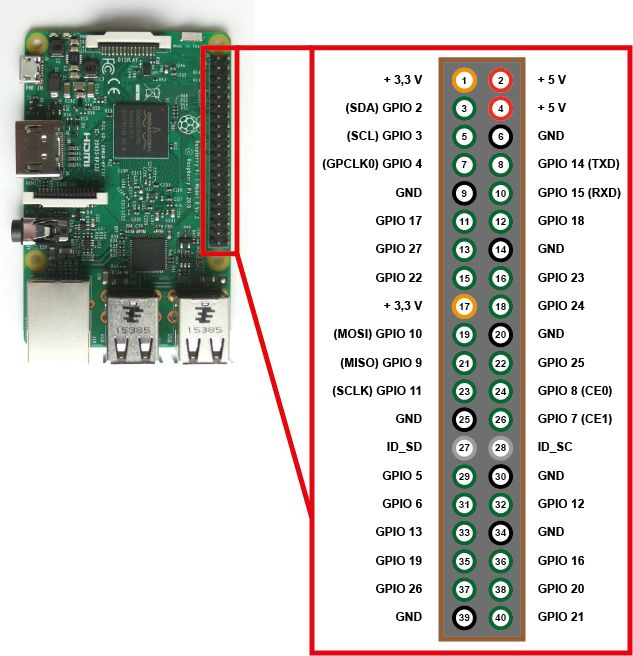
GPIO (General Purpose Input/Output) pins on the Raspberry Pi
https://www.raspberrypi.org/documentation/hardware/raspberrypi/gpio/README.md
GPIO pins - also called General Purpose Input Output - are the central interface between the Raspberry Pi to external devices and digital circuits. In addition to simple control, certain pins also perform certain functions such as communication via I2C, UART or SPI.
Overview
This page expands on the technical features of the GPIO pins available on BCM2835 in general. For usage examples, see GPIO usage . When reading this page, reference should be made to the BCM2835 ARM peripherals data sheet, section 6. GPIO pins can be configured as either general-purpose input, general-purpose output, or as one of up to six special alternate settings, the functions of which are pin-dependent. There are three GPIO banks on BCM2835. Each of the three banks has its own VDD input pin. On Raspberry Pi, all GPIO banks are supplied from 3.3V. Connection of a GPIO to a voltage higher than 3.3V will likely destroy the GPIO block within the SoC. A selection of pins from Bank 0 is available on the P1 header on Raspberry Pi.
GPIO pads
The GPIO connections on the BCM2835 package are sometimes referred to in the peripherals data sheet as "pads" — a semiconductor design term meaning 'chip connection to outside world'. The pads are configurable CMOS push-pull output drivers/input buffers. Register-based control settings are available for:
- Internal pull-up / pull-down enable/disable
- Output drive strength
- Input Schmitt-trigger filtering
Power-on states
All GPIO pins revert to general-purpose inputs on power-on reset. The default pull states are also applied, which are detailed in the alternate function table in the ARM peripherals datasheet. Most GPIOs have a default pull applied.
Interrupts
Each GPIO pin, when configured as a general-purpose input, can be configured as an interrupt source to the ARM. Several interrupt generation sources are configurable:
- Level-sensitive (high/low)
- Rising/falling edge
- Asynchronous rising/falling edge
Level interrupts maintain the interrupt status until the level has been cleared by system software (e.g. by servicing the attached peripheral generating the interrupt). The normal rising/falling edge detection has a small amount of synchronisation built into the detection. At the system clock frequency, the pin is sampled with the criteria for generation of an interrupt being a stable transition within a three-cycle window, i.e. a record of '1 0 0' or '0 1 1'. Asynchronous detection bypasses this synchronisation to enable the detection of very narrow events.
Alternative functions
Almost all of the GPIO pins have alternative functions. Peripheral blocks internal to BCM2835 can be selected to appear on one or more of a set of GPIO pins, for example the I2C busses can be configured to at least 3 separate locations. Pad control, such as drive strength or Schmitt filtering, still applies when the pin is configured as an alternate function.
Voltage specifications
The following table gives the various voltage specifications for the GPIO pins, it was extracted from the Compute Module datasheet here.
| Symbol | Parameter | Conditions | Min | Typical | Max | Unit |
| VIL | Input Low Voltage | VDD IO = 1.8V | - | - | 0.6 | V |
| VDD IO = 2.7V | - | - | 0.8 | V | ||
| VDD IO = 3.3V | - | - | 0.9 | V | ||
| VIH | Input high voltagea | VDD IO = 1.8V | 1.0 | - | - | V |
| VDD IO = 2.7V | 1.3 | - | - | V | ||
| VDD IO = 3.3V | 1.6 | - | - | V | ||
| IIL | Input leakage current | TA = +85◦C | - | - | 5 | µA |
| CIN | Input capacitance | - | - | 5 | - | pF |
| VOL | Output low voltageb | VDD IO = 1.8V, IOL = -2mA | - | - | 0.2 | V |
| VDD IO = 2.7V, IOL = -2mA | - | - | 0.15 | V | ||
| VDD IO = 3.3V, IOL = -2mA | - | - | 0.14 | V | ||
| VOH | Output high voltageb | VDD IO = 1.8V, IOH = 2mA | 1.6 | - | - | V |
| VDD IO = 2.7V, IOH = 2mA | 2.5 | - | - | V | ||
| VDD IO = 3.3V, IOH = 2mA | 3.0 | - | - | V | ||
| IOL | Output low currentc | VDD IO = 1.8V, VO = 0.4V | 12 | - | - | mA |
| VDD IO = 2.7V, VO = 0.4V | 17 | - | - | mA | ||
| VDD IO = 3.3V, VO = 0.4V | 18 | - | - | mA | ||
| IOH | Output high currentc | VDD IO = 1.8V, VO = 1.4V | 10 | - | - | mA |
| VDD IO = 2.7V, VO = 2.3V | 16 | - | - | mA | ||
| VDD IO = 3.3V, VO = 2.3V | 17 | - | - | mA | ||
| RPU | Pullup resistor | - | 50 | - | 65 | kΩ |
| RPD | Pulldown resistor | - | 50 | - | 65 | kΩ |
a Hysteresis enabled
b Default drive strength (8mA)
c Maximum drive strength (16mA)
wiringPi and GPIO connection overview
max. allowed power consumption for GPIO in total is 50 mA and a maximum of 16 mA per pin
| Device | Consumption | Notes | wiringPi / GPIO commands for connected devices |
| Gyroscope and acceleration sensor GY-521 (MPU6050) @ 3.3V |
|
|
|
| Inertial Measurement Unit MPU 9250 / GY-250 InvenSense @ 3.3V | ? |
|
|
| Relay JQC-3FF-S-Z @ 5V |
|
Way 1 (preferred)
Use the scripts Way 2 Way 3 Failed Status |
|
| Filament sensing with KY-040 Rotary Encoder | ? | Encoder for filament monitor on extruder and for switchting into manual torque mode |
Have a look at |
| Relay JQC3F-05VDC-C |
|
Relay to switch on/off center LED spot |
There's a sepcial abusing python script for this because the relay has a logic level issue with Raspberry Pi (voltage differences) → See https://raspberrypi.stackexchange.com
pip3.7 install RPi.GPIO
Use the scripts Failed Status |
wiringPi GPIO and pintest utility
pintest: this is to check the pins at onc
Install wiringPi
apt install wiringpiGet pintest
Install this tool manually because the the apt repo for wiringPi does not contain the utility "pintest".
#install wiringPi manually because the apt repo does not contain the utility "pintest" ...
cd
#git clone git://git.drogon.net/wiringPi #failed due to offline state
git clone https://github.com/WiringPi/WiringPi.git
cd ~/WiringPi
./build
cd ~/WiringPi/gpio
chmod +x pintest
./pintestReview the result
PinTest
=======
This is a simple utility to test the GPIO pins on your Raspberry Pi.
NOTE: All GPIO peripherals must be removed to perform this test. This
includes serial, I2C and SPI connections. You may get incorrect results
if something is connected and it interferes with the test.
This test can only test the input side of things. It uses the internal
pull-up and pull-down resistors to simulate inputs. It does not test
the output drivers.
You will need to reboot your Pi after this test if you wish to use the
serial port as it will be left in GPIO mode rather than serial mode.
This test only tests the original pins present on the Rev A and B. It
does not test the extra pins on the Revision A2, B2 nor the A+ or B+
Please make sure everything is removed and press the ENTER key to continue,
or Control-C to abort...
The main 8 GPIO pins 0: 7: OK
The 5 SPI pins 10:14: OK
The serial pins 15:16: OK
The I2C pins 8: 9: OKrebootHelpful commands
gpio readall
gpio exports #list all exported pin (also lists pins which were not exported with the GPIO tool itself)Bash commands
This was not tested yet!
#unexport GPIO pins without external tools or libraries
sudo bash -c "for ((i=0; i<32; i++)); do echo \$i; echo in >/sys/class/gpio/gpio\$i/direction; echo \$i >/sys/class
/gpio/unexport; done"Raspberry Pi 3 B - power optimizations and boot adjustments
Raspberry Pi overview
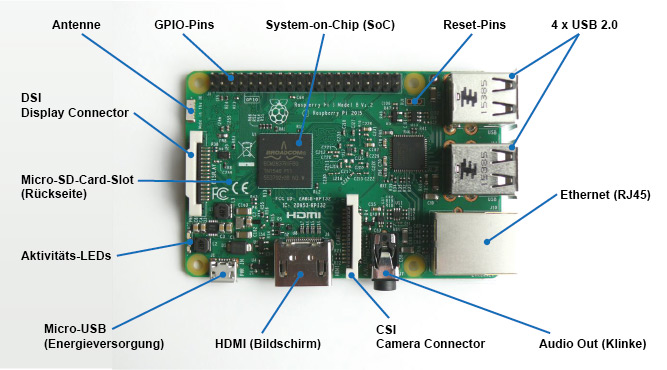
Image source: https://www.elektronik-kompendium.de/sites/raspberry-pi/1905251.htm
HDMI deactivation
HDMI is disabled by default if no monitor is connected. If a monitor is connected this can be either enabled or disabled manually by the following commands
/opt/vc/bin/tvservice -o
#or sh vcgencmd display_power 1
#re-enable with
sudo /opt/vc/bin/tvservice -pBluetooth and WiFi deactivation (this is not going to be applied to Trikarus!)
vim /boot/config.txt#dtoverlay=disable-wifi #enabled again! (backup remote connection)
#dtoverlay=disable-bt #enabled again! (filament weigh sub project requires to have it enabled)Status LED deactivation (saves ~30 mA)
Red PWR LED
- on if power OK
- flashes (or goes out) if the power drops below about 4.63V
Green ACT LED
-
steady on if no SD card during boot
-
irregular flashes for SD card access
Ethernet Socket Left LED (yellow)
-
on 100-Mbps connection
-
off 10-Mbps connection
Ethernet Socket Right LED (green)
-
on if link established
-
flashes for port activity
-
off if no link is established
Version 1 (is not used)
vim /boot/config.txtdtparam=act_led_trigger=none
dtparam=act_led_activelow=onVersion 2 (is used)
vim /opt/disable_leds.sh#!/bin/bash
echo none > /sys/class/leds/led0/trigger
echo none > /sys/class/leds/led1/trigger
echo 0 > /sys/class/leds/led0/brightness
echo 0 > /sys/class/leds/led1/brightnesschmod +x /opt/disable_leds.shvim /etc/cron.d/disable_leds# this script disables Raspberry Pi LEDs after bootup
SHELL=/bin/sh
PATH=/usr/local/sbin:/usr/local/bin:/sbin:/bin:/usr/sbin:/usr/bin
*/1 * * * * root /opt/disable_leds.shCPU throttling (this is not going to be applied to Trikarus!)
- https://learn.pi-supply.com/make/how-to-save-power-on-your-raspberry-pi/#throttle-cpu
- https://www.raspberrypi.org/documentation/configuration/config-txt/overclocking.md
vim /boot/config.txtarm_freq_min=250
core_freq_min=100
sdram_freq_min=150
over_voltage_min=0USB deactivation
See Smart Stepper - USB, Soft and hard reset for USB scripts
Audio deactivation
vim /boot/config.txtdtparam=audio=offUSB power and Raspberry Pi undervoltage
It seems possible to reduce the total allowed load from 1200 mA to 600 mA → https://www.raspberrypi.org/documentation/configuration/config-txt/misc.md
It was tested but seems to make no difference. So it was not applied to Trikarus configuration
max_usb_current=1 #1200 mA
max_usb_current=0 #600 mAProblem description
- dmesg shows detected undervoltage at startup
- Monitoring shows the same undervoltage peak
Webcam might not be available due to error while adressing USB devices
[ 55.651885] usb 1-1.5: device not accepting address 11, error -110
[ 55.751888] usb 1-1.5: new high-speed USB device number 13 using dwc_otg
[ 66.291906] usb 1-1.5: device not accepting address 13, error -110
[ 66.292050] usb 1-1-port5: unable to enumerate USB deviceSolution
- not known yet. USV is built to deliver more than 10 Watt at USB but Raspberry Pi never draws more than 4.35 W (see General power/wiring concept, consumptions and temperatures for measurements values)
GPU memory and troubleshooting "failed to open VCHI service (-1)"
This is okay/harmless message. The GPU memory was set to 16 MB in /boot/config.txt so some services are not available with such low memory.
/boot/config.txt Overview
Some default values were changed to the following:
dtparam=i2c_arm=on
dtparam=audio=off
gpu_mem=16 #GUI not used so use the memory for better things
boot_delay=3 #did not really help to omit the once per bootup occuring undervoltage but may help to wait for connected USB StickRaspberry Pi 3 B - system wide USB handling
Persisting connected USB devices
The following external hardware is connected to hangdevice
#sudo mknod /dev/ttyUSB0 c 188 0
#sudo mknod /dev/ttyUSB1 c 188 1
lsusb -t #list the devices as tree
lsusb -v | grep 'idVendor\|idProduct\|iProduct\|iSerial' #get some more info| Device | ID Vendor:ID Product | iSerial | Product |
|
|
1d50:60ec | ? | |
|
|
046d:082d | EF9B0F4F | Logitech, Inc. HD Pro Webcam C920 |
|
|
05e3:0608 |  |
4 Port USB Hub GL850G Genesys Logic + 24V DC/DC Converter Traco Power TMA 2405S |
|
|
1209:8087 | |
Generic MisfitTech Nano Zero #A Axis |
|
|
1209:8087 | |
Generic MisfitTech Nano Zero #B Axis |
|
|
1209:8087 | |
Generic MisfitTech Nano Zero #C Axis |
|
|
1209:8087 | |
Generic MisfitTech Nano Zero #D Axis |
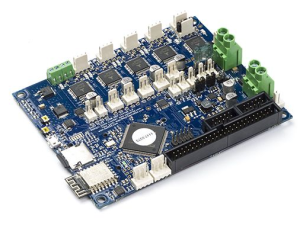

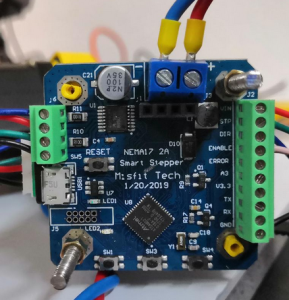
Useful tips:
- https://www.domoticz.com/wiki/PersistentUSBDevices
- https://www.domoticz.com/wiki/Assign_fixed_device_name_to_USB_port
- https://www.freva.com/2019/06/20/assign-fixed-usb-port-names-to-your-raspberry-pi/
 Problem: Vendor ID and Product IDs are the same for each Smart Stepper. So they cannnot be assigned by Serial ID. The solution is to use devpath instead of Product ID and Vendor ID. The following USB port mapping was found for my Raspberr Pi 3B (browsing on the web this seems to be indivually different for each Raspberry Pi). You also can change the IDs by re-flashing the Smart Steppers. See Smart Stepper - flashing the firmware for details.
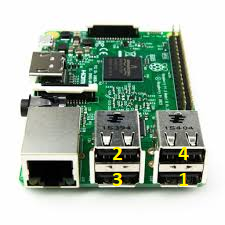
sudo vim /etc/udev/rules.d/99-usb-serial.rules
SUBSYSTEM=="tty", ATTRS{idVendor}=="1d50", ATTRS{idProduct}=="60ec", SYMLINK+="ttyUSB-DUET2ETHERNET"
SUBSYSTEM=="video4linux", ATTRS{idVendor}=="046d", ATTRS{idProduct}=="082d", ATTRS{serial}=="EF9B0F4F", SYMLINK+="ttyUSB-LOGITECH-C920"
SUBSYSTEM=="tty", ATTRS{idVendor}=="05e3", ATTRS{idProduct}=="0608", SYMLINK+="ttyUSB-MINI-4PORT-HUB" #this will disappear if all Smart Steppers are disconnected because the hub itself has no tty. It gets one when at least one device is attached to the hub
#ATTRS{devpath}=="3.1" -> 1 is the Port at Raspberry Pi, 1 is the Port of the connected Mini USB Hub
SUBSYSTEM=="tty", ATTRS{idVendor}=="1209", ATTRS{idProduct}=="8087", ATTRS{devpath}=="1.4.1", SYMLINK+="ttyUSB-SMART-A-AXIS"
SUBSYSTEM=="tty", ATTRS{idVendor}=="1209", ATTRS{idProduct}=="8087", ATTRS{devpath}=="1.4.2", SYMLINK+="ttyUSB-SMART-B-AXIS"
SUBSYSTEM=="tty", ATTRS{idVendor}=="1209", ATTRS{idProduct}=="8087", ATTRS{devpath}=="1.4.3", SYMLINK+="ttyUSB-SMART-C-AXIS"
SUBSYSTEM=="tty", ATTRS{idVendor}=="1209", ATTRS{idProduct}=="8087", ATTRS{devpath}=="1.4.4", SYMLINK+="ttyUSB-SMART-D-AXIS"The device ttyUSB-MINI-4PORT-HUB is not shown by ls /dev if no single Smart Stepper is only!
udevadm trigger #apply the rules
ls /devOverview of busses, ports, devices
USB ports are sometimes confusing.
#list USB by /sys/bus/usb/drivers/usb
cd /sys/bus/usb/drivers/usb
ls -alF
lrwxrwxrwx 1 root root 0 Apr 29 12:32 1-1 -> ../../../../devices/platform/soc/3f980000.usb/usb1/1-1/
lrwxrwxrwx 1 root root 0 Apr 29 12:32 1-1.1 -> ../../../../devices/platform/soc/3f980000.usb/usb1/1-1/1-1.1/
lrwxrwxrwx 1 root root 0 Apr 29 12:32 1-1.2 -> ../../../../devices/platform/soc/3f980000.usb/usb1/1-1/1-1.2/
lrwxrwxrwx 1 root root 0 Apr 29 12:32 1-1.3 -> ../../../../devices/platform/soc/3f980000.usb/usb1/1-1/1-1.3/
lrwxrwxrwx 1 root root 0 Apr 29 12:32 1-1.4 -> ../../../../devices/platform/soc/3f980000.usb/usb1/1-1/1-1.4/
lrwxrwxrwx 1 root root 0 Apr 29 12:32 1-1.4.1 -> ../../../../devices/platform/soc/3f980000.usb/usb1/1-1/1-1.4/1-1.4.1/
lrwxrwxrwx 1 root root 0 Apr 29 12:32 1-1.4.2 -> ../../../../devices/platform/soc/3f980000.usb/usb1/1-1/1-1.4/1-1.4.2/
lrwxrwxrwx 1 root root 0 Apr 29 12:32 1-1.4.3 -> ../../../../devices/platform/soc/3f980000.usb/usb1/1-1/1-1.4/1-1.4.3/
lrwxrwxrwx 1 root root 0 Apr 29 12:32 1-1.4.4 -> ../../../../devices/platform/soc/3f980000.usb/usb1/1-1/1-1.4/1-1.4.4/
lrwxrwxrwx 1 root root 0 Apr 29 12:32 1-1.5 -> ../../../../devices/platform/soc/3f980000.usb/usb1/1-1/1-1.5/#list USB by lsusb -t
lsusb -t
/: Bus 01.Port 1: Dev 1, Class=root_hub, Driver=dwc_otg/1p, 480M
|__ Port 1: Dev 2, If 0, Class=Hub, Driver=hub/5p, 480M
|__ Port 1: Dev 3, If 0, Class=Vendor Specific Class, Driver=smsc95xx, 480M
|__ Port 2: Dev 4, If 0, Class=Mass Storage, Driver=usb-storage, 480M
|__ Port 3: Dev 5, If 0, Class=Communications, Driver=cdc_acm, 12M
|__ Port 3: Dev 5, If 1, Class=CDC Data, Driver=cdc_acm, 12M
|__ Port 4: Dev 6, If 0, Class=Hub, Driver=hub/4p, 480M
|__ Port 1: Dev 8, If 0, Class=Communications, Driver=cdc_acm, 12M
|__ Port 1: Dev 8, If 1, Class=CDC Data, Driver=cdc_acm, 12M
|__ Port 2: Dev 9, If 1, Class=CDC Data, Driver=cdc_acm, 12M
|__ Port 2: Dev 9, If 0, Class=Communications, Driver=cdc_acm, 12M
|__ Port 3: Dev 10, If 0, Class=Communications, Driver=cdc_acm, 12M
|__ Port 3: Dev 10, If 1, Class=CDC Data, Driver=cdc_acm, 12M
|__ Port 4: Dev 11, If 0, Class=Communications, Driver=cdc_acm, 12M
|__ Port 4: Dev 11, If 1, Class=CDC Data, Driver=cdc_acm, 12M
|__ Port 5: Dev 7, If 0, Class=Video, Driver=uvcvideo, 480M
|__ Port 5: Dev 7, If 1, Class=Video, Driver=uvcvideo, 480M
|__ Port 5: Dev 7, If 2, Class=Audio, Driver=snd-usb-audio, 480M
|__ Port 5: Dev 7, If 3, Class=Audio, Driver=snd-usb-audio, 480MMapping looks like this
1-1 Bus 01.Port 1: Dev 1, Class=root_hub, Driver=dwc_otg/1p, 480M 1-1 |__ Port 1: Dev 2, If 0, Class=Hub, Driver=hub/5p, 480M 1-1.1 |__ Port 1: Dev 3, If 0, Class=Vendor Specific Class, Driver=smsc95xx, 480M 1-1.2 |__ Port 2: Dev 4, If 0, Class=Mass Storage, Driver=usb-storage, 480M 1-1.3 |__ Port 3: Dev 5, If 0, Class=Communications, Driver=cdc_acm, 12M 1-1.3 |__ Port 3: Dev 5, If 1, Class=CDC Data, Driver=cdc_acm, 12M 1-1.4 |__ Port 4: Dev 6, If 0, Class=Hub, Driver=hub/4p, 480M 1-1.4.1 |__ Port 1: Dev 8, If 0, Class=Communications, Driver=cdc_acm, 12M 1-1.4.1 |__ Port 1: Dev 8, If 1, Class=CDC Data, Driver=cdc_acm, 12M 1-1.4.2 |__ Port 2: Dev 9, If 0, Class=Communications, Driver=cdc_acm, 12M 1-1.4.2 |__ Port 2: Dev 9, If 1, Class=CDC Data, Driver=cdc_acm, 12M 1-1.4.3 |__ Port 3: Dev 10, If 0, Class=Communications, Driver=cdc_acm, 12M 1-1.4.3 |__ Port 3: Dev 10, If 1, Class=CDC Data, Driver=cdc_acm, 12M 1-1.4.4 |__ Port 4: Dev 11, If 0, Class=Communications, Driver=cdc_acm, 12M 1-1.4.4 |__ Port 4: Dev 11, If 1, Class=CDC Data, Driver=cdc_acm, 12M 1-1.5 |__ Port 5: Dev 7, If 0, Class=Video, Driver=uvcvideo, 480M 1-1.5 |__ Port 5: Dev 7, If 1, Class=Video, Driver=uvcvideo, 480M 1-1.5 |__ Port 5: Dev 7, If 2, Class=Audio, Driver=snd-usb-audio, 480M 1-1.5 |__ Port 5: Dev 7, If 3, Class=Audio, Driver=snd-usb-audio, 480M
Troubleshooting USB errors
A lot of different USB errors can occure (like "device not accepting address"). Most times a reset of the USB hub helps. We can turn off, keep off some seconds and turn on again the hub to re-init the devices in case there are no powering issues. See https://paulphilippov.com/articles/how-to-fix-device-not-accepting-address-error. See Smart Stepper - USB, Soft and hard reset for some tested out handling methods (works for webcam too).
Raspberry Pi 3 B - watchdog
Install
apt-get install watchdog
Warning: Do never call "cat /dev/watchdog" because it will restart your Raspberry Pi 15 seconds after! :-(
Configure
vim /etc/watchdog.confwatchdog-device = /dev/watchdog
max-load-1 = 24
watchdog-timeout = 15Enable as permanent service
sudo /etc/init.d/watchdog start
#[ ok ] Starting watchdog (via systemctl): watchdog.service.Raspbian buster basic OS configuration
The OS is installed on Raspberry Pi 3 B featuring a High Endurance Micro-SDHC card 32 GB 100 MB/s UHS Class 3 by SANDISK.
Get model information
cat /sys/firmware/devicetree/base/modelSet time
in case the Raspberry Pi has no internet connection we need to adjust the time manually. It's important for InfluxDB, collectd and Grafana
sudo date --set '2020-06-19 11:31:00'Standard configuration
sudo su
apt remove unattended-upgrades
apt-get install keyboard-configuration
cat << EOF > /etc/default/keyboard
# KEYBOARD CONFIGURATION FILE
# Consult the keyboard(5) manual page.
XKBMODEL="pc105"
XKBLAYOUT="de"
XKBVARIANT=""
XKBOPTIONS=""
BACKSPACE="guess"
EOF
sudo dpkg-reconfigure -f noninteractive keyboard-configuration
sudo ln -fs /usr/share/zoneinfo/Europe/Berlin /etc/localtime
sudo dpkg-reconfigure -f noninteractive tzdata
#Passwort ändern
passwd
#Enable ssh
dpkg-reconfigure openssh-server
sudo systemctl enable ssh
systemctl start sshInstall languages + set default
sudo su
vim /etc/locale.gen
locale-gen de_DE.UTF-8
locale-gen en_GB.UTF-8
locale-gen en_US.UTF-8
update-locale LANG=en_US.UTF-8
cat /etc/default/localeConfigure hostname
#Hostname ändern und an allen wichtigen Stellen anpassen
hostname -b hangdevice
cat /etc/hostname
sudo vim /etc/hosts
127.0.0.1 localhost.ffcmesh localhost #fritz.box oder speedport.ip oder ffcmesh (Freifunk)
127.0.1.1 hangdevice.fablabchemnitz.de hangdevice.ffcmesh hangdevice
YourIP hangdevice.fablabchemnitz.de hangdevice.ffcmesh hangdeviceAdditional Packages
sudo su
apt-get install cifs-utils collectd console-data console-setup curl deborphan gcc git grc htop iftop jq make dos2unix dnsutils fail2ban molly-guard lsof mailutils mosh mtr ncdu net-tools postfix python-pip rkhunter ruby ruby-dev screen sysstat tcpdump telnet traceroute vim
sudo update-alternatives --set editor /usr/bin/vim.basic
#fail2ban config
cp /etc/fail2ban/jail.conf /etc/fail2ban/jail.local
systemctl restart fail2ban.service
gem install colorls
pip install --upgrade pip
#logout and login again before running the speedtest-cli installation:
pip install speedtest-cliMake ping accesible from other users than root
setcap cap_net_raw+ep /bin/pingPostfix Mail Server
cd /etc/postfix
vim sasl_passwd
smtp.stadtfabrikanten.org the@address.server:thePassword
chown root:root /etc/postfix/sasl_passwd && chmod 600 /etc/postfix/sasl_passwd
postmap hash:/etc/postfix/sasl_passwdTroubleshooting: System mails are not sent
Problem description
(delivery temporarily suspended: Host or domain name not found. Name service error for name=smtp.stadtfabrikanten.org type=MX: Host not found, try againSolution
- check Freifunk connection (maybe restart the router and the meshing "mother" router also. Restarting the mesh points helped)
- restart postfix service
- adjust postfix config (not sure if this really changes anything)
vim /etc/postfix/
disable_dns_lookups = yesPermissions: The admin user hangprintermanage
sudo su
rm /etc/sudoers.d/010_pi-nopasswd
echo "hangprintermanage ALL=(ALL) NOPASSWD: ALL" >> /etc/sudoers.d/010_hangprintermanage-nopasswd
#make hangprintermanage to sudo user - if not already done by renaming "pi" user to "hangprintermanage". in this case hangprintermanage is already a sudoer
sudo usermod -aG sudo hangprintermanage
sudo -iu hangprintermanageSSH Key hangprintermanage
cd /home/hangprintermanage
chown -R hangprintermanage:hangprintermanage .ssh/
chmod 700 /home/hangprintermanage/.ssh
chmod 600 /home/hangprintermanage/.ssh/authorized_keysSSH User for remote rsync backups
sudo su
adduser --gecos "" --shell /bin/bash --home /home/hangprinterbackup hangprinterbackup
mkdir -p /home/hangprinterbackup/.ssh/
chmod 700 /home/hangprinterbackup/.ssh/
touch /home/hangprinterbackup/.ssh/authorized_keys
echo "ssh-ed25519 THEPUBLICKEY ssh backup hangprinter" >> /home/hangprinterbackup/.ssh/authorized_keys
chmod 600 /home/hangprinterbackup/.ssh/authorized_keys
chown -R hangprinterbackup:hangprinterbackup /home/hangprinterbackup/How to setup systemd-networkd/systemd-resolved + remove legacy (ifupdown, networking & networkManager services)
systemctl stop networking.service
systemctl stop NetworkManager.service
systemctl disable networking.service
systemctl disable NetworkManager.service
#PLEASE DO NOT REMOVE "openresolv" - this is required for Wireguard Service!
apt-get remove ifupdown resolvconf
cd /etc
rm -rf network netplan.io
systemctl enable systemd-networkd.service
systemctl enable systemd-resolved.service
rm /etc/resolv.conf
ln -s /run/systemd/resolve/resolv.conf /etc/resolv.conf
service systemd-networkd restart
service systemd-networkd status
service systemd-resolved restart
service systemd-resolved status
networkctl #print general info
networkctl status eth0 #print detail info for eth0
systemd-resolve --status
cat /etc/resolv.conf
traceroute -i eth0 google.de
traceroute -i ewg0 google.desystemd adjustments
omit "a stop job is running for " warnings
vim /etc/systemd/system.conf
DefaultTimeoutStopSec=30s Removed snoopy again
Snoopy was removed again because it creates a huge log file in /var/log/auth.log (up to 4 GB after some days)
apt remove snoopyDisable rsyslog
This prevents to have large files in /var/log (kern.log, daemon.log, syslog). This made about 4 GB after a few weeks because monitoring services write to InfluxDB for example
systemctl disable rsyslog.serviceRepetier Server
Installation of Repetier Server
https://www.repetier-server.com/manuals/0.85/index.html
sudo su
#There are sometimes some unreleases fixes which are not on the main repo. so manually try some release files:
wget http://download.repetier.com/files/server/debian-armhf/Repetier-Server-0.94.1-Linux.deb
dpkg -i Repetier-Server-0.94.1-Linux.deb
rm Repetier-Server-0.94.1-Linux.debConfig File /usr/local/Repetier-Server/etc/RepetierServer.xml
<?xml version="1.0" encoding="UTF-8" standalone="yes"?>
<server>
<installation-directory>/usr/local/Repetier-Server/</installation-directory>
<storage-directory>/var/lib/Repetier-Server/</storage-directory>
<default-language>en</default-language>
<port>3344</port>
<disableIPV6>true</disableIPV6><!-- setting to false can cause problems with external access -->
<logging>true</logging>
<backlog-size>1000</backlog-size>
<update-info-url>http://download.repetier-server.com/files/server/debian-armel/updateinfo.txt</update-info-url>
<printer-frontend-url>/modules/front2/www/app.html</printer-frontend-url>
<web-frontend-url>/</web-frontend-url>
</server>Restart Repetier Server
service RepetierServer status
service RepetierServer restartApache virtual host
See mkcert & Go for SSL cert generation
sudo a2enmod proxy proxy_wstunnel proxy_httpvim /etc/apache2/sites-enabled/repetier-server.conf<VirtualHost *:3345>
ServerName localhost
ServerAdmin some_mail@domain.de
SSLEngine on
SSLCertificateFile /etc/ssl/certs/trikarus.pem
SSLCertificateKeyFile /etc/ssl/private/trikarus-key.pem
RewriteEngine on
ProxyRequests Off
ProxyPreserveHost on
ProxyPass /socket/ ws://localhost:3344/socket/
ProxyPassReverse /socket/ ws://localhost:3344/socket/
ProxyPass / http://localhost:3344/
ProxyPassReverse / http://localhost:3344/
ErrorLog ${APACHE_LOG_DIR}/error-repetier-server.log
CustomLog ${APACHE_LOG_DIR}/access-repetier-server.log combined
<location "/mod/front/">
AuthType Basic
AuthName "Authentication Required"
AuthUserFile "/etc/apache2/htusers"
Require valid-user
</location>
<location "/modules/front2/">
AuthType Basic
AuthName "Authentication Required"
AuthUserFile "/etc/apache2/htusers"
Require valid-user
</location>
</VirtualHost>the front2 web view is accesible by /modules/front2/www/app.html which automatically redirects to /modules/front2/app/app.html. If you enter /modules/front2/app/app.html it will not load the view correctly. So always use the /www/ variant. Preceding user:password@ in URL string also sometimes fails to load the inner content.
vim /etc/apache2/ports.confListen 3345
Updates/Upgrades
.... can be done within the application frontend!
Trikarus (USB Serial) Printer config
- Duet used RTS/DTR values each "high to low" and communicates by baud rate 115200

- Duet is connected by USB Serial. The network connection is used to allow internal/external (secured) access to Duet Web Control. Access by network from Repetier Server is not really useful because it can only communicate over unsecure Telnet protocol (SSH not yet implemented)
- Repetier communicates in Ping Pong mode. The buffer size of 127 bytes (cache) is not used. We want to omit large movements in case the printer was stopped or paused (changed from cache mode to ping pong mode at )
PlugIns
At the moment there are not plugins installed. General information about plugins can be found at https://www.repetier-server.com/monitoring-plugins
RepRapFirmware support
Repetier Server console output is configured by RepRapFirmware.xml. This file contains information on how to parse Controller output.
Commands like M350 or M666 do not show full output lines because Repetier filters out too much. See https://forum.repetier.com/discussion/comment/32471#Comment_32471. To see "bug free" output check the console output from Duet Web Control instead.
If colons (:) are to be transferred in M117 or M118, please note:
#this change might affect other settings and is not used right now vim /usr/local/Repetier-Server/firmware/RepRapFirmware.xml #change from <com okAfterResend="false" protocol="ascii" allowColonInAscii="false"/> #to <com okAfterResend="false" protocol="ascii" allowColonInAscii="true"/>
API Scripting with curl
https://www.repetier-server.com/manuals/programming/API/index.html
For sending commands to Repetier Server API some URL encode/decode functions are required. It can be done directly with curl argument or with the following bash script which needs to be sourced with "source" command to execute it's functions from command line.
#https://gist.github.com/cdown/1163649
vim /opt/urlcoder.shurlencode() {
# urlencode <string>
old_lc_collate=$LC_COLLATE
LC_COLLATE=C
local length="${#1}"
for (( i = 0; i < length; i++ )); do
local c="${1:i:1}"
case $c in
[a-zA-Z0-9.~_-]) printf "$c" ;;
*) printf '%%%02X' "'$c" ;;
esac
done
LC_COLLATE=$old_lc_collate
}
urldecode() {
# urldecode <string>
local url_encoded="${1//+/ }"
printf '%b' "${url_encoded//%/\\x}"
}#make functions available and test the output
source /opt/urlcoder.sh && urlencode "G1 X0 Y10"#add to .bashrc at the bottom (root/flcmanage)
source /opt/urlcoder.sh/opt/repetier-conf.sh
#!/bin/bash
export API_KEY="KEY" # some valid API key
export HOST="localhost" # default: localhost
export PORT="3344" # default: 3344
export WS="ws" # might also be wss
export SLUG="myPrinter" # the printer name (see URLs in browser to get the slug name)
export HTTP_PROTO="http"
source "/opt/urlcoder.sh" # source methods to use them in this script
send_gcode() {
CMD='{"cmd":"'$1'"}'
CMD=${CMD// /%20} #replace regular whitespaces with pre-encoded %20 whitespace because urlencode does not work with normal whi tespaces correctly
ENC_CMD=$(urlencode $CMD) # build some encoded command
ENC_CMD=${ENC_CMD//%2520/%20} #repair the previously encoeded whitespaces
curl --silent "${HTTP_PROTO}://${HOST}:${PORT}/printer/api/${SLUG}?apikey=${API_KEY}&a=send&data=$ENC_CMD" > /dev/null
}The script has the method "send_gcode" to send GCodes while ignoring their output
source /opt/repetier-conf.sh
send_gcode 'M291 P\"Everything done. Ready to print!\"'For printing messages to Repetier Server console we use M291 instead of M117 or M118 because those commands seem to block the system buffer ("Mesg:15:12:09.888: Buffer used:73 Enforced free byte:71 lines stored:1"). This makes Repetier Server unresponsible. The disadvantage of M291 is the fact that the messages will not be displayed while printing. It only works in an idling state.
For all other purposes we can use example requests like
#List all models
curl "http://localhost:3344/printer/api/Trikarus?apikey=SOMEAPIKEY&a=listModels" | jq
#Log File Overview
curl "http://localhost:3344/printer/api/Trikarus?apikey=SOMEAPIKEY&a=listLogs" | jq
#Printer states
curl "http://localhost:3344/printer/api/Trikarus?apikey=4SOMEAPIKEY&a=stateList" | jqbest way: add # before line
#colons will be printed on console:
CMD='{"cmd":"#M118 P0 S\"Smart Stepper '${AXIS}': ctrlmode: '${CTRLMODE}' | \""}'
#colons will be ignored if preceding "#" is not used
CMD='{"cmd":"M118 P0 S\"Smart Stepper '${AXIS}': ctrlmode: '${CTRLMODE}' | \""}'API scripting with websockets and bash
Better do it directly using Python instead of using bash and websockets!
Install websocat tool
cd /usr/bin
wget https://github.com/vi/websocat/releases/download/v2.0.0-alpha0/websocat_arm-linux
chmod +x websocat_arm-linux
ln -sf websocat_arm-linux websocatCheck some basic commands
# call the websocket from Repetier Server instance - some basic command
./websocat ws://localhost:3344/socket
# the result:
{"callback_id":-1,"data":[{"data":{"session":"&e!gy3fXxXBOdb^HO80QwDqV%Tnu76AF"},"event":"loginRequired","printer":""}],"eventList":true}
#So Just attach the apikey to login accordingly:
websocat ws://localhost:3344/socket?apikey=SOMEAPIKEY
# And to send something to Repetier, use thins for instance:
echo '{"callback_id":-1,"data":{},"action":"stateList","printer":"myPrinter"}' | websocat ws://localhost:3344/socket?apikey=SOMEAPIKEY
# To grep out some event just do
websocat ws://localhost:3344/socket?apikey=SOMEAPIKEY | grep IPAnd if you want to run websocat feedback loop all the time you can pipe all the output into screen session
vim /opt/repetier-monitor/repetier-monitor.sh#!/bin/bash
#this script will get all the websocket output from Repetier Server by writing it into log file
# define some basic stuff
API_KEY="YOURKEY" # some valid API key
HOST="localhost" # default: localhost
PORT="3344" # default: 3344
WS="ws" # might also be wss
SLUG="myPrinter" # the printer name (see URLs in browser to get the slug name)
LOG_FILE="/opt/repetier-monitor/websocat_out.log"
#make a new screen to deal with websocat session. nohup and & background streaming did not work
screen -d -m sh -c "websocat '${WS}://${HOST}:${PORT}/socket?apikey=${API_KEY}' | tee ${LOG_FILE}"#run the script
chmod +x /opt/repetier-monitor/repetier-monitor.sh
/opt/repetier-monitor/repetier-monitor.sh
screen -list #check if it's running. If you want to show the screen itself run screen -R to attach to the detached screen session
# check output log (what you really want)
tail -f /opt/repetier-monitor/websocat_out.logEvents
See /#!/printerConfig/Trikarus/gcodes → tab "advanced"
Use https://regex101.com to check if the entered regex is working correctly
IP Address
This works for DHCP addresses and static IP addresses
^.*Network is enabled, configured IP address:.*, actual IP address.*$Duet Status (M408 S3)
^.*status.*mcu.*vin.*Z Probe at min stop
^Endstops.X*.*Y.*Z.*probe: at min stopPrint Pause Trigger
G91 ;set relative coords
G1 Z50 ;move +50 mm up
;M104 S0;turn off extruder - we don't do that because on continue we do not know the previous temperature value
G90; set absolute coordsExternal Commands - configuration, permissions, icons
https://www.repetier-server.com/manuals/0.94/index.html
Sometimes it is usefull to be able to call some external commands from the web interface. For example if you are running the server from a Raspberry-PI and want to shut it down, it would b econvenient to do so savely without opening a ssh terminal. For that reason you can extend the top right menu with external commands, which then appear there. On the other side you might want to run some commands on special positions of the print. The server therefor has the @execute command allowing to call an external programm. For security reasons it is not possible to call arbitrary commands. Instead you have to write a extcommands.xml file which you drop in your databbase subdirectory inside your storage directory (see installation where this is for your os).
Below you see an example of such a code. After adding/changing the file, you need to restart the server. Make sure your file keeps valid!
External commands list
vim /var/lib/Repetier-Server/database/extcommands.xml
<config>
<!--
If you want to run external commands, enter them in this configuration with
full path. You will see them in the main menu. Copy this file into the
<storage>/database directory.
Security consideration: The reason there is no online editor for this is simply
security. The commands you enter here are executed with the privileges of the
daemon running the server. If you would allow online configuration, a hacker could
simply add any command he needs to hack your system.
Commands are normally visible in the global menu. If you want one to appear only in
in the printer menu, add the attribute "slug" with the slugname as value to command tag
where it should show up. You see the slugname when you select a printer as part of the path.
-->
<command>
<name>Shutdown Server</name>
<execute>sudo /sbin/shutdown -h now</execute>
<confirm>Really shut down the server?</confirm>
<!-- Define if command should show up in local printer interface, default true.-->
<local>true</local>
<!-- Define if command should show up in remote printer interface, default true.-->
<remote>true</remote>
<!-- Define if command should show up only for users with print permission, default true.-->
<print-permission>true</print-permission>
<!-- Define if command should show up only for users with add files permission, default false.-->
<add-permission>true</add-permission>
<!-- Define if command should show up only for users with del files permission, default false.-->
<del-permission>true</del-permission>
<!-- Define if command should show up only for users with configuration permission, default false.-->
<config-permission>true</config-permission>
</command>
<command>
<name>Reboot Server</name>
<execute>sudo /sbin/shutdown -r now</execute>
<confirm>Really reboot the server?</confirm>
</command>
<command slug="Trikarus" icon="/led-on.svg">
<name>LED Spot on</name>
<execute>python3.7 /opt/gpio/ledspot-on.py</execute>
<local>true</local>
<remote>true</remote>
<config-permission>true</config-permission>
</command>
<command slug="Trikarus" icon="/led-off.svg">
<name>LED Spot off</name>
<confirm>Really turn off the lights? :-(</confirm>
<execute>python3.7 /opt/gpio/ledspot-off.py</execute>
<local>true</local>
<remote>true</remote>
<config-permission>true</config-permission>
</command>
<command slug="Trikarus" icon="/psu-on.svg">
<name>Power Supply on</name>
<execute>python3.7 /opt/gpio/psu-on.py</execute>
<local>true</local>
<remote>true</remote>
<config-permission>true</config-permission>
</command>
<command slug="Trikarus" icon="/psu-off.svg">
<name>Power Supply off</name>
<confirm>Really shut down PSU?</confirm>
<execute>python3.7 /opt/gpio/psu-off.py</execute>
<local>true</local>
<remote>true</remote>
<config-permission>true</config-permission>
</command>
<command slug="Trikarus" icon="/webcam.svg">
<name>Send Webcam Screenshot by mail</name>
<execute>sudo /opt/sendcamimage.sh</execute>
<local>true</local>
<remote>true</remote>
</command>
<command slug="Trikarus" icon="/webcam.svg">
<name>Webcam 100% Zoom</name>
<execute>sudo /opt/webcam-default.sh</execute>
<local>true</local>
<remote>true</remote>
</command>
<command slug="Trikarus" icon="/webcam.svg">
<name>Webcam 500% Zoom</name>
<execute>sudo /opt/webcam-zoomed.sh</execute>
<local>true</local>
<remote>true</remote>
</command>
<command slug="Trikarus" icon="/usb-off.svg">
<name>Internal RPI 4 Port Hub - Power off</name>
<confirm>Really switch off USB Power from onboard ports? It's required to turn PSU off before!</confirm>
<execute>sudo /opt/uhubctl/uhubctl -r 500 -l 1-1 -p 2 -a off</execute>
<local>true</local>
<remote>true</remote>
<config-permission>true</config-permission>
</command>
<command slug="Trikarus" icon="/usb-on.svg">
<name>Internal RPI 4 Port Hub - Power on</name>
<confirm>Please remember to turn on PSU again separately!</confirm>
<execute>sudo /opt/uhubctl/uhubctl -l 1-1 -p 2 -a on</execute>
<local>true</local>
<remote>true</remote>
<config-permission>true</config-permission>
</command>
<command slug="Trikarus" icon="/ip.svg">
<name>Update /etc/hosts with recent Duet IP</name>
<execute>/opt/sendDeviceIPsByMail.sh</execute>
<local>true</local>
<remote>true</remote>
<config-permission>true</config-permission>
</command>
<command slug="Trikarus" icon="/prepare_print.svg">
<name>Prepare for printing</name>
<execute>sudo /opt/sms_modes/sms_prepare.sh</execute>
<local>true</local>
<remote>true</remote>
<config-permission>true</config-permission>
</command>
<command slug="Trikarus" icon="/random-enable.svg">
<name>Random positions mode - on</name>
<confirm>Really turn on random mode? :-(</confirm>
<execute>sudo /opt/sms_modes/sms_random.sh start</execute>
<local>true</local>
<remote>true</remote>
<config-permission>true</config-permission>
</command>
<command slug="Trikarus" icon="/random-disable.svg">
<name>Random positions mode - off</name>
<execute>sudo /opt/sms_modes/sms_random.sh stop</execute>
<local>true</local>
<remote>true</remote>
<config-permission>true</config-permission>
</command>
<command slug="Trikarus" icon="/torque_all.svg">
<name>Smart Stepper - Torque all</name>
<execute>sudo /opt/sms_modes/sms_torque_all.sh</execute>
<local>true</local>
<remote>true</remote>
<config-permission>true</config-permission>
</command>
<command slug="Trikarus" icon="/torque_a.svg">
<name>Smart Stepper - Torque A</name>
<execute>sudo /opt/sms_modes/sms_torque_a.sh</execute>
<local>true</local>
<remote>true</remote>
<config-permission>true</config-permission>
</command>
<command slug="Trikarus" icon="/torque_b.svg">
<name>Smart Stepper - Torque B</name>
<execute>sudo /opt/sms_modes/sms_torque_b.sh</execute>
<local>true</local>
<remote>true</remote>
<config-permission>true</config-permission>
</command>
<command slug="Trikarus" icon="/torque_c.svg">
<name>Smart Stepper - Torque C</name>
<execute>sudo /opt/sms_modes/sms_torque_c.sh</execute>
<local>true</local>
<remote>true</remote>
<config-permission>true</config-permission>
</command>
<command slug="Trikarus" icon="/torque_d.svg">
<name>Smart Stepper - Torque D</name>
<execute>sudo /opt/sms_modes/sms_torque_d.sh</execute>
<local>true</local>
<remote>true</remote>
<config-permission>true</config-permission>
</command>
<command slug="Trikarus" icon="/mode_spid.svg">
<name>Smart Stepper - sPID all</name>
<execute>sudo /opt/sms_modes/sms_spid_all.sh</execute>
<local>true</local>
<remote>true</remote>
<config-permission>true</config-permission>
</command>
<command slug="Trikarus" icon="/tighten_abc.svg">
<name>Smart Stepper - Tighten ABC</name>
<execute>sudo /opt/sms_modes/sms_tighten_abc.sh</execute>
<local>true</local>
<remote>true</remote>
<config-permission>true</config-permission>
</command>
<command slug="Trikarus" icon="/tighten_d.svg">
<name>Smart Stepper - Tighten D</name>
<execute>sudo /opt/sms_modes/sms_tighten_d.sh</execute>
<local>true</local>
<remote>true</remote>
<config-permission>true</config-permission>
</command>
<command slug="Trikarus" icon="/release_abc.svg">
<name>Smart Stepper - Release ABC</name>
<execute>sudo /opt/sms_modes/sms_release_abc.sh</execute>
<local>true</local>
<remote>true</remote>
<config-permission>true</config-permission>
</command>
<command slug="Trikarus" icon="/release_d.svg">
<name>Smart Stepper - Release D</name>
<execute>sudo /opt/sms_modes/sms_release_d.sh</execute>
<local>true</local>
<remote>true</remote>
<config-permission>true</config-permission>
</command>
<command slug="Trikarus" icon="/smooth_all.svg">
<name>Smart Stepper - Smooth all</name>
<execute>sudo /opt/sms_modes/sms_smooth_all.sh</execute>
<local>true</local>
<remote>true</remote>
<config-permission>true</config-permission>
</command>
<command slug="Trikarus" icon="/smooth_a.svg">
<name>Smart Stepper - Smooth A</name>
<execute>sudo /opt/sms_modes/sms_smooth_a.sh</execute>
<local>true</local>
<remote>true</remote>
<config-permission>true</config-permission>
</command>
<command slug="Trikarus" icon="/smooth_b.svg">
<name>Smart Stepper - Smooth B</name>
<execute>sudo /opt/sms_modes/sms_smooth_b.sh</execute>
<local>true</local>
<remote>true</remote>
<config-permission>true</config-permission>
</command>
<command slug="Trikarus" icon="/smooth_c.svg">
<name>Smart Stepper - Smooth C</name>
<execute>sudo /opt/sms_modes/sms_smooth_c.sh</execute>
<local>true</local>
<remote>true</remote>
<config-permission>true</config-permission>
</command>
<command slug="Trikarus" icon="/smooth_d.svg">
<name>Smart Stepper - Smooth D</name>
<execute>sudo /opt/sms_modes/sms_smooth_d.sh</execute>
<local>true</local>
<remote>true</remote>
<config-permission>true</config-permission>
</command>
<command slug="Trikarus" icon="/zup.svg">
<name>Smart Stepper - Z Up</name>
<execute>sudo /opt/sms_modes/sms_zup.sh</execute>
<local>true</local>
<remote>true</remote>
<config-permission>true</config-permission>
</command>
<command slug="Trikarus" icon="/zdown.svg">
<name>Smart Stepper - Z Down</name>
<execute>sudo /opt/sms_modes/sms_zdown.sh</execute>
<local>true</local>
<remote>true</remote>
<config-permission>true</config-permission>
</command>
<command slug="Trikarus" icon="/setzero.svg">
<name>Smart Stepper - Set Zero</name>
<execute>sudo /opt/sms_modes/sms_setzero.sh</execute>
<local>true</local>
<remote>true</remote>
<config-permission>true</config-permission>
</command>
<command slug="Trikarus" icon="/reboot.svg">
<name>Smart Stepper - Reboot</name>
<execute>sudo /opt/sms_modes/sms_reboot.sh</execute>
<local>true</local>
<remote>true</remote>
<config-permission>true</config-permission>
</command>
<!--
G-code files can contain
@execute cmd param1 param2
commands. To prevent external users from executing unwanted or dangerous commands,
only commands defined here are allowed to execute. More over, only the shortcuts
defined here are to be used as cmd in @execute. Prevent parameter where ever possible.
-->
<execute name="play" allowParams="true">/usr/bin/afplay</execute>
<!-- play the sound file on moc os x -->
</config>The commands in execute tag are executed asynchronously by default. That means the server will not wait for them to finish and directly continous sending g-code. Normally a good thing as it does not disturb the print. In case you want the server to wait for the command to finish, e.g. because you wait for some starting condition you can add the attribute sync="true". In that case you also have the option to stop the print if the returned error code is not 0. To enable this add attribute stopOnFail="true".
 to make the commands work you need to check the permissions (e.g. chmod 755) on the according files and folders
sudo permissions
All commands get executed with the user account and privileges the server daemon runs. So if you want to allow it to shutdown your computer, you need to add RepetierServer to the list of allowed users. To do this, open a shell and enter the following commands:
vim /etc/sudoers.d/repetierserver-permsrepetierserver ALL=NOPASSWD: /usr/local/Repetier-Setup/bin/manageWifiAccess
repetierserver ALL=NOPASSWD: /usr/local/Repetier-Setup/bin/installWebcam2
repetierserver ALL=NOPASSWD: /usr/local/Repetier-Setup/bin/screensaver
repetierserver ALL=NOPASSWD: /opt/sendcamimage.sh
repetierserver ALL=NOPASSWD: /opt/webcam-default.sh
repetierserver ALL=NOPASSWD: /opt/webcam-zoomed.sh
repetierserver ALL=NOPASSWD: /sbin/shutdown
repetierserver ALL=NOPASSWD: /opt/uhubctl/uhubctl
repetierserver ALL=NOPASSWD: /opt/sms_modes/sms_reboot.sh
repetierserver ALL=NOPASSWD: /opt/sms_modes/sms_setzero.sh
repetierserver ALL=NOPASSWD: /opt/sms_modes/sms_smooth_all.sh
repetierserver ALL=NOPASSWD: /opt/sms_modes/sms_smooth_a.sh
repetierserver ALL=NOPASSWD: /opt/sms_modes/sms_smooth_b.sh
repetierserver ALL=NOPASSWD: /opt/sms_modes/sms_smooth_c.sh
repetierserver ALL=NOPASSWD: /opt/sms_modes/sms_smooth_d.sh
repetierserver ALL=NOPASSWD: /opt/sms_modes/sms_spid_all.sh
repetierserver ALL=NOPASSWD: /opt/sms_modes/sms_torque_all.sh
repetierserver ALL=NOPASSWD: /opt/sms_modes/sms_torque_a.sh
repetierserver ALL=NOPASSWD: /opt/sms_modes/sms_torque_b.sh
repetierserver ALL=NOPASSWD: /opt/sms_modes/sms_torque_c.sh
repetierserver ALL=NOPASSWD: /opt/sms_modes/sms_torque_d.sh
repetierserver ALL=NOPASSWD: /opt/sms_modes/sms_tighten_abc.sh
repetierserver ALL=NOPASSWD: /opt/sms_modes/sms_tighten_d.sh
repetierserver ALL=NOPASSWD: /opt/sms_modes/sms_release_abc.sh
repetierserver ALL=NOPASSWD: /opt/sms_modes/sms_release_d.sh
repetierserver ALL=NOPASSWD: /opt/sms_modes/sms_zdown.sh
repetierserver ALL=NOPASSWD: /opt/sms_modes/sms_zup.sh
repetierserver ALL=NOPASSWD: /opt/sms_modes/sms_prepare.sh
repetierserver ALL=NOPASSWD: /opt/sms_modes/sms_random.sh start
repetierserver ALL=NOPASSWD: /opt/sms_modes/sms_random.sh stopIcons
vim /var/lib/Repetier-Server/database/RepetierServer.xml<?xml version="1.0" encoding="UTF-8" standalone="yes"?>
<server>
<branding>
<shadow-www-directory>/var/lib/Repetier-Server/shadow</shadow-www-directory>
</branding>
</server>cd /var/lib/Repetier-Server/
mkdir shadow/
chown repetierserver:dialout shadow/Now put the icons into that directory and restart Repetier Server
Finally make use of the commands
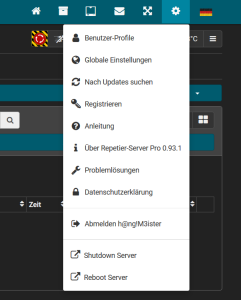
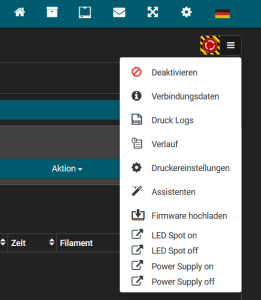
This is an older screenshot!
Often users have problems adding new commands on linux. Here are some common pitfals that we know users run into:
- Changes are only available after a restart of Repetier-Server, see installation section for how to do this.
- Commands are executed with the username Repetier-Server runs. On Linux this is normally repetierserver. Make sure the complete path to your executeable is accessible for other users.
- Use an absolute path to the executeable. It gets started from a different path so local or relative path will often not work.
- The script must be executeable, so make sure the executeable flag is set: chmod a+x filename
- If a script requires root permission start it with sudo and make sure that command is in the list of allowed sudoers for repetierserver just as shown in the shutdown example.
- If you add parameters to teh script in @execute, you need to set allowParams true. This can be a security risk if you execute gcodes from external sources!
Alternative Startup Configuration Settings
By default the installer creates a startup configuration file RepetierServer.xml, which defines most important start parameter like storage location and a port to listen to. Because this gets overwritten with each update, we provide a mechanism to change these parameters permanently. In addition to this config file, the server tries to load two more config files if present. These files are RepetierServer-extra.xml at the same location where RepetierServer.xml resides (installation directory/bin/ for Windows and intsallation directory/etc/ for Linux and Mac) and storage directory/database/RepetierServer.xml.
Logs
The log files can be found in
- /var/lib/Repetier-Server/logs, or
- since Repetier Server 0.94.0 you can view them directly in the user interface
UI Control of Trikarus
- Left control is the hotend fan
- center control is the print fan (blower)
- right control are the three laser pointers
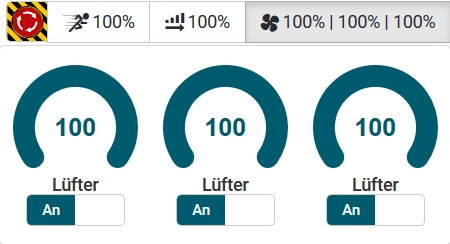
Smart Stepper - calibration and control modes (sPID mode, pPID mode and torque mode)
Smart Stepper command line interface
Docs from https://github.com/Misfittech/nano_stepper
The smart stepper uses a command line interface where the prompt is “:>”
|
help |
The help command will return a list of commands that the smart stepper supports. |
|---|---|
|
getcal |
This command will print out the 200 point calibration table. This is useful if you are doing firmware development and do not want to calibrate each time you update firmware. You can take this table and copy it into the nonvolatile.cpp file as shown below |
|
calibrate |
This will run a 200 point calibration of the encoder. Should be done with motor disconnected from machine |
|
testcal |
This will test the calibration and report the maximum error in degrees. |
|
microsteps |
This command gets/sets the number of microsteps the smart stepper will use for the step command and the step pin. The number of microsteps does not affect the resolution of the controller but rather how fine you can set the position. |
|
step |
This will move the motor one step clockwise, the step size is based on the current microstep setting. To move the motor counterclockwise use “step 1”. To move the motor clockwise 16 steps used “step 0 16” to move motor counterclockwise 16 steps use “step 1 16” |
|
feedback |
This commands disable/enables feedback control loop. 'feedback 0' - disables, 'feedback 1' - enables The plan is to discountinue this command in the future and use the “controlmode” command to put controller in open or one of the many closed loop operational modes. |
|
readpos |
Reads the current motor position and reports it as degrees (current angle as 16bit number) applies calibration if valid |
|
encoderdiag |
This command will read and report the AS5047D internal registers for diagnostic purposes. |
|
spid |
This command sets the Kp, Ki, and Kd terms for the simple positional PID controller. The default values are:
|
|
ppid |
This command sets the Kp, Ki, and Kd terms for the positional PID controller. The default values are:
|
|
vpid |
This command sets the Kp, Ki, and Kd terms for the velocity PID controller. The default values are:
|
|
velocity |
This sets the velocity in RPMs to rotate motor when unit is configured for velocity PID mode of operation. |
|
boot |
This command will put the microprocessor in the boot loader mode. Alternatively this can be done by double pressing the reset button. |
|
factoryreset |
This erases the calibration and other system and motor parameters such that unit is reset to the factory ship state. After this command the unit will need to be calibrated to the motor again. |
|
dirpin |
This command sets which direction the motor will rotate when direction pin is pulled high. The direction pin is only sampled when the step pin has a rising edge. ‘dirpin 0’ will set the motor to rotate clockwise when dir pin is high ‘dirpin 1’ will set the motor to rotate counter-clockwise when dir pin is high |
|
errorlimit |
Gets/sets the maximum number of degrees of error that is acceptable. Any posistioning error about the error limit will assert the error pin, when error pin is set as error output. For example: Will set the error limit to 1.8 degrees. |
|
ctrlmode |
Gets/Sets the feedback controller mode of operation. The command takes an integer from 0 through 4 to set the control mode per table below:
If you are unsure what you are doing leave unit in the Simple PID mode of operation. |
|
maxcurrent |
This sets the maximum current that will be pushed into the motor. To set the current for maximum of 2.0A you would use command “maxcurrent 2000” as the argument is in milliAmps. |
|
holdcurrent |
For the Simple Positional PID mode the minimal current (ie current with no positional error) is the hold current. You set this current based on the required holding torque you need for your application. The higher the hold current, the hotter and noisier the motor will be but also the larger the holding torque. For the Positional PID mode the PID tuning params have to be set correctly such that the control loop will dynamically determine the holding torque. This tuning of the PID can be difficult, hence the simple PID mode will work most of the time out of the box by setting maximum current and holding current. |
|
motorwiring |
The firmware always uses a positive angle as a clockwise rotation. A stepper motor however could have wiring done with one coil reversed wired, which will cause motor to normally operate in opposite direction. The Smart Stepper firmware will detect the motor wiring direction, using the encoder, and the firmware will compensate for a reverse wired motor. The reverse or forward wiring of a motor is detected on first power up after factory reset. If the wiring changes after that you can compensate using this command. HOWEVER it is better to do a factory reset and recalibrate motor if wiring changes. |
|
stepsperrotation |
The Smart Stepper firmware will with first power on after factory reset detect the number of full steps per rotation for the stepper motor and store in flash memory. This command will read this parameter from flash and allow user to change this parameter if motor is changed. HOWEVER it is better to do a factory reset and recalibrate motor if motorchanges. |
|
move |
The move command will request the motor to move to an absolute angle position. Optionally the user can specify the rotational speed (RPMs) by which the move should happen. For example if the current motor position is at angle 0 and you issue ‘move 3600” the motor will turn 10 rotations clockwise to angle of 3600 degrees. If issue the ‘move 3600’ again nothing will happen as motor is already at angle 3600. If motor is at angle 0 and user issues the command ‘move 3600 20’ then motor will move to 10 rotations clockwise to angle of 3600 at a rate of 20 RPMs. |
|
stop |
If user issues a move command that takes a long time and wants to stop the move before completion then user can issue the stop command command which will stop a move operation. This stops the motion planner |
|
setzero |
This command will take the current motor position and set it to absolute (reference) angle of zero. Note that if you are in the middle move it will take the position at the time of the command and use it, thus it is recommend a move be stopped or wait for completion before issuing the setzero. Note: this does not reset the error which gets reporterd by geterror. If you want to null this value you need to reboot the motor! |
|
data |
This command will toggle output of binary data. |
|
looptime |
This command will display the time it takes for a single processing (control) loop to execute. |
|
eepromerror |
This command displays the motor error in degrees difference from the stored eeprom value at motor power up. |
|
eepromloc |
Displays the location of the shaft angle in degrees at motor power on. |
|
eepromwrite |
Forces the eeprom to store all current values (location) in ram to eeprom. |
|
eepromsetloc |
Forces the eeprom to write the current shaft angle overwriting the stored location from powerup. |
|
setpos |
Overwrites the current shaft angle (degrees) in the motion planner. |
|
reboot |
Forces the smart stepper to reboot |
|
homecurrent |
If using built in homing routine (command "home") this will specify the amount of current applied when motor is moving during homing operation when homepin is logic active.EXPERIMENTAL USE WITH CAUTION gets/set the motor moving and holding currents that will be used when pin A3 is low |
|
homepin |
Allows setting of pin for current limited enable for homing. This triggers a current drop during homing movements. Current set using command "homecurrent". This pin is pulled low to activate. EXPERIMENTAL USE WITH CAUTION |
|
homeangledelay |
sets the angle delay in dropping to homing current Currently unused. |
|
home |
Tells the motion controller to move motor until the home switch (enable pin) is pulled low. (Only on boards 3/21/2017 or newer) (Must be enabled in firmware). For example: Will move up to 360 degrees at 0.5 RPM. EXPERIMENTAL USE WITH CAUTION |
|
pinread |
reads pins as binary (bit 0-step, bit 1 - Dir, bit 2 - Enable, bit 3 - Error, bit 4 - A3, bit 5- TX, bit 6 - RX |
|
errorpinmode |
Sets or displays the error pin mode. Allows someone to swap usage of the error pin as an enable pin on older boards. (Not compiled for use on boards 3/21/2017 or newer since they have separate enable and error pins) (Must be enabled in firmware) Modes are:
|
|
errorpin |
Sets or displays the binary state of the enable pin. Acceptable values are 0 or 1 For example: Will set the error pin on the terminal block to output a logic high when the error level is reached |
|
enablepinmode |
Sets or displays the enable pin mode. Allows someone to swap usage of the enable pin as an error pin on older boards. (Only on boards 3/21/2017 or newer since they have separate enable and error pins) (Must be enabled in firmware) Modes are:
|
|
geterror |
Displays the current motor shaft error in degrees. |
|
getsteps |
Displays the number of steps that have been seen from the DIR pin. |
|
debug |
Sets if syslog debugging will be output on USB serial. Allowed values are 0 for disable, 1 for enable. |
| torque |
prints torque parameter, with argument sets 'torque t' Where torque is an integer between -128 and 127. The special value CUSTOM COMMAND FROM FORK REPO |
How to access Smart Stepper by USB serial from bash
Using "screen"
If the backspace button does not work, then the control key in PuTTY/KiTTY has to be switched to "Control-H". Otherwise "screen /dev/ttyUSB-SMART-A-AXIS" does not work correctly, because entered input cannot be deleted.
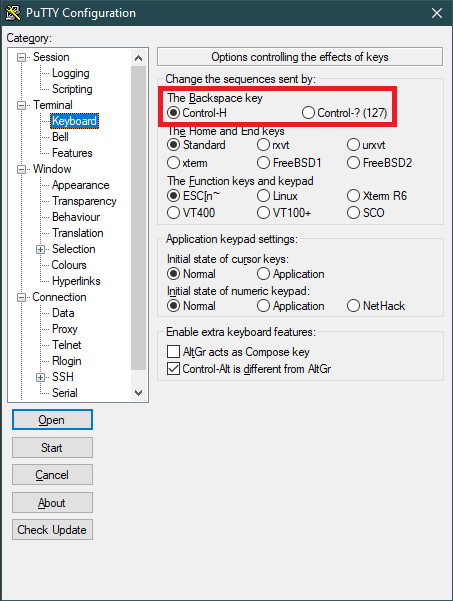
This script is not used for Trikarus project but it was worked out while trying to find working solutions with Smart Steppers.
https://unix.stackexchange.com/questions/13953/sending-text-input-to-a-detached-screen
repetier-smartstepper.sh
#!/bin/bash
# this script sends commands to MisfitTech Smart Stepper controller via USB. screen tool is used because passing and reading values is not that easy with cat and echo. There is place to make it better e.g. using minicom or cu. tmux was tested but it figured out that there's no serial device support.
source "/opt/repetier-conf.sh" # source config for Repetier Server instance
source "/opt/urlcoder.sh" # source methods to use them in this script
AXIS=$1 # should be A,B,C or D
SCREEN_NAME="screen_AXIS"
LOG_FILE="/opt/${SCREEN_NAME}_${AXIS}.log"
# remove old log file if existent
rm "${LOG_FILE}" > /dev/null 2>&1
# send "smart stepper command + enter (^M) keystroke" to first window (-p 0 could be applied) in a new screen called "screen_AXIS_<Nr>" by stuffing (https://www.gnu.org/software/screen/manual/html_node/Command-Summary.html) the string into input; log the output to file
screen -d -m -L ${LOG_FILE} -S ${SCREEN_NAME}_${AXIS} /dev/ttyUSB-SMART-${AXIS}-AXIS 115200
declare -a cmdArray=("getcal" "microsteps" "readpos" "encoderdiag" "spid" "vpid" "ppid" "dirpin" "enablepinmode" "errorlimit" "ctrlmode" "maxcurrent" "holdcurrent" "homecurrent" "motorwiring" "stepsperrotation" "velocity" "looptime" "eepromerror" "eepromloc" "geterror" "getsteps" "torque" "pinread")
for val in ${cmdArray[@]}; do
screen -S ${SCREEN_NAME}_${AXIS} -X stuff "${val}^M"
done
sleep 1
screen -S ${SCREEN_NAME}_${AXIS} -X quit
# clean up the log with ^M symbols
sed -i 's/\r//g' ${LOG_FILE}Manual parallel working with multiple sessions
Using sreen sometimes misses some input/output with the used configuration. Some fine tuning for input and output buffers and timeouts is required!
#general
screen /dev/ttyUSB-SMART-A-AXIS
#all in one - #attaches to the created session with 4 tabs
vim /opt/controlSmartSteppers.sh
#/bin/bash
screen -AdmS SmartStepperControlScreen -t A /dev/ttyUSB-SMART-A-AXIS
sleep 1
screen -S SmartStepperControlScreen -X screen -t B /dev/ttyUSB-SMART-B-AXIS
sleep 1
screen -S SmartStepperControlScreen -X screen -t C /dev/ttyUSB-SMART-C-AXIS
sleep 1
screen -S SmartStepperControlScreen -X screen -t D /dev/ttyUSB-SMART-D-AXIS
sleep 1
screen -r SmartStepperControlScreen
chmod +x /opt/controlSmartSteppers.sh
/opt/controlSmartStepper.sh
#now press 1x enter per tab to get input/output ":>"
#do some commands
#to leave
"CTRL + A", then "\" to quit all tabs (acknowledge with "Y"), or
"CTRL + A", then "SHIFT + K" to quit current tab (acknowledge with "Y")Using PySerial and Python 3.7
This is the thing we use in production. The following script can be used as service (one service per motor) or as regular script.
To make this script working we need different timeouts for serial input/output buffering. Good working values are
- timeout=0.1 (lowest fine working value is 0.2) → changed from 0.4 at
- write_timeout=0.5 (lowest fine working value is 1.0) → changed from 1.5 at
- wait_interval = 0.1 (lowest fine working value is 0.05 )→ changed from 0.4 at
pip3.7 install pyserial
vim /opt/smartStepper.py
import serial
import sys
import argparse
import time
import termios # workaround for IOError on resetting input/output buffers
import re
import os
import logging
from systemd.journal import JournaldLogHandler
from influxdb import InfluxDBClient
from datetime import datetime # required for InfluxDB data pushing
from time import sleep # required for InfluxDB data pushing
# note that when defining serial.Serial will automatically open the port!
ser = None
parser = argparse.ArgumentParser()
parser.add_argument(
"-d",
"--dev",
help=
"specify the Smart Stepper /dev/tty* by entering the axis letter --dev <A, B,C or D>"
)
parser.add_argument(
"-c",
"--getcal",
action='store_true',
help="print calibration values from Smart Stepper and exit the program"
)
parser.add_argument(
"-m",
"--manual",
action="store_true",
help="console mode"
)
args = parser.parse_args()
#too short intervals result in failing to pass the information to serial which leads to no returning values
#lowest fine working value is 0.05
wait_interval = 0.4
#exit if no device was given
if args.dev == None:
print("Missing drive input. Please use --dev argument")
quit()
#init logger
logger = logging.getLogger("Smart Stepper - Drive " + args.dev)
logger.addHandler(JournaldLogHandler())
logger.addHandler(logging.StreamHandler(sys.stdout))
#logger.setLevel(logging.DEBUG)
logger.setLevel(logging.INFO)
logger.info("Logger initialized for Drive " + args.dev)
# build some database connection with max 1 seconds timeout (lowest value possible)
client = InfluxDBClient(host='localhost', port=8086, username='username', password='password', timeout=1, ssl=False, verify_ssl=False)
#client.ping()
client.switch_database('trikarus')
#print(client.query('SHOW DATABASES'))
#print(client.query('SHOW MEASUREMENTS'))
def createSerial():
global ser, args
time.sleep(
1) # always wait one second before re-opening. This prevents hiccups
try:
#print("trying to open serial connection")
logger.info("Trying to create serial connection")
ser = serial.Serial(
port="/dev/ttyUSB-SMART-" + args.dev + "-AXIS",
baudrate=115200,
bytesize=serial.EIGHTBITS,
parity=serial.PARITY_NONE,
stopbits=serial.STOPBITS_ONE,
timeout=
#the lower this is set the quicker you can read values but with higher drop rate - lowest tested fine value is 0.01
0.2,
xonxoff=False,
rtscts=False,
write_timeout=1.5,
dsrdtr=False,
inter_byte_timeout=None,
exclusive=True
) # force to get behaviour "Cannot open line '/dev/ttyUSB-SMART-A-AXIS' for R/W: open() blocked, aborted." or "Error: read failed: device reports readiness to read but returned no data (device disconnected or multiple access on port?)"
except IOError as e: # the serial creation may fail if device not connected or not ready
logger.error("Error:" + str(e))
json_body = [{
"measurement":
"SmartStepper" + args.dev,
"tags": {
"host": "hangdevice.fablabchemnitz.de"
},
"time":
datetime.utcnow().strftime('%Y-%m-%dT%H:%M:%SZ'),
"fields": {
"serialError": 1
}
}]
try:
client.write_points(json_body)
except NameError as e: #catch if db connection is null and body cannot be written
pass
pass
if args.dev:
# remove old command list file on this script restart to prevent catastrophes
try:
os.remove(args.dev + ".cmdlist")
logger.info("Removed old cmdlist file")
except FileNotFoundError as e:
pass #do nothing
while True:
logger.debug("Jumping into the main loop")
if ser == None:
#print("serial is set to None. Creating new serial connection")
createSerial()
else:
try: # main loop
if args.getcal:
ser.reset_input_buffer() #maybe obsolete
ser.reset_output_buffer() #maybe obsolete
ser.write("getcal".encode() + b'\r')
time.sleep(wait_interval)
while ser.inWaiting() > 0:
line = ser.readline().decode()
p = re.compile(r'[0-9].*', re.M)
m = p.search(line)
if m:
logger.info("getcal = " + m.group(0))
quit()
if args.manual:
while True:
cmd = input(":>")
if cmd == 'exit':
ser.close()
quit()
else:
ser.write(cmd.encode() + b'\r')
out = ''
time.sleep(wait_interval)
while ser.inWaiting() > 0:
out += ser.read(1).decode()
if out != '':
print(":>" + out)
# cycle through given cmd lists > this should be prioritized always (interrupt other monitoring calls then!)
try:
cmd_list_file = open(args.dev + ".cmdlist", 'r')
cmd_list = cmd_list_file.readlines()
cmd_list_file.close()
# first read the file, then "consume" it be deleting it
os.remove(args.dev + ".cmdlist")
for cmd in cmd_list:
logger.info("command from list: " + cmd)
ser.reset_input_buffer() #maybe oboslete
ser.reset_output_buffer() #maybe obsolete
ser.write(cmd.encode() + b'\r')
time.sleep(wait_interval)
except FileNotFoundError as e:
pass # do nothing
#-----------------------------------------------------------
# readpos
ser.reset_input_buffer() #maybe oboslete
ser.reset_output_buffer() #maybe obsolete
ser.write("readpos".encode() + b'\r')
time.sleep(wait_interval)
#logger.info(ser.inWaiting()) - prints the number of bytes in the output buffer
while ser.inWaiting() > 0:
#logger.info("getting readpos")
line = ser.readline().decode()
#print(line)
p = re.compile(
r'^encoder\s(([0-9]+\.?[0-9]*)|([0-9]*\.[0-9]+)|([-][0-9]+\.?[0-9]*)|([-][0-9]*\.[0-9]+))$',
re.M)
m = p.search(line)
if m:
logger.info("readpos = " + m.group(1))
json_body = [{
"measurement":
"SmartStepper" + args.dev,
"tags": {
"host": "hangdevice.fablabchemnitz.de"
},
"time":
datetime.utcnow().strftime('%Y-%m-%dT%H:%M:%SZ'),
"fields": {
"readpos": float(m.group(1))
}
}]
try:
client.write_points(json_body)
except NameError as e: #catch if db connection is null and body cannot be written
pass
#-----------------------------------------------------------
# geterror
ser.reset_input_buffer() #maybe oboslete
ser.reset_output_buffer() #maybe obsolete
ser.write("geterror".encode() + b'\r')
time.sleep(wait_interval)
while ser.inWaiting() > 0:
#logger.info("getting geterror")
line = ser.readline().decode()
#print(line)
p = re.compile(
r'^error\s(([0-9]+\.?[0-9]*)|([0-9]*\.[0-9]+)|([-][0-9]+\.?[0-9]*)|([-][0-9]*\.[0-9]+))\sdeg$',
re.M)
m = p.search(line)
if m:
logger.info("geterror = " + m.group(0).split(' ')[1])
json_body = [{
"measurement":
"SmartStepper" + args.dev,
"tags": {
"host": "hangdevice.fablabchemnitz.de"
},
"time":
datetime.utcnow().strftime('%Y-%m-%dT%H:%M:%SZ'),
"fields": {
"geterror": float(m.group(0).split(' ')[1])
}
}]
try:
client.write_points(json_body)
except NameError as e: #catch if db connection is null and body cannot be written
pass
#-----------------------------------------------------------
# torque
ser.reset_input_buffer() #maybe oboslete
ser.reset_output_buffer() #maybe obsolete
ser.write("torque".encode() + b'\r')
time.sleep(wait_interval)
while ser.inWaiting() > 0:
#logger.info("getting torque")
line = ser.readline().decode()
#print(line)
p = re.compile(
r'^torque\s(([0-9]+\.?[0-9]*)|([0-9]*\.[0-9]+)|([-][0-9]+\.?[0-9]*)|([-][0-9]*\.[0-9]+))$',
re.M)
m = p.search(line)
if m:
logger.info("torque = " + m.group(1))
json_body = [{
"measurement":
"SmartStepper" + args.dev,
"tags": {
"host": "hangdevice.fablabchemnitz.de"
},
"time":
datetime.utcnow().strftime('%Y-%m-%dT%H:%M:%SZ'),
"fields": {
"torque": float(m.group(1)),
}
}]
try:
client.write_points(json_body)
except NameError as e: #catch if db connection is null and body cannot be written
pass
#-----------------------------------------------------------
except (
IOError, termios.error
) as e: # in case the USB device was removed or buffer reset fails try to close and re-open serial port
logger.error("Error:" + str(e))
ser.close()
ser = None #unset
createSerial()
pass
else:
sys.exit(2)Remove old/unrequired InfluxDB data
influx
use trikarus
show series
drop series from SmartStepperA
drop series from SmartStepperB
drop series from SmartStepperC
drop series from SmartStepperD
show measurementsGeneral information about control modes for Hangprinters
Hangprinters do not have absolute position control. Modern Hangprinters use closed loop systems to ensure exact relative positions using encoders and to have better handling in general. By using such closed loop systems it's easy to implement a special torque mode (custom firmware implementation from Torbjørn Ludvigsen) for each motor. This enables to tension all lines to a constant tension. Then you can drag the effector around with your hands and save a lot of time calibrating the machine. So the torque mode is a special calibration mode. Trikarus uses Smart Stepper from MisfitTech. It makes use of torque mode with the following mimimum and maximum values: +127 / -128 (the sign inverts the direction of movement - clockwise or counterclockwise). The special value 0 exits the torque mode to jump back to regular mode (sPID or pPID).
Smart Stepper usually run in Simple/Hybrid PID mode when shipped ("spid" → this can be enabled by serial interface command "ctrlmode 2"). However, it is also a good idea to use Positional PID mode instead of the factory setting ("ppid" → this can be enabled by serial interface command "ctrlmode 3"). To use ppid mode the PID values have to be adjusted properly.
More information about Smart Stepper modes can be found at Smart Stepper rev 1/20/2019 by MisfitTech documentation manuals.
Swichting between default mode (simple PID) and torque mode
The switching the modes is explained in Smart Stepper - flashing the firmware and polling data.
- This action can be done either by
- clicking the rotary encoder knob at the effector 5 times in a row quickly (1.0 second), or by
- triggering the button from Repetier Server GUI, or by
- calling the torque command on USB serial (e.g. using "screen /dev/ttyUSB-SMART-?-AXIS"
- To switch between torque mode and sPID mode we simply call only a single command: "torque 0" (to go back to sPID) or "torque <value != 0>" (to enter torque mode). Please explicitely do not set ctrlmode from 2 to 5 by hand using that "ctrlmode" command, because this leads to unforeseen stepper movements at the switch, which can ruin your line guidings (painfully tested). The cause might be some previously saved position values.
The behaviour in your hands → Moving the stepper motor shaft back and forth by hand, you can feel little "ticks" as you move across motor poles. Getting rid of those would make fully automatic data collection much easier.
The regular torque mode for effector dragging
Torque mode for "clean" effector dragging only works fine if it is enabled to all four drives. If you forget any of them it will do not perform. Dragging the effector by hand may require a bit of manual power because this mode is really strong. If you use doubled lines feature and a lot of bearings and ceramic inserts the friction is much higher than using single lines. Move the effector with love and touch it safely. The value you choose for torque highly depends on your installed motors and the configured currents. While having motor current at 800 mA torque of 50 is good, but changing to 1500 mA a torque value of 35 is already enough to have the same force in your hands.
Do not ever use torque mode if drives are not mounted correctly. In case the motors are not mounted to spools and/or the spool lines are not tied, the motors will turn infinite without stopping. In this scenario you will reach the maximum of encoder pos. This cannot be resetted using the "setzero" command. Instead you need to perform a full reboot of the Smart Stepper which is the same like having a power loss. It's a high risk to set torque values higher than the given counter weight. The higher the value the quicker the drive will move. It might cause unwinding all the line from your spools.
Calibration and important adjustments for Smart Steppers
Basic calibration
Remember to run "calibrate" and "testcal" to have clean settings for each Smart Stepper. Otherwise the Stepper will run bad or it will stand still. The documentation says that a maximum angle degree error is 0.1 deg. If the motor current is set too low the motor will not move correctly (e.g. motor steps forward and backward alternating) and is going to miss steps. This will also lead to bad calibration values. If you adjust the motor current a re-calibration might be a good idea.
Adjusting the motor currents
Basically the current values are all the same because all drives have same motors attached, with nearly same amount of line on it. They drive in the same direction by wiring and roughly symmetric forces grab on it except D drive (a little higher force). Higher torque values work for different situations but have no better effect on the regular torque mode for effector dragging. But you can use higher torque values for moving up and down the effector without any GCode command. I successfully tested torque mode up to +127 without any parts falling off the machine and no cracking sounds. So everything looks really stable. This was tested with default Smart Stepper values maxcurrent = 800 mA and holdcurrent = 500 mA. The mounted stepper motors can run up to 2.0 A so there's a lot more power possible. The torque mode settings depend on your motor power. if you raise the current it will behave not the same as before. if you adjust one motor you will need to adjust all other motors too to get equivalent behaviour (having the same motor types for all four drives. Trikarus uses Stepper Motors MT-1705HS200AE by Motech Motors).
Finally after some tests with Trikarus the configuration is
- maxcurrent = 1600 mA (Adjusted the max current from 1500 to 1600 mA at , set back from 1600 mA to 1500 mA again at )
- holdcurrent = 800 mA
The currents are preconfigured and can easily be applied using sms_preconfigure.sh (the smartStepper Python services need to run)
vim /opt/sms_modes/sms_preconfigure.sh#!/bin/bash
#same max current for ABCD - we use default of 1500
CUR_MAX=1500
#hold current for ABC and D - we use default of 800
CUR_HOLD_ABC=800
CUR_HOLD_D=800
#default error is 1.8
ERRORLIMIT=5.0
#spid values - defaults ae 0.900 0.000 0.010
SPID="0.050 0.000 0.300"
echo "maxcurrent $CUR_MAX" > /opt/A.cmdlist
echo "holdcurrent $CUR_HOLD_ABC" >> /opt/A.cmdlist
echo "errorlimit $ERRORLIMIT" >> /opt/A.cmdlist
echo "spid $SPID" >> /opt/A.cmdlist
echo "maxcurrent $CUR_MAX" > /opt/B.cmdlist
echo "holdcurrent $CUR_HOLD_ABC" >> /opt/B.cmdlist
echo "errorlimit $ERRORLIMIT" >> /opt/B.cmdlist
echo "spid $SPID" >> /opt/B.cmdlist
echo "maxcurrent $CUR_MAX" > /opt/C.cmdlist
echo "holdcurrent $CUR_HOLD_ABC" >> /opt/C.cmdlist
echo "errorlimit $ERRORLIMIT" >> /opt/C.cmdlist
echo "spid $SPID" >> /opt/C.cmdlist
echo "maxcurrent $CUR_MAX" > /opt/D.cmdlist
echo "holdcurrent $CUR_HOLD_D" >> /opt/D.cmdlist
echo "errorlimit $ERRORLIMIT" >> /opt/D.cmdlist
echo "spid $SPID" >> /opt/D.cmdlist
echo "Please rerun calibrate + testcal"PID values
As we do not make use of pPID but sPID we do not need any PID value adjustments
Error limit
The default value each Smart Stepper tolerates 1.8 degrees of error until it triggers the error pin. Trikarus does not make use of that function but it could be used for brake mechanisms for example!
vim /opt/sms_modes/sms_calibrate.sh#!/bin/bash
echo "calibrate" > /opt/A.cmdlist
echo "calibrate" > /opt/B.cmdlist
echo "calibrate" > /opt/C.cmdlist
echo "calibrate" > /opt/D.cmdlistBash scripts for daily use (mode switches)
The following scripts are worked out to be really useful for calibration and printing. They can be used by command line, by Repetier Server GUI command list drop down menu (see Repetier Server) or by the rotary encoder button (mode switch).
mkdir -p /opt/sms_modes
cd /opt/sms_modessms_reboot.sh
#!/bin/bash
echo "reboot" > /opt/A.cmdlist
echo "reboot" > /opt/B.cmdlist
echo "reboot" > /opt/C.cmdlist
echo "reboot" > /opt/D.cmdlistsms_setzero.sh
Setting zero does only reset positions to 0. It does not set the error to 0. Cleaning the error can be done by recalibrating and/or rebooting the motor!
#!/bin/bash
#reset the encoders to pos 0
echo "setzero" > /opt/A.cmdlist
echo "setzero" > /opt/B.cmdlist
echo "setzero" > /opt/C.cmdlist
echo "setzero" > /opt/D.cmdlistsms_smooth_all.sh
#!/bin/bash
#make all drives behave totaly smooth (no feelable force on it)
echo "torque 1" > /opt/A.cmdlist
echo "torque 1" > /opt/B.cmdlist
echo "torque 1" > /opt/C.cmdlist
echo "torque 1" > /opt/D.cmdlistsms_smooth_a.sh
#!/bin/bash
# this smoothes Drive A for line winding issue fixing
echo "torque 1" > /opt/A.cmdlistsms_smooth_b.sh
#!/bin/bash
# this smoothes Drive B for line winding issue fixing
echo "torque 1" > /opt/B.cmdlistsms_smooth_c.sh
#!/bin/bash
# this smoothes Drive C for line winding issue fixing
echo "torque 1" > /opt/C.cmdlistsms_smooth_d.sh
#!/bin/bash
# this smoothes Drive D for line winding issue fixing
echo "torque 1" > /opt/D.cmdlistsms_spid_a.sh
#!/bin/bash
echo "torque 0" > /opt/A.cmdlistsms_spid_b.sh
#!/bin/bash
echo "torque 0" > /opt/B.cmdlistsms_spid_c.sh
#!/bin/bash
echo "torque 0" > /opt/C.cmdlistsms_spid_d.sh
#!/bin/bash
echo "torque 0" > /opt/D.cmdlistsms_spid_all.sh
#!/bin/bash
echo "torque 0" > /opt/A.cmdlist
echo "torque 0" > /opt/B.cmdlist
echo "torque 0" > /opt/C.cmdlist
echo "torque 0" > /opt/D.cmdlistsms_torque_all.sh
If you cannot properly drag the effector into origin reduce the torque values. It's possible that you configured to high values. When you push down the effector it might bump up again. You might also check the motor currents.
#!/bin/bash
#regular torque mode
echo "torque 42" > /opt/A.cmdlist
echo "torque 42" > /opt/B.cmdlist
echo "torque 42" > /opt/C.cmdlist
echo "torque 28" > /opt/D.cmdlist #slightly lower value to leave effector at the bottom
source "/opt/repetier-conf.sh" #source config for Repetier Server instance
send_gcode "M106 P2 S255" #turn on the laser pointers for placingsms_torque_a.sh
#!/bin/bash
#regular torque mode
echo "torque 42" > /opt/A.cmdlistsms_torque_b.sh
#!/bin/bash
#regular torque mode
echo "torque 42" > /opt/B.cmdlistsms_torque_c.sh
#!/bin/bash
#regular torque mode
echo "torque 42" > /opt/C.cmdlistsms_torque_d.sh
#!/bin/bash
#regular torque mode
echo "torque 42" > /opt/D.cmdlistsms_tighten_abc.sh
#!/bin/bash
echo "step 1 50" > /opt/A.cmdlist
echo "step 1 50" > /opt/B.cmdlist
echo "step 1 50" > /opt/C.cmdlistsms_tighten_d.sh
#!/bin/bash
echo "step 0 50" > /opt/D.cmdlistsms_release_abc.sh
#!/bin/bash
echo "step 0 50" > /opt/A.cmdlist
echo "step 0 50" > /opt/B.cmdlist
echo "step 0 50" > /opt/C.cmdlistsms_release_d.sh
#!/bin/bash
echo "step 0 50" > /opt/D.cmdlistsms_zdown.sh
#!/bin/bash
#lower Z quickly
echo "torque 35" > /opt/A.cmdlist
echo "torque 35" > /opt/B.cmdlist
echo "torque 35" > /opt/C.cmdlist
echo "torque 1" > /opt/D.cmdlistsms_zup.sh
#!/bin/bash
#raise +Z by pro-actively winding down drives - do not get lower than -10 (e.g. -30 will remove windings from the spools without any pull force). Note that these settings highly depend on your motor currents
echo "torque -10" > /opt/A.cmdlist
echo "torque -10" > /opt/B.cmdlist
echo "torque -10" > /opt/C.cmdlist
echo "torque 90" > /opt/D.cmdlistMake them executable
chmod +x *.sh
Script as service
Install this script four times by just replacing the Drive letter accordingly
vim /opt/smartStepperA.service[Unit]
After=network.target
Description=Smart Stepper - A Drive - PySerial
[Service]
Type=simple
#this might also be "/usr/local/bin/python3.7". Check "which python3.7"
ExecStart=/usr/bin/python3.7 /opt/smartStepper.py --dev A
WorkingDirectory=/opt/
KillMode=process
Restart=on-failure
RestartSec=10
RemainAfterExit=no
User=root
Group=root
[Install]
WantedBy= multi-user.targetsystemctl enable /opt/smartStepperA.service
systemctl start smartStepperA.service
#restart
systemctl stop smartStepperA.service && systemctl start smartStepperA.service
journalctl -f -u smartStepperA.serviceOutput checking
#get specific Drive information - example for A drive
journalctl -f -u smartStepperA.service | grep "Drive.*geterror"
journalctl -f -u smartStepperA.service | grep "Drive.*readpos"
journalctl -f -u smartStepperA.service | grep "Drive.*torque"
#filter out all regular stuff - this will filter out "command from list" too if same type
journalctl -f -u smartStepperA.service | grep -v "readpos*\|torque*\|geterror*"
#filter out processed commands from /opt/A.cmdlist
journalctl -f -u smartStepperA.service | grep "command from list"
#filter errors/exceptions
journalctl -f -u smartStepperA.service | grep "error\|Error" | grep -v "geterror = "Mode switch recognizing with the KY040 rotary encoder button
vim /opt/gpio/rotaryButton.pyimport pigpio
import time
import sys
import subprocess
import logging
from systemd.journal import JournaldLogHandler
#init logger
logger = logging.getLogger("Smart Stepper mode switch button listeneristener")
logger.addHandler(JournaldLogHandler())
logger.addHandler(logging.StreamHandler(sys.stdout))
logger.setLevel(logging.DEBUG)
sw_debounce = 300
sw = 5 #GPIO Pin
hit_last_time = time.time()
hit_elapse = 0
hit_counter = 0 #init counter. gets resetted after each trigger
hit_time = 1.0 #the time the hits have to happen to trigger
hit_target = 5 #the amount until it triggers (e.g. 5 times in 1 second)
sw_input = pigpio.pi()
sw_input.set_pull_up_down(sw, pigpio.PUD_UP)
sw_input.set_glitch_filter(sw, sw_debounce)
def sw_fall(gpio, level, tick):
global hit_counter, hit_target, hit_last_time, hit_elapse
this_time = time.time()
hit_elapse = this_time - hit_last_time
hit_last_time = this_time
if hit_elapse < hit_time:
hit_counter = hit_counter + 1
if hit_counter >= hit_target:
short_press()
hit_counter = 0 #reset
else:
hit_counter = 0 #reset
sw_falling = sw_input.callback(sw, pigpio.FALLING_EDGE, sw_fall)
def short_press():
logger.info("mode switch recognized")
subprocess.call("/opt/sms_modes/sms_torque_all.sh")
while True:
a=0 #just some line to allow while loop
time.sleep(1)
#print("hello")
vim /opt/gpio/rotaryButton.service[Unit]
After=network.target
Description=Rotary Button Service (Smart Stepper Mode Switch)
[Service]
Type=simple
ExecStart=/usr/bin/python3.7 /opt/gpio/rotaryButton.py
WorkingDirectory=/opt/
KillMode=process
Restart=on-failure
RestartSec=10
RemainAfterExit=no
User=root
Group=root
[Install]
WantedBy= multi-user.targetsystemctl enable /opt/gpio/rotaryButton.service
systemctl start rotaryButton.service
#restart
systemctl stop rotaryButton.service && systemctl start rotaryButton.service
journalctl -f -u rotaryButton.serviceSmart Stepper - flashing the firmware
How to change Vendor / Product ID?
For a better control of the dev rules for Smart Stepper the Vendor IDs and product IDs can be changed! This omits to connect to static / fixed ports.
https://github.com/Misfittech/nano_stepper/issues/47#issuecomment-583914737
vim %appdata%\..\Local\Arduino15\packages\misfittech\hardware\samd\1.0.0\boards.txt
nano_zero.vid.0=0x1209
nano_zero.pid.0=0x8087
nano_zero.vid.1=0x1209
nano_zero.pid.1=0x8086
nano_zero.build.vid=0x1209
nano_zero.build.pid=0x8087Trikarus custom firmware fork modifications
Trikarus uses custom firmware which is a mix of hangprinter smart stepper fork and recent misfit tech repo (fw 0.40) - ci https://github.com/Misfittech/nano_stepper/commit/ddaf3ad388c0788647d27a625718b9728841248b
- https://gitlab.com/tobben/Smart-Stepper-for-Hangprinter/issues/1
- i2c stuff not implemented:
- https://gitlab.com/tobben/Smart-Stepper-for-Hangprinter/commit/47369f7ec7f921d845d138c8990ac040f617614e
- https://gitlab.com/tobben/Smart-Stepper-for-Hangprinter/commit/4d296668e11170089cbb9fd477c03788c4c5b3a0
- https://gitlab.com/tobben/Smart-Stepper-for-Hangprinter/commit/8fecdd1dda00aae269401cd1b4c4951bb27ae762
- https://gitlab.com/tobben/Smart-Stepper-for-Hangprinter/commit/e547967287961c84273519bf4dc00aaefabdf21f
- https://gitlab.com/tobben/Smart-Stepper-for-Hangprinter/commit/367fc4db3d0e22351c8864890462f9dd021fe2ee
Flashing directly from Windows client
http://misfittech.net/blog/arduino-package-install
https://github.com/microsoft/uf2
Install Arduino IDE
Version 1.6.4 or greater is required → Download
Add custom boards manager URL
Now we add the Misfit Tech package by URL. To do this open the preferences page on the IDE by going to File → Preferences. Add "https://github.com/Misfittech/arduino-board-index/raw/master/package_misfittech_index.json"
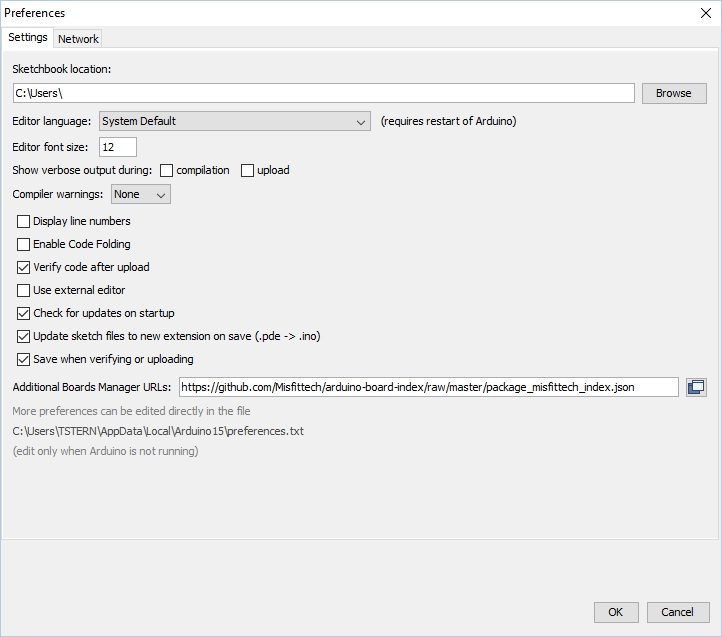
Install Board Manager "MisfitTech SAMD Boards"
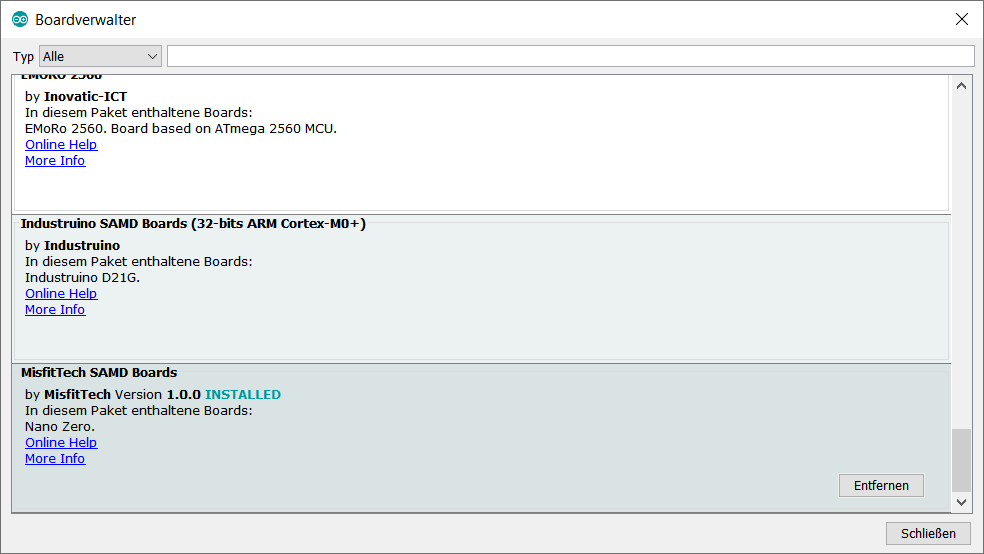
Flash
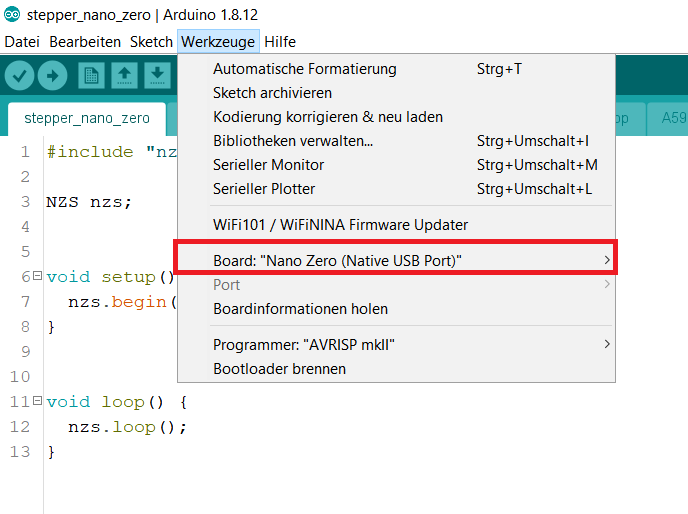
Flashing directly from Raspberry Pi (where the motors are connected to by USB serial)
Install Arduino IDE
#install arduino
apt install arduinoPlease note that arduino command requires X11 forward to work because it's a windowed application.
Check if arduino-cli is existent
if not: install it using the following command. It will be installed into /usr/bin/arduino-cl
cd /usr
curl -fsSL https://raw.githubusercontent.com/arduino/arduino-cli/master/install.sh | shInitialize and configure
arduino-cli config init
#edit the newly generated config file
vim ~/.arduino15/arduino-cli.yamlboard_manager:
additional_urls:
- "https://github.com/Misfittech/arduino-board-index/raw/master/package_misfittech_index.json"
daemon:
port: "50051"
directories:
data: /root/.arduino15
downloads: /root/.arduino15/staging
user: /root/Arduino
logging:
file: ""
format: text
level: info
telemetry:
addr: :9090
enabled: trueUpdate Index
arduino-cli core update-indexDownloading missing tool builtin:ctags@5.8-arduino11...
builtin:ctags@5.8-arduino11 downloaded
Installing builtin:ctags@5.8-arduino11...
builtin:ctags@5.8-arduino11 installed
Downloading missing tool builtin:serial-discovery@1.0.0...
builtin:serial-discovery@1.0.0 downloaded
Installing builtin:serial-discovery@1.0.0...
builtin:serial-discovery@1.0.0 installed
Updating index: library_index.json downloaded
Updating index: package_index.json downloaded
Updating index: package_misfittech_index.json downloadedInstall Smart Stepper Board Support
#this may take up to 5 minutes
arduino-cli core install misfittech:samdDownloading packages...
arduino:arm-none-eabi-gcc@4.8.3-2014q1 downloaded
arduino:bossac@1.6.1-arduino downloaded
arduino:openocd@0.9.0-arduino downloaded
arduino:CMSIS@4.0.0-atmel downloaded
misfittech:samd@1.0.0 downloaded
Installing arduino:arm-none-eabi-gcc@4.8.3-2014q1...
arduino:arm-none-eabi-gcc@4.8.3-2014q1 installed
Installing arduino:bossac@1.6.1-arduino...
arduino:bossac@1.6.1-arduino installed
Installing arduino:openocd@0.9.0-arduino...
arduino:openocd@0.9.0-arduino installed
Installing arduino:CMSIS@4.0.0-atmel...
arduino:CMSIS@4.0.0-atmel installed
Installing misfittech:samd@1.0.0...
Error during install: extracting archive: open /home/hangprintermanage/.arduino15/tmp/package-880721797: is a directoryThis fails with error. You can fix it manually:
mkdir -p ~/.arduino15/packages/misfittech/hardware/samd/
cd ~/.arduino15/packages/misfittech/hardware/samd/
wget https://github.com/Misfittech/arduino-board-index/raw/master/boards/misfittech_samd-1.0.0.tar.bz2
tar jxf misfittech_samd-1.0.0.tar.bz2
rm misfittech_samd-1.0.0.tar.bz2
mv misfittech_samd-1.0.0/ 1.0.0/Check if installed properly
arduino-cli core listID Installed Latest Name
misfittech:samd 1.0.0 1.0.0 MisfitTech SAMD BoardsFor information only: get device list
Get the list of real /dev devices. The ttyUSB-SMART* are only symlinks
ls -l /dev/serial/by-id
ls -alF /dev |grep ttyUSB-SMART
python3.7 -m serial.tools.list_ports
arduino-cli board list #get the connected USB deviceCompile ad upload fresh .bin files to Smart Stepper devices
Do the following steps as the user who installed arduino and configured arduino-cli
mkdir -p /home/hangprintermanage/firmware_smartstepper_trikarus/stepper_nano_zero
#copy *.ino and sketch files into /home/hangprintermanage/stepper_nano_zero/
#at the top level of the directory
cd /home/hangprintermanage/firmware_smartstepper_trikarus/stepper_nano_zero/
#compile the sketch (get stepper_nano_zero.misfittech.samd.nano_zero.bin file)
arduino-cli compile --fqbn misfittech:samd:nano_zero
#upload the sketch - note that /dev/ttyUSB-SMART* symlinks do not work. You need the real tty names. You can use readlink to find correct tty behind symlinks
arduino-cli upload -p $(readlink -f /dev/ttyUSB-SMART-A-AXIS) --fqbn misfittech:samd:nano_zero && sleep 4 && screen /dev/ttyUSB-SMART-A-AXIS
arduino-cli upload -p $(readlink -f /dev/ttyUSB-SMART-B-AXIS) --fqbn misfittech:samd:nano_zero && sleep 4 && screen /dev/ttyUSB-SMART-B-AXIS
arduino-cli upload -p $(readlink -f /dev/ttyUSB-SMART-C-AXIS) --fqbn misfittech:samd:nano_zero && sleep 4 && screen /dev/ttyUSB-SMART-C-AXIS
arduino-cli upload -p $(readlink -f /dev/ttyUSB-SMART-D-AXIS) --fqbn misfittech:samd:nano_zero && sleep 4 && screen /dev/ttyUSB-SMART-D-AXISMore advanced compilation and upload with known calibration values
In case the Smart Steppers should not be moved it's a good idea to prevent Smart Steppers requiring re-calibration after new firmware upload. In this case you can compile with known values. Using the "getcal" command in Smart Stepper interface you can get the motor specific calibration values. Those values will be put in nonvolatile.cpp file on line 53 which is commented out in default mode.
You can also get the calibration values calling using the Python Serial parser described at Smart Stepper - calibration and control modes (sPID mode, pPID mode and torque mode)
python3.7 /opt/smartStepper.py --dev A --getcalTypical calibration errors are around 0.1 degree or better. If your calibration is worse than this make sure your board is tightened down to motor on all four screws and run the calibration and test again. If the error is still high then you might want to check and make sure magnet is glued to the shaft properly.
Do the following steps as the user who installed arduino and configured arduino-cli
cd /home/hangprintermanage/firmware_smartstepper_trikarus/stepper_nano_zero/
# Drive A - getcal: "Max error is 0.043 degrees"
sed -i '53s/.*/18109,18426,18752,19066,19387,19714,20037,20353,20672,20994,21316,21632,21953,22278,22600,22919,23239,23567,23892,24209,24532,24865,25188,25509,25839,26167,26496,26820,27151,27485,27816,28135,28467,28801,29132,29456,29785,30118,30440,30763,31091,31420,31749,32069,32395,32728,33050,33368,33694,34024,34347,34669,34991,35320,35641,35959,36287,36615,36943,37263,37587,37921,38247,38569,38897,39228,39561,39881,40213,40551,40881,41208,41540,41874,42214,42542,42874,43212,43551,43878,44212,44549,44888,45215,45548,45882,46223,46550,46882,47209,47543,47872,48198,48527,48862,49181,49511,49837,50163,50483,50808,51135,51460,51778,52103,52428,52753,53073,53393,53719,54044,54362,54682,55010,55336,55653,55980,56305,56628,56952,57275,57602,57931,58258,58582,58911,59238,59567,59892,60221,60556,60878,61207,61541,61873,62201,62529,62861,63189,63513,63843,64175,64507,64827,65161,65486,283,603,935,1262,1589,1907,2237,2560,2889,3208,3535,3864,4189,4510,4839,5166,5495,5821,6146,6480,6811,7134,7463,7801,8130,8461,8792,9129,9462,9795,10129,10466,10802,11137,11470,11811,12149,12477,12813,13157,13490,13819,14154,14490,14823,15153,15479,15814,16145,16470,16794,17124,17452,17771,/' nonvolatile.cpp
arduino-cli compile --fqbn misfittech:samd:nano_zero
arduino-cli upload -p $(readlink -f /dev/ttyUSB-SMART-A-AXIS) --fqbn misfittech:samd:nano_zero && sleep 4 && screen /dev/ttyUSB-SMART-A-AXIS
# Drive B - getcal: "Max error is 0.049 degrees"
sed -i '53s/.*/1007,1325,1650,1976,2315,2644,2973,3297,3630,3960,4289,4615,4947,5277,5610,5933,6264,6596,6927,7250,7583,7914,8242,8569,8903,9233,9561,9889,10222,10552,10880,11206,11540,11867,12201,12525,12857,13190,13516,13841,14173,14502,14829,15151,15485,15812,16142,16466,16793,17122,17452,17773,18101,18425,18755,19076,19405,19731,20061,20381,20711,21035,21363,21680,22010,22336,22662,22984,23311,23638,23966,24285,24615,24940,25269,25588,25919,26247,26573,26895,27224,27550,27880,28202,28534,28862,29190,29516,29845,30175,30504,30826,31158,31488,31814,32137,32468,32798,33122,33448,33779,34107,34428,34754,35087,35417,35744,36067,36398,36725,37054,37377,37709,38036,38368,38687,39018,39345,39676,39998,40328,40659,40988,41313,41643,41974,42303,42625,42959,43288,43618,43943,44269,44603,44932,45261,45590,45921,46248,46572,46905,47232,47560,47882,48213,48544,48873,49194,49523,49852,50178,50500,50825,51152,51481,51801,52130,52457,52780,53104,53431,53760,54085,54404,54732,55059,55383,55707,56033,56359,56688,57010,57336,57664,57992,58316,58644,58969,59299,59624,59952,60280,60612,60934,61264,61595,61922,62248,62578,62906,63238,63567,63895,64225,64551,64878,65211,7,340,660,/' nonvolatile.cpp
arduino-cli compile --fqbn misfittech:samd:nano_zero
arduino-cli upload -p $(readlink -f /dev/ttyUSB-SMART-B-AXIS) --fqbn misfittech:samd:nano_zero && sleep 4 && screen /dev/ttyUSB-SMART-B-AXIS
# Drive C - getcal: "Max error is 0.054 degrees"
sed -i '53s/.*/25926,26245,26573,26897,27228,27554,27881,28211,28540,28873,29203,29526,29862,30191,30521,30849,31183,31513,31843,32169,32503,32832,33162,33486,33816,34143,34467,34789,35120,35444,35767,36091,36424,36753,37082,37408,37748,38078,38409,38735,39074,39405,39733,40056,40387,40713,41033,41351,41679,42002,42322,42641,42970,43296,43617,43939,44277,44605,44929,45255,45596,45925,46257,46582,46918,47246,47575,47898,48230,48557,48886,49203,49532,49860,50182,50505,50833,51157,51480,51801,52133,52458,52782,53100,53430,53751,54070,54383,54706,55023,55339,55651,55972,56291,56608,56918,57242,57560,57877,58192,58521,58843,59169,59487,59816,60140,60464,60785,61120,61442,61771,62095,62428,62758,63086,63417,63753,64082,64413,64742,65077,65407,204,530,866,1196,1524,1851,2185,2515,2840,3163,3496,3822,4150,4471,4807,5133,5460,5785,6120,6446,6780,7106,7443,7776,8106,8431,8769,9097,9429,9749,10087,10417,10746,11077,11409,11741,12073,12399,12740,13070,13402,13728,14067,14399,14732,15059,15398,15734,16067,16397,16734,17068,17401,17729,18069,18395,18726,19048,19385,19716,20045,20371,20705,21032,21361,21685,22016,22345,22673,22994,23329,23654,23980,24301,24632,24954,25281,25601,/' nonvolatile.cpp
arduino-cli compile --fqbn misfittech:samd:nano_zero
arduino-cli upload -p $(readlink -f /dev/ttyUSB-SMART-C-AXIS) --fqbn misfittech:samd:nano_zero && sleep 4 && screen /dev/ttyUSB-SMART-C-AXIS
# Drive D - getcal: "Max error is 0.054 degrees"
sed -i '53s/.*/2426,2760,3087,3420,3742,4077,4401,4728,5054,5384,5708,6030,6352,6681,6997,7317,7635,7957,8271,8592,8909,9233,9555,9878,10202,10528,10864,11192,11523,11857,12187,12518,12851,13180,13519,13841,14174,14501,14833,15165,15493,15831,16159,16490,16818,17145,17481,17818,18148,18466,18796,19116,19445,19769,20099,20414,20735,21050,21370,21686,21999,22315,22628,22934,23245,23558,23867,24183,24491,24809,25126,25441,25760,26082,26404,26725,27048,27380,27705,28030,28358,28695,29020,29349,29682,30014,30346,30680,31016,31350,31674,32002,32337,32674,33006,33337,33670,34005,34334,34662,35001,35334,35663,35993,36319,36650,36972,37298,37619,37944,38269,38590,38912,39240,39559,39882,40204,40530,40855,41180,41504,41836,42160,42491,42818,43156,43478,43813,44144,44476,44809,45140,45472,45805,46135,46466,46797,47137,47472,47789,48116,48449,48780,49107,49436,49769,50099,50422,50748,51071,51399,51734,52057,52392,52713,53039,53360,53693,54018,54345,54667,55001,55320,55646,55973,56302,56627,56956,57279,57610,57936,58265,58585,58913,59239,59564,59889,60218,60546,60878,61207,61544,61875,62214,62541,62882,63218,63561,63896,64237,64577,64920,65252,65,404,741,1076,1408,1743,2081,/' nonvolatile.cpp
arduino-cli compile --fqbn misfittech:samd:nano_zero
arduino-cli upload -p $(readlink -f /dev/ttyUSB-SMART-D-AXIS) --fqbn misfittech:samd:nano_zero && sleep 4 && screen /dev/ttyUSB-SMART-D-AXIS
#reset the original nonvolatile.cpp file to prevent uploading wrong calibration values to some Smart Stepper at some point
sed -i '53s/.*/ /' nonvolatile.cppWorking with the smart steppers over a long time it's possible that you need to recalibrate at a later point to reduce the error. A higher error can be caused by different physical triggers like temperature / climate change at the place where the components are installed to.
Re-apply your custom motor settings
After flashing previous values get lost like maxcurrent and holdcurrent.
Run /opt/sms_modes/sms_preconfigure.sh to set them again. Please see Smart Stepper - calibration and control modes (sPID mode, pPID mode and torque mode)
Or upload pre-compiled *.bin files to Smart Stepper devices
this requires the bossac command. This command comes frome misfittech package! no need to install the package "bossa".
#set the Smart Steppers into boot loader mode by sending "boot" command. Therefore open some screen terminal for each smart stepper
screen /dev/ttyACM1
screen /dev/ttyACM2
screen /dev/ttyACM3
screen /dev/ttyACM4
cd /home/hangprintermanage/firmware_smartstepper_trikarus/stepper_nano_zero/
~/.arduino15/packages/arduino/tools/bossac/1.6.1-arduino/bossac -i -d --port=ttyACM1 -U true -i -e -w -v ./stepper_nano_zero.misfittech.samd.nano_zero.bin -R
~/.arduino15/packages/arduino/tools/bossac/1.6.1-arduino/bossac -i -d --port=ttyACM2 -U true -i -e -w -v ./stepper_nano_zero.misfittech.samd.nano_zero.bin -R
~/.arduino15/packages/arduino/tools/bossac/1.6.1-arduino/bossac -i -d --port=ttyACM3 -U true -i -e -w -v ./stepper_nano_zero.misfittech.samd.nano_zero.bin -R
~/.arduino15/packages/arduino/tools/bossac/1.6.1-arduino/bossac -i -d --port=ttyACM4 -U true -i -e -w -v ./stepper_nano_zero.misfittech.samd.nano_zero.bin -RSmart Stepper - USB, Soft and hard reset
USB Reset way #1 - bind/unbind
The following unbind command will kill complete USB chip for session if you type only "1-1". It will cut through SSH so you need to reboot manually. You only want to kill certain parts. So at first list all usb devices and then do some echo "1-1.2" to kill port 2 only. Unbinding will power off the devices like uhubctl does!
#list USB
cd /sys/bus/usb/drivers/usb
ls -alF
#turn OFF USB chip
echo '1-1.2' |sudo tee /sys/bus/usb/drivers/usb/unbind
#turn ON USB chip
echo '1-1.2' |sudo tee /sys/bus/usb/drivers/usb/bindUSB Reset way #2 - uhubctl
This tool can power on / power off / cycle USB devices. This was successfully tested on Raspberry Pi 3B
Very useful and important information: https://github.com/mvp/uhubctl
apt install libusb-1.0-0-dev
cd /opt
git clone https://github.com/mvp/uhubctl
cd uhubctl/
make/opt/uhubctl/uhubctl -r 500 -l 1-1 -p 2 -a off #works to make devices completely dead (power off).
/opt/uhubctl/uhubctl -l 1-1 -p 2 -a on #revive (power on)Warnings
- Using the wrong number for -p switch might kill Ethernet device. This will destroy SSH availability. Then you will need to power off Raspberry Pi. This has to be done be climbing up to the top of the printer because USV is running!
- Use the -r switch due to the fact that otherwise it will revive itself after some seconds. See github documentation! vaule 500 works in this case
-
Use the -l switch to get the correct device path. You can have a better look with:
lsusb
lsusb -t
lsusb -v -d 0x1209: > stepperDump.log- hard reboot: Smart Stepper can be reset using unbind/bind commands or uhubctl (this will only work if the PSU is off so the only supplied power comes from USB. If USB + PSU connected nothing will happen! So power off PSU controlling the power relay with Duet)
- soft reboot: Smart Stepper can be reboot by bash script (/opt/serialsend.sh A "reboot")
Updating software
- Backup the SD card image for larger upgrade → see High Endurance Micro-SDHC card 32 GB 100 MB/s UHS Class 3 by SANDISK
- Update Repetier Server (using software frontend)
- Update Grafana → use
/opt/upgrade-grafana.shscript
apt update
apt upgrade
#fix some broken keys if required:
curl -sS https://dl.yarnpkg.com/debian/pubkey.gpg | sudo apt-key add -
#An error occurred during the signature verification. The repository is not updated and the previous index files will be used. GPG error: http://deb.debian.org/debian unstable InRelease: The following signatures couldn't be verified because the public key is not available: NO_PUBKEY 648ACFD622F3D138 NO_PUBKEY 0E98404D386FA1D9
sudo apt-key adv --keyserver keyserver.ubuntu.com --recv-keys 648ACFD622F3D138Used Software / Firmware stack
Overview of used firmware and software + where to donate
| What? | Why | Version | Source |
License | Donate / Sponsor |
| Line Collision Detector |
|
https://gitlab.com/hangprinter/line-collision-detector | GPL v3 | ||
| Auto Calibration Simulation |
|
https://gitlab.com/tobben/auto-calibration-simulation-for-hangprinter |
MIT | ||
| RepRapFirmware Fork Torbjørn |
|
2.02(RTOS) (2018-12-24b1) |
https://gitlab.com/tobben/hangprinter/-/tree/version_4_dev/firmware/RepRapFirmware |
GPL v3 | |
| RepRapFirmware Offical (not used for Trikarus) |
|
2 or 3 | GNU GPL v3 | ||
| Smart Stepper Fork (not used for Trikarus) |
|
0.38FW | CC-BY-SA 4.0 | ||
| Smart Stepper Original (Mechaduino Fork) - not used for Trikarus |
|
https://github.com/Misfittech/nano_stepper | CC-BY-SA 4.0 | ||
| Smart Stepper Fork Trikarus |
|
0.40 | https://gitea.fablabchemnitz.de/vmario/Trikarus/src/branch/master/firmware_smartstepper_trikarus/stepper_nano_zero | CC-BY-SA 4.0 | |
| PrusaSlicer |
|
https://github.com/prusa3d/PrusaSlicer | AGPL v3.0 | ||
| Repetier Server Pro |
|
1.3.0 |
https://www.repetier-server.com
|
Proprietary | |
| Repetier Server Monitor |
|
|
Proprietary | repetier | |
| Raspbian Stretch Lite |
|
https://www.raspbian.org/RaspbianRepository | GPL v2 | ||
| WifiInfoView |
|
||||
| Duet Web Control |
|
1.22.6 → belongs to RRF version |
|
GPL v3 | |
| Arduino IDE |
|
https://github.com/arduino/Arduino | LGPL | ||
| MRemoteNG |
|
GPL v2 | |||
| Doffen SSH Tunnel |
|
GPL v2 | |||
| KiTTY (PuTTY Implementation) |
|
https://github.com/cyd01/KiTTY | 9bis.net | ||
| KeePass |
|
GPL v2 | |||
| KeeAgent |
|
GPL v2 | |||
| InkScape |
|
GPL | |||
| Gitea |
|
MIT | |||
| Grafana |
|
8.4.3 | Apache 2.0 | ||
| Confluence |
|
Proprietary | |||
| Freifunk Gluon |
|
https://github.com/freifunk-gluon/gluon/blob/master/LICENSE | |||
| Wireguard |
|
GPL v2 | |||
| FreeCAD |
|
LGPL v2+ | |||
| Firefox |
|
MPL | |||
| NotePad++ |
|
GPL | |||
| draw.io |
|
Apache 2.0 | |||
| Cygwin |
|
GPL | |||
| CTRL + J Emergency Button Script |
|
||||
| Marlin3DprinterTool |
|
Beerware | marlin3dprintertool.se |
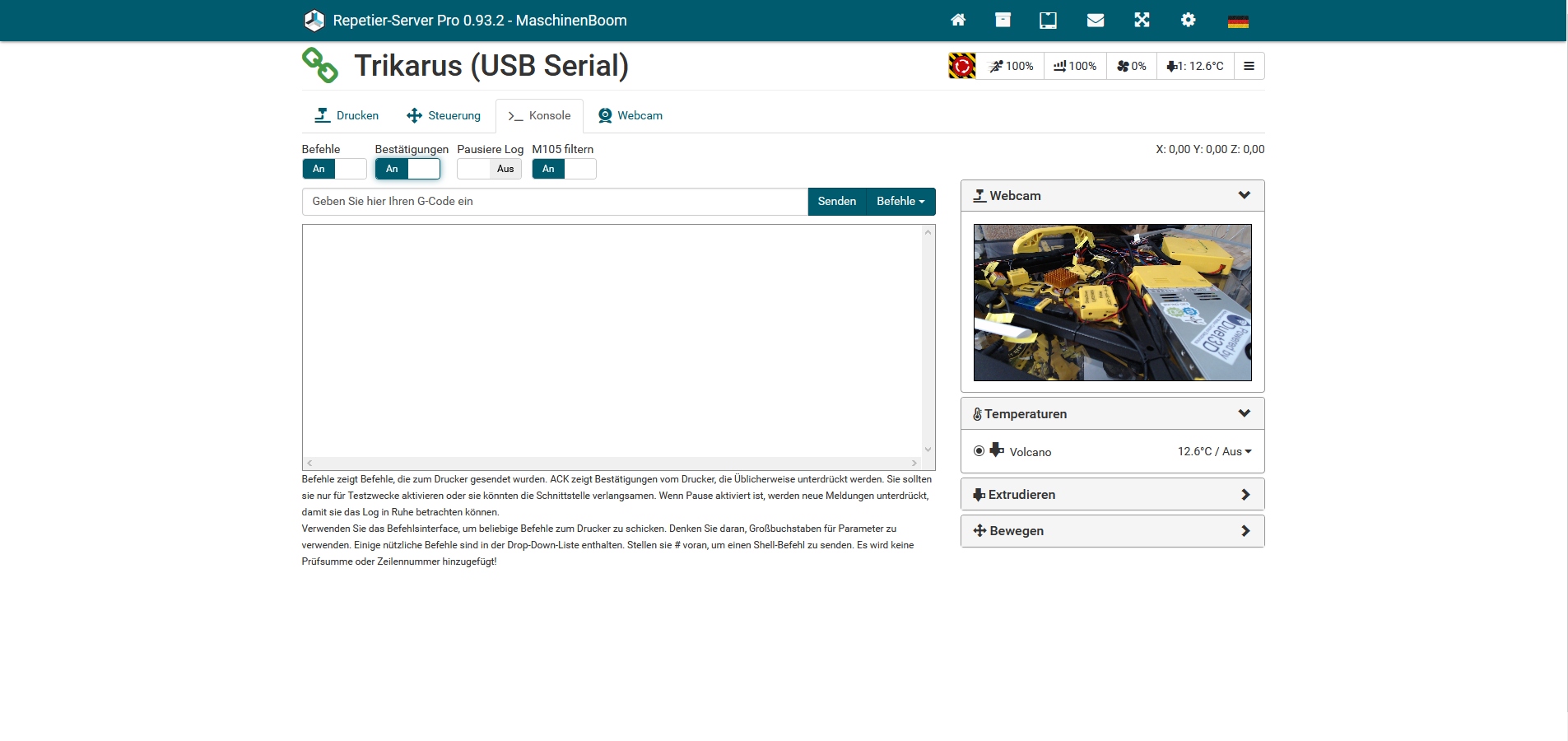
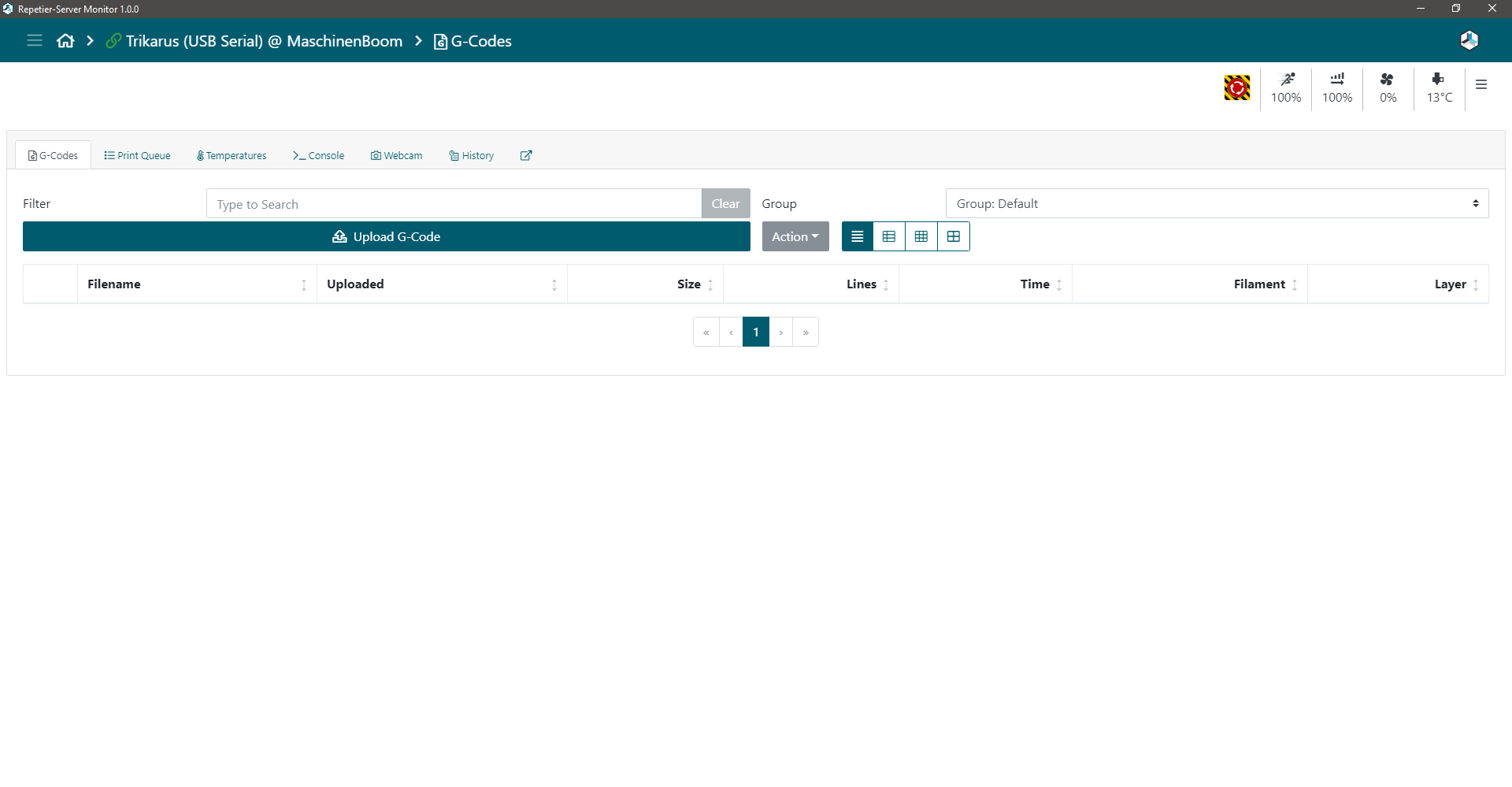
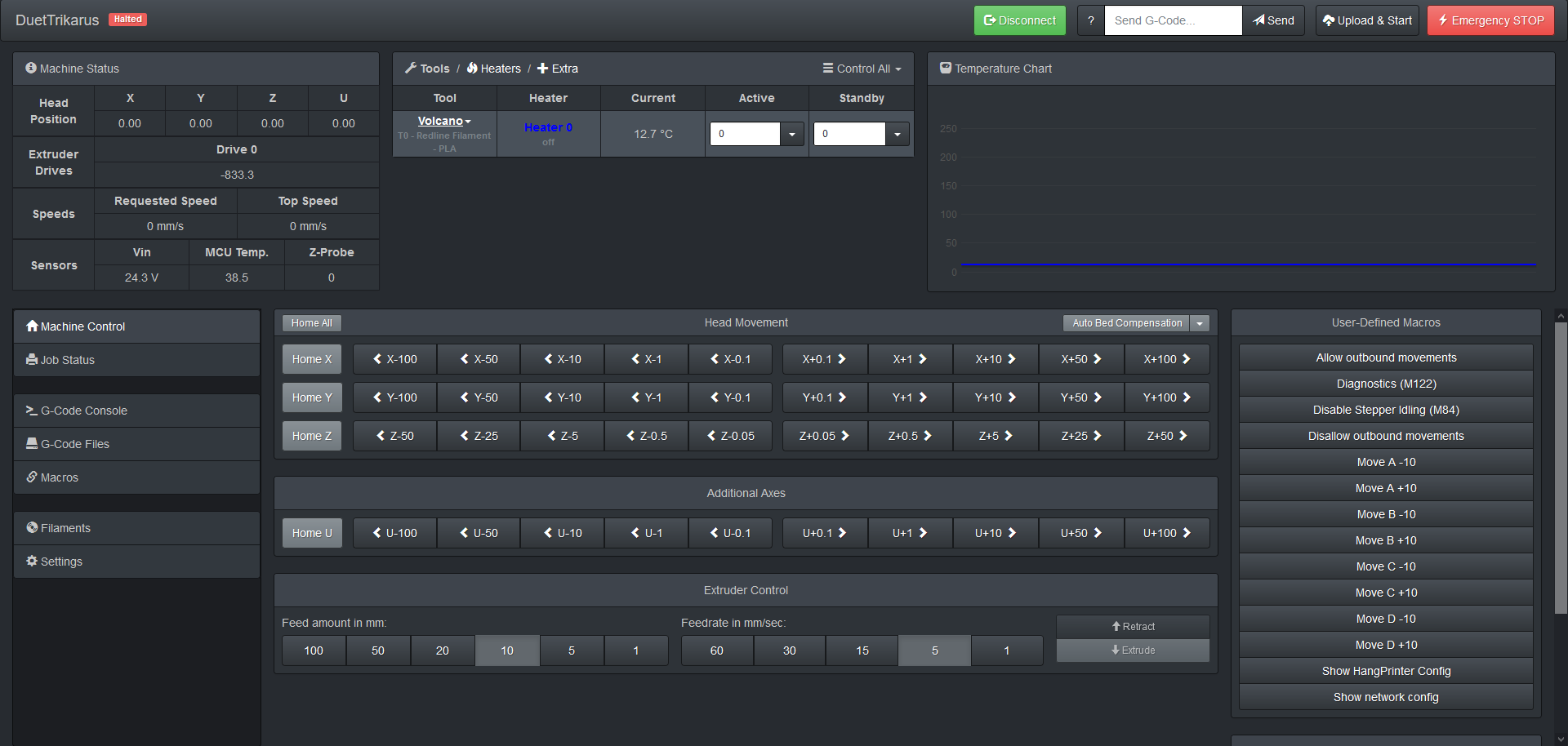
Not used / not tested but interesting to make use of
- https://github.com/wilriker/rfm
- https://github.com/gtjoseph/DueUI/wiki
- https://github.com/kungergely92/RBD
- Slicer
- Simplify3D
- Cura
- IceSL
- Server
- Octoprint
Webcam streaming with mjpg-streamer
The webcam used at Trikarus is used to deal for monitoring purposes and timelapse videos. Public embedding of the screen would create much traffic so we keep it for internal use only. It's stream is embedded into Repetier Server, Duet Web Control, Grafana, Instar Mobile App and screenshots are sent by email once per day. The main target is to make timelapse videos while printing large objects or for testing. This shall help to analyse the printing routines.
Installation of mjpg_streamer (Repetier Server script)
https://www.repetier-server.com/setting-webcam-repetier-server-linux
sudo apt-get update
sudo apt-get install libjpeg8-dev imagemagick libv4l-dev v4l-utils make gcc git cmake g++
git clone https://github.com/jacksonliam/mjpg-streamer.git
cd mjpg-streamer/mjpg-streamer-experimental/
cmake -G "Unix Makefiles"
make
sudo make install
#test
/usr/local/bin/mjpg_streamer -i "input_uvc.so -r 1280x720 -d /dev/video0 -f 30" -o "output_http.so -p 8080 -w /usr/local/share/mjpg-streamer/www"
#access it on http://hangdevice:8080
sudo su
cd /usr/local
wget http://download.repetier-server.com/files/server/extras/mjpgstreamer-init-debian/Repetier-Setup.zip
unzip Repetier-Setup.zipv4l2-ctl --list-formats-ext
vim /usr/local/Repetier-Setup/etc/webcam.conf# Framerate and capture size. Bigger sizes and frequencies need more storage/ram and bandwidth so consider if
# you can handle better values or not.
WEBCAM_FRAMERATE=10
WEBCAM_WIDTH=1920
WEBCAM_HEIGHT=1080
# Default jpg quality is 85%
WEBCAM_QUALITY=100
# Extra paremeter for pi module when started.
WEBCAM_PICAM_PARAMS=""
# Extra parameter for usb module when started.
WEBCAM_USB_PARAMS=""
# Is this a pi where a picam could be connected? yes or no
IS_PI="no"
# Path to
MJPG_STREAMER=/usr/local/bin/mjpg_streamer
MJPG_PLUGIN_DIR=/usr/local/lib/mjpg-streamer
MJPG_WWW_DIR=/usr/local/share/mjpg-streamer/www
# WEBCAM_DIR is used for naming video devices
# /dev/v4l/by-id/* Is to use the device names. It is not important where you plug it in
# /dev/v4l/by-path/* Is to use th eusb port plugged in to identify webcams. Use this if you have identical names
WEBCAM_DIR=/dev/v4l/by-path/*Do not raise the fps to values higher than 10 because Firefox starts lagging/freezing. Details can be found at https://forum.repetier.com/discussion/comment/32058#Comment_32058. In Chrome it was tested to rn with 30 fps totally fluent.
cd /usr/local/Repetier-Setup/bin
chmod 755 installWebcam2
./installWebcam2 installRepetier Server settings
Configure
- shoot images every 10 seconds
- framerate: 30 fps
- bitrate: 8000 kbps
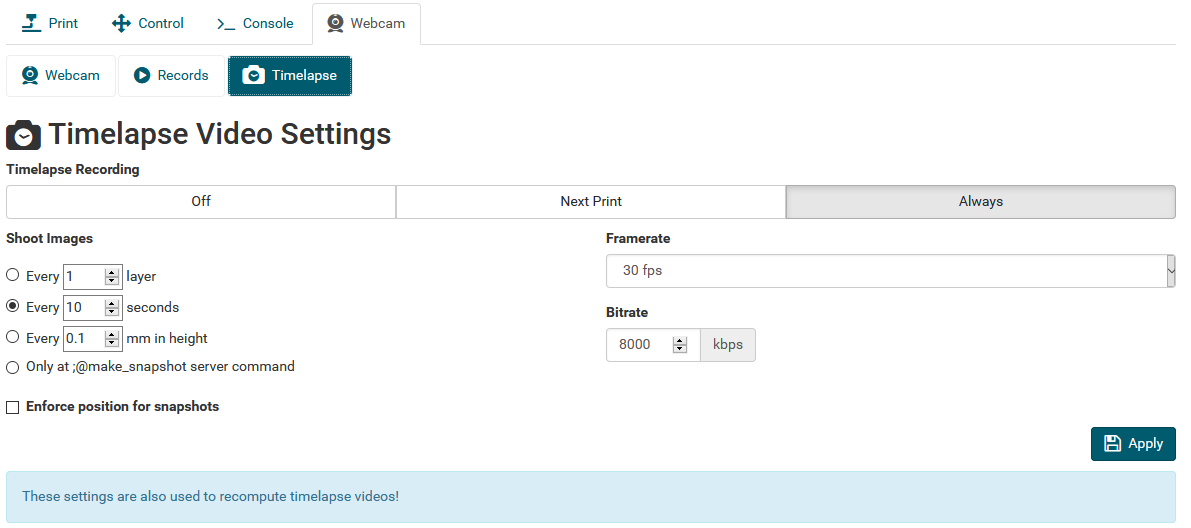
Warning: after a finished print the Raspberry Pi has higher system load because it will generate a timelapse video file. This can take into account more than an hour. The CPU temperature will rise
Adjusting webcam parameters (zoom, fokus, etc.)
https://www.kurokesu.com/main/2016/01/16/manual-usb-camera-settings-in-linux
#get modes of camera
v4l2-ctl -d /dev/video0 --list-ctrls
brightness (int) : min=0 max=255 step=1 default=128 value=128
contrast (int) : min=0 max=255 step=1 default=128 value=128
saturation (int) : min=0 max=255 step=1 default=128 value=128
white_balance_temperature_auto (bool) : default=1 value=1
gain (int) : min=0 max=255 step=1 default=0 value=255
power_line_frequency (menu) : min=0 max=2 default=2 value=2
white_balance_temperature (int) : min=2000 max=6500 step=1 default=4000 value=2645 flags=inactive
sharpness (int) : min=0 max=255 step=1 default=128 value=128
backlight_compensation (int) : min=0 max=1 step=1 default=0 value=0
exposure_auto (menu) : min=0 max=3 default=3 value=3
exposure_absolute (int) : min=3 max=2047 step=1 default=250 value=666 flags=inactive
exposure_auto_priority (bool) : default=0 value=1
pan_absolute (int) : min=-36000 max=36000 step=3600 default=0 value=0
tilt_absolute (int) : min=-36000 max=36000 step=3600 default=0 value=0
focus_absolute (int) : min=0 max=250 step=5 default=0 value=0 flags=inactive
focus_auto (bool) : default=1 value=1
zoom_absolute (int) : min=100 max=500 step=1 default=100 value=100
#get specific value only
v4l2-ctl -d /dev/video0 --get-ctrl=zoom_absolute
zoom_absolute: 100
#set new values
v4l2-ctl -d /dev/video0 --set-ctrl=focus_auto=0
v4l2-ctl -d /dev/video0 --set-ctrl=focus_absolute=150
v4l2-ctl -d /dev/video0 --set-ctrl=zoom_absolute=100The same settings can also be done with
apt-get install uvcdynctrl
uvcdynctrl -cEmbedding of the webcam
The used webcam does not allow to flip the image by software settings. For this reason we have to rotate the image afterwards. In the different software (Repetier Server, DWC, Grafana) this can be done different ways. For embedding in Grafana a simple CSS transformation ca be used:
<center><img src="http://localhost:8080/?action=stream"/ style="transform:rotate(180deg);"></center>(Re)start mjpg_streamer
service mjpg_streamer status lsof -i tcp:8080 service mjpg_streamer restart #in failure case (unclosed web sockets) - force webcam kill pkill -9 mjpg_streamer
Raspbian Buster v4l-utils fix (0 fps, 0x0 resolution) →Since Buster the output of "/usr/bin/v4l2-ctl --list-formats-ext -d /dev/video0" is different than on Jessie or Stretch. See https://forum.repetier.com/discussion/7144/repetier-server-linux-webcam-script-chokes-on-raspian-buster/p1 for fix.
mjpgStart script modification
While resetting USB devices it sometimes happens that /dev/video$NR number changes. This leads to wrong port mapping for mjpg_streamer. The following modification was done to ensure that the webcam always appears on port 8080 and accepts random device number
#!/bin/bash
DIR="$( cd "$( dirname "${BASH_SOURCE[0]}" )" && pwd )"
cd $DIR
. ../etc/webcam.conf
DEV=$(ls -l /dev/v4l/by-id | grep "C920" | head -n1 | awk -F ' ' '{print $11}' | cut -c12)
PORT=8080
IFS=$'\n'
VIDEO="/dev/video${DEV}"
VIDEO_TEST=$(/usr/bin/v4l2-ctl --list-formats-ext -d $VIDEO)
MJPG_TEST=$(echo "$VIDEO_TEST" | /bin/grep "Pixel Format: 'MJPG' (compressed)")
MJPG_PARAM_YUYV=""
PIXEL_FORMAT="MJPG"
if [ "$MJPG_TEST" == "" ]; then
MJPG_PARAM_YUYV=" -y"
PIXEL_FORMAT="YUYV"
echo "Webcam does not support MJPG - using slower YUYV instead!"
fi
echo $PIXEL_FORMAT
BEST_WIDTH=0
BEST_HEIGHT=0
BEST_FRAMERATE=0
BEST_ERROR=$(($WEBCAM_WIDTH * $WEBCAM_HEIGHT))
IN_FORMAT=0
for AP in $VIDEO_TEST; do
if [[ $AP =~ Pixel[[:space:]]Format:.*\'(.*)\' ]]; then
CUR_FORMAT=${BASH_REMATCH[1]}
IN_FORMAT=0
if [[ "$CUR_FORMAT" == "$PIXEL_FORMAT" ]]; then
IN_FORMAT=1
IN_FR=0
fi
fi
if (( $IN_FORMAT == 1 )); then
if [[ "$AP" =~ Size:.Discrete.([0-9]+)x([0-9]+) ]]; then
ACT_W=${BASH_REMATCH[1]}
ACT_H=${BASH_REMATCH[2]}
ACT_ERROR=$(( ($WEBCAM_WIDTH * $WEBCAM_HEIGHT) - ($ACT_W * $ACT_H) ))
if (( $ACT_ERROR < 0 )); then
ACT_ERROR=$(( -$ACT_ERROR ))
fi
if (( $ACT_ERROR < $BEST_ERROR )); then
BEST_ERROR=$ACT_ERROR
BEST_FRAMERATE=0
BEST_WIDTH=$ACT_W
BEST_HEIGHT=$ACT_H
IN_FR=1
else
IN_FR=0
fi
fi
if (( $IN_FR == 1 )); then
if [[ "$AP" =~ Interval.*\(([0-9]+)\.000 ]]; then
ACT_FR=${BASH_REMATCH[1]}
if (( $ACT_FR >= $WEBCAM_FRAMERATE )) || (( $BEST_FRAMERATE == 0 )); then
BEST_FRAMERATE="${ACT_FR}"
fi
fi
fi
fi
done
echo "Best resolution: $BEST_WIDTH x $BEST_HEIGHT at $BEST_FRAMERATE"
echo "${MJPG_STREAMER} -i \"${MJPG_PLUGIN_DIR}/input_uvc.so -d ${VIDEO} --fps ${BEST_FRAMERATE} -q ${WEBCAM_QUALITY} -r ${BEST_WIDTH}x${BEST_HEIGHT}${MJPG_PARAM_YUYV} ${WEBCAM_USB_PARAMS}\" -o \"${MJPG_PLUGIN_DIR}/output_http.so -p ${PORT} -w ${MJPG_WWW_DIR}\" -b"
${MJPG_STREAMER} -i "${MJPG_PLUGIN_DIR}/input_uvc.so -d ${VIDEO} --fps ${BEST_FRAMERATE} -q ${WEBCAM_QUALITY} -r ${BEST_WIDTH}x${BEST_HEIGHT}${MJPG_PARAM_YUYV} ${WEBCAM_USB_PARAMS}" -o "${MJPG_PLUGIN_DIR}/output_http.so -p ${PORT} -w ${MJPG_WWW_DIR}" -bInstall ffmpeg and configure (for timelapse use on Repetier Server)
https://www.repetier-server.com/knowledgebase/timelapse-problems
apt install ffmpeg
which ffmpeg
# /usr/bin/ffmpegmjpg Webstream on SSL with password (required for Duet Web Control and Grafana)
Port 8080 is blocked by iptables. We use SSL and password secured port 8081
vim /etc/apache2/ports.conf → enable port 8081
<VirtualHost *:8081>
ServerName localhost
ServerAdmin project_hangprinter@fablabchemnitz.de
SSLEngine on
SSLCertificateFile /etc/ssl/certs/trikarus.pem
SSLCertificateKeyFile /etc/ssl/private/trikarus-key.pem
<Location "/">
AuthType Basic
AuthName "Authentication Required"
AuthUserFile "/etc/apache2/htusers"
Require valid-user
ProxyPass http://localhost:8080/
ProxyPassReverse http://localhost:8080/
</Location>
ErrorLog ${APACHE_LOG_DIR}/error-mjpeg.log
CustomLog ${APACHE_LOG_DIR}/access-mjpeg.log combined
</VirtualHost>mjpg Webstream with Instar Vision App for Android (disabled)
<VirtualHost *:<PORT>>
ServerName domain.de
ServerAdmin address@mail.server
ErrorLog ${APACHE_LOG_DIR}/error-trikarus-mjpeg.log
CustomLog ${APACHE_LOG_DIR}/access-trikarus-mjpeg.log combined
ProxyRequests Off
ProxyPreserveHost On
ProxyPass / http://192.168.11.2:8080/ flushpackets=on Keepalive=On
<Location "/*">
AuthType Basic
AuthName "Authentication Required"
AuthUserFile "/etc/apache2/htusers"
Require valid-user
</Location>
</VirtualHost>Instar supports mpjeg streams only with http - https does not work! Also the picture can not be rotated here!
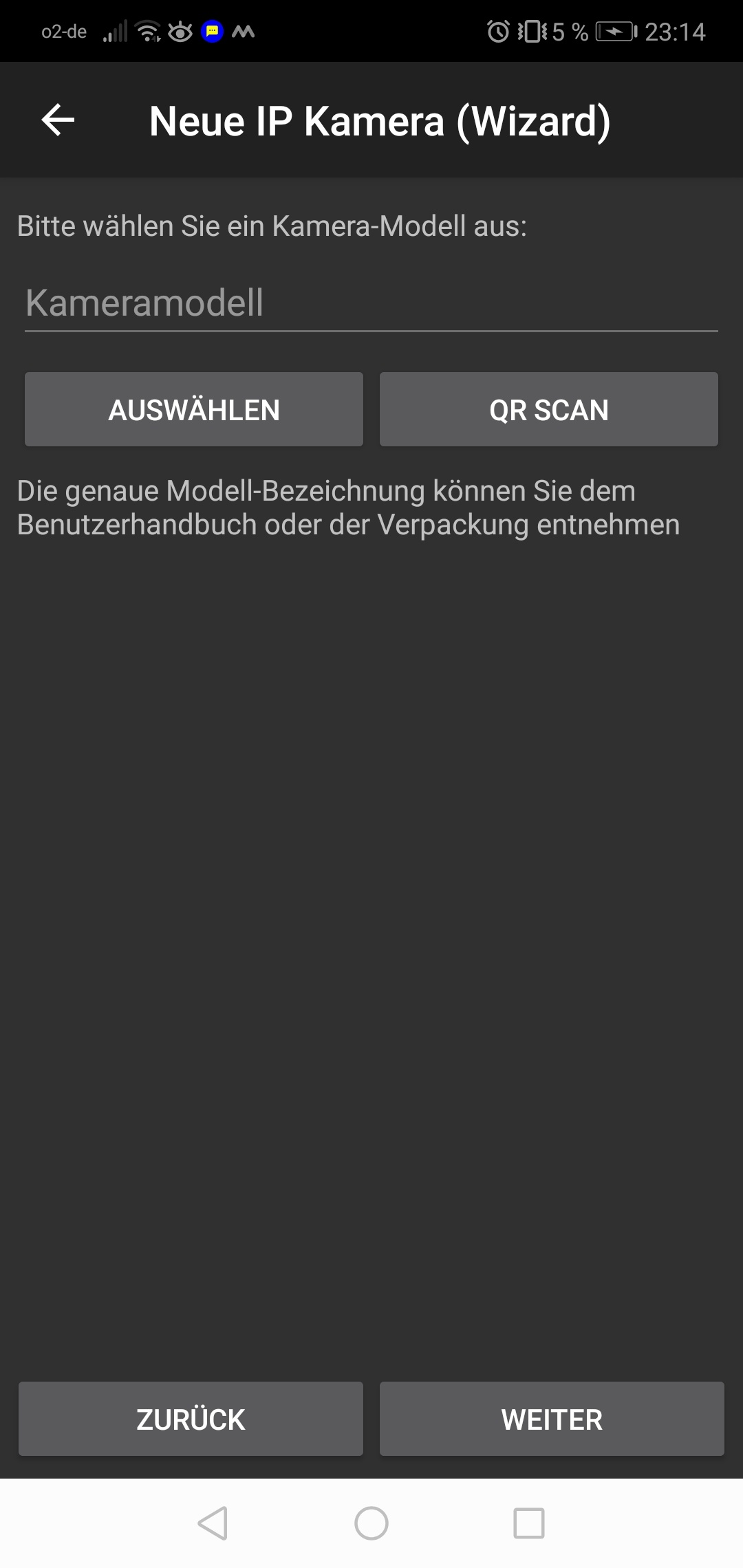
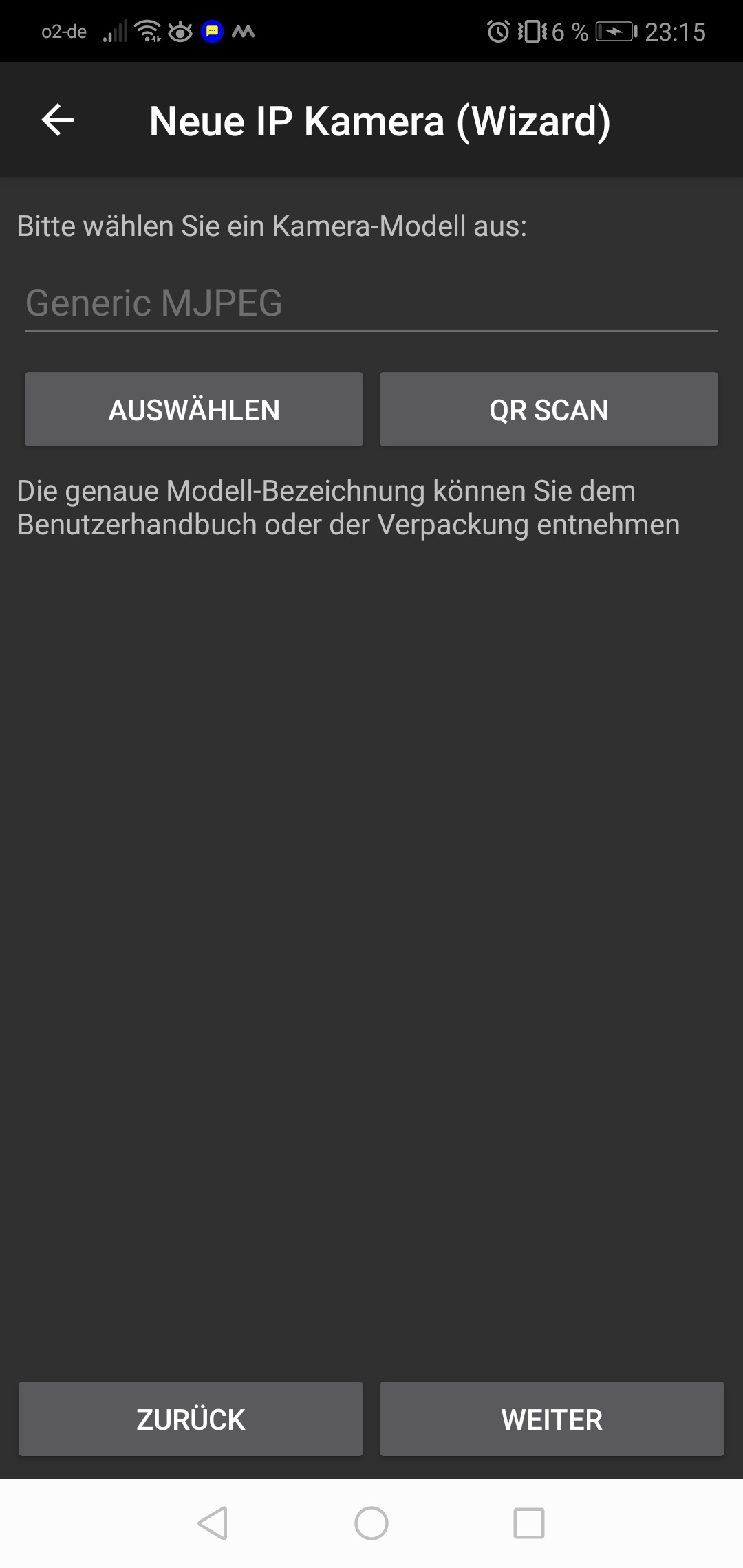
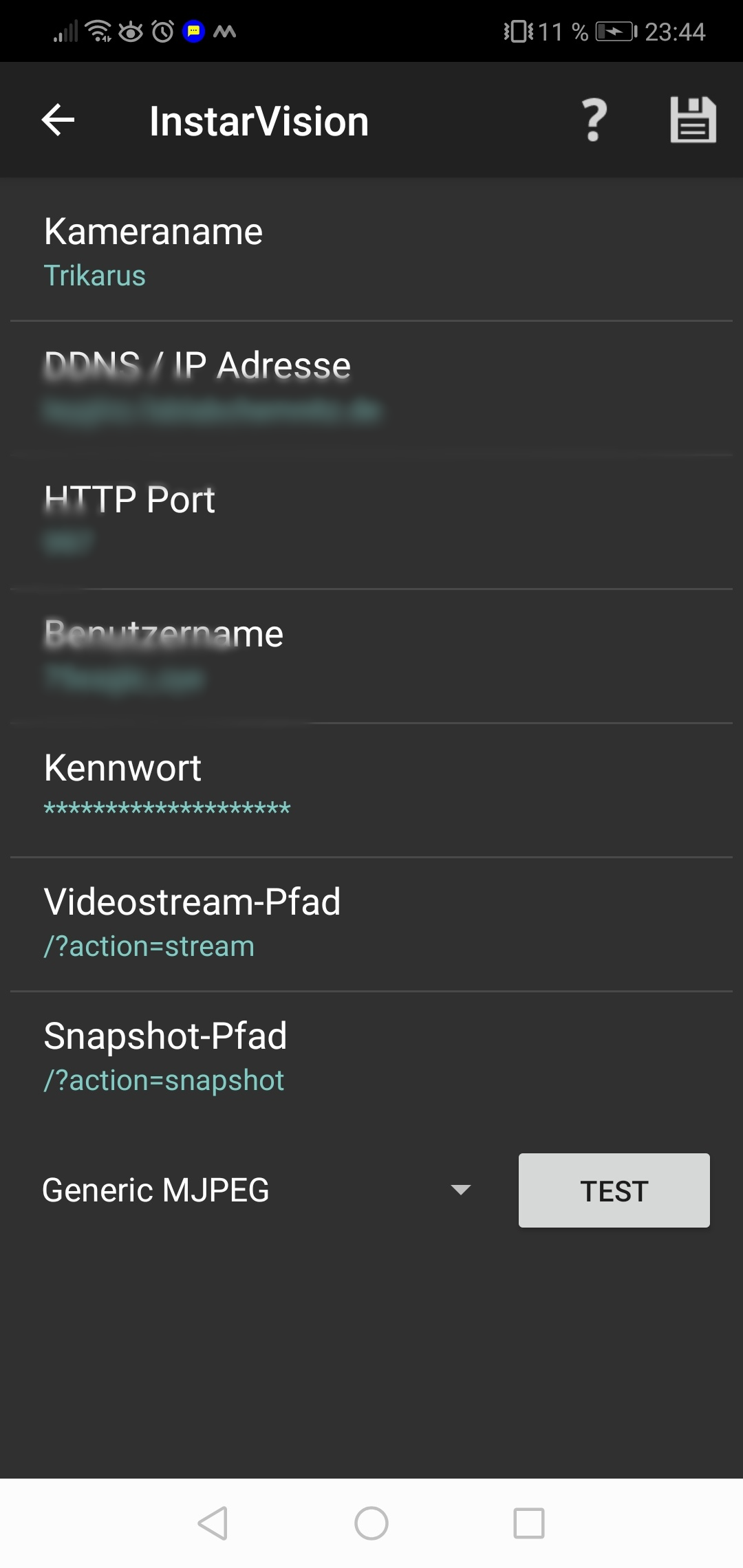
Webcam images by mail
This script sends a webcam snapshot embedded into Email. It's just some kind of reminder to have a look at the print 
/etc/cron.d/sendcamimage
SHELL=/bin/bash
PATH=/usr/lib/sysstat:/usr/sbin:/usr/sbin:/usr/bin:/sbin:/bin
*/10 * * * * root /opt/sendcamimage.sh > /dev/null 2>&1/opt/sendcamimage.sh
#/bin/bash
#generate some random hash
HASH=$(cat /dev/urandom | tr -dc 'A-Z0-9' | fold -w 25 | head -n 1)
HASH2=$(cat /dev/urandom | tr -dc 'A-Z0-9' | fold -w 8 | head -n 1)
HASH3=$(cat /dev/urandom | tr -dc 'A-Z0-9' | fold -w 8 | head -n 1)
#send it with sendmail using a static template (except the dynamic base64 statement)
TO="project_hangprinter@fablabchemnitz.de"
FROM="project_hangprinter@fablabchemnitz.de"
SUBJECT="mjpeg_streamer $(date +"%d.%m.%Y %T")"
#check cam availability
ls /dev/ttyUSB-LOGITECH-C920
status=$?
if ! [ $status -eq 0 ]; then
ERRMSG="Error: Webcam is not online! Please check USB device!"
echo $ERRMSG
echo "" | mail -s "$ERRMSG" $TO
exit 1
fi
#else continue sending the snapshot
curl http://localhost:8080/?action=snapshot --output /tmp/snapshot.jpg
#rotate the image by 180 degrees using imagemagick's convert tool
convert -rotate "180" /tmp/snapshot.jpg /tmp/snapshot.jpg
sendmail -t <<EOT
To: $TO
From: $FROM
Subject: $SUBJECT
MIME-Version: 1.0
Content-Type: multipart/related;
boundary="------------${HASH}"
--------------${HASH}
Content-Type: text/html; charset=utf-8
Content-Transfer-Encoding: 7bit
<html>
<head>
<meta http-equiv="content-type" content="text/html; charset=UTF-8">
</head>
<body>
<p><img src="cid:part1.${HASH2}.${HASH3}@fablabchemnitz.de" alt=""></p>
</body>
</html>
--------------${HASH}
Content-Type: image/png;
name="snapshot.png"
Content-Transfer-Encoding: base64
Content-ID: <part1.${HASH2}.${HASH3}@fablabchemnitz.de>
Content-Disposition: inline;
filename="snapshot.png"
$(base64 /tmp/snapshot.jpg)
--------------${HASH}--
EOTSending image as attachment instead can easily done by replacing bash content to:
curl http://user:password@host.de/?action=snapshot --output snapshot.jpg && echo -e "mpjeg_streamer $(date +"%d.%m.%Y %T")\n" | mail --attach="./snapshot.jpg" --subject="mpjeg_streamer $(date +"%d.%m.%Y %T")" somemailaccount@host.deTroubleshooting
Webcam shows no image
Problem description
This problem mostly belongs to undervoltage problem and the error with USB device addressing
[ 55.651885] usb 1-1.5: device not accepting address 11, error -110 [ 55.751888] usb 1-1.5: new high-speed USB device number 13 using dwc_otg [ 66.291906] usb 1-1.5: device not accepting address 13, error -110 [ 66.292050] usb 1-1-port5: unable to enumerate USB device
Solution
- if power problem
- trigger PSU relay to switch off PSU (by Repetier Server or by command line)
- trigger uhubctl script to power down USB hub
- trigger uhubctl script to power up USB hub again after some seconds
- trigger PSU relay to switch on PSU again
- a regular reboot of hangdevice does not help. You need to de-power the devices for a short amount of time
- if mpjeg_streamer problem
- check port 8080 if mjpeg_streamer is running
- maybe restart mjpeg_streamer
- check if mjpeg_streamer is running at other ports instead, e.g. 8081
Wireguard Server/Client
We use Wireguard VPN client on hangdevice because it allows us to have a secure privat IPv4 (and possibly IPv6) tunnel to a known server. This also works in case the public IPv6 system of Freifunk fails (which was tested a lot). That means that Wireguard is the preferred way to communicate from external networks.
Server side
We use our existing WIreguard server. See Wireguard VPN Server
hangdevice Client
Install Wireguard and add some interface
#on hangdevice - see https://www.sigmdel.ca/michel/ha/wireguard/wireguard_02_en.html (client)
echo "deb http://deb.debian.org/debian/ unstable main" | sudo tee --append /etc/apt/sources.list.d/unstable.list
apt-key adv --keyserver keyserver.ubuntu.com --recv-keys 04EE7237B7D453EC
printf 'Package: *\nPin: release a=unstable\nPin-Priority: 150\n' | sudo tee --append /etc/apt/preferences.d/limit-unstable
apt update
apt install wireguard -y
rebootCreate peer key pair (for client)
wg genkey | tee peeroneprivatekey | wg pubkey > peeronepublickeyvim /etc/wireguard/wg0.conf [Interface] Address = 192.168.11.2/24 Privatekey = PPKofClient #DNS = 1.1.1.1 [Peer] PublicKey = PubKeyOfServer #AllowedIPs = 0.0.0.0/0 AllowedIPs = 192.168.11.0/16 Endpoint = the.wireguard.server:54321 PersistentKeepalive = 25
Start Wireguard (as service)
systemctl enable wg-quick@wg0
wg-quick up wg0
wg #show info
wg-quick save wg0 #save that info immediately
#stop
#wg-quick down wg0udpdump Test Wireguard (Client + Server)
If the command wg does not show a line with "handshake" on the client, then the connection was not established. If wg shows no peers on the server, this also means that no connection was established by a client.
#on server:
netstat -anlup | grep 54321
ps aux | grep wireguard
ss -lun 'sport = :54321'
tcpdump -i bond1 udp port 54321 -vv -X
#on client (hangdevice)
echo -n "blah:36|c" | nc -w 1 -u -4 the.wireguard.server 54321
#on server:
18:55:42.919037 IP (tos 0x0, ttl 54, id 4198, offset 0, flags [DF], proto UDP (17), length 37)
gianotti.chemnitz.freifunk.net.36882 > 192.168.1.66.54321: [udp sum ok] UDP, length 9
0x0000: 4500 0025 1066 4000 3611 fbe1 a3ac d2e9 E..%.f@.6.......
0x0010: c0a8 0142 9012 d431 0011 cb82 626c 6168 ...B...1....blah
0x0020: 3a33 367c 6300 0000 0000 0000 0000 :36|c........wg #run this on client and on server each. It should return peer connections on both sides plus successful handshake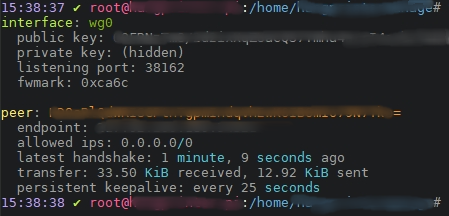
Troubleshooting
RTNETLINK answers: Operation not supported (Kernel Update / Firmware Update)
[#] ip link add wg0 type wireguard
RTNETLINK answers: Operation not supported
Unable to access interface: Protocol not supported
[#] ip link delete dev wg0
Cannot find device "wg0"
modprobe wireguard
modprobe: FATAL: Module wireguard not found in directory /lib/modules/4.19.118-v7+
#fix variant 1
dpkg-reconfigure wireguard-dkms
#fix variant 2
sudo apt remove wireguard-dkms
sudo apt install wireguard-dkms
#fix variant 3 - make recent headers manually
sudo apt-get install git bc bison flex libssl-dev
sudo wget https://raw.githubusercontent.com/notro/rpi-source/master/rpi-source -O /usr/local/bin/rpi-source && sudo chmod +x /usr/local/bin/rpi-source && /usr/local/bin/rpi-source -q --tag-update
cd ~/
rpi-source
#in case of failure:
cd ~/
rm -rf linux-fe2c7bf4cad4641dfb6f12712755515ab15815ca/
rpi-sourceHelpful ressources
- https://www.sebastian-fritz.net/2019/01/28/wireguard-vpn-und-ubuntu-18-04
- https://www.bachmann-lan.de/raspberry-pi-mit-wireguard-als-vpn-server-mit-wireguard
- https://www.linode.com/docs/networking/vpn/set-up-wireguard-vpn-on-ubuntu
- https://www.thomas-krenn.com/de/wiki/Ubuntu_18.04_als_WireGuard_VPN_Client_konfigurieren
- https://emanuelduss.ch/2018/09/wireguard-vpn-road-warrior-setup