Paths - Join/Order
- Chain Paths
- Circle Tangents (Replaced by Snap Objects Feature)
- Duplicate + Reverse + Join
- Join Paths / Create Tabs And Dimples
- Longest Continuous Path
- Move Path Node
- Optimize Sequence: Small Holes First
- Optimize Sequence: Travel Distances
- Reverse Order Of Subpaths
Chain Paths
Source of documentation: https://github.com/fablabnbg/inkscape-chain-paths
An inkscape extension to combine paths. Like really combining path snippets into longer paths. The stock inkscape path operation "combine" does not do that. It only creates a single path object consisting of multiple distinct segments. Many commercial CAD packages create object contours consisting of separate path snippets using adjacent end points. Such objects cannot be used in path operations like "add", "intersect", "difference", as they are technically a set of objects, rather than a single stroke. This extension forms a longer path from multiple shorter path segments. It is irrelevant if the path segments are separate path objects in Inkscape, or if the path segments belong to the same path object. If two path segments have an end point in common, or if their end points are close together, they are linked together to form a longer path. It is optional weather the linking end points meld into a single common point, or if an optional straight line ('chain link') fills the gap, if any. The maximum distance for end points is a user setting. Usually a fraction of a millimeter works fine.
Usage
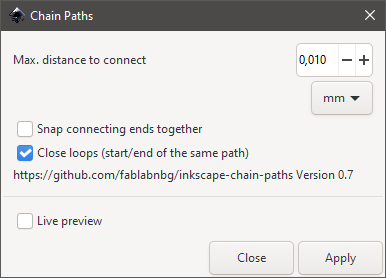
Select multiple pathlike objects. If the status line shows you different object types, then use "Path → Object to Path". This is needed as we operate only on paths only. You can choose the maximum endpoint distance for path ends to be linked, and the combination method: snap the points together, or create a linking path segment.
Note, that paths never fork. This means, that if there are three or more path ends at the same location, only two are chained together. The others are left unchanged.
Additional notes
- this plugin can be used to reduces node by chaining (linking) overlapping points
- by selecting "Snap connecting ends together" you are creating closed loops. Otherwise they are open!
- This plugin does not apply for paths in groups. Please ungroup before!
Step 1 - Having a loose set of lines

Step 2 - Apply extension
Step 3 - Get closed (chained) contours
Similar extensions: Line Merging (Combine Paths), Close Paths, Join Paths / Create Tabs And Dimples
Circle Tangents (Replaced by Snap Objects Feature)
1. Draw some circles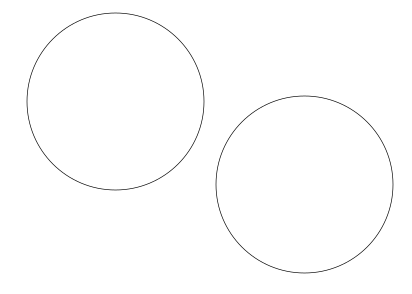
2. Apply the extension
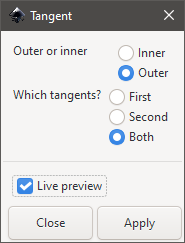
You can have two different outputs:
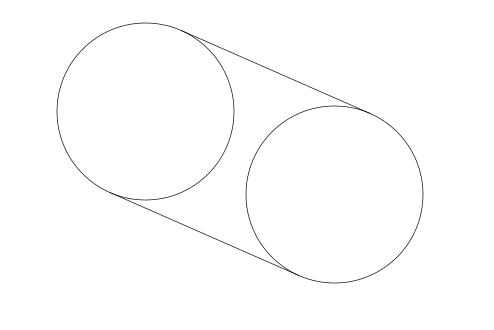
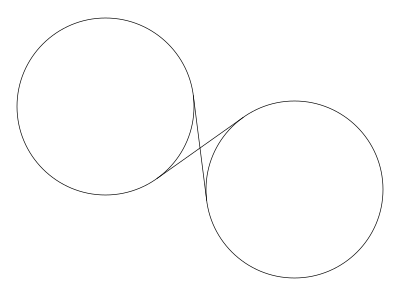
If you want to get sort of tangents at the path's point handles instead you can also try to run the extension Draw Handles
Duplicate + Reverse + Join
An extension to effectively convert a single line svg font to a stick font by duplicating, reversing and joining each selected path and subpath. Read more on http://cutlings.wasbo.net/single-line-font-to-stick-font
Join Paths / Create Tabs And Dimples
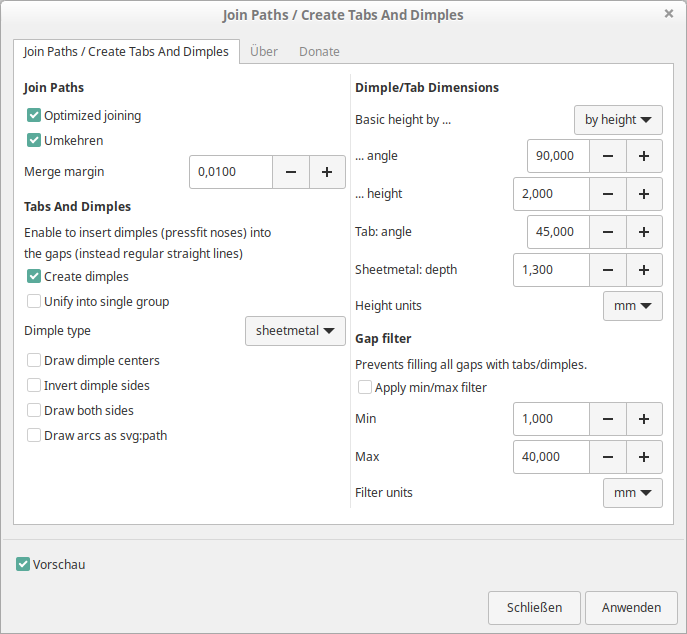
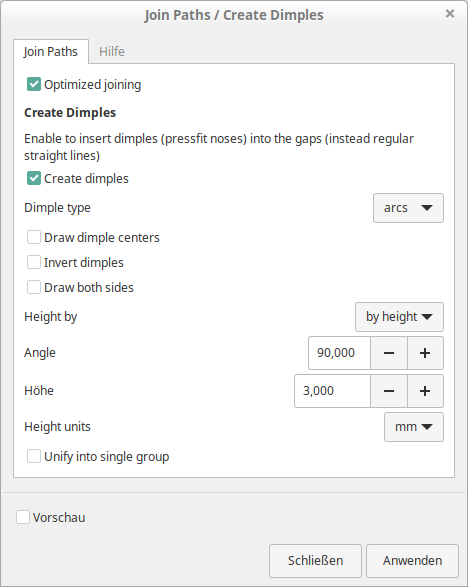
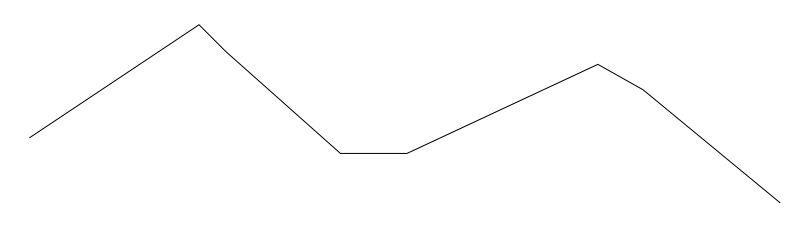
This extension works on the selected paths. The paths will be joined based on their Z-order (i.e. the lowest one in the document first and then the next one and so on) at their end nodes with a straight line segment. If the ending nodes of the paths coincide, they are merged and no new segment is created. If you check the option "optimized", the paths are joined starting with the one with the lowest Z-order (one at the bottom most position in the document) and the successive paths to be joined are chosen based on the distance of their end nodes to the ending node of the earlier path, i.e. the one with one of the end nodes closest to the ending node of the earlier path is joined to it. See also Line Merging (Combine Paths), Close Paths and Chain Paths for similar tools operating on path closing and joining.
Draw some lines and select them
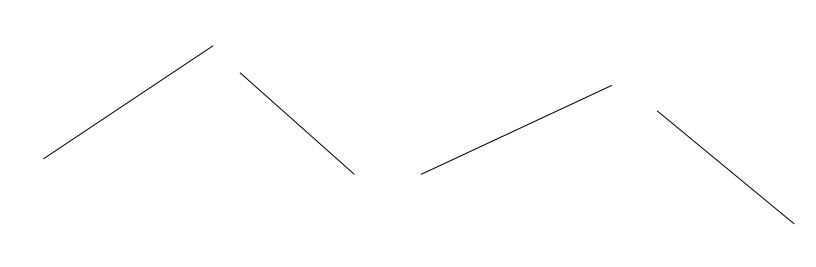
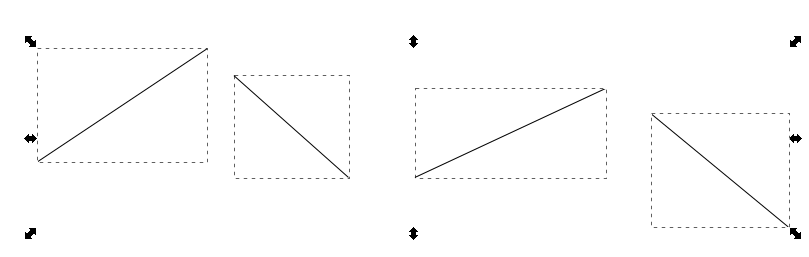
Run the extension
Get the joined path
This plugin might fail in case there are any groups within selection or just groups (not selected) in the document at all! This plugin generally does not apply for paths in groups. Please ungroup before!
    return super().__getitem__(self._to_key(key))
KeyError: 'path8'
Creating tabs / dimples
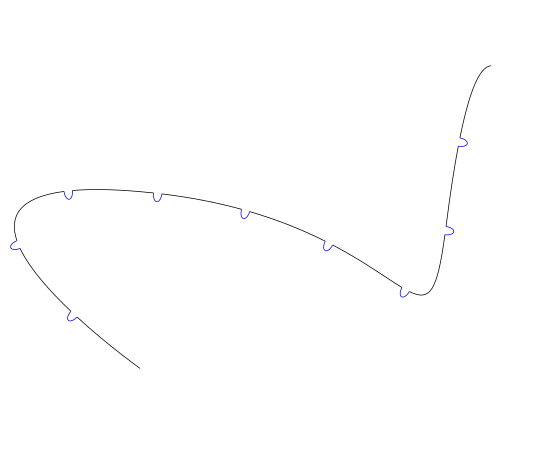
This extension also deals with creating tabs and/or dimples.
See also Tab Generator and Quick Joint
Draw some path
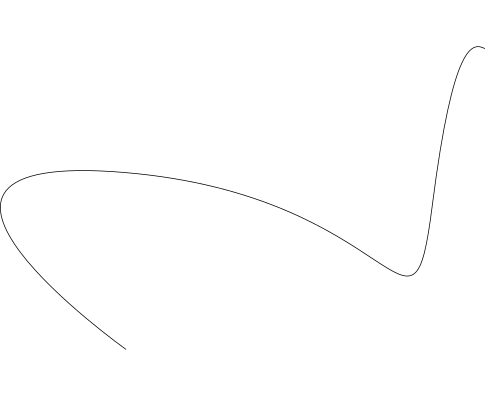
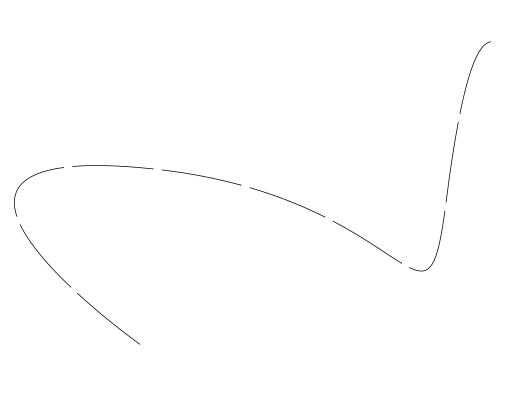
Create some gaps
We use Create Links (Breakaway Connectors)
Creeate dimples
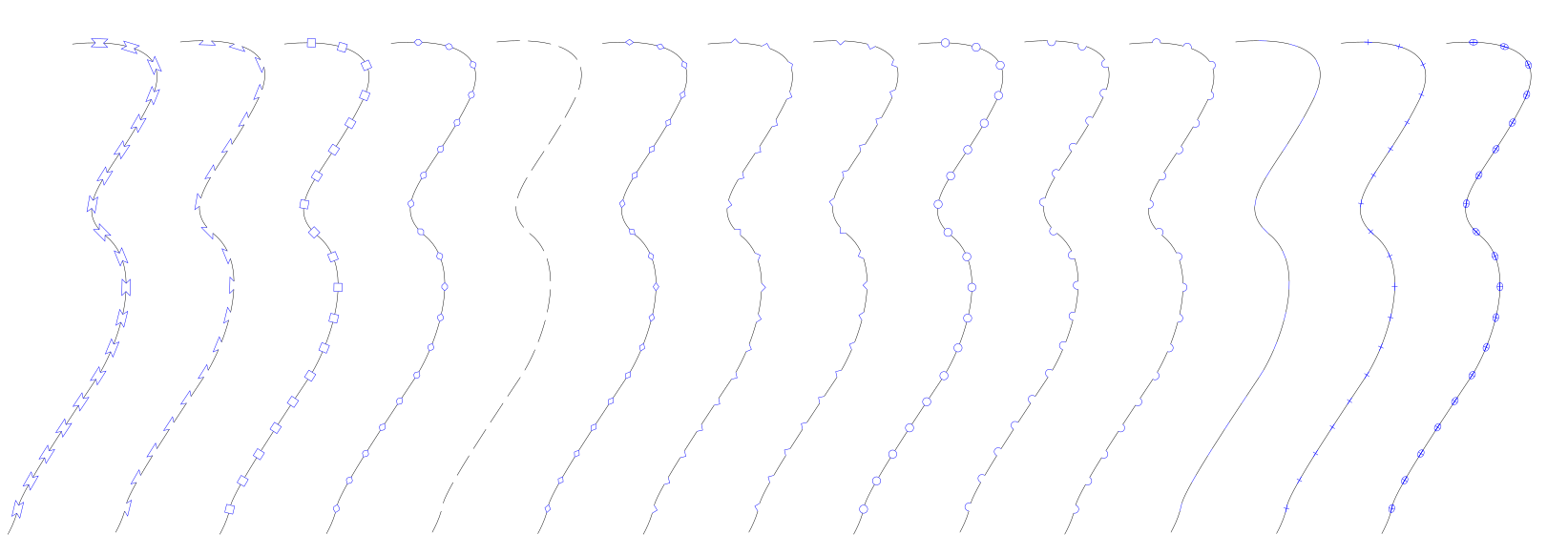
More examples:
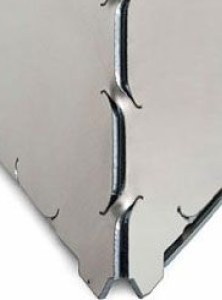
Sheetmal:
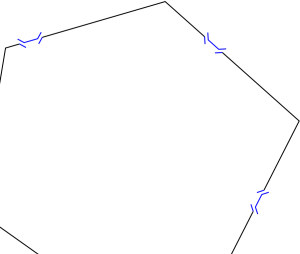
This is for a pattern like this:
Longest Continuous Path
Source of documentation: https://github.com/Daekkyn/inkscapeOptimizePath
An Inkscape extension that tries to make the longest continuous paths. It converts the paths to a graph, converts the graph to an Eulerian graph and finds an Eulerian cycle. It was written for the Axidraw pen plotter to reduce writing time of graph-like drawings like Voronoi diagrams and meshes.
Usage
- Make sure to ungroup everything → Extensions → Reorder → Deep Ungroup
- Make sure that the paths use only absolute coordinates (see trick below) or use → Extensions → Modify Path → To Absolute
- Make sure to not have transforms on the paths. You can use the Apply Transformations extension to remove them
- Select all the paths you want to optimize (currently only works with polylines). Conversion to polylines can be done with Approximate Curves by Straight Lines (Flatten Beziers) or Convert To Polylines (as second choice). Bezier curves, which were not converted, are getting lost running this extension
- Open the extension
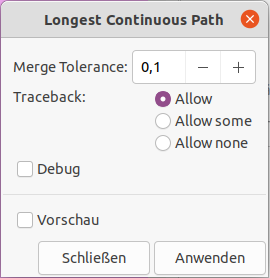
- Set the merge tolerance (0.1 should work in most cases)
- Choose the Overwrite rule:
- "Allow" means that the result will be a single path which might (probably) will have some overlapping edges.
- "Allow none" means that the results will be multiple disconnected paths but there will be no overlapping edges.
- "Allow some" is an in-between, overlapping edges are allowed, but only in short numbers. This is probably the best choice in most cases.
- Apply
Trick to remove relative coordinates
- Change the preferences for 'SVG Output > Path Data' to always use absolute coordinates. This will only affect newly created paths, or existing objects for which a rewrite of the path data is triggered.
- For existing paths, use 'Edit > Select All in All Layers', and nudge the selection with the arrow keys (e.g. one step up and one back down again). This will trigger a rewrite of the path data in 'd' which will follow the changed preferences for optimized path data.
Another Example
- Draw some paths and put the ends together by drag and drop with snap

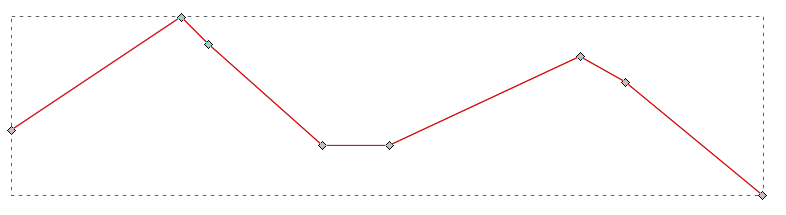
- Get the result
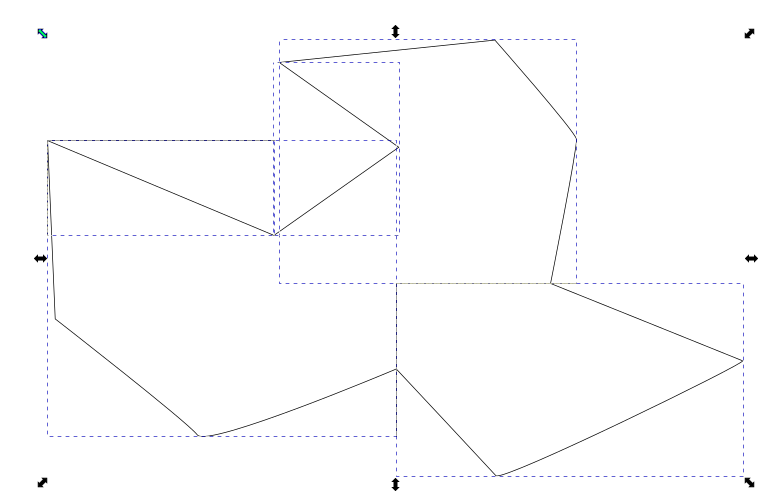
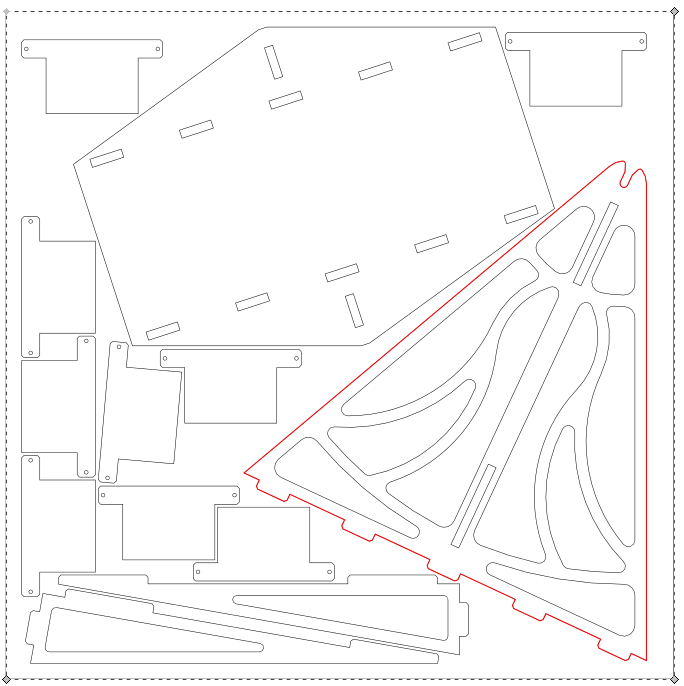
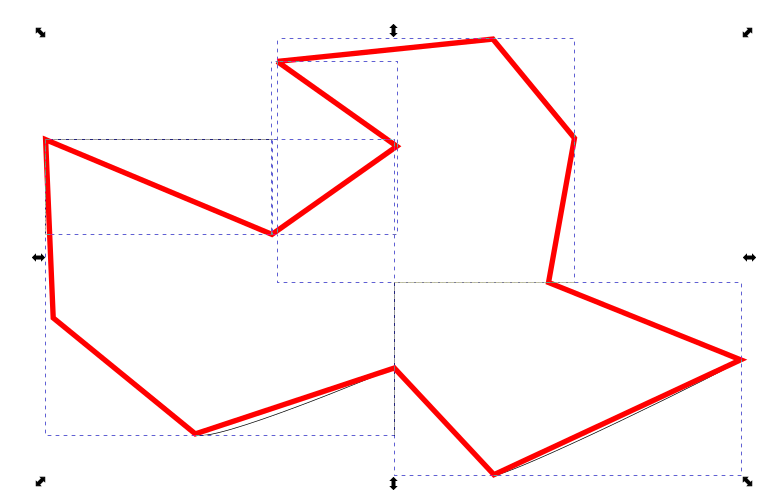
The red contour is an optimized contour. It works similar like Close Paths, Chain Paths or Join Paths / Create Tabs And Dimples except that it will not handle bezier curves but only polylines. So it acts like a combination of those plugins in junction with Approximate Curves by Straight Lines (Flatten Beziers) or Convert To Polylines.
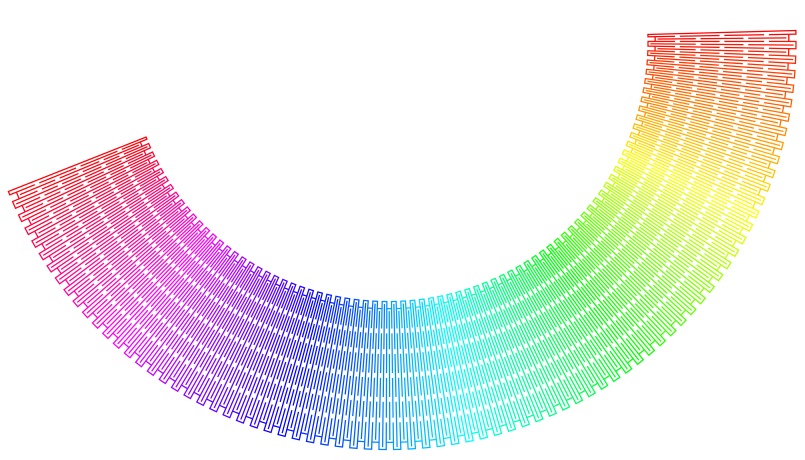
This extension can also create really cool artwork
Move Path Node
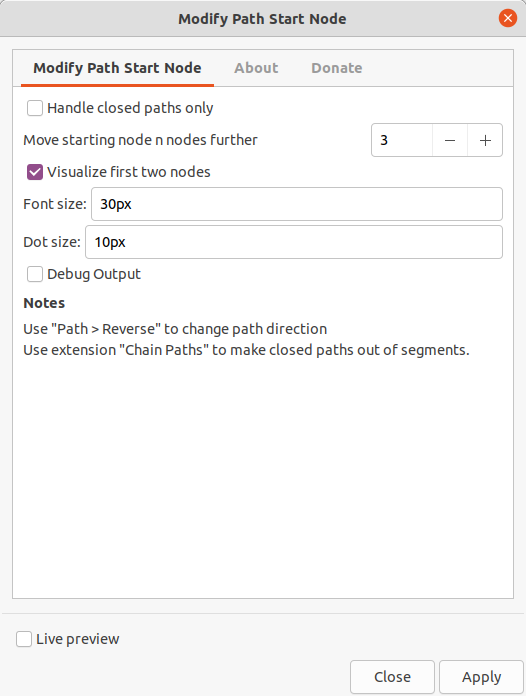
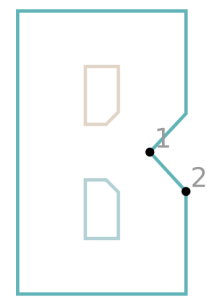
Extension to change starting / end node of a path and visualize it by dots and numbers. You can also use this extension as a trimmer for open paths. It is additionally highly useful when using the function to map text to path. By moving the node, the mapped path is moving too. It helps for fine-tuning a lot.
- Use "Path → Reverse" to change path direction
- Use extension Chain Paths to make closed paths out of segments.
Optimize Sequence: Small Holes First
Souce of Documentation: https://github.com/L0laapk3/inkscape-laser-sequence-extension
If you use(d) inkscape to create models for laser cutting, chances are you have ran into the following problem: the laser cutter first cuts the large shape, then it ever so slightly moves, then the holes in that shape are created but with a small offset. Thats why I created this simple extension to deal with this! The extension exists out of a couple lines of code that will re-arrange the order of the vectors for you, so the small holes get cut first.
You might need to combine the desired contours using ctrl + K to build up a long "total path" object.
Also have a look at Line Sorting and Optimize Sequence: Travel Distances
Example
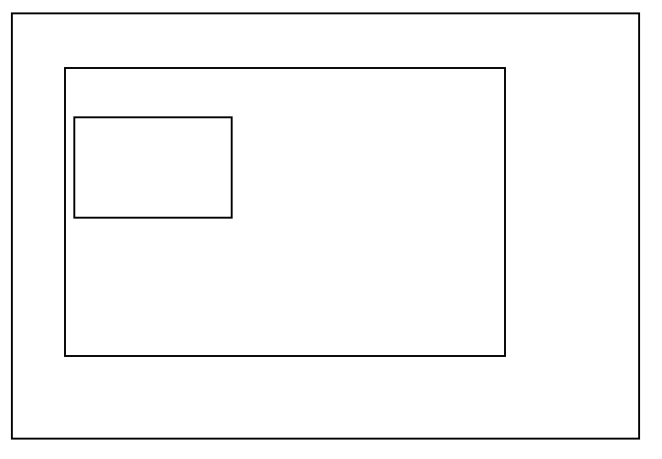
Draw some closed contours.
Make some "bad" order (first rectangle in the middle, then a small one, then a large outer one)
Combine and check
Combine the paths to common contour using ctrl + K. Check the 'd' node of the XML item to see how the path actually looks alike.
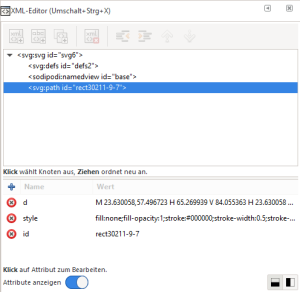
M 7.1105146,29.996967 H 173.07073 V 142.51136 H 7.1105146 Z M 23.630058,57.496723 h 41.639881 v 26.55864 H 23.630058 Z M 21.166666,44.450001 H 137.58332 V 120.65 H 21.166666 ZRun the extension and check the 'd' node again
M 7.1105146,29.996967 H 173.07073 V 142.51136 H 7.1105146 Z M 23.630058,57.496723 h 41.639881 v 26.55864 H 23.630058 Z M 21.166666,44.450001 H 137.58332 V 120.65 H 21.166666 ZOptimize Sequence: Travel Distances
Source documentation: https://wiki.evilmadscientist.com/Reorder_Paths_for_Speed
In normal use, and by default, elements within a document are plotted in the same order in which they appear in the file. This order is generally the order in which the objects were created; it might also be referred to as “bottom to top.” For example, suppose that you draw a circle and then a rectangle. Then, when you plot the file, the EggBot will plot the two objects in the order that you created them: The circle will plot before the rectangle. The rectangle in this example can also be described as being “above” the circle— a description that makes sense if you imagine painting one object and then painting the other on top of it. You can use the tools in the Object menu to rearrange the order of objects, for example with the Object > Raise and Object > Lower menu commands. If you raise our example circle above the rectangle, then the rectangle will plot before the circle.
This extension can re-order the objects in your plot so as to reduce the travel time spent with the pen up. Experimentation has shown that it can often reduce plotting time by 30% or more. Using this extension does impact your Inkscape drawing. This extension changes the order in which pieces of your drawing are drawn. For the Eggbot, this should produce no visual change in the finished plot.
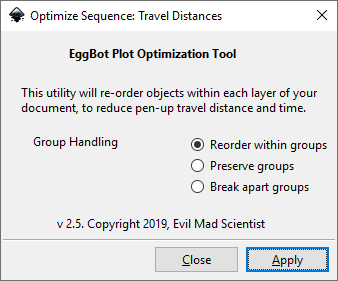
- The first option, Reorder within groups will re-order objects and groups within each layer of your document. Grouped objects will remain grouped. But, objects (and other groups) within any given group will be re-ordered.
- The second option, Preserve groups will re-order elements and groups within any given layer of your document, but the order of elements with groups will not be altered.
- The third option, Break apart groups will ungroup all elements within each layer of your document and then re-order them for speed. This option removes the groups from your file.
Also have a look at Line Sorting and Optimize Sequence: Small Holes First
Reverse Order Of Subpaths
Reverse order of subpaths (combined paths) without changing the direction of each subpath.
When drawing paths and combining these the order of the subpaths is from the last to the first drawn. This extension reverse the order of the subpaths and thus the order in which the paths were drawn can be restored.
Use together with the extension to Number Subpaths to visualize the effect of reversing the subpaths.
See https://inkscape.org/~EllenWasbo/%E2%98%85reverse-order-of-subpaths and https://gitlab.com/EllenWasbo/inkscape-extension-reverse-order-of-subpaths