# Paths - Cut/Intersect/Purge

# Contour Scanner And Trimmer

## Scanning

This tool helps you to find nasty contours which might bug you and prevent your work from being ready for production. It will find open contours, closed contours and self-intersecting contours and checks for a set of other attributes. [Bentley-Ottmann algorithm](https://github.com/ideasman42/isect_segments-bentley_ottmann) is used to check for those intersections. The algorithm works with the accuracy of the selected paths (epsilons). Self-intersections usually happen if you just have large overlaps where the contour crosses itself like an 'eight' character for example. Using the highlighting it's easy to find contours with unproper path handles. While in a CAD system an area of of a surface can only be calculated if the contour is closed and clean, finding self intersections in Inkscape is not required to do so. SVG format allows to calculate areas on open contours and self-twisted curves. This "artwork behaviour" makes it harder for handling machinery-like drawings for laser cutting, vinyl cutting or whatever. That's why we need to have extra sanity checks but we also have the great freedom of InkScape.

Finding self-intersecting contours does only work for curves with straight line segments (polylines) because it just calculates with a set of given XY points. It does not respect bezier curve segments. Bezier curves have no regular points but special handles, which define the slope of the curve per handle side (left and right). To properly handle a bezier curve we need to split the bezier curve in a lot of small linear lines (acting like infinitessimal solution). We can use the tool [Approximate Curves by Straight Lines (Flatten Beziers)](https://wiki.stadtfabrikanten.org/books/in-house-extensions/page/approximate-curves-by-straight-lines-flatten-beziers "Approximate Curves by Straight Lines (Flatten Beziers)") to do this by hand or we use the built-in method if Contour Scanner and Trimmer (will make your curve looking edgy or ugly possible). If you want to leave the shape of the line clean (bezier type, no edgy approximation) we can also use [Split Bezier (Subdivide Path)](https://wiki.stadtfabrikanten.org/books/fablab-chemnitz/page/split-bezier-subdivide-path "Split Bezier (Subdivide Path)") or [Add Nodes](https://wiki.stadtfabrikanten.org/books/in-house-extensions/page/add-nodes) instead. But remember that your calculated self-intersection points will only be an approximation then. The higher the subdivide count is the higher the precision of the calculated self-intersecting points coordinates will be.

After performing operations, which flatten or split the bezier curve, we we can or should use [Chain Paths](https://wiki.stadtfabrikanten.org/books/fablab-chemnitz/page/chain-paths) to put the pieces together again.

## Trimming

By having a set of flattened straight line and finding global intersections we can also trim the paths using python library called "shapely". This allows to receive cut segments. Some basic tools to remove duplicates, are integrated.

## The result

Using Contour Scanner correctly, we get a planar graph style drawing, like the definition gives: "In graph theory, a planar graph is a graph that can be embedded in the plane, i.e., it can be drawn on the plane in such a way that its edges intersect only at their endpoints. In other words, **it can be drawn in such a way that no edges cross each other**. Such a drawing is called a plane graph or planar embedding of the graph. A plane graph can be defined as a planar graph with a mapping from every node to a point on a plane, and from every edge to a plane curve on that plane, such that the extreme points of each curve are the points mapped from its end nodes, and all curves are disjoint except on their extreme points. " ([https://en.wikipedia.org/wiki/Planar\_graph](https://en.wikipedia.org/wiki/Planar_graph))

## Tips

- If nothings is selected, the whole document will be processed, regardless of groups. In contrast, if you made a custom selection, check to handle or not to handle groups.
- Works with paths which have Live Path Effects (LPE)
- Convert your strokes and objects to paths before
- Does not work for clones. You will need to unlink them before
- Use extensions to filter short/unrequired paths
- Use extensions to purge or repair invalid paths
- Use 'Path → Simplify' or hit 'CTRL + L' to simplify the trimmed result. With a fine quantization setting the simplified paths will be nearly identical to the original path (except the position of control points)
- Do not select too much paths at once if you have got a fine settings for quantization. This extension is slow and might calculate hours on ultra high configurations.

## See also (similar extensions)

- [Incadiff](https://wiki.stadtfabrikanten.org/books/fablab-chemnitz/page/incadiff)
- [Occult Plugin (Hidden / Superimposed Line Removal)](https://wiki.stadtfabrikanten.org/books/fablab-chemnitz/page/occult-plugin-hidden-superimposed-line-removal)
- [Purge Duplicate Path Nodes](https://wiki.stadtfabrikanten.org/books/fablab-chemnitz/page/purge-duplicate-path-nodes)
- [Purge Duplicate Path Segments](https://wiki.stadtfabrikanten.org/books/fablab-chemnitz/page/purge-duplicate-path-segments)
- [Purge Pointy Paths](https://wiki.stadtfabrikanten.org/books/fablab-chemnitz/page/purge-pointy-paths)
- [Mutual Cut Line](https://wiki.stadtfabrikanten.org/books/fablab-chemnitz/page/mutual-cut-line)
- [Convert To Polylines](https://wiki.stadtfabrikanten.org/books/fablab-chemnitz/page/convert-to-polylines)
- [Deduplicate Plugin](https://wiki.stadtfabrikanten.org/books/fablab-chemnitz/page/deduplicate-plugin)

## The user interface

[![grafik.png](https://wiki.stadtfabrikanten.org/uploads/images/gallery/2025-05/scaled-1680-/JUAPRpiXEqvh3L2u-grafik.png)](https://wiki.stadtfabrikanten.org/uploads/images/gallery/2025-05/JUAPRpiXEqvh3L2u-grafik.png) [![grafik.png](https://wiki.stadtfabrikanten.org/uploads/images/gallery/2025-05/scaled-1680-/fAUGqwpW81opci7O-grafik.png)](https://wiki.stadtfabrikanten.org/uploads/images/gallery/2025-05/fAUGqwpW81opci7O-grafik.png) [![grafik.png](https://wiki.stadtfabrikanten.org/uploads/images/gallery/2025-05/scaled-1680-/Ipci7ZyyOm4HoPC8-grafik.png)](https://wiki.stadtfabrikanten.org/uploads/images/gallery/2025-05/Ipci7ZyyOm4HoPC8-grafik.png) [![grafik.png](https://wiki.stadtfabrikanten.org/uploads/images/gallery/2025-05/scaled-1680-/fumAPZcNrzbFz1vc-grafik.png)](https://wiki.stadtfabrikanten.org/uploads/images/gallery/2025-05/fumAPZcNrzbFz1vc-grafik.png) [![grafik.png](https://wiki.stadtfabrikanten.org/uploads/images/gallery/2025-05/scaled-1680-/1w42sLkDrsFRAIoo-grafik.png)](https://wiki.stadtfabrikanten.org/uploads/images/gallery/2025-05/1w42sLkDrsFRAIoo-grafik.png)

## Quick example

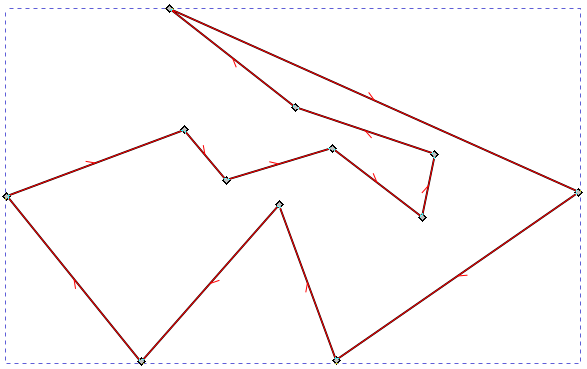
Using Contour Scanner and Trimmer we can check the different contours and their behaviour. Usually a contour can be open or closed and it can intersect with itself or not. This will give us 4 different combinations and we can use this information to find out where the intersections are using Bentley-Ottmann algorithm. Short examples:

<table border="1" id="bkmrk-4-different-basic-li" style="border-collapse: collapse; width: 99.9734%;"><colgroup><col style="width: 49.9668%;"></col><col style="width: 49.9668%;"></col></colgroup><thead><tr><td>**4 different basic line "types"**</td><td>**Marked paths by running the extension using colors and dot modifiers**</td></tr></thead><tbody><tr><td>[![grafik.png](https://wiki.stadtfabrikanten.org/uploads/images/gallery/2025-05/scaled-1680-/xxHPLGvrSXWzRuD1-grafik.png)](https://wiki.stadtfabrikanten.org/uploads/images/gallery/2025-05/xxHPLGvrSXWzRuD1-grafik.png)

</td><td>[![grafik.png](https://wiki.stadtfabrikanten.org/uploads/images/gallery/2025-05/scaled-1680-/GlY381ReaeqrNo5a-grafik.png)](https://wiki.stadtfabrikanten.org/uploads/images/gallery/2025-05/GlY381ReaeqrNo5a-grafik.png)

</td></tr></tbody></table>

## Real example

### Load sove graphic you want to fix

Depending on the steps you want to perform with the file maybe create some duplicate.

[![grafik.png](https://wiki.stadtfabrikanten.org/uploads/images/gallery/2025-05/scaled-1680-/6Gb0Iu84eHD9RCuH-grafik.png)](https://wiki.stadtfabrikanten.org/uploads/images/gallery/2025-05/6Gb0Iu84eHD9RCuH-grafik.png)

### Run the extension

Configure the setting depending on what you want.

[![grafik.png](https://wiki.stadtfabrikanten.org/uploads/images/gallery/2025-05/scaled-1680-/gOD4GTVkV73TFAfS-grafik.png)](https://wiki.stadtfabrikanten.org/uploads/images/gallery/2025-05/gOD4GTVkV73TFAfS-grafik.png)

### Fix the desired paths

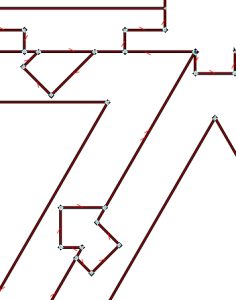
Select the path to see the handles. The dot indicates that there might be something faulty. In the following example there are two handles at the same coordinate. We can pick one of them to drag it away from the other one. You can now delete the marking point

[![grafik.png](https://wiki.stadtfabrikanten.org/uploads/images/gallery/2025-05/scaled-1680-/g1G7T6gfbw6P701u-grafik.png)](https://wiki.stadtfabrikanten.org/uploads/images/gallery/2025-05/g1G7T6gfbw6P701u-grafik.png) [![grafik.png](https://wiki.stadtfabrikanten.org/uploads/images/gallery/2025-05/scaled-1680-/ATpKCgtzJgwAH6QH-grafik.png)](https://wiki.stadtfabrikanten.org/uploads/images/gallery/2025-05/ATpKCgtzJgwAH6QH-grafik.png)

After rerunning the extension the dot will not appear again:

[![grafik.png](https://wiki.stadtfabrikanten.org/uploads/images/gallery/2025-05/scaled-1680-/WYYv74dAZhBEufig-grafik.png)](https://wiki.stadtfabrikanten.org/uploads/images/gallery/2025-05/WYYv74dAZhBEufig-grafik.png)

## Overlapping lines

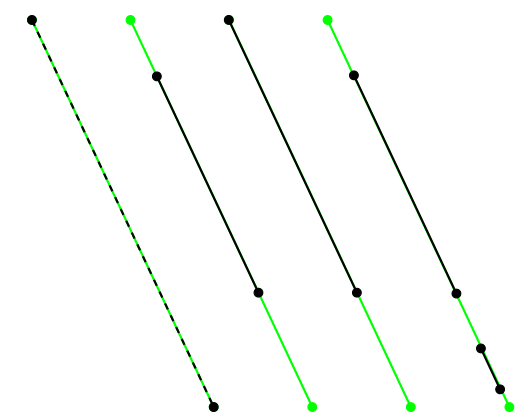
Contour Scanner is powerful. It can find and merge overlapping lines in the set of flattened sub split lines. We find those line intersections between lines where the same slope exists and which cover each other fully or partially (collinear overlapping lines). See the graphic to understand the problem.

<p class="callout info">At the moment Contour Scanner cannot remove those overlaps in original paths.</p>

[![grafik.png](https://wiki.stadtfabrikanten.org/uploads/images/gallery/2025-05/scaled-1680-/fUPrvEqKDwK1KnXk-grafik.png)](https://wiki.stadtfabrikanten.org/uploads/images/gallery/2025-05/fUPrvEqKDwK1KnXk-grafik.png)

From left to right:

- 1st: path 1 is equal to path 2 (they share start point and end point and have the same direction)
- 2nd: path 1 and path 2 share direction, but not the start or end points
- 3rd: path 1 and path 2 share one point and direction
- 4rd: multiple overlapping lones

## Issues

**Trimming bezier curves**

There is no algorithm done to split the original bezier curve after finding intersection points and t parameters yet.

[![grafik.png](https://wiki.stadtfabrikanten.org/uploads/images/gallery/2025-05/scaled-1680-/UcWxQCJc1Ok064uI-grafik.png)](https://wiki.stadtfabrikanten.org/uploads/images/gallery/2025-05/UcWxQCJc1Ok064uI-grafik.png)
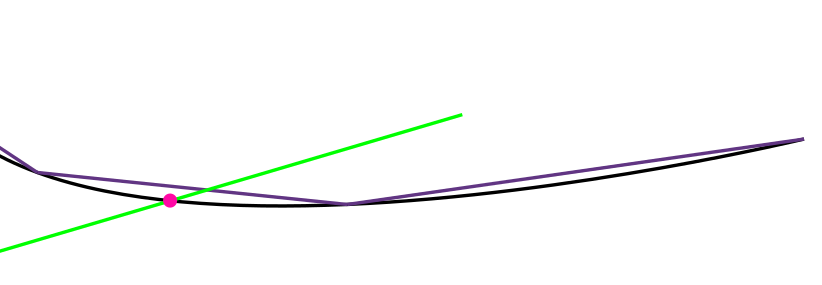
- green = a cutting line
- black = original bezier curve
- purple = approximated polyline
- magenta = intersection point between cutting line and original path (the intersection between cutting line and approximated curve would be far away as you can see)

# Create Links (Breakaway Connectors)

To create tabs in Inkscape, we cannot properly use the integrated eraser tool. It will clip only in a cosmetic fashion but we do not get the real paths we need. Creating links (also known as *microtabs, tabs, bridges, breakaway connectors, links*, *perforations)* is sometimes required for laser cutting or vinyl cutting. This extension allows to pinch paths to create according segments - no cosmetic one's, but real segments. It will split up open or closed contours with user defined rules. To get best output please try to close open paths before using. This extensions is ideal to cut cloth/textile stuff in the laser!

<p class="callout info">Also have a look at</p>

- [Convert to Dashes](https://wiki.stadtfabrikanten.org/books/in-house-extensions/page/convert-to-dashes)
- [Lasercut bridges without using extensions](https://old.stadtfabrikanten.org/display/IFM/Lasercut+bridges+without+using+extensions)
- [Ein- und Auslaufschnitte, Stege, Brücken, Laschen, Perforationen](https://old.stadtfabrikanten.org/pages/viewpage.action?pageId=55019931)

[![grafik.png](https://wiki.stadtfabrikanten.org/uploads/images/gallery/2025-05/scaled-1680-/PzZhsU4tNKwNe1aa-grafik.png)](https://wiki.stadtfabrikanten.org/uploads/images/gallery/2025-05/PzZhsU4tNKwNe1aa-grafik.png)

## Draw some contours

[![grafik.png](https://wiki.stadtfabrikanten.org/uploads/images/gallery/2025-05/scaled-1680-/xJ5oB0XzNjiAerDR-grafik.png)](https://wiki.stadtfabrikanten.org/uploads/images/gallery/2025-05/xJ5oB0XzNjiAerDR-grafik.png)

## Run the extension and get result

[![grafik.png](https://wiki.stadtfabrikanten.org/uploads/images/gallery/2025-05/scaled-1680-/QynstOa6PaLaayry-grafik.png)](https://wiki.stadtfabrikanten.org/uploads/images/gallery/2025-05/QynstOa6PaLaayry-grafik.png)

## Known issues

The path is not split up? Then please check if your path contains any connected Live Path Effect (LEP) which is associated with it. Like this:

[![grafik.png](https://wiki.stadtfabrikanten.org/uploads/images/gallery/2025-05/scaled-1680-/wRfLqmQvWPeYL8VW-grafik.png)](https://wiki.stadtfabrikanten.org/uploads/images/gallery/2025-05/wRfLqmQvWPeYL8VW-grafik.png)

You can remove it by using [Apply Transformations](https://wiki.stadtfabrikanten.org/books/fablab-chemnitz/page/apply-transformations) extension for example.

## Further development

<p class="callout info">See [https://wiki.selfhtml.org/wiki/SVG/Farben/Kontur](https://wiki.selfhtml.org/wiki/SVG/Farben/Kontur) and [https://svgwg.org/specs/strokes/#StrokeDashing](https://svgwg.org/specs/strokes/#StrokeDashing)</p>

Create Links Extension does not support **stroke-dashadjust** SVG attribute yet. But if it is implemented in Inkscape, we can adjust the dash pattern

- none: default value
- **stretch**: if the pattern does not fully merge into the path length, strokes and gaps are stretched
- **compress**: if the pattern does not fully merge into the path length, strokes and gaps are compressed
- **dashes**: If the pattern does not fully merge into the path length, dashes are adjusted, gaps remain in the selected setting
- **gaps**: if the pattern does not fully merge into the path length, gaps are adjusted, strokes remain in the selected setting

# Destructive Clip

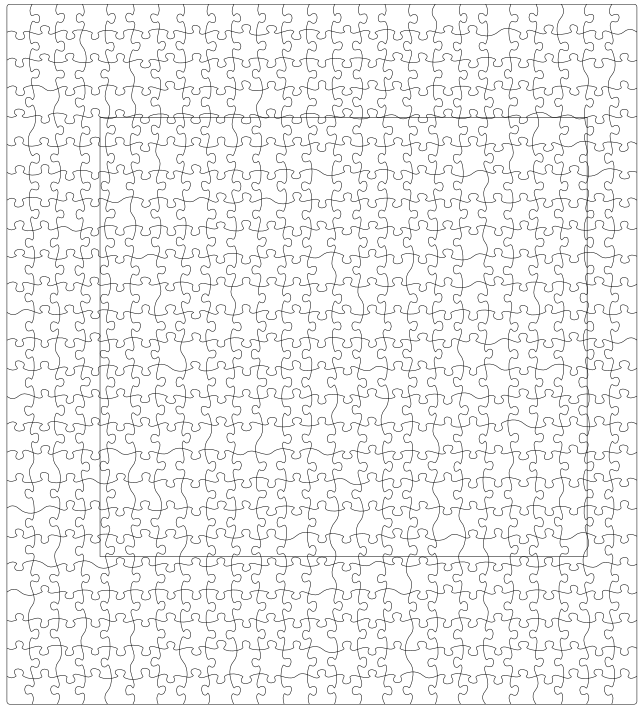
An Inkscape Extension which works like Object|Clip|Set except that the paths clipped are actually **modified**. Thus the clipping is included when exported, for example as a DXF file. Select two or more **paths** then choose Extensions|Modify path|Destructive clip. The topmost path will be used to clip the others.

## Make some path and draw clipping border

<p class="callout warning">Curves (including Arcs) in paths are not supported (use Extensions → Modify path → Flatten Beziers) and non-path objects in the selection will be ignored. Use Object → Ungroup.</p>

Maybe you need to combine multiple contours with CTRL + K before running the extension

[![grafik.png](https://wiki.stadtfabrikanten.org/uploads/images/gallery/2025-05/scaled-1680-/4VBhn23bSNQaRumJ-grafik.png)](https://wiki.stadtfabrikanten.org/uploads/images/gallery/2025-05/4VBhn23bSNQaRumJ-grafik.png)
## Run the extension and get the result

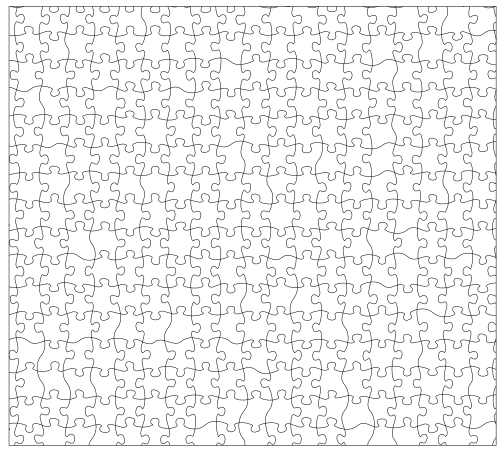
The order of selection defines what is clipped by which contour.

[![grafik.png](https://wiki.stadtfabrikanten.org/uploads/images/gallery/2025-05/scaled-1680-/XYD2SZTV9oE1i1Sf-grafik.png)](https://wiki.stadtfabrikanten.org/uploads/images/gallery/2025-05/XYD2SZTV9oE1i1Sf-grafik.png)
# Filter By Length/Area

Paths with value smaller than the given threshold will be deleted. This extension might require to break up your object before.

## Take some image

<p class="callout info">This is not a good example but shows the effect</p>

[![grafik.png](https://wiki.stadtfabrikanten.org/uploads/images/gallery/2025-05/scaled-1680-/plj3pE8Dfej8UKRL-grafik.png)](https://wiki.stadtfabrikanten.org/uploads/images/gallery/2025-05/plj3pE8Dfej8UKRL-grafik.png)

## Run the extension

[![grafik.png](https://wiki.stadtfabrikanten.org/uploads/images/gallery/2025-05/scaled-1680-/lXGwFg3nvK0bgIYA-grafik.png)](https://wiki.stadtfabrikanten.org/uploads/images/gallery/2025-05/lXGwFg3nvK0bgIYA-grafik.png)

## Result

[![grafik.png](https://wiki.stadtfabrikanten.org/uploads/images/gallery/2025-05/scaled-1680-/hnYpkEwjmNGgzH3e-grafik.png)](https://wiki.stadtfabrikanten.org/uploads/images/gallery/2025-05/hnYpkEwjmNGgzH3e-grafik.png)

# Incadiff

An Inkscape extension which applies successive difference operations on superimposed paths. Useful for plotter addicts as it removes hidden strokes. Incadiff works on paths and objects. It does not work for open paths. Incadiff does not operate like [Contour Scanner And Trimmer](https://wiki.stadtfabrikanten.org/books/fablab-chemnitz/page/contour-scanner-and-trimmer) and it does not remove duplicate lines if existing.

See also

- [PathOps](https://wiki.stadtfabrikanten.org/books/fablab-chemnitz/page/pathops)
- [Mutual Cut Line](https://wiki.stadtfabrikanten.org/books/fablab-chemnitz/page/mutual-cut-line)
- [Contour Scanner And Trimmer](https://wiki.stadtfabrikanten.org/books/fablab-chemnitz/page/contour-scanner-and-trimmer)
- [Purge Duplicate Path Segments](https://wiki.stadtfabrikanten.org/books/fablab-chemnitz/page/purge-duplicate-path-segments)

Source: [https://github.com/incaya/incadiff](https://github.com/incaya/incadiff)

[![grafik.png](https://wiki.stadtfabrikanten.org/uploads/images/gallery/2025-05/scaled-1680-/DyVaLMo9RiW6Qb58-grafik.png)](https://wiki.stadtfabrikanten.org/uploads/images/gallery/2025-05/DyVaLMo9RiW6Qb58-grafik.png)

# Mutual Cut Line

This extension cuts exactly 2 (ideally straight) path segments and will create intersected elements. Depending on the path direction (which can be reversed) the ends are going to be cut against each other

## Draw some paths

[![grafik.png](https://wiki.stadtfabrikanten.org/uploads/images/gallery/2025-05/scaled-1680-/b6rzts01ZJrmhkwV-grafik.png)](https://wiki.stadtfabrikanten.org/uploads/images/gallery/2025-05/b6rzts01ZJrmhkwV-grafik.png)

## Duplicate the paths (CTRL + D) and give some different color

This step is optional but helps to understand what's going on here

[![grafik.png](https://wiki.stadtfabrikanten.org/uploads/images/gallery/2025-05/scaled-1680-/7H4I5TudwDIgjgot-grafik.png)](https://wiki.stadtfabrikanten.org/uploads/images/gallery/2025-05/7H4I5TudwDIgjgot-grafik.png)

## Check the result

We repeat the previous step and this step for all variants to show the possible outputs. You can reverse the path using "Path → Reverse"

<table border="1" id="bkmrk-two-regular-paths-fi" style="border-collapse: collapse; width: 99.9734%; height: 111.35px;"><colgroup><col style="width: 20%;"></col><col style="width: 20%;"></col><col style="width: 20%;"></col><col style="width: 20%;"></col><col style="width: 20%;"></col></colgroup><thead><tr style="height: 35.1167px;"><td style="height: 35.1167px;">  
</td><td style="height: 35.1167px;">**Two regular paths**</td><td style="height: 35.1167px;">**First and second path reversed**</td><td style="height: 35.1167px;">**First path reversed**</td><td style="height: 35.1167px;">**Second path reversed**</td></tr></thead><tbody><tr style="height: 38.1167px;"><td style="height: 38.1167px;">Output with original as overlap</td><td style="height: 38.1167px;">[![grafik.png](https://wiki.stadtfabrikanten.org/uploads/images/gallery/2025-05/scaled-1680-/6xyCfCV3R5y6Nh4o-grafik.png)](https://wiki.stadtfabrikanten.org/uploads/images/gallery/2025-05/6xyCfCV3R5y6Nh4o-grafik.png)

</td><td style="height: 38.1167px;">[![grafik.png](https://wiki.stadtfabrikanten.org/uploads/images/gallery/2025-05/scaled-1680-/Tg05ckr8hDzvTFH2-grafik.png)](https://wiki.stadtfabrikanten.org/uploads/images/gallery/2025-05/Tg05ckr8hDzvTFH2-grafik.png)

</td><td style="height: 38.1167px;">[![grafik.png](https://wiki.stadtfabrikanten.org/uploads/images/gallery/2025-05/scaled-1680-/XEgewf2pZ7fYwjQb-grafik.png)](https://wiki.stadtfabrikanten.org/uploads/images/gallery/2025-05/XEgewf2pZ7fYwjQb-grafik.png)

</td><td style="height: 38.1167px;">[![grafik.png](https://wiki.stadtfabrikanten.org/uploads/images/gallery/2025-05/scaled-1680-/f1slLSJRaQKorpsA-grafik.png)](https://wiki.stadtfabrikanten.org/uploads/images/gallery/2025-05/f1slLSJRaQKorpsA-grafik.png)

</td></tr><tr style="height: 38.1167px;"><td style="height: 38.1167px;">Result only</td><td style="height: 38.1167px;">[![grafik.png](https://wiki.stadtfabrikanten.org/uploads/images/gallery/2025-05/scaled-1680-/xcJNRRvhyy0DdkXd-grafik.png)](https://wiki.stadtfabrikanten.org/uploads/images/gallery/2025-05/xcJNRRvhyy0DdkXd-grafik.png)

</td><td style="height: 38.1167px;">[![grafik.png](https://wiki.stadtfabrikanten.org/uploads/images/gallery/2025-05/scaled-1680-/PWyokZBHxJiRquRj-grafik.png)](https://wiki.stadtfabrikanten.org/uploads/images/gallery/2025-05/PWyokZBHxJiRquRj-grafik.png)

</td><td style="height: 38.1167px;">[![grafik.png](https://wiki.stadtfabrikanten.org/uploads/images/gallery/2025-05/scaled-1680-/iwIDznEfBQngYyEo-grafik.png)](https://wiki.stadtfabrikanten.org/uploads/images/gallery/2025-05/iwIDznEfBQngYyEo-grafik.png)

</td><td style="height: 38.1167px;">[![grafik.png](https://wiki.stadtfabrikanten.org/uploads/images/gallery/2025-05/scaled-1680-/tuXYDXMIT6dDNTFk-grafik.png)](https://wiki.stadtfabrikanten.org/uploads/images/gallery/2025-05/tuXYDXMIT6dDNTFk-grafik.png)

</td></tr></tbody></table>

# Path Intersections

In case your resulting intersection markings are displaced please run [Apply Transformations](https://wiki.stadtfabrikanten.org/books/fablab-chemnitz/page/apply-transformations) before running this.

## Draw some example with intersecting paths

[![grafik.png](https://wiki.stadtfabrikanten.org/uploads/images/gallery/2025-05/scaled-1680-/8KltVsQ1QQ42hwv3-grafik.png)](https://wiki.stadtfabrikanten.org/uploads/images/gallery/2025-05/8KltVsQ1QQ42hwv3-grafik.png)

## Run the extension

[![grafik.png](https://wiki.stadtfabrikanten.org/uploads/images/gallery/2025-05/scaled-1680-/TTe8CGZDimyn41dh-grafik.png)](https://wiki.stadtfabrikanten.org/uploads/images/gallery/2025-05/TTe8CGZDimyn41dh-grafik.png)

## Check the intersections

[![grafik.png](https://wiki.stadtfabrikanten.org/uploads/images/gallery/2025-05/scaled-1680-/dmt4e8yi3NuoxbT7-grafik.png)](https://wiki.stadtfabrikanten.org/uploads/images/gallery/2025-05/dmt4e8yi3NuoxbT7-grafik.png)

# Purge Duplicate Path Nodes

[<span>https://gitlab.com/EllenWasbo/inkscape-extension-removeduplicatenodes</span>](https://gitlab.com/EllenWasbo/inkscape-extension-removeduplicatenodes)

[![grafik.png](https://wiki.stadtfabrikanten.org/uploads/images/gallery/2025-05/scaled-1680-/tznqWjdCakpl8OEJ-grafik.png)](https://wiki.stadtfabrikanten.org/uploads/images/gallery/2025-05/tznqWjdCakpl8OEJ-grafik.png)

# Annotation belonging to the lines

This extension might turn straight lines into strange looking "d" content like the following

```bash
#using the extension will make
m 47.127583,101.78891 h 9.944022 z
 
#to
M 47.1276 101.789 C 47.1276 101.789 57.0716 101.789 57.0716 101.789 C 57.0716 101.789 47.1276 101.789 47.1276 101.789 Z
 
#selecting the line and moving it up/down/left/right will turn it into
m 47.1276,101.789 c 0,0 9.944,0 9.944,0 0,0 -9.944,0 -9.944,0 z
```

# Purge Duplicate Path Segments

A common problem while laser cutting or vinyl cutting for example, is the problem with duplicating lines which are overlapping invisibly. Often you won't find them in your drawing. If you use graphics without filtered duplications you might run into issues like burnt edges, rough-cut edges, long running cutting processes, etc.

This plugin removes duplicates from paths with respect to their type (bezier or straight line segments). Please note that **maybe you need to combine all lines/paths to one common path** to make this work. So this plugin is ideal to remove common edges like professional nesting software is doing too.

**Key phrases: remove overlapping lines, remove duplicated lines, purge redundant lines, purge doubled lines, remove common edges, remove occulted lines, hidden line removal, retrace edges, chain paths, clean paths**

## Annotation belonging to the lines

This extension also helps removing straight line duplications where start or end point is duplicated by using "z" or "Z" in "d" descriptor, which invokes a closing contour, like the following

```bash
#turns
m 47.127583,101.78891 h 9.944022 z
 
#into
M 47.1276 101.789 L 57.0716 101.789
```

## Example on how to remove duplicates

### Draw a line and copy/paste it

[![grafik.png](https://wiki.stadtfabrikanten.org/uploads/images/gallery/2025-05/scaled-1680-/bvcGX7ss0bEnyeKG-grafik.png)](https://wiki.stadtfabrikanten.org/uploads/images/gallery/2025-05/bvcGX7ss0bEnyeKG-grafik.png)

[![grafik.png](https://wiki.stadtfabrikanten.org/uploads/images/gallery/2025-05/scaled-1680-/CjoVmnSF12T9oiZA-grafik.png)](https://wiki.stadtfabrikanten.org/uploads/images/gallery/2025-05/CjoVmnSF12T9oiZA-grafik.png)

for each line a path 'd' is defined:

[![grafik.png](https://wiki.stadtfabrikanten.org/uploads/images/gallery/2025-05/scaled-1680-/9jcuofiBbfiR0FAb-grafik.png)](https://wiki.stadtfabrikanten.org/uploads/images/gallery/2025-05/9jcuofiBbfiR0FAb-grafik.png)

### Make the paths overlapping visually (to enforce having some example of duplicated, invisible path)

[![grafik.png](https://wiki.stadtfabrikanten.org/uploads/images/gallery/2025-05/scaled-1680-/xsRO0gcE3bumpmdO-grafik.png)](https://wiki.stadtfabrikanten.org/uploads/images/gallery/2025-05/xsRO0gcE3bumpmdO-grafik.png)

[![grafik.png](https://wiki.stadtfabrikanten.org/uploads/images/gallery/2025-05/scaled-1680-/NRqs1Cug1ntRNBzk-grafik.png)](https://wiki.stadtfabrikanten.org/uploads/images/gallery/2025-05/NRqs1Cug1ntRNBzk-grafik.png)

### Combine the lines (Ctrl + K)

[![grafik.png](https://wiki.stadtfabrikanten.org/uploads/images/gallery/2025-05/scaled-1680-/oTpgNUodBKuVR5B4-grafik.png)](https://wiki.stadtfabrikanten.org/uploads/images/gallery/2025-05/oTpgNUodBKuVR5B4-grafik.png)

The path is now duplicated. See entry 'd' - this is repeated

### Run the extension

Now check the XML element tree to see the cleaned up path

[![grafik.png](https://wiki.stadtfabrikanten.org/uploads/images/gallery/2025-05/scaled-1680-/pOYQUnJRUfZEQm7x-grafik.png)](https://wiki.stadtfabrikanten.org/uploads/images/gallery/2025-05/pOYQUnJRUfZEQm7x-grafik.png)

## Real example and known limitation(s)

### Get some parts you want to optimize by rearranging and removing common edges

[![grafik.png](https://wiki.stadtfabrikanten.org/uploads/images/gallery/2025-05/scaled-1680-/eOLOCMWhdNyy1cog-grafik.png)](https://wiki.stadtfabrikanten.org/uploads/images/gallery/2025-05/eOLOCMWhdNyy1cog-grafik.png)

### Check the node count

Calculate the total number of nodes by clicking through XML tree and noting down the nodes count. We use this information to check how good we can reduce the duplicates in the drawing.

[![grafik.png](https://wiki.stadtfabrikanten.org/uploads/images/gallery/2025-05/scaled-1680-/Q3y8mKR07PODeeTi-grafik.png)](https://wiki.stadtfabrikanten.org/uploads/images/gallery/2025-05/Q3y8mKR07PODeeTi-grafik.png)

[![grafik.png](https://wiki.stadtfabrikanten.org/uploads/images/gallery/2025-05/scaled-1680-/irwWOTPOR9p4AkhO-grafik.png)](https://wiki.stadtfabrikanten.org/uploads/images/gallery/2025-05/irwWOTPOR9p4AkhO-grafik.png)

For this example we have 13 paths witha total of 38 \* 5 + 21 \*8 = 358 nodes

### Check the total line length

We can also get a goodcomparison by measuring the total length of all paths before and after purging duplicate lines.

[![grafik.png](https://wiki.stadtfabrikanten.org/uploads/images/gallery/2025-05/scaled-1680-/NE0ORrrGjQQX0wfh-grafik.png)](https://wiki.stadtfabrikanten.org/uploads/images/gallery/2025-05/NE0ORrrGjQQX0wfh-grafik.png)

### Rearrange and combine all paths

CTRL + K to combine the things. You might need to ungroup all items before.

[![grafik.png](https://wiki.stadtfabrikanten.org/uploads/images/gallery/2025-05/scaled-1680-/jfLrGlX0iE8sStdd-grafik.png)](https://wiki.stadtfabrikanten.org/uploads/images/gallery/2025-05/jfLrGlX0iE8sStdd-grafik.png)

### Run the extension and get the result

[![grafik.png](https://wiki.stadtfabrikanten.org/uploads/images/gallery/2025-05/scaled-1680-/FaIUCynwdnCrbvZ5-grafik.png)](https://wiki.stadtfabrikanten.org/uploads/images/gallery/2025-05/FaIUCynwdnCrbvZ5-grafik.png)

### Check the line length again

[![grafik.png](https://wiki.stadtfabrikanten.org/uploads/images/gallery/2025-05/scaled-1680-/LKZvmO02vpSEp7RK-grafik.png)](https://wiki.stadtfabrikanten.org/uploads/images/gallery/2025-05/LKZvmO02vpSEp7RK-grafik.png)

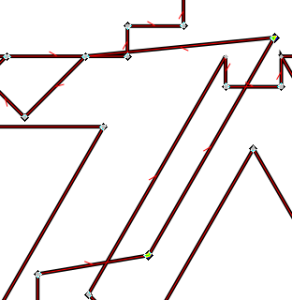
<p class="callout warning">**Known Limitation:** We reduced the set by 8 nodes (only). The limitation can be found in detail: Duplicated paths are only removed if start and end point of the line segment are equal. It will not work if one line segment is shorter or longer because the X1Y1 or X2Y2 coordinate will be different. A more complicated algorithm is required to get optimal results. The following screenshots just shows one line segments moved to reveal the remaining underlying common edge. To avoid this problem we would need to intersect all lines with each other to receive the whole set of intersecting points. Then we proceed to remove duplicate segments.  
</p>

[![grafik.png](https://wiki.stadtfabrikanten.org/uploads/images/gallery/2025-05/scaled-1680-/hMpziFMywKvy6Bwc-grafik.png)](https://wiki.stadtfabrikanten.org/uploads/images/gallery/2025-05/hMpziFMywKvy6Bwc-grafik.png) [![grafik.png](https://wiki.stadtfabrikanten.org/uploads/images/gallery/2025-05/scaled-1680-/2SYGBZxPRJHDxmvY-grafik.png)](https://wiki.stadtfabrikanten.org/uploads/images/gallery/2025-05/2SYGBZxPRJHDxmvY-grafik.png)
### Check the total line length again

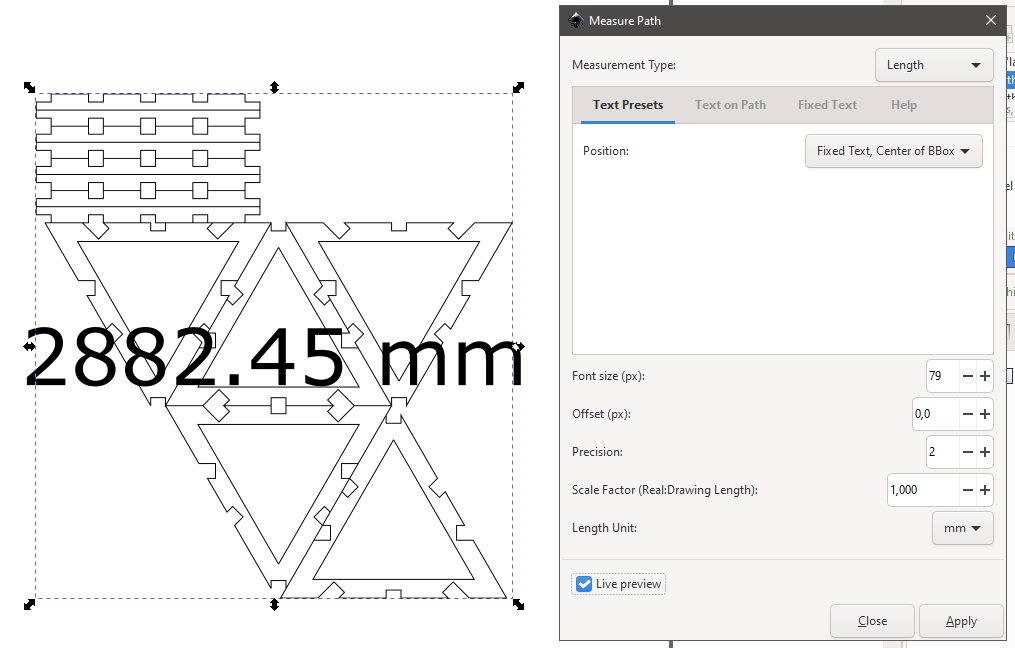
We reduced the line length from 2893.74 mm to 2882.45 mm. Not a great saving for this example, but still a reduction.

[![grafik.png](https://wiki.stadtfabrikanten.org/uploads/images/gallery/2025-05/scaled-1680-/XEFsKN5nVDikrEjv-grafik.png)](https://wiki.stadtfabrikanten.org/uploads/images/gallery/2025-05/XEFsKN5nVDikrEjv-grafik.png)
# Purge Pointy Paths

<div class="page view" id="bkmrk-this-filter-deletes-"><article>This filter deletes paths which render as point only, like:

<div class="wiki-content" id="bkmrk-m-45.250809%2C91.69273">- **`m 45.250809,91.692739`** - this path contains onyl one command - a single point
- **`m 45.250809,91.692739 z` -** this path contains two commands, but only one coordinate. It's a single point, the path is closed by a Z command
- `<strong>m 45.250809,91.692739 l 45.250809,91.692739</strong>` - this path contains two commands, but the first and second coordinate are the same. It will render als point
- `<strong>m 45.250809,91.692739 l 45.250809,91.692739 z</strong>` - this path contains three commands, but the first and second coordinate are the same. It will render als point, the path is closed by a Z command

</div></article></div>

# Remove Duplicate Line Segments

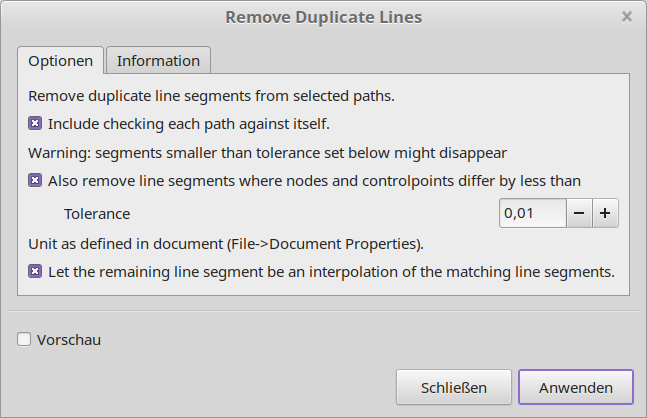
An Inkscape extension to remove duplicate line segments with an option to add a tolerance for regarding the segments as a match. See [http://cutlings.wasbo.net/inkscape-extension-removeduplicatelines](http://cutlings.wasbo.net/inkscape-extension-removeduplicatelines/)

[![grafik.png](https://wiki.stadtfabrikanten.org/uploads/images/gallery/2025-05/scaled-1680-/falSGT0urbPsZvoJ-grafik.png)](https://wiki.stadtfabrikanten.org/uploads/images/gallery/2025-05/falSGT0urbPsZvoJ-grafik.png)
See also

- [Purge Duplicate Path Segments](https://wiki.stadtfabrikanten.org/books/fablab-chemnitz/page/purge-duplicate-path-segments)
- [Contour Scanner And Trimmer](https://wiki.stadtfabrikanten.org/books/fablab-chemnitz/page/contour-scanner-and-trimmer)
- [Purge Duplicate Path Nodes](https://wiki.stadtfabrikanten.org/books/fablab-chemnitz/page/purge-duplicate-path-nodes)
- [Deduplicate Plugin](https://wiki.stadtfabrikanten.org/books/fablab-chemnitz/page/deduplicate-plugin)

# Split And Break Bezier At t

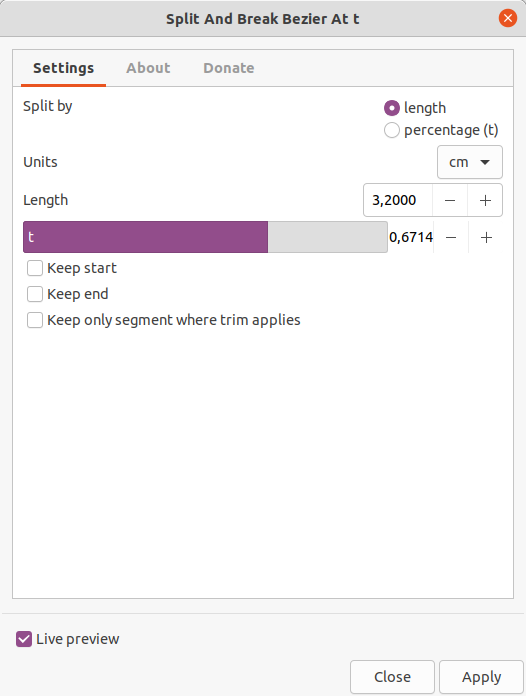
- Splits a path at value t=0..1 (t=0.5 means 50%)
- Applies independently for each sub path in selection.

Allows better control over splitting than [Add Nodes](https://wiki.stadtfabrikanten.org/books/in-house-extensions/page/add-nodes) or [Split Bezier (Subdivide Path)](https://wiki.stadtfabrikanten.org/books/fablab-chemnitz/page/split-bezier-subdivide-path).

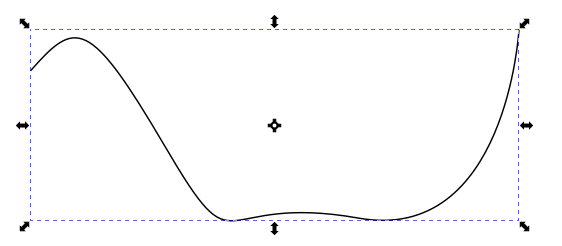
## Draw some path

[![grafik.png](https://wiki.stadtfabrikanten.org/uploads/images/gallery/2025-05/scaled-1680-/W5EQfDTZa2SwrW8A-grafik.png)](https://wiki.stadtfabrikanten.org/uploads/images/gallery/2025-05/W5EQfDTZa2SwrW8A-grafik.png)
## Run the extension

[![grafik.png](https://wiki.stadtfabrikanten.org/uploads/images/gallery/2025-05/scaled-1680-/HxUn0jUAkqhGPmS8-grafik.png)](https://wiki.stadtfabrikanten.org/uploads/images/gallery/2025-05/HxUn0jUAkqhGPmS8-grafik.png)
## Splitted path

[![grafik.png](https://wiki.stadtfabrikanten.org/uploads/images/gallery/2025-05/scaled-1680-/rPypu5yMI6Be75ek-grafik.png)](https://wiki.stadtfabrikanten.org/uploads/images/gallery/2025-05/rPypu5yMI6Be75ek-grafik.png)
# Split Bezier (Subdivide Path)

Function is like Modify Path → [Add Nodes](https://stadtfabrikanten.org/display/FCT/Add+Nodes) but it provides additional features like

- splitting path into disconnected sub paths (break apart)
- choose units

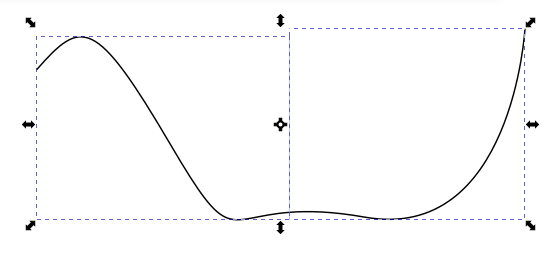
<p class="callout info">Please note that the plugin will sub-divide each path segment (from path handle to path handle). So it does not split the whole curve into given amount of piece like acting "as one item". Each bezier segment is it's own element.</p>

## Draw some example

[![grafik.png](https://wiki.stadtfabrikanten.org/uploads/images/gallery/2025-05/scaled-1680-/ODoSgnSegSXiXHiB-grafik.png)](https://wiki.stadtfabrikanten.org/uploads/images/gallery/2025-05/ODoSgnSegSXiXHiB-grafik.png)

## Run the extension

[![grafik.png](https://wiki.stadtfabrikanten.org/uploads/images/gallery/2025-05/scaled-1680-/qhFvIbaAg5qUgqyR-grafik.png)](https://wiki.stadtfabrikanten.org/uploads/images/gallery/2025-05/qhFvIbaAg5qUgqyR-grafik.png)
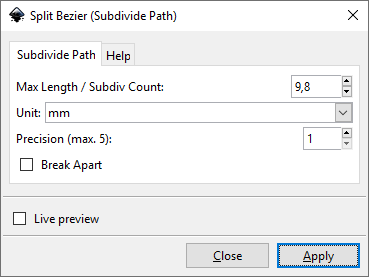
Note that "Live preview" will only work if "Break apart" is **not** selected

[![grafik.png](https://wiki.stadtfabrikanten.org/uploads/images/gallery/2025-05/scaled-1680-/iciKiNEgAZBAPvVL-grafik.png)](https://wiki.stadtfabrikanten.org/uploads/images/gallery/2025-05/iciKiNEgAZBAPvVL-grafik.png)
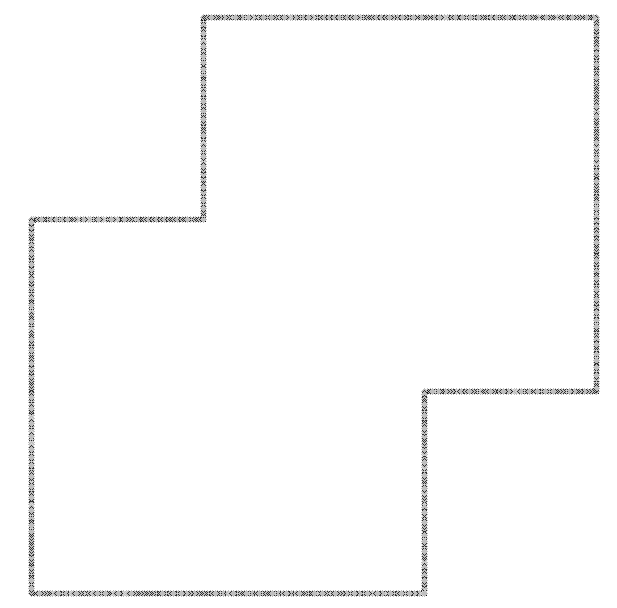
# Tip: Breaking apart the curve can also be done by ...

## Selecting the path and show handles

[![grafik.png](https://wiki.stadtfabrikanten.org/uploads/images/gallery/2025-05/scaled-1680-/9IpXsuOFy6mzjVTi-grafik.png)](https://wiki.stadtfabrikanten.org/uploads/images/gallery/2025-05/9IpXsuOFy6mzjVTi-grafik.png)
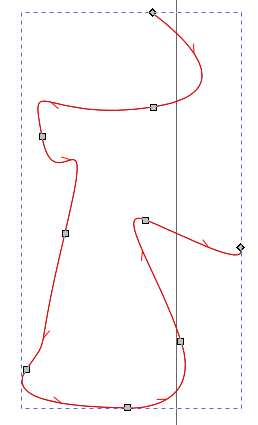
## Select all handles and break

[![grafik.png](https://wiki.stadtfabrikanten.org/uploads/images/gallery/2025-05/scaled-1680-/rZE9aWydsQrPNVZI-grafik.png)](https://wiki.stadtfabrikanten.org/uploads/images/gallery/2025-05/rZE9aWydsQrPNVZI-grafik.png) [![grafik.png](https://wiki.stadtfabrikanten.org/uploads/images/gallery/2025-05/scaled-1680-/n6QjfogjS7t0qKCY-grafik.png)](https://wiki.stadtfabrikanten.org/uploads/images/gallery/2025-05/n6QjfogjS7t0qKCY-grafik.png)
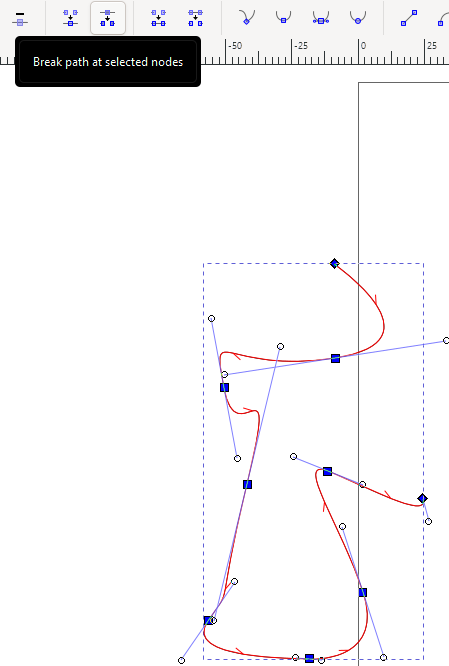
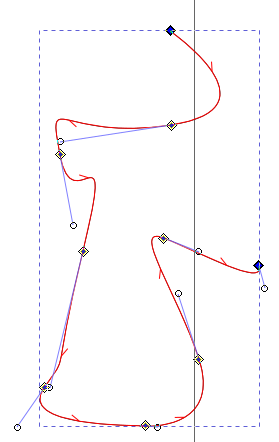
## Break apart the path

SHIFT + CTRL + K

[![grafik.png](https://wiki.stadtfabrikanten.org/uploads/images/gallery/2025-05/scaled-1680-/ubGvprwxRmx01ROz-grafik.png)](https://wiki.stadtfabrikanten.org/uploads/images/gallery/2025-05/ubGvprwxRmx01ROz-grafik.png)
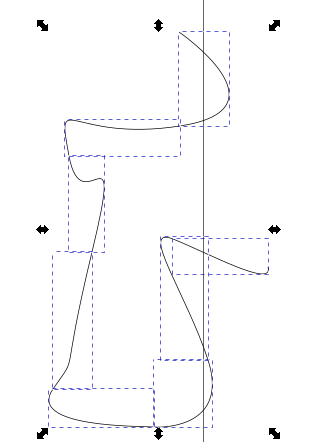
## Tip: Splitted paths can be combined again nearly the same look like before by ...

### Example for bezier path

#### Draw some curve and split it up running the extension

[![grafik.png](https://wiki.stadtfabrikanten.org/uploads/images/gallery/2025-05/scaled-1680-/ZEk3O55tlHfRvrkn-grafik.png)](https://wiki.stadtfabrikanten.org/uploads/images/gallery/2025-05/ZEk3O55tlHfRvrkn-grafik.png)[![grafik.png](https://wiki.stadtfabrikanten.org/uploads/images/gallery/2025-05/scaled-1680-/CJH8mn8sI9FYK4K8-grafik.png)](https://wiki.stadtfabrikanten.org/uploads/images/gallery/2025-05/CJH8mn8sI9FYK4K8-grafik.png)
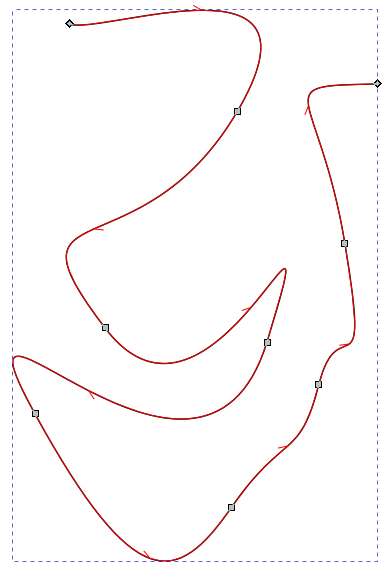
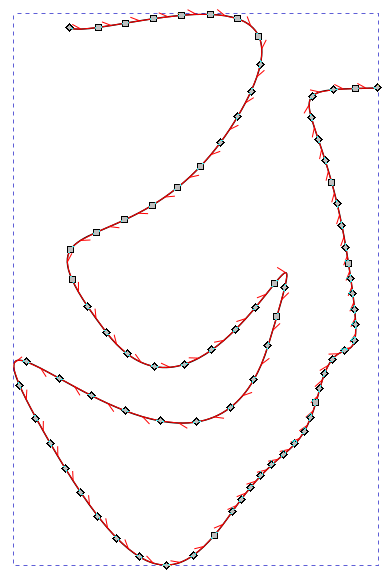
#### Duplicate the path

CTRL + D to duplicate. We use this to check the quality of simplification

#### Run Path → Simplify

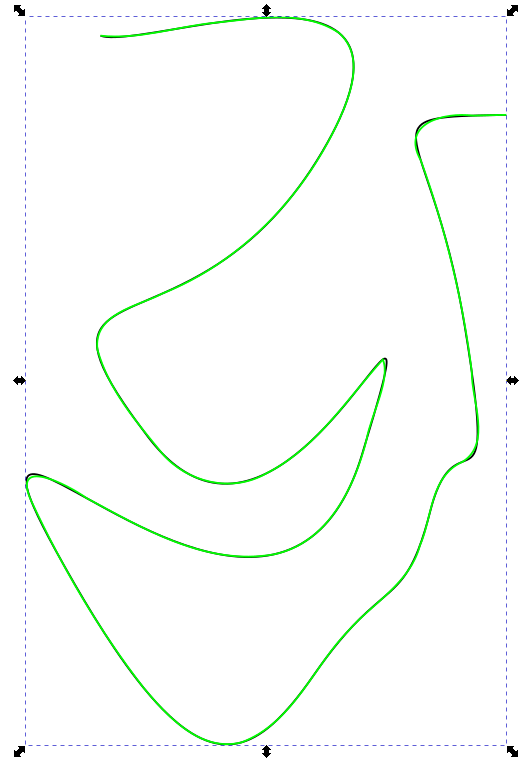
As you can see the result has other handles than before. The right image shows a black curve (curve before simplification), the green shows the simplified curve. You can see that the curve is not exactly the same. So we can say that simplification for bezier curves is not the best in all use cases, but it will work absolutely fine for straight line segments:

[![grafik.png](https://wiki.stadtfabrikanten.org/uploads/images/gallery/2025-05/scaled-1680-/VkYTlXHvsfaHGSot-grafik.png)](https://wiki.stadtfabrikanten.org/uploads/images/gallery/2025-05/VkYTlXHvsfaHGSot-grafik.png)
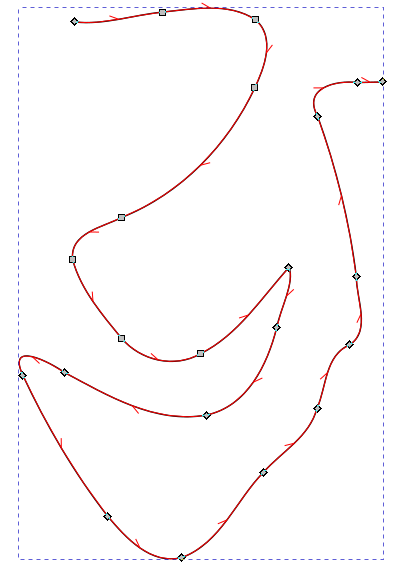
As you can see the result has other handles than before. The right image shows a black curve (curve before simplification), the green shows the simplified curve. You can see that the curve is not exactly the same. So we can say that simplification for bezier curves is not the best in all use cases, but it will work absolutely fine for straight line segments:[![grafik.png](https://wiki.stadtfabrikanten.org/uploads/images/gallery/2025-05/scaled-1680-/Uv0hCEsQk6oirKqQ-grafik.png)](https://wiki.stadtfabrikanten.org/uploads/images/gallery/2025-05/Uv0hCEsQk6oirKqQ-grafik.png)
### Example for path with straight line segments only

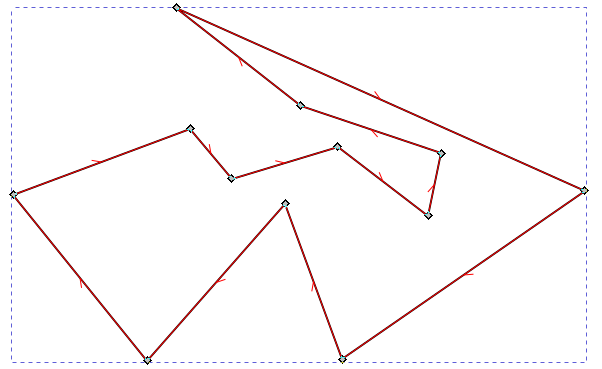
#### Draw some curve and split it up running the extension

[![grafik.png](https://wiki.stadtfabrikanten.org/uploads/images/gallery/2025-05/scaled-1680-/rzY3fztW9RSJKAl9-grafik.png)](https://wiki.stadtfabrikanten.org/uploads/images/gallery/2025-05/rzY3fztW9RSJKAl9-grafik.png)
[![grafik.png](https://wiki.stadtfabrikanten.org/uploads/images/gallery/2025-05/scaled-1680-/Q270yHgiWpIJmN9n-grafik.png)](https://wiki.stadtfabrikanten.org/uploads/images/gallery/2025-05/Q270yHgiWpIJmN9n-grafik.png)
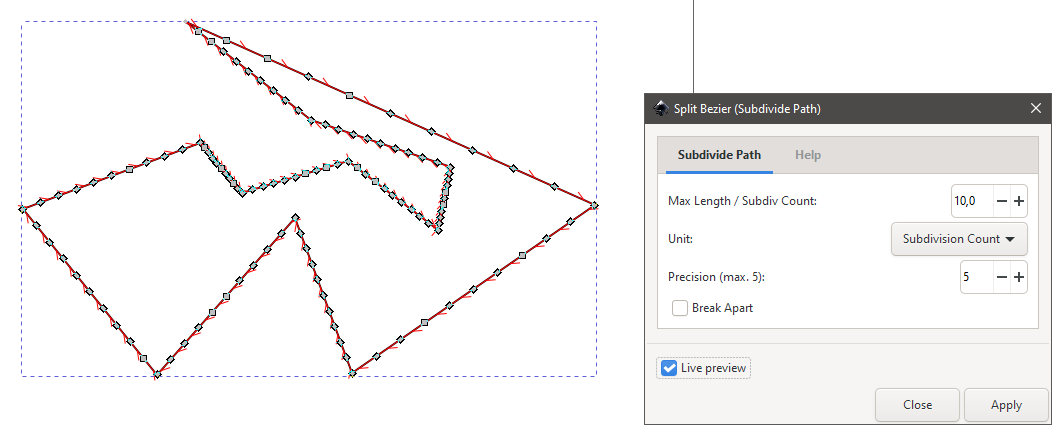
#### Run Path → Simplify

[![grafik.png](https://wiki.stadtfabrikanten.org/uploads/images/gallery/2025-05/scaled-1680-/FtCxeHGtDDgM4xwf-grafik.png)](https://wiki.stadtfabrikanten.org/uploads/images/gallery/2025-05/FtCxeHGtDDgM4xwf-grafik.png)