# Import/Export/Transfer

# Clip Out

Source: [https://gitlab.com/inklinea/clip-out](https://gitlab.com/inklinea/clip-out)

Inkscape Extension to clip a background image by object outlines then export to multiple png.

Supports:

- Exporting individual clipped objects ( normal and inverse )
- Export master of all clipped objects ( normal and inverse )
- Cropping to resulting image size, or exporting to background image size.

The image to be clipped must be the last selected. An easy way to do this, is select all then shift &amp; left click the image twice to make it the last selected. It does require that you have saved our svg file at least once before using (will not work on an unsaved svg).

[![grafik.png](https://wiki.stadtfabrikanten.org/uploads/images/gallery/2025-05/scaled-1680-/fv9kINZkBbEYeRMJ-grafik.png)](https://wiki.stadtfabrikanten.org/uploads/images/gallery/2025-05/fv9kINZkBbEYeRMJ-grafik.png) [![grafik.png](https://wiki.stadtfabrikanten.org/uploads/images/gallery/2025-05/scaled-1680-/v4DlsZmYCwIZriw0-grafik.png)](https://wiki.stadtfabrikanten.org/uploads/images/gallery/2025-05/v4DlsZmYCwIZriw0-grafik.png)

## Example

[![grafik.png](https://wiki.stadtfabrikanten.org/uploads/images/gallery/2025-05/scaled-1680-/gft5PUy4EPvnFavg-grafik.png)](https://wiki.stadtfabrikanten.org/uploads/images/gallery/2025-05/gft5PUy4EPvnFavg-grafik.png)

[![grafik.png](https://wiki.stadtfabrikanten.org/uploads/images/gallery/2025-05/scaled-1680-/hHzfFuwLf23YXQRo-grafik.png)](https://wiki.stadtfabrikanten.org/uploads/images/gallery/2025-05/hHzfFuwLf23YXQRo-grafik.png)

# DXF/DWG Importer

[![grafik.png](https://wiki.stadtfabrikanten.org/uploads/images/gallery/2025-05/scaled-1680-/30C0kDpZBWUvYEjy-grafik.png)](https://wiki.stadtfabrikanten.org/uploads/images/gallery/2025-05/30C0kDpZBWUvYEjy-grafik.png) [![grafik.png](https://wiki.stadtfabrikanten.org/uploads/images/gallery/2025-05/scaled-1680-/Ht1G8NtKVd67QPVB-grafik.png)](https://wiki.stadtfabrikanten.org/uploads/images/gallery/2025-05/Ht1G8NtKVd67QPVB-grafik.png) [![grafik.png](https://wiki.stadtfabrikanten.org/uploads/images/gallery/2025-05/scaled-1680-/v9pxzFYPno6njQXL-grafik.png)](https://wiki.stadtfabrikanten.org/uploads/images/gallery/2025-05/v9pxzFYPno6njQXL-grafik.png)

## About

This is an extension which allows to import DWG and DXF files into InkScape (working with Linux and Windows). DWG files are getting converted into DXF and then the DXF gets processed into SVG. The SVG result will be pushed into InkScape. Because there are so much different DXF versions a lot of files fail with the default DXF import tool from InkScape. Other solutions are there. While making this extension i stumbled upon ezdxf library, which is a powerful python implementation to deal with AutoCAD DXF format really well. To support great variety there are options for pre-processing the data by filtering out entities, because some tools like sk1 UniConvertor fail to make an SVG from DXF if there occure entities which it cannot handle.

<p class="callout info">\\\*\\\*Belonging to your toolchain configuration beware. There can happen issues like:\\\*\\\*</p>

- wrong transformations (width, height, viewport) and scales. Some can be fixed with [Apply Transformations](https://old.stadtfabrikanten.org/display/IFM/Apply+Transformations)
- unselectable elements. Check the XML tree for strange clipping paths and other defs. You can try to use [Ungrouper And Element Migrator/Filter](https://old.stadtfabrikanten.org/pages/createpage.action?spaceKey=IFM&title=Ungrouper+And+Element+Migrator%2FFilter&linkCreation=true&fromPageId=78807535)
- large time consumption. Take one or two cups of coffee if you are going to import DWG or DXF files with 10, 100 or maybe 1000 MB size.
- InkScape might crash (often happens when bjnortier DXF tool is used. Try to filter entity types like ARC if this occures)

## Converters

The following conversion tools are integrated or used by DXF/DWG Importer:

1. [https://github.com/bjnortier/dxf](https://github.com/bjnortier/dxf) (bundled)
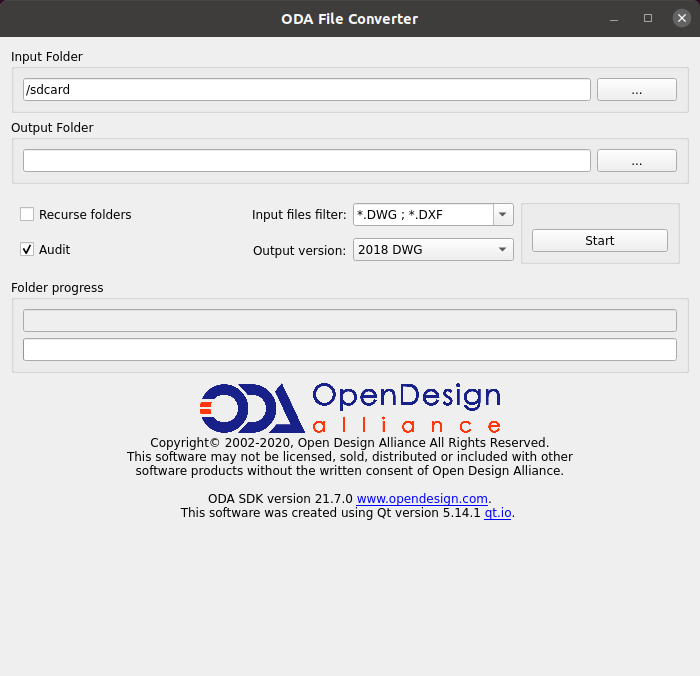
2. [ODA File Converter](https://www.opendesign.com/guestfiles/oda_file_converter) (if you want to convert DWG to DXF or DXF to another DXF version) **- this is not bundled with. You need to install it! For minimum stress with Linux, just use the AppImage version of ODA File Converter!**
    - available for Linux and Windows - install if you want to import DWG or if you also want to re-convert DXF files (downgrading, repairing (auditing))
    - You might need to install a certain Qt framework version manually and to adjust the command in Linux system to make it work. Some details doing this are also included in plugin GUI. The installation files can be found at [https://download.qt.io/archive/qt](https://download.qt.io/archive/qt/5.14/5.14.2/) - install to /opt/ directory for example. Note that you need some free account for registering to continue the installation of Qt

```bash
vim /usr/bin/ODAFileConverter

```

```bash
#!/bin/sh
LD_LIBRARY_PATH=$LD_LIBRARY_PATH:/opt/Qt5.14.2/5.14.2/gcc_64/lib/ #we add this line to satisfy the Qt framework location
SV_LD_LIBRARY_PATH=$LD_LIBRARY_PATH
export LD_LIBRARY_PATH=/usr/bin/ODAFileConverter_21.7.0.0:$LD_LIBRARY_PATH
/usr/bin/ODAFileConverter_21.7.0.0/ODAFileConverter "$@"
export LD_LIBRARY_PATH=$SV_LD_LIBRARY_PATH

```

[![grafik.png](https://wiki.stadtfabrikanten.org/uploads/images/gallery/2025-05/scaled-1680-/EiBe7tNsk0DyTdEV-grafik.png)](https://wiki.stadtfabrikanten.org/uploads/images/gallery/2025-05/EiBe7tNsk0DyTdEV-grafik.png)
- [sk1 UniConvertor 1.1.6](https://old.stadtfabrikanten.org/display/ZWEID/sk1+UniConvertor+1.1.6+und+UniConverter+2.0.X) **- this is not bundled with. You need to install it!**
    
    
    1. if you want to import high quality DXF shapes. You need to install 1.1.X version because 2.0 dropped support. On newer Linux system it's hard or impossible to install the old UniConvertor so this feature is only available for Windows users yet
- [ezdxf](https://pypi.org/project/ezdxf/) and matplotlib (python modules) → check [MightyScape Extension Collection](https://old.stadtfabrikanten.org/display/IFM/MightyScape+Extension+Collection) for instructions regarding custom Python modules with Inkscape
    
    ```bash
    pip3 install ezdxf matplotlib
    ```
- [kabeja](https://github.com/fuzziness/kabeja) DXF to SVG converter
    
    
    1. to use it you need to install Java
- [vpype](https://github.com/abey79/vpype) + [vpype-dxf](https://github.com/tatarize/vpype-dxf/)
    
    ```
    pip3 install vpype vpype-dxf
    ```

## How to test/use DXF/DWG Importer extension?

Q-CAD provides some example DWG files to download: [https://www.q-cad.com/samples/autocad-2d/samples](https://www.q-cad.com/samples/autocad-2d/samples/). You can process those files with the DXF/DWG extension to quickly check if you made proper configuration.

I tested some of them and they worked really well. Example:

<table border="1" id="bkmrk-q-cad-sample-bjnorti" style="border-collapse: collapse; width: 99.9734%; height: 521.883px;"><colgroup><col style="width: 33.289%;"></col><col style="width: 33.289%;"></col><col style="width: 33.289%;"></col></colgroup><thead><tr style="height: 38.1167px;"><td style="height: 38.1167px;">**Q-CAD Sample**</td><td style="height: 38.1167px;">**bjnortier**</td><td style="height: 38.1167px;">**sk1 UniConverter (with ezdxf preprocessing)**</td></tr></thead><tbody><tr style="height: 445.65px;"><td style="height: 445.65px;">[![grafik.png](https://wiki.stadtfabrikanten.org/uploads/images/gallery/2025-05/scaled-1680-/Ao5CTHWODYmQuJpO-grafik.png)](https://wiki.stadtfabrikanten.org/uploads/images/gallery/2025-05/Ao5CTHWODYmQuJpO-grafik.png)

</td><td style="height: 445.65px;">[![grafik.png](https://wiki.stadtfabrikanten.org/uploads/images/gallery/2025-05/scaled-1680-/gec7t3WGlZGxxuAV-grafik.png)](https://wiki.stadtfabrikanten.org/uploads/images/gallery/2025-05/gec7t3WGlZGxxuAV-grafik.png)The result looks really good but is inverted

</td><td style="height: 445.65px;">  
</td></tr><tr style="height: 38.1167px;"><td style="height: 38.1167px;">[![grafik.png](https://wiki.stadtfabrikanten.org/uploads/images/gallery/2025-05/scaled-1680-/bKPjnpsPQzwc3Mub-grafik.png)](https://wiki.stadtfabrikanten.org/uploads/images/gallery/2025-05/bKPjnpsPQzwc3Mub-grafik.png)

</td><td style="height: 38.1167px;">[![grafik.png](https://wiki.stadtfabrikanten.org/uploads/images/gallery/2025-05/scaled-1680-/S3ULGieQQL2mvD85-grafik.png)](https://wiki.stadtfabrikanten.org/uploads/images/gallery/2025-05/S3ULGieQQL2mvD85-grafik.png)

with filtered entity of tye "ARC" because otherwise InkScape crashes. Result is inverted

</td><td style="height: 38.1167px;">[![grafik.png](https://wiki.stadtfabrikanten.org/uploads/images/gallery/2025-05/scaled-1680-/yXh2nKIrtA2HlstY-grafik.png)](https://wiki.stadtfabrikanten.org/uploads/images/gallery/2025-05/yXh2nKIrtA2HlstY-grafik.png)

Some entities like lines and images are missing

</td></tr></tbody></table>

## Why you did'nt put this extension into default menu?

Because we would need to delete the existing dxf\_input extension which is still helpful too. Without deletion we cannot register .dxf with another plugin (at least it did not work for me)

## Some more hints for ODA File Converter

- [<span>https://ezdxf.readthedocs.io/en/stable/addons/odafc.html</span>](https://ezdxf.readthedocs.io/en/stable/addons/odafc.html)

```bash
C:\Program Files\ODA\ODAFileConverter_title 21.6.0\ODAFileConverter.exe --help
```

[![grafik.png](https://wiki.stadtfabrikanten.org/uploads/images/gallery/2025-05/scaled-1680-/rClAe69pxHJPgcSF-grafik.png)](https://wiki.stadtfabrikanten.org/uploads/images/gallery/2025-05/rClAe69pxHJPgcSF-grafik.png)

## Further reading

Being constrained by proprietary software sucks. Please help to make import of DWG/DXF even more open. There are some good libraries to do this:

- DWG handling with Python → [LibreDWG](https://www.gnu.org/software/libredwg/manual/LibreDWG.html#index-python)
- DXF handling with Python → [ezdxf](https://ezdxf.readthedocs.io/en/stable/)

Note that the used DXF to SVG converters are mostly outdated. kabeja and sk1 UniConverter 1.1.X are in a high state of legacy.

# Export selection as ...

Extension to export the current selection into different formats like SVG, DXF or PDF.

This extension is a modified version of the original source code. Original Source: [https://github.com/mireq/inkscape-export-selection-as-svg](https://github.com/mireq/inkscape-export-selection-as-svg)

### Usage from commandline:

```bash
inkscape --actions="select-by-id:object_id; verb:sk.linuxos.export_selection.noprefs" --batch-process input.svg
```

### Important Notes

- Replace by png: Please convert strokes to paths. Otherwise the bounding box of the object is wrong. That leads to larger graphics in relation to the original, while the borders are cut off

## Example

### Create some objects

[![grafik.png](https://wiki.stadtfabrikanten.org/uploads/images/gallery/2025-05/scaled-1680-/JZHmMsUHzJu57pw0-grafik.png)](https://wiki.stadtfabrikanten.org/uploads/images/gallery/2025-05/JZHmMsUHzJu57pw0-grafik.png)

### Run extension and get the result

[![grafik.png](https://wiki.stadtfabrikanten.org/uploads/images/gallery/2025-05/scaled-1680-/jnIfRedvvoCSUJXm-grafik.png)](https://wiki.stadtfabrikanten.org/uploads/images/gallery/2025-05/jnIfRedvvoCSUJXm-grafik.png)

[![grafik.png](https://wiki.stadtfabrikanten.org/uploads/images/gallery/2025-05/scaled-1680-/qj40eQyutswidFGA-grafik.png)](https://wiki.stadtfabrikanten.org/uploads/images/gallery/2025-05/qj40eQyutswidFGA-grafik.png)

# Guillotine Plus

Improved basic Inkscape guillotine extension → Added: DPI input to export window for Guillotine extension.

[![grafik.png](https://wiki.stadtfabrikanten.org/uploads/images/gallery/2025-05/scaled-1680-/M6ze7SQVSH3VZNSs-grafik.png)](https://wiki.stadtfabrikanten.org/uploads/images/gallery/2025-05/M6ze7SQVSH3VZNSs-grafik.png)

Please see [Guillotine (Papierschneidemaschine / Segmentieren)](https://old.stadtfabrikanten.org/pages/viewpage.action?pageId=55017978) on how to use Guillotine generally.

# Import 3D Mesh

Import STL/PLY/OBJ/OFF Files and make some cool low-poly looking vector graphics out of it.

See also

- [Low Poly](https://old.stadtfabrikanten.org/display/IFM/Low+Poly)
- [Low Poly 2](https://old.stadtfabrikanten.org/display/IFM/Low+Poly+2)
- [Slic3r STL Input](https://old.stadtfabrikanten.org/display/IFM/Slic3r+STL+Input)
- [Paperfold](https://old.stadtfabrikanten.org/pages/createpage.action?spaceKey=IFM&title=Paperfold&linkCreation=true&fromPageId=108625925)
- [Koplanare Flächen migrieren](https://old.stadtfabrikanten.org/pages/createpage.action?spaceKey=AFUS&title=Koplanare+Fl%C3%A4chen+migrieren) → quick tips for saving triangles in OBJ file format by converting flat connected triangles to larger polygons.

[![grafik.png](https://wiki.stadtfabrikanten.org/uploads/images/gallery/2025-05/scaled-1680-/ETFTualkz8MjyxfR-grafik.png)](https://wiki.stadtfabrikanten.org/uploads/images/gallery/2025-05/ETFTualkz8MjyxfR-grafik.png) [![grafik.png](https://wiki.stadtfabrikanten.org/uploads/images/gallery/2025-05/scaled-1680-/O8w1RXaD4OkFqJfB-grafik.png)](https://wiki.stadtfabrikanten.org/uploads/images/gallery/2025-05/O8w1RXaD4OkFqJfB-grafik.png) [![grafik.png](https://wiki.stadtfabrikanten.org/uploads/images/gallery/2025-05/scaled-1680-/3ZFmezG3U6ULgdK2-grafik.png)](https://wiki.stadtfabrikanten.org/uploads/images/gallery/2025-05/3ZFmezG3U6ULgdK2-grafik.png)

## Example

[![grafik.png](https://wiki.stadtfabrikanten.org/uploads/images/gallery/2025-05/scaled-1680-/ytyIsOiBjyI75vZ9-grafik.png)](https://wiki.stadtfabrikanten.org/uploads/images/gallery/2025-05/ytyIsOiBjyI75vZ9-grafik.png)

# Inkcut

See [USB-Anschluss und Inkcut Setup](https://wiki.stadtfabrikanten.org/books/equipment/page/usb-anschluss-und-inkcut-setup "USB-Anschluss und Inkcut Setup") for more details about InkCut

[![grafik.png](https://wiki.stadtfabrikanten.org/uploads/images/gallery/2025-05/scaled-1680-/g5WfLGQDOsESCK1q-grafik.png)](https://wiki.stadtfabrikanten.org/uploads/images/gallery/2025-05/g5WfLGQDOsESCK1q-grafik.png)

# J Tech Photonics Laser Tool

# Source of documentation:

- [https://jtechphotonics.com/?page\_id=2012](https://jtechphotonics.com/?page_id=2012)
- [https://jtechphotonics.com/?page\_id=1980](https://jtechphotonics.com/?page_id=1980)
- [https://github.com/JTechPhotonics/J-Tech-Photonics-Laser-Tool](https://github.com/JTechPhotonics/J-Tech-Photonics-Laser-Tool)

```bash
pip install svg-to-gcode
```

[![grafik.png](https://wiki.stadtfabrikanten.org/uploads/images/gallery/2025-05/scaled-1680-/vVIXn2Khi2g3W8P0-grafik.png)](https://wiki.stadtfabrikanten.org/uploads/images/gallery/2025-05/vVIXn2Khi2g3W8P0-grafik.png) [![grafik.png](https://wiki.stadtfabrikanten.org/uploads/images/gallery/2025-05/scaled-1680-/6eQ6bNEgs2XAKean-grafik.png)](https://wiki.stadtfabrikanten.org/uploads/images/gallery/2025-05/6eQ6bNEgs2XAKean-grafik.png) [![grafik.png](https://wiki.stadtfabrikanten.org/uploads/images/gallery/2025-05/scaled-1680-/jJMH6yEohbnPdbjc-grafik.png)](https://wiki.stadtfabrikanten.org/uploads/images/gallery/2025-05/jJMH6yEohbnPdbjc-grafik.png) [![grafik.png](https://wiki.stadtfabrikanten.org/uploads/images/gallery/2025-05/scaled-1680-/xSXIhvJt11Q9r9HU-grafik.png)](https://wiki.stadtfabrikanten.org/uploads/images/gallery/2025-05/xSXIhvJt11Q9r9HU-grafik.png)

For InkScape 1.0 you will need to remove all path transformation before using this tool!

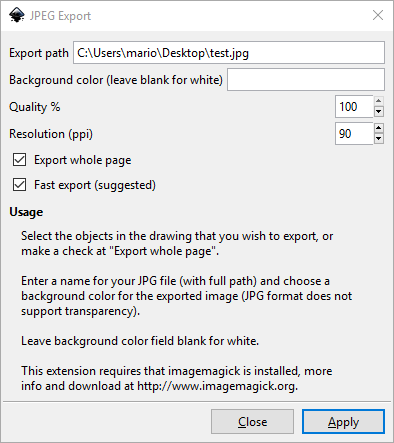
# JPEG Export

- requires 
    - Setup ImageMagick-7.0.9-1-Q16-x64-dll.exe
    - magick.exe should be put in %PATH% system variable

<p class="callout warning">jpg, webp, png, tiff formats are supported natively since Inkscape 1.1; no need for this extension anymore</p>

[![grafik.png](https://wiki.stadtfabrikanten.org/uploads/images/gallery/2025-05/scaled-1680-/8mNMwM3LD3PdvVqY-grafik.png)](https://wiki.stadtfabrikanten.org/uploads/images/gallery/2025-05/8mNMwM3LD3PdvVqY-grafik.png)

# NextGenerator

<div class="page-metadata-wrapper" id="bkmrk-"></div><div class="page view" id="bkmrk-this-plugin-replaces"><article>This plugin replaces text strings and other XML data from a generic SVG template to make a set of parametric files for output. It replaces strings in template with data from a CSV file and exports to multiple file formats (png, svg, ps, eps, pdf). This can be useful for automatically generating conference badges and similar items.

Some additional hints:

<div class="wiki-content">- link any image that you want to use as a placeholder (don't embed)
- put the replacement images into the same directory as the placeholder, so you only need to replace the name (didn't work for full file paths, for some reason sed complained, even with backslashes and quotes (also without))
- the CSV file must end with an empty line
- Source of old documentation: [https://www.rgb-labs.com/inkscape-161-generator-plugin-tip/](https://www.rgb-labs.com/inkscape-161-generator-plugin-tip/)
- Source of new documentaion (Moini's Fork): [https://gitlab.com/Moini/nextgenerator/-/tree/master/example](https://gitlab.com/Moini/nextgenerator/-/tree/master/example)
- If you like to use symbols like &amp; &lt; &gt; in your text you need to **escape** them in your CSV like this: "1. Stellvertreter &amp;amp; Schriftführer" → this get's "1. Stellvertreter &amp; Schriftführer"

</div>## Enter your parameters

We use [https://gitlab.com/Moini/nextgenerator/-/blob/master/example](https://gitlab.com/Moini/nextgenerator/-/blob/master/example) data to test out the plugin

[![grafik.png](https://wiki.stadtfabrikanten.org/uploads/images/gallery/2025-05/scaled-1680-/qsqeU9RYNUyachcM-grafik.png)](https://wiki.stadtfabrikanten.org/uploads/images/gallery/2025-05/qsqeU9RYNUyachcM-grafik.png)
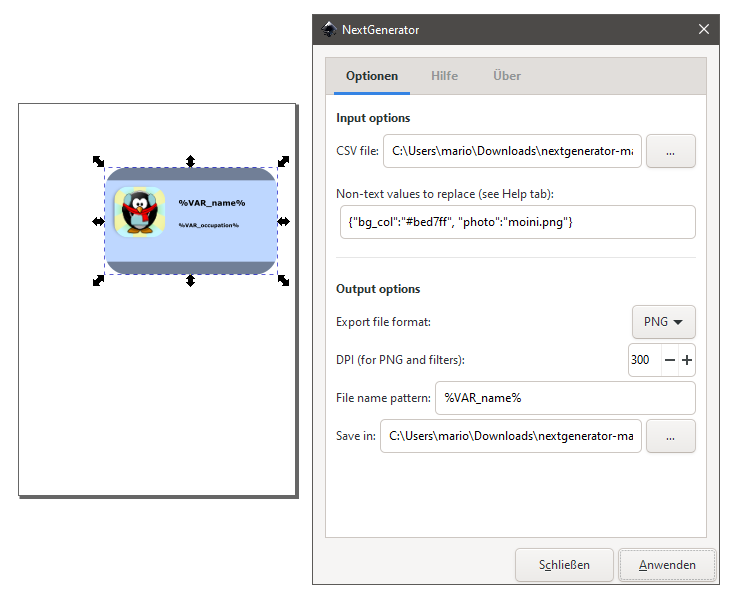
## Create / adjust your input CSV file for replacements

example

```ini
name, occupation, bg_col, photo
"Ada Lovelace", Programmer, #3accd1, 1.png
"Alan Turing", Code Breaker, "#e78940", 2.png
"Linus Torvalds", "Kernel Developer, Linux Founder", #de88d9, 3.png
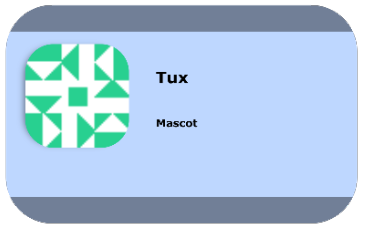
Tux, Mascot, #bed7ff, 4.png
```

## Example output

According to your selected output format you will receive PNG, PDF or other files

[![grafik.png](https://wiki.stadtfabrikanten.org/uploads/images/gallery/2025-05/scaled-1680-/t7qjEgwRo1wYSSmk-grafik.png)](https://wiki.stadtfabrikanten.org/uploads/images/gallery/2025-05/t7qjEgwRo1wYSSmk-grafik.png) [![grafik.png](https://wiki.stadtfabrikanten.org/uploads/images/gallery/2025-05/scaled-1680-/wf1A6drH3tqyNDnG-grafik.png)](https://wiki.stadtfabrikanten.org/uploads/images/gallery/2025-05/wf1A6drH3tqyNDnG-grafik.png) [![grafik.png](https://wiki.stadtfabrikanten.org/uploads/images/gallery/2025-05/scaled-1680-/xas436hywhhUEJSh-grafik.png)](https://wiki.stadtfabrikanten.org/uploads/images/gallery/2025-05/xas436hywhhUEJSh-grafik.png) [![grafik.png](https://wiki.stadtfabrikanten.org/uploads/images/gallery/2025-05/scaled-1680-/VvUAjEFHd9H4Cx7j-grafik.png)](https://wiki.stadtfabrikanten.org/uploads/images/gallery/2025-05/VvUAjEFHd9H4Cx7j-grafik.png)



<div class="wiki-content" id="bkmrk--1"></div></article></div>

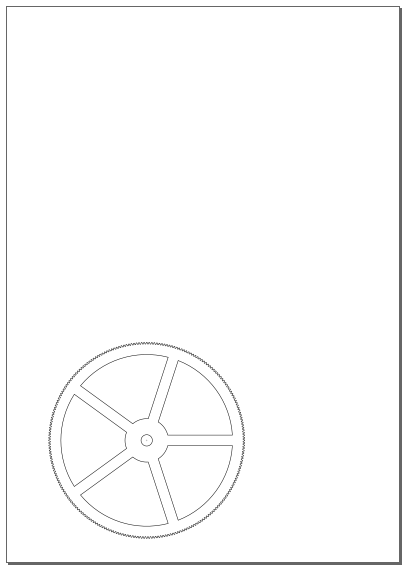
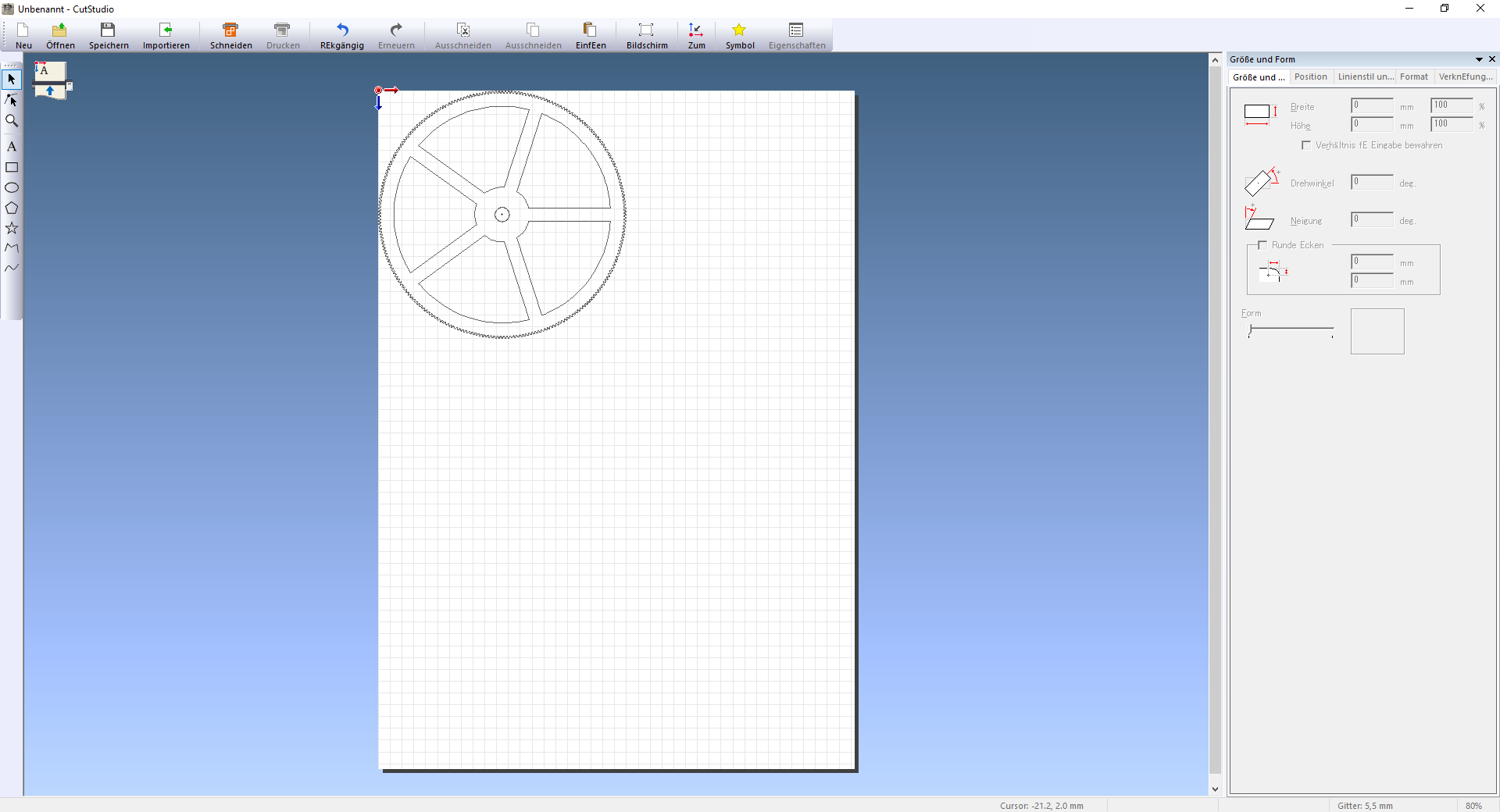
# Open in Roland CutStudio

- requires Setup 
    - [CutStudio 1.27 Setup ](https://www.technoplot.de/service/downloads/category/35-cut-studio)
    - [CutStudio 3.10 Update](https://www.rolanddga.com/support/products/software/cutstudio/article?pm=cutstudio&articleId=803)
- tested with CutStudio Version 3.10

Installation notes can be found at [Software Setup - Roland CutStudio](https://wiki.stadtfabrikanten.org/books/equipment/page/roland-cutstudio "Software Setup - Roland CutStudio")

[![grafik.png](https://wiki.stadtfabrikanten.org/uploads/images/gallery/2025-05/scaled-1680-/i2DTJl4u8Sgjhr2F-grafik.png)](https://wiki.stadtfabrikanten.org/uploads/images/gallery/2025-05/i2DTJl4u8Sgjhr2F-grafik.png)
[![grafik.png](https://wiki.stadtfabrikanten.org/uploads/images/gallery/2025-05/scaled-1680-/QtOmh5n5uT5BvQ4U-grafik.png)](https://wiki.stadtfabrikanten.org/uploads/images/gallery/2025-05/QtOmh5n5uT5BvQ4U-grafik.png)
# Open in VisiCut

<div class="page view" id="bkmrk-this-extension-will-"><article>This extension will add or replace the current Inkscape canvas content in VisiCut instance. Documentation can be found at

<div class="wiki-content">- [https://hci.rwth-aachen.de/visicut-inkscape-plugin](https://hci.rwth-aachen.de/visicut-inkscape-plugin)
- [https://github.com/t-oster/VisiCut/tree/master/tools/inkscape\_extension](https://github.com/t-oster/VisiCut/tree/master/tools/inkscape_extension)
- [http://visicut.org](http://visicut.org/)

</div>This extension requires to install the VisiCut application itself → [https://github.com/t-oster/VisiCut/releases](https://github.com/t-oster/VisiCut/releases). On Fedora it's easy to use the platform independent ZIP version ([https://download.visicut.org](https://download.visicut.org/)). We just download, move to some system dir and add it to `$PATH` variable, e.g. in `.basrhrc`.

<div class="wiki-content" id="bkmrk-"></div></article></div>

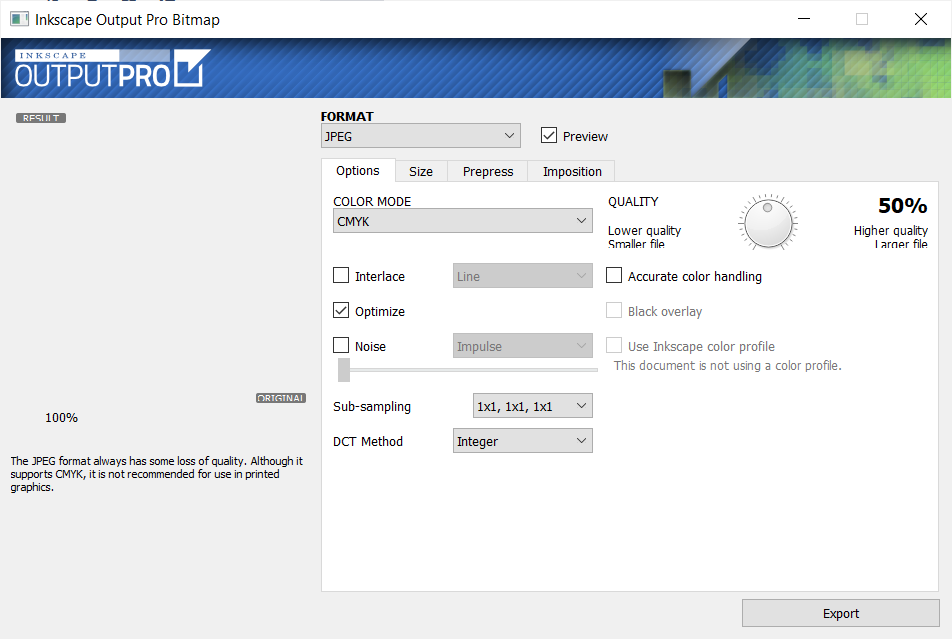
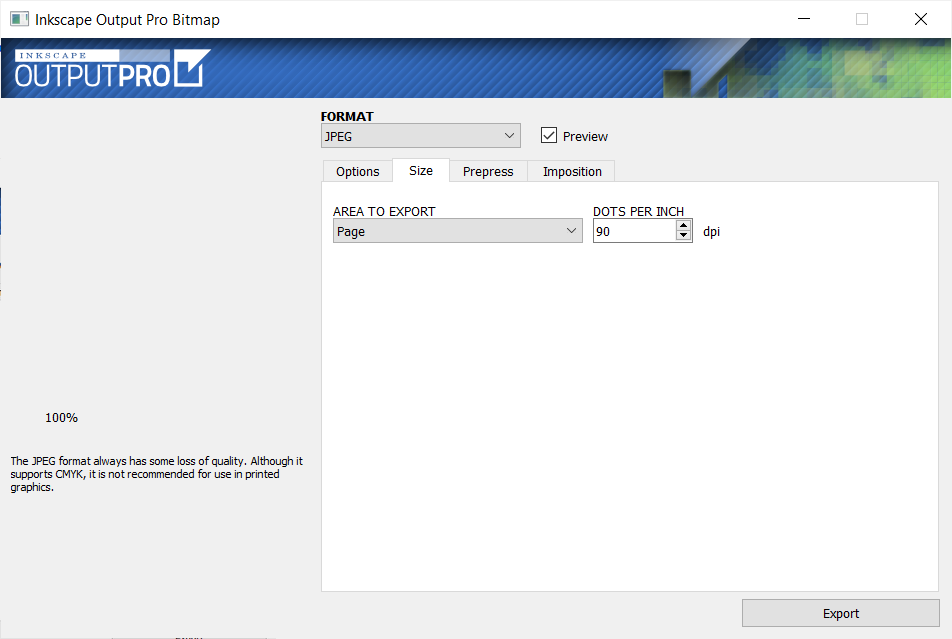
# Output Pro for Inkscape

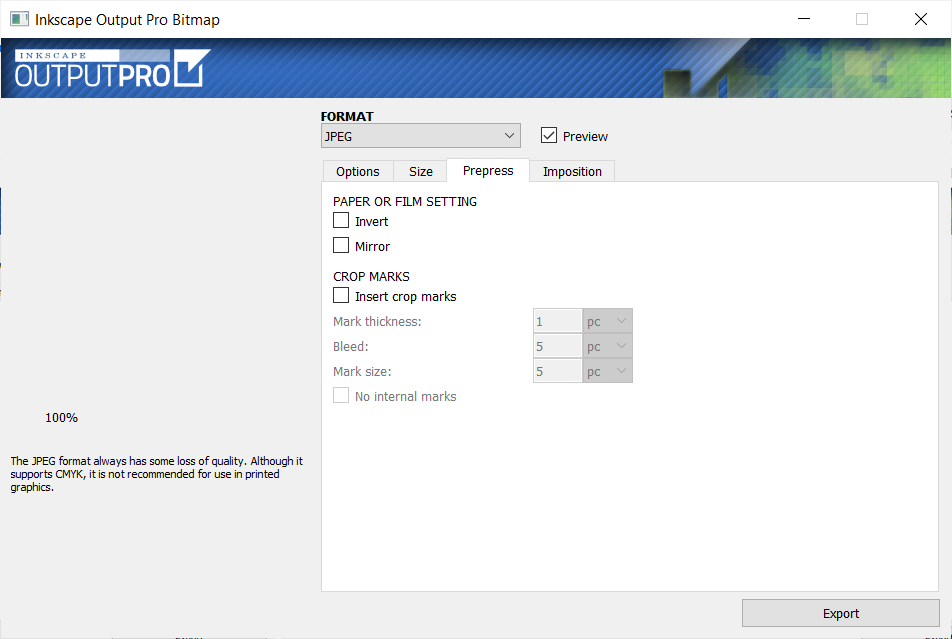
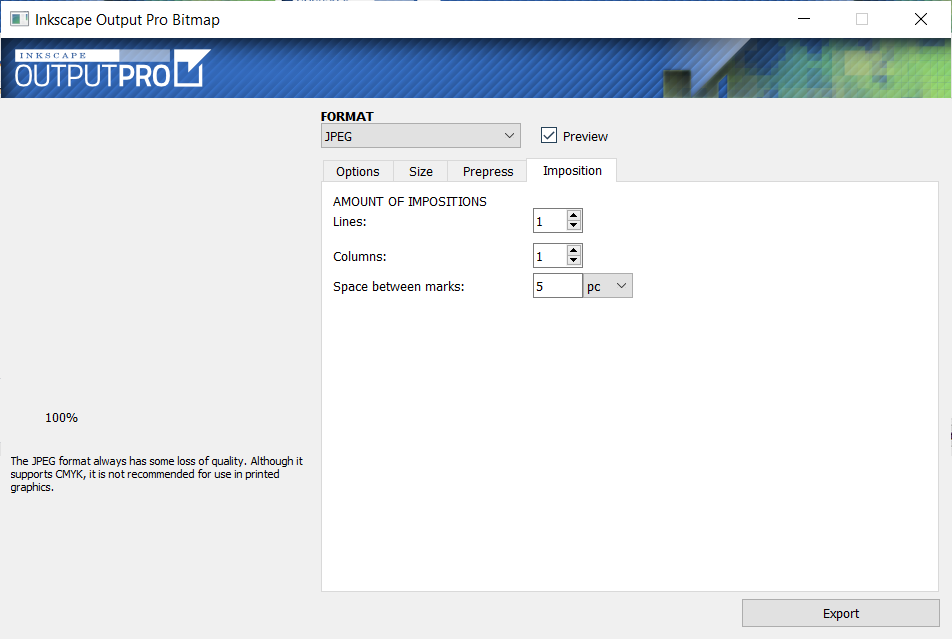
Output Pro helps implementing professional output of files for printing graphics.

Links:

- [https://inkscape.org/de/~wout/%E2%98%85output-pro](https://inkscape.org/de/~wout/%E2%98%85output-pro)
- [https://github.com/jonata/Inkscape-OUTPUT-PRO](https://github.com/jonata/Inkscape-OUTPUT-PRO)
- [https://github.com/vmario89/Inkscape-OUTPUT-PRO/blob/master/outputpro.py](https://github.com/vmario89/Inkscape-OUTPUT-PRO/blob/master/outputpro.py)
- [http://www.cimcomunica.com/site2/index.html](http://www.cimcomunica.com/site2/index.html)

## Requirements

- You need to install `imagemagick`. Commands like **`convert`**, **`identify`** Should be available in `%PATH%` variable
- PyQt framework

```bash
pip3 install PyQt5
```

[![grafik.png](https://wiki.stadtfabrikanten.org/uploads/images/gallery/2025-05/scaled-1680-/jYjjo8gWnmHd4J8M-grafik.png)](https://wiki.stadtfabrikanten.org/uploads/images/gallery/2025-05/jYjjo8gWnmHd4J8M-grafik.png) [![grafik.png](https://wiki.stadtfabrikanten.org/uploads/images/gallery/2025-05/scaled-1680-/6VHys0TOkDvmnrKr-grafik.png)](https://wiki.stadtfabrikanten.org/uploads/images/gallery/2025-05/6VHys0TOkDvmnrKr-grafik.png) [![grafik.png](https://wiki.stadtfabrikanten.org/uploads/images/gallery/2025-05/scaled-1680-/RhdrK49bs9zIcIJ1-grafik.png)](https://wiki.stadtfabrikanten.org/uploads/images/gallery/2025-05/RhdrK49bs9zIcIJ1-grafik.png) [![grafik.png](https://wiki.stadtfabrikanten.org/uploads/images/gallery/2025-05/scaled-1680-/bkf60LmqdpE8M6Nb-grafik.png)](https://wiki.stadtfabrikanten.org/uploads/images/gallery/2025-05/bkf60LmqdpE8M6Nb-grafik.png)
# Paths to OpenSCAD

[<span>https://wiki.fablab-nuernberg.de/w/Ding:Zahnr%C3%A4der\_mit\_Inkscape#Werkzeug-Korrektur</span>](https://wiki.fablab-nuernberg.de/w/Ding:Zahnr%C3%A4der_mit_Inkscape#Werkzeug-Korrektur)

[![grafik.png](https://wiki.stadtfabrikanten.org/uploads/images/gallery/2025-05/scaled-1680-/hhI9x2NRvfV5g2Wb-grafik.png)](https://wiki.stadtfabrikanten.org/uploads/images/gallery/2025-05/hhI9x2NRvfV5g2Wb-grafik.png) [![grafik.png](https://wiki.stadtfabrikanten.org/uploads/images/gallery/2025-05/scaled-1680-/7WBWuz32cYc30ZWa-grafik.png)](https://wiki.stadtfabrikanten.org/uploads/images/gallery/2025-05/7WBWuz32cYc30ZWa-grafik.png) [![grafik.png](https://wiki.stadtfabrikanten.org/uploads/images/gallery/2025-05/scaled-1680-/Wwa7WiMdfL9AqrVx-grafik.png)](https://wiki.stadtfabrikanten.org/uploads/images/gallery/2025-05/Wwa7WiMdfL9AqrVx-grafik.png) [![grafik.png](https://wiki.stadtfabrikanten.org/uploads/images/gallery/2025-05/scaled-1680-/1Jz0UOfMj4KS5oRH-grafik.png)](https://wiki.stadtfabrikanten.org/uploads/images/gallery/2025-05/1Jz0UOfMj4KS5oRH-grafik.png) [![grafik.png](https://wiki.stadtfabrikanten.org/uploads/images/gallery/2025-05/scaled-1680-/EffH4Irn7lhw7SCR-grafik.png)](https://wiki.stadtfabrikanten.org/uploads/images/gallery/2025-05/EffH4Irn7lhw7SCR-grafik.png)

## Example

### Draw a new gear

[![grafik.png](https://wiki.stadtfabrikanten.org/uploads/images/gallery/2025-05/scaled-1680-/LgA9jOSXuul8xrxm-grafik.png)](https://wiki.stadtfabrikanten.org/uploads/images/gallery/2025-05/LgA9jOSXuul8xrxm-grafik.png)

[![grafik.png](https://wiki.stadtfabrikanten.org/uploads/images/gallery/2025-05/scaled-1680-/tSjP7KVow6LCySTa-grafik.png)](https://wiki.stadtfabrikanten.org/uploads/images/gallery/2025-05/tSjP7KVow6LCySTa-grafik.png)

### Union paths and fill the area

[![grafik.png](https://wiki.stadtfabrikanten.org/uploads/images/gallery/2025-05/scaled-1680-/ch2dqp3MNN2pjRYY-grafik.png)](https://wiki.stadtfabrikanten.org/uploads/images/gallery/2025-05/ch2dqp3MNN2pjRYY-grafik.png)

### Save the file with a name

### Run "Paths to OpenSCAD" Plugin

- Download + Installation OpenSCAD: [https://www.openscad.org/downloads.html](https://www.openscad.org/downloads.html)
- Adjust settings if not already happened:
    
    ```bash
    Output file: "C:\Users\<YOU>\Desktop\output.scad"
    View in OpenSCAD: "<yourpath>\openscad-2019.05\openscad.exe" "output.scad"
    Convert to STL: "<yourpath>\openscad-2019.05\openscad.exe" "{NAME}.scad" -o "output.stl"
    ```
- <p class="callout warning">please use " " instead of ' ' - it won't work in a Windows environment</p>
- <p class="callout warning">please be consistent with the output file name!</p>
- "Output file" has to be named correctly with path and file name. Otherwise it will try to save under InkScape folder (which might only work if running in Administrator mode if installed in Program Files directory)
- "Apply" → export the .svg vector file to a .scad file (and additionally to a .stl file if "Convert to STL" is enabled)

### View the .scad (OpenSCAD)

and maybe export to STL manually, or do it automatically by the Inkscape Plugin

1. Open  
    [![grafik.png](https://wiki.stadtfabrikanten.org/uploads/images/gallery/2025-05/scaled-1680-/4NwlVS3VP0uihjoe-grafik.png)](https://wiki.stadtfabrikanten.org/uploads/images/gallery/2025-05/4NwlVS3VP0uihjoe-grafik.png)
2. Rendering  
    [![grafik.png](https://wiki.stadtfabrikanten.org/uploads/images/gallery/2025-05/scaled-1680-/OflI6BnR139p4LOM-grafik.png)](https://wiki.stadtfabrikanten.org/uploads/images/gallery/2025-05/OflI6BnR139p4LOM-grafik.png)
3. Export  
    [![grafik.png](https://wiki.stadtfabrikanten.org/uploads/images/gallery/2025-05/scaled-1680-/twxBC3qg37hVtTYW-grafik.png)](https://wiki.stadtfabrikanten.org/uploads/images/gallery/2025-05/twxBC3qg37hVtTYW-grafik.png)
    
    If you forget to fill in the area in InkScape, you will see it as follows:  
    [![grafik.png](https://wiki.stadtfabrikanten.org/uploads/images/gallery/2025-05/scaled-1680-/5klhsqNnf4giypb6-grafik.png)](https://wiki.stadtfabrikanten.org/uploads/images/gallery/2025-05/5klhsqNnf4giypb6-grafik.png)

### View the STL STL Export / 3D Print

[http://www.freestlview.com](http://www.freestlview.com/)

[![grafik.png](https://wiki.stadtfabrikanten.org/uploads/images/gallery/2025-05/scaled-1680-/ZLXerfqrbopk1CBR-grafik.png)](https://wiki.stadtfabrikanten.org/uploads/images/gallery/2025-05/ZLXerfqrbopk1CBR-grafik.png)

# Slic3r STL Input

STL Sliced Import (by Slic3r). Supports OBJ/OFF/PLY/STL as input file formats. It requires OpenMesh:

## Prepare to install openmesh

To run this extension you need to install OpenMesh bindings with python pip. When installing Paperfold by installing MighyScape, this will already be done for you on Linux systems. Else:

**Ubuntu**

```bash
sudo apt install cmake
sudo apt install g++
sudo apt install python3-dev
pip3 install openmesh
```

**Fedora**

```bash
sudo dnf install cmake
sudo dnf install g++
sudo dnf install python3-devel
pip3 install cmake
pip3 install pybind11
pip3 install openmesh
```

**Windows**

1. Windows **requires** [CMake executable](https://cmake.org/download/)
2. Install MS Visual Studio Community Edition → If you receive an error like "NMake Makefiles does not support platform specification, but platform x64 was specified." In case the instalation fails you can also try to install precompiled Windows binaries from [https://gitlab.vci.rwth-aachen.de:9000/OpenMesh/OpenMesh](https://gitlab.vci.rwth-aachen.de:9000/OpenMesh/OpenMesh)
3. Install openmesh bindings
    
    ```bash
    pip3 install openmesh
    ```


# How it works

- projects an STL file on the X-Y plane by cutting the objects into "slices"
- each "slice" is a group of polygons, with a label indicating its z position
- the polygons are converted to paths for better editing in inkscape
- use Object → Rows &amp; Columns → distribute the slices in a grid

<p class="callout warning">**Warning:** Requires Slicer 1.3.1-dev (the really latest build possible)</p>

## Examples

[![grafik.png](https://wiki.stadtfabrikanten.org/uploads/images/gallery/2025-05/scaled-1680-/z4Nw8yXZjSXBoEBz-grafik.png)](https://wiki.stadtfabrikanten.org/uploads/images/gallery/2025-05/z4Nw8yXZjSXBoEBz-grafik.png) [![grafik.png](https://wiki.stadtfabrikanten.org/uploads/images/gallery/2025-05/scaled-1680-/P3GdywBzIL4nds0R-grafik.png)](https://wiki.stadtfabrikanten.org/uploads/images/gallery/2025-05/P3GdywBzIL4nds0R-grafik.png)

## Download Slic3r

You need the latest development version from [<span>https://slic3r.org/download</span>](https://slic3r.org/download). You can directly get them from [https://www.dropbox.com/scl/fo/gxoj6ei7vt95p3ggzy9c6/AJBn6GpI4H-7kJbx\_P8cZic/dev?dl=0&amp;rlkey=usb5fvt9mhpqizm3269dhg036&amp;subfolder\_nav\_tracking=1](https://www.dropbox.com/scl/fo/gxoj6ei7vt95p3ggzy9c6/AJBn6GpI4H-7kJbx_P8cZic/dev?dl=0&rlkey=usb5fvt9mhpqizm3269dhg036&subfolder_nav_tracking=1)

## Example to Import

[![grafik.png](https://wiki.stadtfabrikanten.org/uploads/images/gallery/2025-05/scaled-1680-/GLxLjlBosmksh1xP-grafik.png)](https://wiki.stadtfabrikanten.org/uploads/images/gallery/2025-05/GLxLjlBosmksh1xP-grafik.png)

### Import Procedure

[![grafik.png](https://wiki.stadtfabrikanten.org/uploads/images/gallery/2025-05/scaled-1680-/azlYP3aVs1pUIxGH-grafik.png)](https://wiki.stadtfabrikanten.org/uploads/images/gallery/2025-05/azlYP3aVs1pUIxGH-grafik.png) [![grafik.png](https://wiki.stadtfabrikanten.org/uploads/images/gallery/2025-05/scaled-1680-/pARE87FehLa8iiBA-grafik.png)](https://wiki.stadtfabrikanten.org/uploads/images/gallery/2025-05/pARE87FehLa8iiBA-grafik.png)

[![grafik.png](https://wiki.stadtfabrikanten.org/uploads/images/gallery/2025-05/scaled-1680-/LqlvvLR15modUxfs-grafik.png)](https://wiki.stadtfabrikanten.org/uploads/images/gallery/2025-05/LqlvvLR15modUxfs-grafik.png)

# Svg2Shenzhen

Source of documentation: [<span>https://github.com/badgeek/svg2shenzhen</span>](https://github.com/badgeek/svg2shenzhen)

[![grafik.png](https://wiki.stadtfabrikanten.org/uploads/images/gallery/2025-05/scaled-1680-/0SKYRfWLwlmzCHVT-grafik.png)](https://wiki.stadtfabrikanten.org/uploads/images/gallery/2025-05/0SKYRfWLwlmzCHVT-grafik.png)

[![grafik.png](https://wiki.stadtfabrikanten.org/uploads/images/gallery/2025-05/scaled-1680-/YpjSryrsOU7zFRon-grafik.png)](https://wiki.stadtfabrikanten.org/uploads/images/gallery/2025-05/YpjSryrsOU7zFRon-grafik.png)