# Doodle3D - Intro
[](https://wiki.stadtfabrikanten.org/uploads/images/gallery/2025-08/kGApAE380cPjHfSz-grafik.png)
## Übersicht
- [wifibox.pdf](https://wiki.stadtfabrikanten.org/attachments/96)
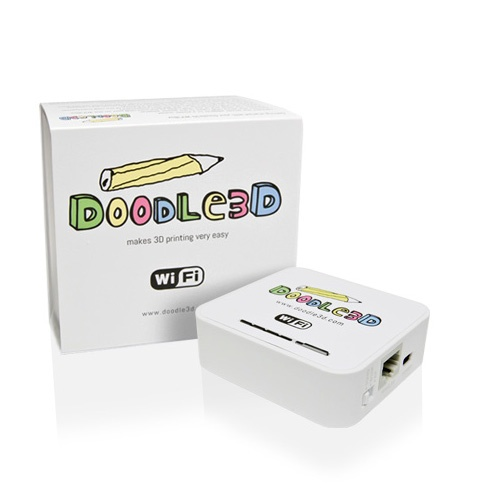
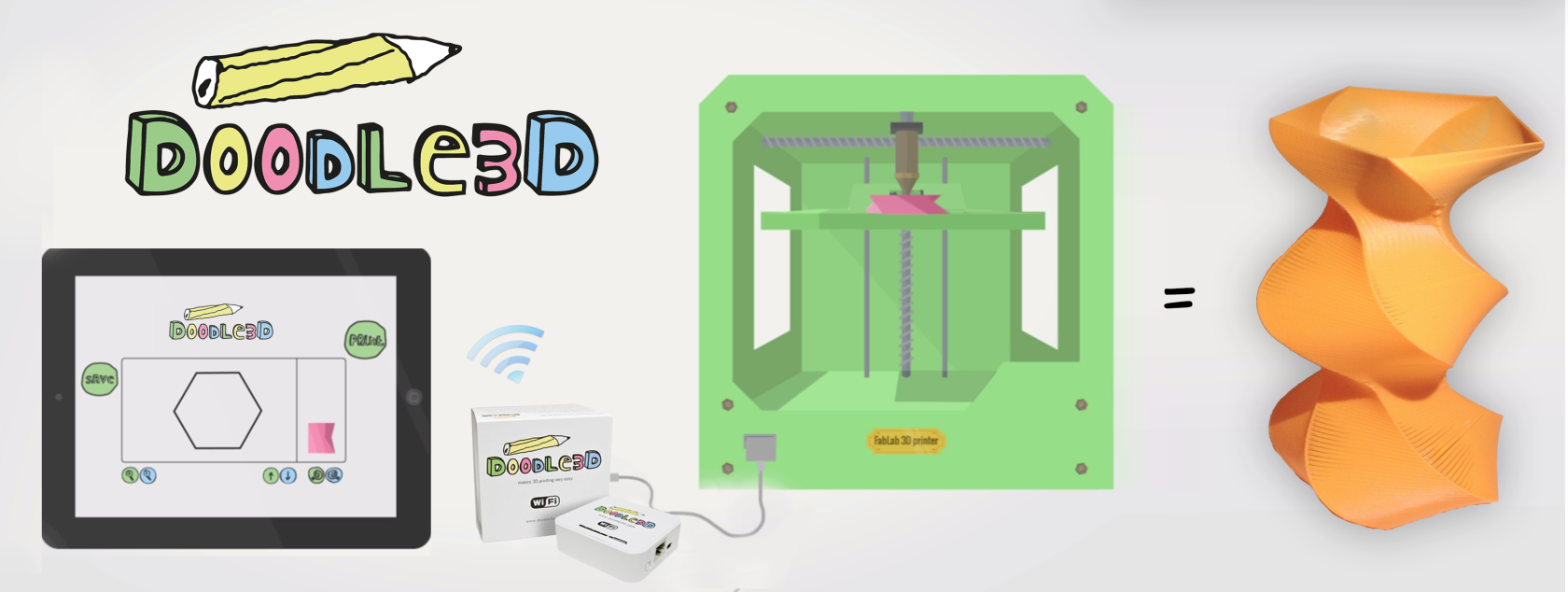
Die Doodle3D WLAN-Box ist ein modifizierter Wireless-Netzwerk-Router (basierend auf dem TP-Link MR-3020), um Smartphones, Tablets und Computer mit einem 3D-Drucker über WLAN zu verbinden. Dieses Bild zeigt die Rolle der WLAN-Box beim Senden einer Zeichnung von einer Tablette an einen 3D-Drucker:
[](https://wiki.stadtfabrikanten.org/uploads/images/gallery/2025-08/wPsyavADzzeFVjRH-grafik.png)
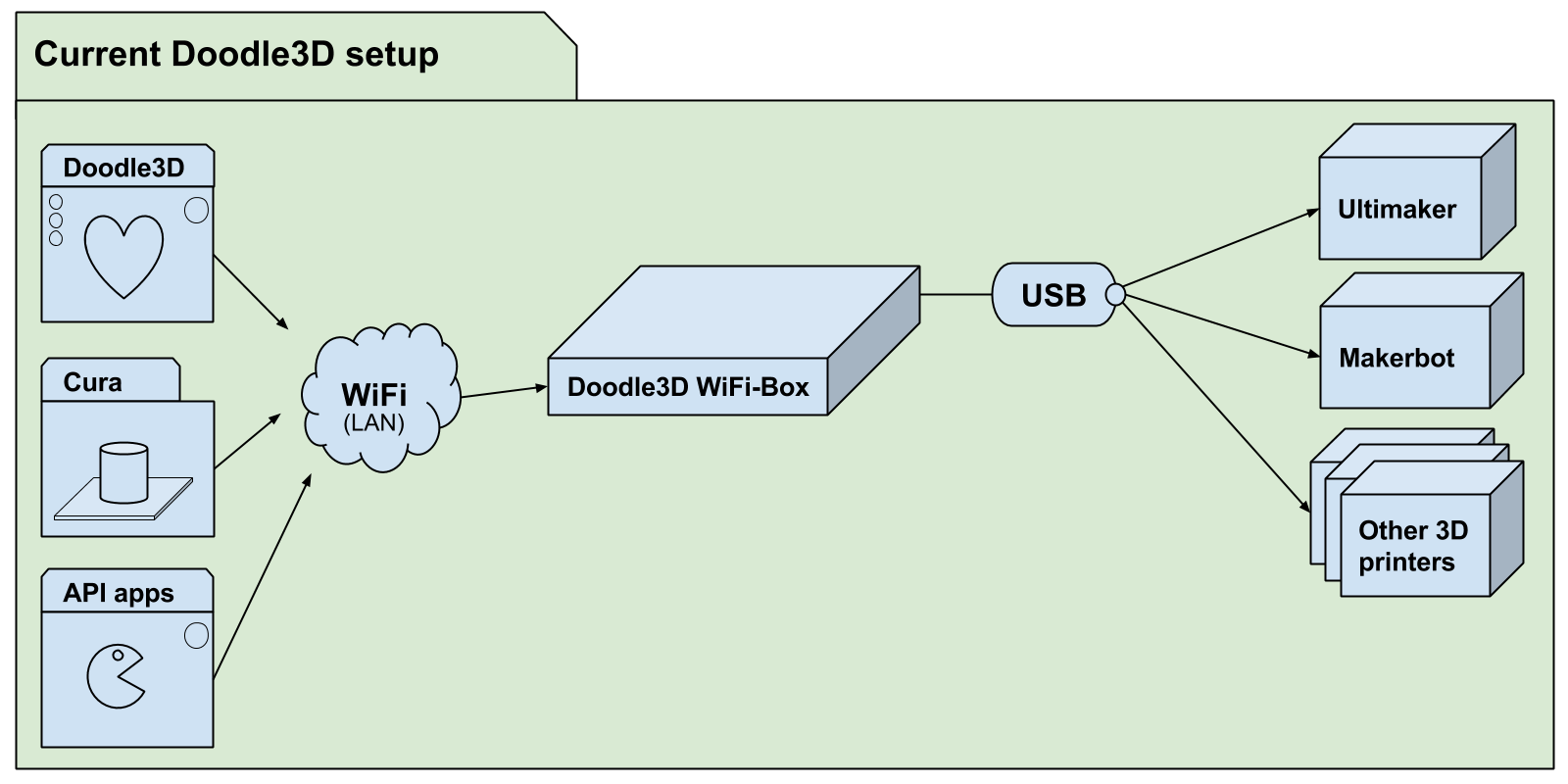
Dieses Diagramm erklärt, wie die WLAN-Box die Zeichnung von Apps auf verschiedenen Geräten über WLAN mit 3D-Druckern über USB verbindet:
[](https://wiki.stadtfabrikanten.org/uploads/images/gallery/2025-08/0BjzaUSIsOrnETld-grafik.png)
Die Doodle3D WLAN-Box-Projekt besteht aus 3 Teilprojekten, die jeweils einen eigenen Code, Probleme und Dokumentation enthalten.
- [print3d](https://github.com/Doodle3D/print3d/wiki): der 3D-Druck Server
- [Doodle3D-firmware](https://github.com/Doodle3D/Doodle3D-firmware/wiki): API zur Kommunikation mit print3d und zur Konfiguration der WiFi-Box
- [Doodle3D-client](https://github.com/Doodle3D/Doodle3D-client/wiki): initiale Doodle3D App
## Datei Manager
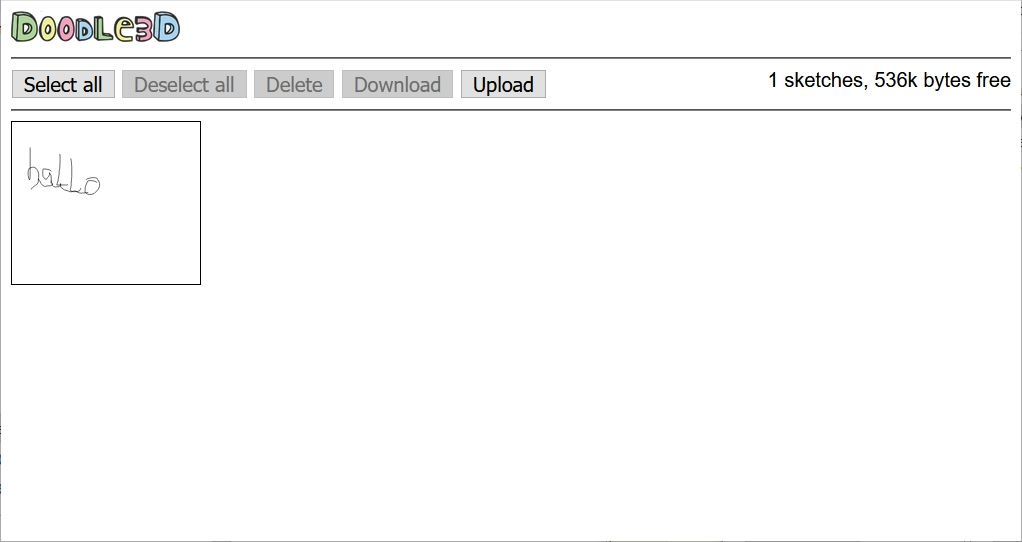
Mit dem File Manager können Vektorgrafikdateien (SVG) gelöscht, heruntergeladen und hochgeladen werden. Der File Manager ist direkt über die URL [http://doodle.box/filemanager/](http://doodle.box/filemanager/) oder über den Settings-Button erreichbar:
[](https://wiki.stadtfabrikanten.org/uploads/images/gallery/2025-08/JGx0anMY8If4TUpl-grafik.png)
## Hinzufügen eines neuen Druckers bei Doodle§D
- Offizieller vollständiger Name eines bestimmten Druckers (Check-in-Shop)
- X, Y, Z Bettdimentionen (alle 0 für Delta-Bots) (derzeit nur zur Zentrierung verwendet)
- Beheizte Bettunterstützung
- Dicke des Filaments
- Benutzerdefinierte Start- und/oder End G-Code?
- Treibertyp: Marlin oder Makerbot
1. Hinzufügen von Druckern zu: [https://github.com/Doodle3D/doodle3d-firmware/blob/master/src/util/printer.lua](https://github.com/Doodle3D/doodle3d-firmware/blob/master/src/util/printer.lua)
2. Fügen Sie die Anpassungen der Einstellungen (wo sie von Standardeinstellungen abweichen) an: [https://github.com/Doodle3D/doodle3d-firmware/blob/master/src/conf\_defaults.lua](https://github.com/Doodle3D/doodle3d-firmware/blob/master/src/conf_defaults.lua)
3. Fügen Sie den Drucker in die getDriverInfo()-Methode ein: https://github.com/Doodle3D/print3d/blob/master/src/drivers/MarlinDriver.cpp#L243 und [https://github.com/Doodle3D/print3d/blob/master/src/drivers/MakerbotDriver.cpp#L191](https://github.com/Doodle3D/print3d/blob/master/src/drivers/MakerbotDriver.cpp#L191)
## Frequently Asked Questions (FAQs)
Which 3D printers are supported?
We support almost all opensource printers (because their firmware is usually based on Marlin), this includes printers like the Ultimaker, PrintrBot, Delta RostockMax. We also support the Makerbot printers and printers that use the same firmware, like the Wanhao printer. Check out [features page](http://doodle3d.com/wifi-box/) for a incomplete list of 3Dprinters that should be supported.
Unfortunately we don't support 3D printers like the Up and the Cube. We can't because their manufacturers (PP3DP and 3D systems) don't share information about their communication protocol. We hope we can support these printers in the future in cooperation with these companies.
Where is the WordArt feature?
Since version 0.10.0 WordArt is included.
Where is the camera / scan & trace function in Doodle3D?
One of our stretchgoals on Kickstarter was the Scan & Trace function. This function takes the camera of your device or an image on your device and converts it to a 3D printable design. This feature is not finished yet and will be added to the box in a later software update. We decided to first focus on the core functionality to be able to release a stable product. The nice-to-haves will absolutely be added in the next coming months but will require some extra time. **UPDATE:** Since late 2014 the PhotoGuide feature was added. This comes really close to Scan & Trace. The major difference is that you have to manually trace the photo after importing. You can update your Doodle3D WiFi-Box to the latest software-version to start using this feature.
Where can I submit bugs and feature requests?
Doodle3D's sourcecode is on [Github.com](http://Github.com). We use their issue tracker which is the best place to request new features or report bugs about Doodle3D: [http://doodle3d.com/issues](http://doodle3d.com/issues).
What is the switch "3G/4G/WISP/AP mode" used for?
The "3G/4G/WISP/AP mode" switch is not used at the moment. The WiFiBox will boot up as an accesspoint by default with a name like Doodle3D-12AB56. You can use the settings panel in the Doodle3D web-interface to switch to client-mode to connect to an existing network.
What if my printer type isn't listed in the printer types?
Depending on the firmware the printer runs you could select either the *Generic Marlin printer* or the *Generic Makerbot Printer*.
The WiFi-Box keeps reconnecting to the printer
This is a known problem in the first version of the software. You can update to a new version of the software as described [here](http://legacy.doodle3d.com/help/faq#88).
The "Save" button seems to have problems.
This is a known problem in a earlier version of the software. You can update to a new version of the software as described [here](http://legacy.doodle3d.com/help/faq#88).
Printer under extrusion problem.
One of the causes of this problem might be the wrong setting of the filament thickness.
You can change the filament thickness by opening the Settings window (found under the gear in the bottom right) and go to "Filament thinkness" and change it to 1.75 mm or 2.89mm (depends on the thickness of your filament).
Also see: [Visual troubleshooting guide: Under extrusion](http://support.3dverkstan.se/article/23-a-visual-ultimaker-troubleshooting-guide#underextrusion).
Is there an API?
We designed a very general API and build our Doodle3D web app on top of it. This means that other software developers can use the same API to control printers wirelesly using our boxes.
Check www.doodle3d.com/api
Also see: Can I use the box to wirelessly print (to use it as a 3D printserver)?
Is there a forum, mailinglist, bugtracker or emailaddress?
- You can reach us by email at .
- There's also a public Doodle3D mailinglist where you can ask questions or report issues: . To send an email to the list you first have to [subscribe here](https://groups.google.com/forum/#!forum/doodle3d).
- We also use the Github issue-tracker for keeping track of bugs and feature requests: [http://doodle3d.com/issues](http://doodle3d.com/issues). If you find any bugs please let us know.
- We are currently setting up a forum at [www.doodle3d.com/forum](http://www.doodle3d.com/forums).
I may have bricked my box, what can I do?
Please check the FAQ item "[How do I reset / reflash the WiFi box?](http://doodle3d.com/help/faq#102)". If that doesn't work please email us at .
Rest assured, the box in only bricked when only the left, small light turns on and none of the other lights. This can only happen when you remove the power cable during a critical moment during updating.
I don't get an IP-address from the WiFiBox
This is a known problem in a earlier version of the software. You can update to a new version of the software as described [here](http://legacy.doodle3d.com/help/faq#88).
How to update the software?
To update the WiFi box it needs to be connected to the internet. You can do this by:
1. Clicking the 'settings' button (the cogwheel) on the bottom-right of the Doodle3D drawing app.
2. Scroll to the Network settings section.
3. Select "Client mode".
4. Select your network.
5. When needed fill in the password.
6. Press connect.
7. Reconnect to the box by connecting your own computer to your network.
8. Go to [connect.doodle3d.com](http://connect.doodle3d.com).
9. Selecting your box.
Update the box:
1. Open the settings again.
2. Scroll to the Update section.
3. Press update.
4. After a few minutes the box should reboot and become an access point again that you can connect to.
How to download and send logs?
To give support we need a lot of information, to prevent us from having to ask users a lot of difficult questions we created a logs download feature. Try to attach them when you ask for support.
You can download the logs by opening the Settings window (found under the gear in the bottom right) and pressing the *Download logs* button. You could also connect the WiFi-Box to a computer and visiting the following url:
[http://192.168.5.1/d3dapi/info/logfiles](http://192.168.5.1/d3dapi/info/logfiles)
You can share them by attaching them to an E-mail or uploading them for example to: [www.tempfiles.net](http://www.tempfiles.net) and sharing the link.
Make sure you download the logs after experiencing an issue. The logs are lost when you power down the box.
How to connect to the WiFiBox using the network cable?
For troubleshooting purposes you can use the supplied networking cable. Connect the networking cable between the WiFiBox and your computer (not to your router) and go to [http://connect.doodle3d.com](http://connect.doodle3d.com). Your WiFiBox should appear in the list of printers. When the cable is connected you can also try to connect directly to the box using the IP address [http://192.168.5.1](http://192.168.5.1). If that doesn't work please let us know by sending an email to .
How do I reset / reflash the WiFi box?
You can use the following website to install the latest software and restore settings to default.
[www.doodle3d.com/safeupdate](http://www.doodle3d.com/safeupdate)
How do I connect to the box?
Watch our [getting started](http://www.doodle3d.com/help/getting-started) tutorial first.
To reach a box in access point mode (the default) you need to connect your device to the WiFi network of the box and go to [draw.doodle3d.com](http://draw.doodle3d.com).
To reach a box in client mode you need to go to [connect.doodle3d.com](http://connect.doodle3d.com) and select your box.
When this doesn't work you can try to[ connect using the network cable](http://doodle3d.com/help/faq#79).
How can I upload a custom GCODE file to Doodle3D?
The Doodle3D drawing app creates GCODE in the browser which is then streamed to the WiFiBox. Currently there's no 'upload' button to send your own custom GCODE.
You could try to use Cura to send custom gcode, see Can I use the box to wirelessly print?.
You can also write your own app using our API, see www.doodle3d.com/api
How can I remove sketches?
You can delete files by opening the Settings window (found under the gear in the bottom right) and pressing the *Open FileManager* button.
You could also connect the WiFi-Box to a computer and visiting the following url: [http://192.168.5.1/filemanager](http://192.168.5.1/filemanager)
How can I enable the heated bed?
In later versions of Doodle3D you can check *Heated bed* in the settings.
How can I add Doodle3D to my homescreen
- iPad / iPhone: [http://www.tech-recipes.com/rx/44908/ios-add-website-shortcut-to-home-sc...](http://www.tech-recipes.com/rx/44908/ios-add-website-shortcut-to-home-screen/)
- Chrome on Android: [https://developer.chrome.com/multidevice/android/installtohomescreen](https://developer.chrome.com/multidevice/android/installtohomescreen)
- We recommend adding the [connect.doodle3d.com](http://connect.doodle3d.com) page to your homescreen.
Do you prevent users interfering with each others prints?
We do. We build in a control access check. It gives the device that started a print the sole control access. This means that only that device can stop a print for example. All the other connected devices can't start a print while the printer is printing. This control access is lifted after the print is done. This makes sure people can't interfere with each others prints.
Can't change settings?
There might be an issue with your configuration file, caused by a bug in versions older than 0.9.13. You can use the following website to install the latest software and restore settings to default.
[www.doodle3d.com/safeupdate](http://www.doodle3d.com/safeupdate)
Can the WiFi-Box control multiple 3D printers simoultaniously ?
No, currently it only supports controlling one 3Dprinter simultaneously.
Can multiple devices connect to the WiFi-Box?
Yes, it's possible to connect multiple devices (tablets, computers, phones etc) to the WiFi-Box. We do not recommend connecting more than 5 devices to the WiFi-Box, because it's limited in processing power. Also see: [Do you prevent users interfering with each others prints?](http://legacy.doodle3d.com/help/faq#132)
Can I use the box to wirelessly print (to use it as a 3D printserver)?
You can now print wirelessly using Cura. Make sure a printer is connected to the WiFi box, otherwise Cura ignores it.
This should work in client mode, access point mode and using a ethernet cable.
This question is related to How can I upload a custom GCODE file to Doodle3D. With "Wireless printing" most people mean: how to send a sliced STL from for example Cura, Slicer etc. wirelessly to the 3D printer using Doodle3D. We have implemented an API that makes it possible for other software to communicate with the Doodle3D WiFiBox. Cura is the first software to implement this feature.
Also see: Is there a API?
Can I import a vector image into the Doodle3D app and then manipulate within the app?
Importing different types of files (SVG, PNG, JPG's etc) is currently not supported but these features we will implement in a future update. Under the hood Doodle3D uses SVG files to store and retrieve images so if you really want to try you can creata a simple WebApp using our
[API](http://doodle3d.com/api)
to upload and manage sketches. Please email us at
for detailed information on this. When connected to the Doodle3D wireless network you can download the SVG's from the sketches folder:
[draw.doodle3d.com/sketches](http://draw.doodle3d.com/sketches)
Buttons don't work
If nothing in the Doodle3D web interface works this is probably a browser/javascript issue. Try disabling extensions/addons of your browser. An easy way is [starting Firefox in safe mode](http://support.mozilla.org/en-US/kb/troubleshoot-firefox-issues-using-safe-mode?redirectlocale=en-US&redirectslug=Safe+Mode) or [using chrome in incognito mode](https://support.google.com/chrome/answer/95464?hl=en). Also try disabling applications like virus scanners that add content to websites.
"Not connected to Doodle3D WiFi box"
This means your browser connects to a page on our website instead of the files on the WiFiBox. Big chance you're currently not connected to the Doodle3D network. Connect your computer/tablet to the network created by the Doodle3D WiFiBox. This network is usually called something like: Doodle3D-12AB56. **Unsere SSID lautet Doodle3D-B4390A**