3D-Drucken
- Anbieter für Filamente und Harze
- Additive Verfahren
- OpenStreetMaps 3D-Daten exportieren
- 3D-Drucker im FabLab benutzen
- Doodle3D WiFi-Box - 3D Druck zum Ausprobieren
- 3D-Drucker unbeaufsichtigt laufen lassen / offenem Nutzerkreis zur Verfügung stellen?
Anbieter für Filamente und Harze
FDM
Resin
Additive Verfahren
Eine Übersicht über additive Fertigungsverfahren. Es gibt viele begriffliche Überschneidungen. Das rührt vorallem da her, dass Firmen Spezialnamen für fast identische Verfahren geben oder durch sprachliche Differenzen unterschiedliche Abkürzungen entstehen. Desweiteren gibt es Unterspezialisierungen diverser Verfahren, die ihre eigenen Kürzel tragen.
Diese Übersicht wurde zuletzt 2021 überarbeitet.
Eine Übersicht über additive Fertigungsverfahren. Es gibt viele begriffliche Überschneidungen. Das rührt vorallem da her, dass Firmen Spezialnamen für fast identische Verfahren geben oder durch sprachliche Differenzen unterschiedliche Abkürzungen entstehen. Desweiteren gibt es Unterspezialisierungen diverser Verfahren, die ihre eigenen Kürzel tragen.
| Verfahren - Englisch | Verfahren - Deutsch | Abkürzung(en) | Verfahrenstyp | Synonyme | Kommerzielle Bindung |
| Multidirectional Additive Production | MAP | Do3D | |||
| Space Puzzle Molding | SPM | ||||
| Curved Layer Laminated Object Modelling | CLLOM | Andere Schichtbauverfahren | |||
| Laminated Object Modelling | 3D-Foliendrucken | LOM | Andere Schichtbauverfahren | Sheet Lamination | |
| 3D Metal Printing | 3D-Siebdruck von Metallen | Andere Schichtbauverfahren | |||
| Anodische Tauchlackierung | ATL | Andere Schichtbauverfahren | |||
| Kathodische Tauchlackierung | KTL | Andere Schichtbauverfahren | |||
| Lichtgesteuerte Elektrophoretische Abscheidung | EPD | Andere Schichtbauverfahren | |||
| Big Area Additive Manufacturing | BAAM | Allgemeiner Begriff | Cincinnati Incorporated / Oak Ridge National | ||
|
Large Scale Additive Manufacturing |
LSAM | Allgemeiner Begriff |
Thermwood Corporation |
||
|
Ultrasonic Additive Manufacturing |
UAM | Allgemeiner Begriff | |||
|
Friction Stir Additive Manufacturing |
FSAM | Allgemeiner Begriff | |||
| Rapid Prototyping | RP | Allgemeiner Begriff | |||
| Rapid Manufacturing | RM | Allgemeiner Begriff | |||
| Rapid Repairing | RR | Allgemeiner Begriff | |||
| Freeform Fabrication | FF | Allgemeiner Begriff | |||
| Additive Manufacturing | AM | Allgemeiner Begriff | |||
| Layered Manufacturing | LM | Allgemeiner Begriff | |||
| Binder Jetting | BJ | Allgemeiner Begriff | |||
| Material Jetting | MJ | Allgemeiner Begriff | |||
| Fused Deposition Modeling | Schmelzschichtung | FDM | Freiraumverfahren | Fused Filament Fabrication | Stratasys |
| Fused Filament Fabrication | Schmelzschichtung | FFF | Freiraumverfahren | Fused Deposition Modeling | |
| Fast Layer Deposition | Schnelle Schmelzschichtung | FLD | Freiraumverfahren | Fused Deposition Modeling | Ira3D |
| Fast Fused Filament Fabrication (FastFFF) | FFFF | Freiraumverfahren | Fused Filament Fabrication | ||
| Liquid Deposit Modeling | LDM | Freiraumverfahren | |||
| Cladding | Freiraumverfahren | ||||
| Metall-Pulver-Auftragsverfahren | MPA | Freiraumverfahren | |||
| Wax Deposition Modeling | WDM | Freiraumverfahren | |||
| Screw Extrusion Additive Manufacturing | SEAM | Freiraumverfahren | |||
| Advanced Fusion Plastic Modeling | AFPM | Freiraumverfahren | Fused Deposition Modeling | Divide by Zero | |
| Fused Deposition of Ceramics | FDC | Freiraumverfahren | |||
| Fused Filament Extrusion | FFE | Freiraumverfahren | Fused Deposition Modeling | ||
| Curved Layer Fused Filament Fabrication | CLFFF | Freiraumverfahren | |||
| Curved Layer Fused Deposition Modeling | CLFDM | Freiraumverfahren | |||
| Auftragsschweißen | Freiraumverfahren | ||||
| Contour Crafting | Baumaterialschichtung | CC | Freiraumverfahren | ||
| Kaltgasspritzen | Freiraumverfahren | ||||
| Glas 3D Print | G3DP | Freiraumverfahren | |||
| High Speed Sintering | HSS | Pulverbettverfahren | voxeljet | ||
| Drop on Demand | DOD | Pulverbettverfahren | |||
| Printoptical | Pulverbettverfahren | Luxexcel | |||
| Constructive Laser Additive Directe | CLAD | Pulverbettverfahren | |||
| Diode Area Melting | DAM | Pulverbettverfahren | |||
| Direct Metal Deposition | DMD | Pulverbettverfahren | |||
| Electron Beam Direct Manufacturing | EBDM | Pulverbettverfahren | |||
| Ion Fusion Formation | IFF | Pulverbettverfahren | |||
| Laser Consolidation | LC | Pulverbettverfahren | |||
| Laser Engineered Net Shaping | LENS | Pulverbettverfahren | |||
| Laser Metal Deposition |
Laserauftragschweißen |
LMD | Freiraumverfahren mit Metallpulver | ||
|
Direct Metal Deposition |
DMD | Freiraumverfahren mit Metallpulver | siehe Laser Metal Deposition | ||
| Direct Energy Deposition | DED | Freiraumverfahren mit Metallpulver | siehe Laser Metal Deposition | ||
| Laser Metal Forming | LMF | Pulverbettverfahren | |||
| Laser Powder Forming | LPF | Pulverbettverfahren | |||
|
Laser Powder Bed Fusion |
LPBF |
Pulverbettverfahren | |||
| Multi-Jet Modeling | MJM | Pulverbettverfahren | Polyjet-Modeling | ||
| Poly-Jet-Modeling | PJM | Pulverbettverfahren | Multi-Jet Modeling | ||
| Sand Binder Jetting | SBJ | Pulverbettverfahren | |||
| Selective Heat Sintering | SHS | Pulverbettverfahren | |||
| Binder Jetting | Pulverbettverfahren | ||||
| Powder bed and inkjet 3d printing | 3DP | Pulverbettverfahren | Binder Jetting,drop-on-powder, 3d printing, material jetting | ||
| Selective Laser Melting | Selektives Laserschmelzen | SLM | Pulverbettverfahren | ||
| Selective Laser Sintering | Selektives Lasersintern | SLS | Pulverbettverfahren | ||
| Direct Metal Laser Sintering | Direktes Metall-Lasersintern | DMLS | Pulverbettverfahren | ||
| (Selective) Electron Beam Melting | Elektronenstrahlschmelzen | (S)EBM | Pulverbettverfahren | ||
| Stereolithograpy | Stereolithographie | STL, SL, SLA | Flüssigmaterialverfahren | ||
| Two-Photon Polymerization | Zwei-Photonen-Absorption | 2PP | Flüssigmaterialverfahren | ||
| Heliolithography | Heliolithographie | HL | Flüssigmaterialverfahren | ||
| Continuous Production with Wavefront Converting | CPWC | Flüssigmaterialverfahren | Sprybuild | ||
| Scan, Spin and Selectively Photocure | 3SP | Flüssigmaterialverfahren | EnvisionTEC | ||
| Digital Light Processing | DLP | Flüssigmaterialverfahren | |||
| Film Transfer Imaging | FTI | Flüssigmaterialverfahren | |||
| Continuous Liquid Interface Production | CLIP | Flüssigmaterialverfahren | Carbon3D | ||
| Lithography-based Ceramic Manufacturing | LCM | Flüssigmaterialverfahren | |||
| Liquid Composite Moulding | LCM | Flüssigmaterialverfahren |
OpenStreetMaps 3D-Daten exportieren
Download
How-To
https://wiki.openstreetmap.org/wiki/OSM2World
Kartendaten exportieren (*.osm Datei)
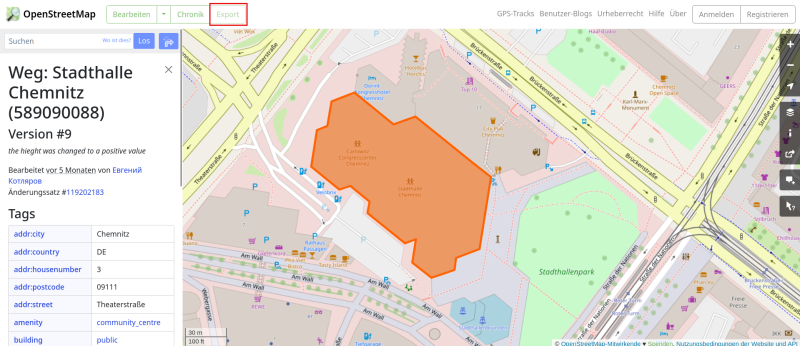
osm2world.sh
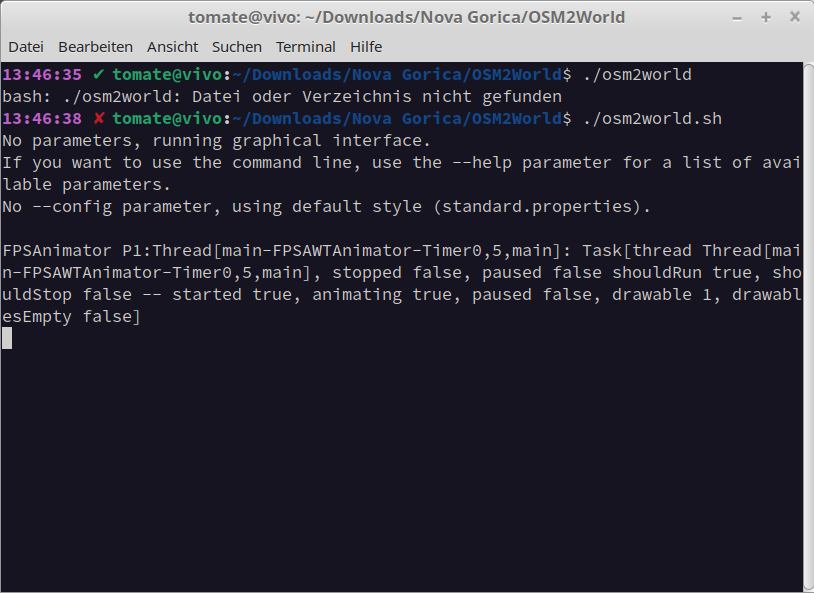
vim osm2world.shjava $vmparams -jar OSM2World.jar $@
# ... tauschen gegen ...
/usr/lib/jvm/java-1.8.0-openjdk-1.8.0.332.b09-1.fc36.x86_64/jre/bin/java $vmparams -jar OSM2World.jar $@osm2world starten
3D-Drucker im FabLab benutzen
Zugang und Software
Handling
Bitte unbeaufsichtigte Langzeitdrucke vermeiden!
Slicer: OrcaSlicer V2.3.2
Hinweis: Versionen unter V2.3.2 sind problematisch: Wir nutzen diese Version, damit die Bambu Lab Drucker über das Netzwerk 10.63.2.0/24 und 10.63.3.0/24 gleichermaßen erreichbar sind. Siehe https://github.com/SoftFever/OrcaSlicer/issues/8099 und https://github.com/SoftFever/OrcaSlicer/pull/8256.
An den Notebooks mister-beam und koralle sind OrcaSlicer eingerichtet für die folgenden Drucker:
| Drucker Name + Typ | Drucker Seriennummer | AMS Seriennummer | Access Code | IP-Adresse |
|
Petra (Bambu Lab P1S) / |
01P09B4C2800117 | 00600A432301967 | 25732912 | 10.63.2.163 |
|
Paula (Bambu Lab P1S) / |
01P00A442200630 | 00600A460824571 | 21075612 | 10.63.2.164 |
|
Anton (Bambu Lab A1 Mini) / |
0309DA422200631 | - | 61085667 | 10.63.2.165 |
|
André (Bambu Lab A1 Combo) / |
03919A3B0400430 | - | 80485778 | 10.63.2.166 |
Die OrcaSlicer Konfiguration, die die Drucker mitsamt Namen, Seriennummer, Access Codes und IP-Adressen enthält, findet sich in %USERHOME%\AppData\Roaming\OrcaSlicer\OrcaSlicer.conf. Außerdem gibt es ein Backup unter https://gitea.fablabchemnitz.de/vmario/orcaslicer/src/branch/main/OrcaSlicer.conf.
Zugang mit FabAccess
Die in der obigen Tabelle gelisteten 3D-Drucker sind über Tasmota-Schaltsteckdosen mit FabAccess gekoppelt und einsatzbereit!
Filamentbestand pflegen
Alle Filamente sind in der Verbrauchsmittelübersicht zu finden!
Doodle3D WiFi-Box - 3D Druck zum Ausprobieren
Doodle3D - Intro
Übersicht
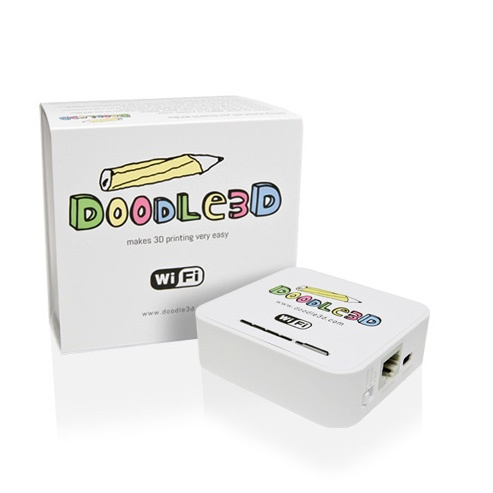
Die Doodle3D WLAN-Box ist ein modifizierter Wireless-Netzwerk-Router (basierend auf dem TP-Link MR-3020), um Smartphones, Tablets und Computer mit einem 3D-Drucker über WLAN zu verbinden. Dieses Bild zeigt die Rolle der WLAN-Box beim Senden einer Zeichnung von einer Tablette an einen 3D-Drucker:
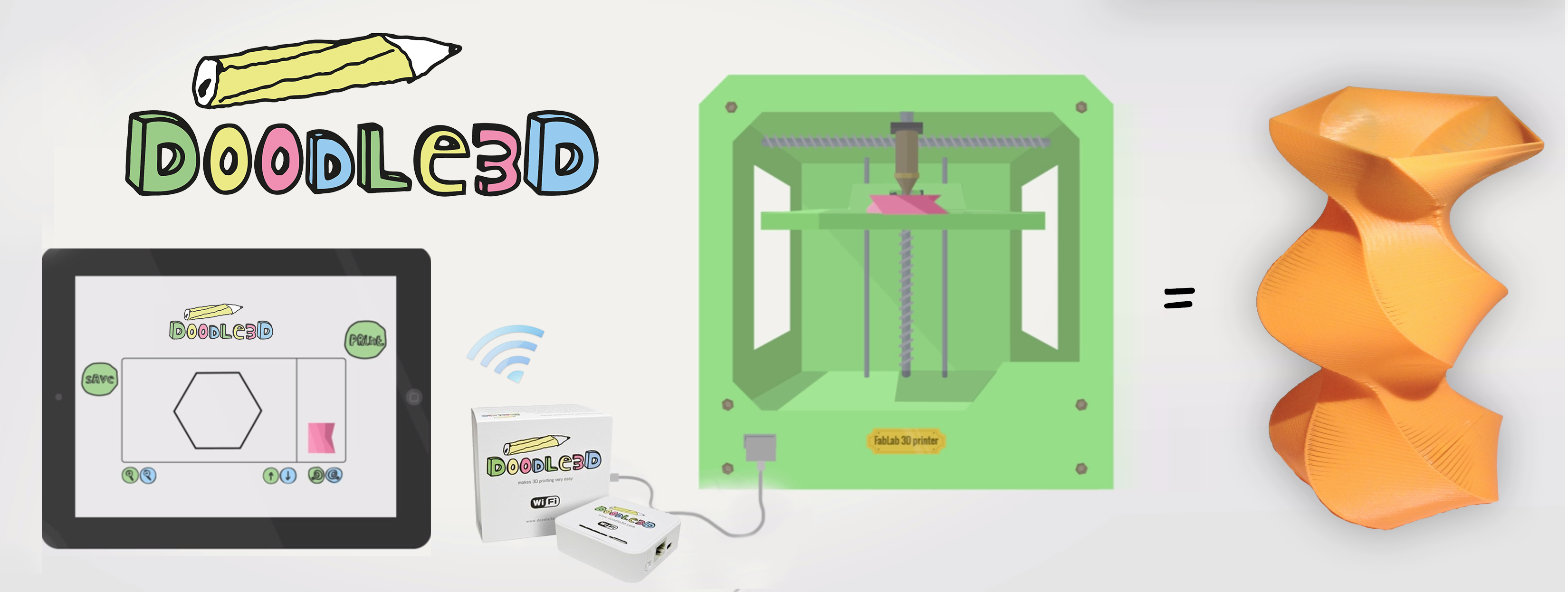
Dieses Diagramm erklärt, wie die WLAN-Box die Zeichnung von Apps auf verschiedenen Geräten über WLAN mit 3D-Druckern über USB verbindet:
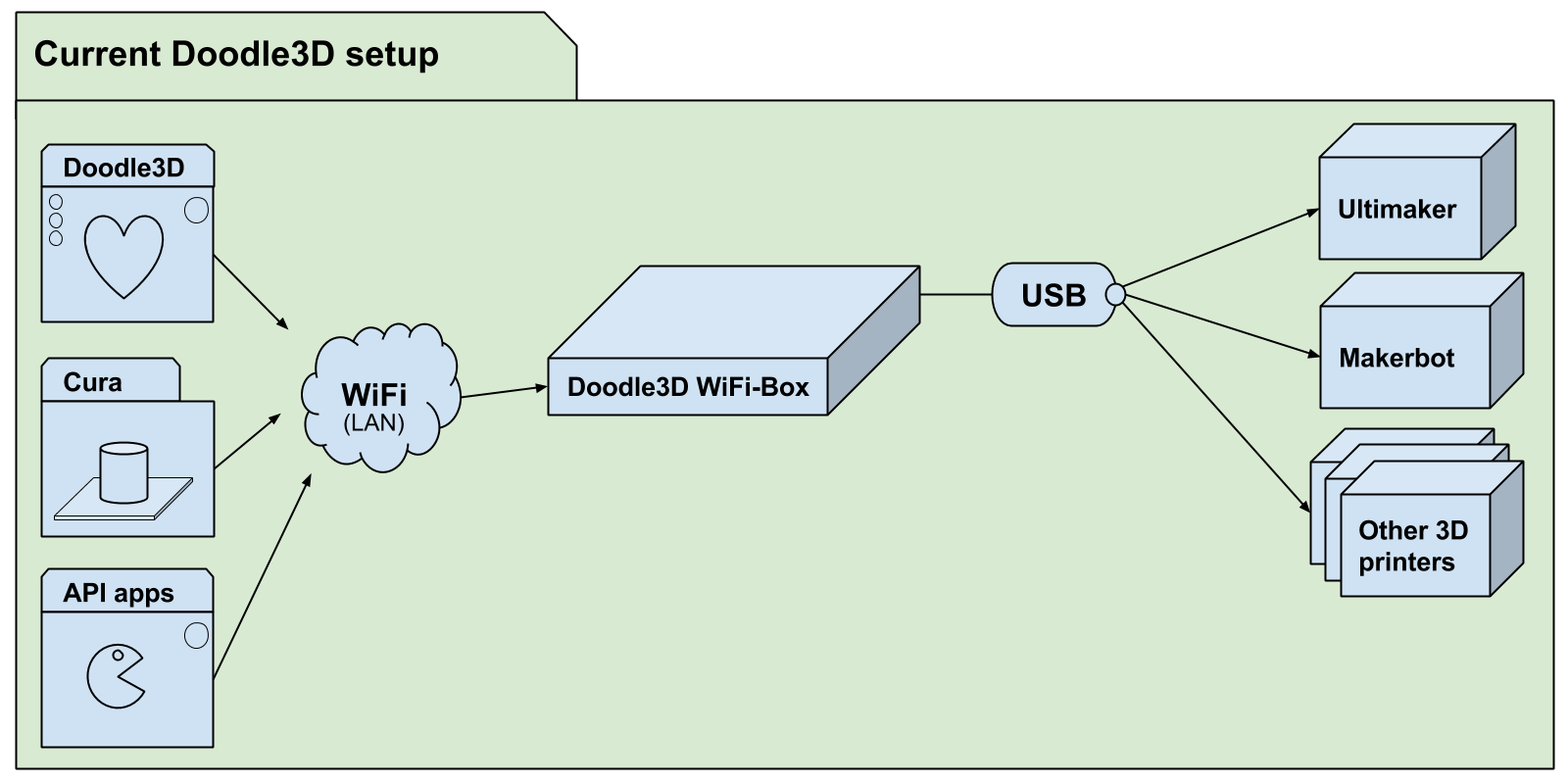
Die Doodle3D WLAN-Box-Projekt besteht aus 3 Teilprojekten, die jeweils einen eigenen Code, Probleme und Dokumentation enthalten.
- print3d: der 3D-Druck Server
- Doodle3D-firmware: API zur Kommunikation mit print3d und zur Konfiguration der WiFi-Box
- Doodle3D-client: initiale Doodle3D App
Datei Manager
Mit dem File Manager können Vektorgrafikdateien (SVG) gelöscht, heruntergeladen und hochgeladen werden. Der File Manager ist direkt über die URL http://doodle.box/filemanager/ oder über den Settings-Button erreichbar:
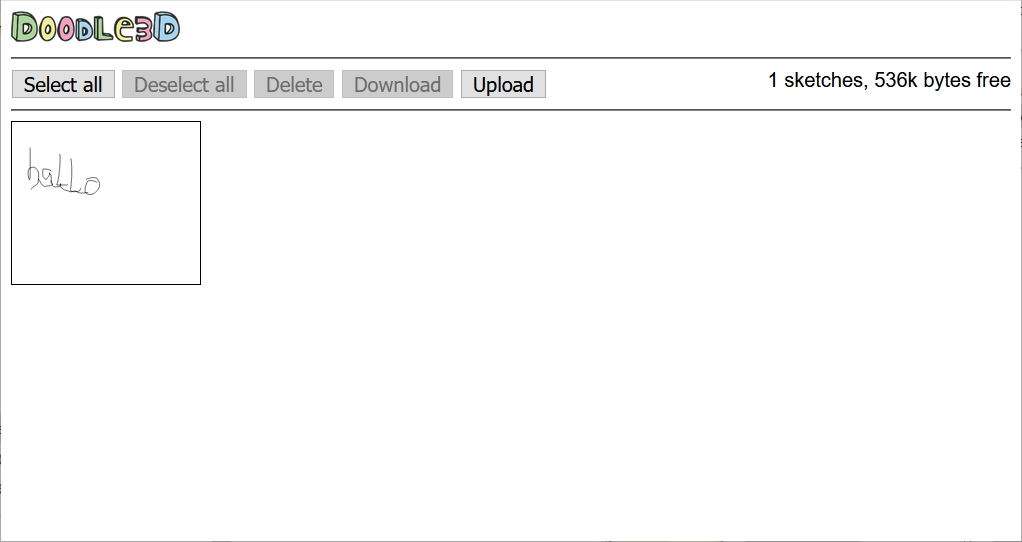
Hinzufügen eines neuen Druckers bei Doodle§D
- Offizieller vollständiger Name eines bestimmten Druckers (Check-in-Shop)
- X, Y, Z Bettdimentionen (alle 0 für Delta-Bots) (derzeit nur zur Zentrierung verwendet)
- Beheizte Bettunterstützung
- Dicke des Filaments
- Benutzerdefinierte Start- und/oder End G-Code?
- Treibertyp: Marlin oder Makerbot
- Hinzufügen von Druckern zu: https://github.com/Doodle3D/doodle3d-firmware/blob/master/src/util/printer.lua
- Fügen Sie die Anpassungen der Einstellungen (wo sie von Standardeinstellungen abweichen) an: https://github.com/Doodle3D/doodle3d-firmware/blob/master/src/conf_defaults.lua
- Fügen Sie den Drucker in die getDriverInfo()-Methode ein: https://github.com/Doodle3D/print3d/blob/master/src/drivers/MarlinDriver.cpp#L243 und https://github.com/Doodle3D/print3d/blob/master/src/drivers/MakerbotDriver.cpp#L191
Frequently Asked Questions (FAQs)
Which 3D printers are supported?
We support almost all opensource printers (because their firmware is usually based on Marlin), this includes printers like the Ultimaker, PrintrBot, Delta RostockMax. We also support the Makerbot printers and printers that use the same firmware, like the Wanhao printer. Check out features page for a incomplete list of 3Dprinters that should be supported.
Unfortunately we don't support 3D printers like the Up and the Cube. We can't because their manufacturers (PP3DP and 3D systems) don't share information about their communication protocol. We hope we can support these printers in the future in cooperation with these companies.
Where is the WordArt feature?
Since version 0.10.0 WordArt is included.
Where is the camera / scan & trace function in Doodle3D?
One of our stretchgoals on Kickstarter was the Scan & Trace function. This function takes the camera of your device or an image on your device and converts it to a 3D printable design. This feature is not finished yet and will be added to the box in a later software update. We decided to first focus on the core functionality to be able to release a stable product. The nice-to-haves will absolutely be added in the next coming months but will require some extra time. UPDATE: Since late 2014 the PhotoGuide feature was added. This comes really close to Scan & Trace. The major difference is that you have to manually trace the photo after importing. You can update your Doodle3D WiFi-Box to the latest software-version to start using this feature.
Where can I submit bugs and feature requests?
Doodle3D's sourcecode is on Github.com. We use their issue tracker which is the best place to request new features or report bugs about Doodle3D: http://doodle3d.com/issues.
What is the switch "3G/4G/WISP/AP mode" used for?
The "3G/4G/WISP/AP mode" switch is not used at the moment. The WiFiBox will boot up as an accesspoint by default with a name like Doodle3D-12AB56. You can use the settings panel in the Doodle3D web-interface to switch to client-mode to connect to an existing network.
What if my printer type isn't listed in the printer types?
Depending on the firmware the printer runs you could select either the Generic Marlin printer or the Generic Makerbot Printer.
The WiFi-Box keeps reconnecting to the printer
This is a known problem in the first version of the software. You can update to a new version of the software as described here.
Printer under extrusion problem.
One of the causes of this problem might be the wrong setting of the filament thickness.
You can change the filament thickness by opening the Settings window (found under the gear in the bottom right) and go to "Filament thinkness" and change it to 1.75 mm or 2.89mm (depends on the thickness of your filament).
Is there an API?
We designed a very general API and build our Doodle3D web app on top of it. This means that other software developers can use the same API to control printers wirelesly using our boxes.
Check www.doodle3d.com/api
Also see: Can I use the box to wirelessly print (to use it as a 3D printserver)?
Is there a forum, mailinglist, bugtracker or emailaddress?
- You can reach us by email at help@doodle3d.com.
- There's also a public Doodle3D mailinglist where you can ask questions or report issues: doodle3d@googlegroups.com. To send an email to the list you first have to subscribe here.
- We also use the Github issue-tracker for keeping track of bugs and feature requests: http://doodle3d.com/issues. If you find any bugs please let us know.
- We are currently setting up a forum at www.doodle3d.com/forum.
I may have bricked my box, what can I do?
Please check the FAQ item "How do I reset / reflash the WiFi box?". If that doesn't work please email us at help@doodle3d.com.
Rest assured, the box in only bricked when only the left, small light turns on and none of the other lights. This can only happen when you remove the power cable during a critical moment during updating.
I don't get an IP-address from the WiFiBox
This is a known problem in a earlier version of the software. You can update to a new version of the software as described here.
How to update the software?
To update the WiFi box it needs to be connected to the internet. You can do this by:
- Clicking the 'settings' button (the cogwheel) on the bottom-right of the Doodle3D drawing app.
- Scroll to the Network settings section.
- Select "Client mode".
- Select your network.
- When needed fill in the password.
- Press connect.
- Reconnect to the box by connecting your own computer to your network.
- Go to connect.doodle3d.com.
- Selecting your box.
Update the box:
- Open the settings again.
- Scroll to the Update section.
- Press update.
- After a few minutes the box should reboot and become an access point again that you can connect to.
How to download and send logs?
To give support we need a lot of information, to prevent us from having to ask users a lot of difficult questions we created a logs download feature. Try to attach them when you ask for support.
You can download the logs by opening the Settings window (found under the gear in the bottom right) and pressing the Download logs button. You could also connect the WiFi-Box to a computer and visiting the following url:
http://192.168.5.1/d3dapi/info/logfiles
You can share them by attaching them to an E-mail or uploading them for example to: www.tempfiles.net and sharing the link.
Make sure you download the logs after experiencing an issue. The logs are lost when you power down the box.
How to connect to the WiFiBox using the network cable?
For troubleshooting purposes you can use the supplied networking cable. Connect the networking cable between the WiFiBox and your computer (not to your router) and go to http://connect.doodle3d.com. Your WiFiBox should appear in the list of printers. When the cable is connected you can also try to connect directly to the box using the IP address http://192.168.5.1. If that doesn't work please let us know by sending an email to help@doodle3d.com.
How do I reset / reflash the WiFi box?
You can use the following website to install the latest software and restore settings to default.
How do I connect to the box?
Watch our getting started tutorial first.
To reach a box in access point mode (the default) you need to connect your device to the WiFi network of the box and go to draw.doodle3d.com.
To reach a box in client mode you need to go to connect.doodle3d.com and select your box.
When this doesn't work you can try to connect using the network cable.
How can I upload a custom GCODE file to Doodle3D?
The Doodle3D drawing app creates GCODE in the browser which is then streamed to the WiFiBox. Currently there's no 'upload' button to send your own custom GCODE.
You could try to use Cura to send custom gcode, see Can I use the box to wirelessly print?.
You can also write your own app using our API, see www.doodle3d.com/api
How can I remove sketches?
You can delete files by opening the Settings window (found under the gear in the bottom right) and pressing the Open FileManager button.
You could also connect the WiFi-Box to a computer and visiting the following url: http://192.168.5.1/filemanager
How can I enable the heated bed?
In later versions of Doodle3D you can check Heated bed in the settings.
How can I add Doodle3D to my homescreen
- iPad / iPhone: http://www.tech-recipes.com/rx/44908/ios-add-website-shortcut-to-home-sc...
- Chrome on Android: https://developer.chrome.com/multidevice/android/installtohomescreen
- We recommend adding the connect.doodle3d.com page to your homescreen.
Do you prevent users interfering with each others prints?
We do. We build in a control access check. It gives the device that started a print the sole control access. This means that only that device can stop a print for example. All the other connected devices can't start a print while the printer is printing. This control access is lifted after the print is done. This makes sure people can't interfere with each others prints.
Can't change settings?
There might be an issue with your configuration file, caused by a bug in versions older than 0.9.13. You can use the following website to install the latest software and restore settings to default.
Can the WiFi-Box control multiple 3D printers simoultaniously ?
No, currently it only supports controlling one 3Dprinter simultaneously.
Can multiple devices connect to the WiFi-Box?
Yes, it's possible to connect multiple devices (tablets, computers, phones etc) to the WiFi-Box. We do not recommend connecting more than 5 devices to the WiFi-Box, because it's limited in processing power. Also see: Do you prevent users interfering with each others prints?
Can I use the box to wirelessly print (to use it as a 3D printserver)?
You can now print wirelessly using Cura. Make sure a printer is connected to the WiFi box, otherwise Cura ignores it.
This should work in client mode, access point mode and using a ethernet cable.
This question is related to How can I upload a custom GCODE file to Doodle3D. With "Wireless printing" most people mean: how to send a sliced STL from for example Cura, Slicer etc. wirelessly to the 3D printer using Doodle3D. We have implemented an API that makes it possible for other software to communicate with the Doodle3D WiFiBox. Cura is the first software to implement this feature.
Also see: Is there a API?
Can I import a vector image into the Doodle3D app and then manipulate within the app?
Importing different types of files (SVG, PNG, JPG's etc) is currently not supported but these features we will implement in a future update. Under the hood Doodle3D uses SVG files to store and retrieve images so if you really want to try you can creata a simple WebApp using our
to upload and manage sketches. Please email us at
for detailed information on this. When connected to the Doodle3D wireless network you can download the SVG's from the sketches folder:
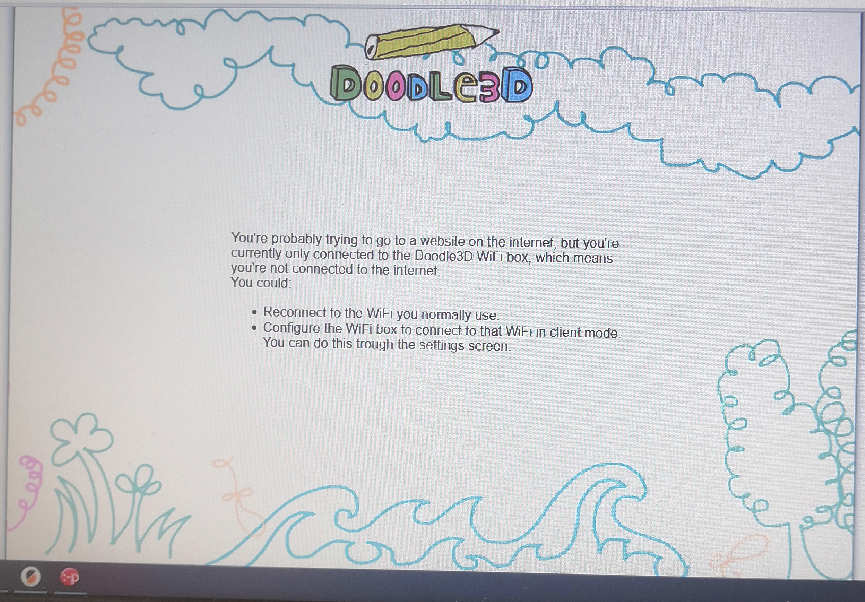
"Not connected to Doodle3D WiFi box"
This means your browser connects to a page on our website instead of the files on the WiFiBox. Big chance you're currently not connected to the Doodle3D network. Connect your computer/tablet to the network created by the Doodle3D WiFiBox. This network is usually called something like: Doodle3D-12AB56. Unsere SSID lautet Doodle3D-B4390A
Doodle3D - Standard Settings FabLab Chemnitz
Allgemeine Einstellungen


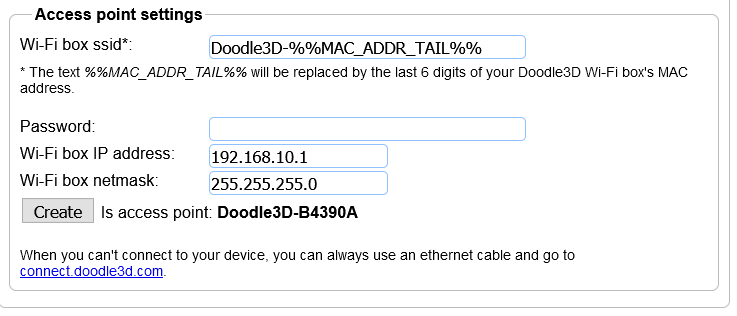

Zugriff im Access Point (AP) Modus (unverschlüsseltes http)
- http://draw.doodle3d.com, oder
- http://doodle.box, oder
- http://doodle3d.com, oder
- http://connect.doodle3d.com
Bekannte Fehler
"You're probably trying to go to a website on the internet, but you're currently only connected to the Doodle3D WiFi box. which means you're not connected to the internet. You could:
- Reconnect to the Wifi you normally use.
- Configure the WiFi box to connect to that WiFi in client mode. You can do this through the settings screen.
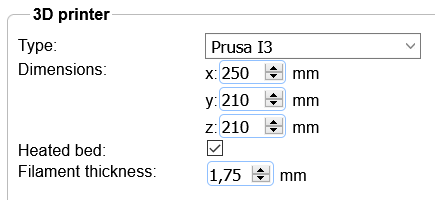
Doodle3D Druckerprofil Prusa i3 MK3S
Workarounds für funktionierende Verbindung Doodle ↔ Prusa i3
- wenn das Display des Druckers bereits ohne angeschlossene DoodleBox nichts anzeigt außer "Original Prusa i3 Research", dann muss zunächst der Drucker so oft neugestartet bzw. soft-resetted werden, bis die Anzeige bedienbar ist. Das Problem ist ein generelles Prusa Problem
- wenn das Display bei angeschlossener DoodleBox in Dauerschleife in die Meldung "Original Prusa i3 Research" versetzt wird, dann hilft Resetten oder Aus- und wieder Einschalten nicht. Die Lösung liegt hierbei darin eine SD-Karte einzustecken und dann mehrmals auf den Bedienknopf zu drücken, bis das Menü erscheint und bedienbar bleibt. Siehe Video!
- wenn Doodle3d den Drucker garnicht verbindet, obwohl der Drucker schon neugestartet wurde, ein Reset per Button nicht hilft und auch das Neuverbinden mit dem USB-Kabel nichts hilft, dann hilft nur ein DoodleBox Neustart
Settings (Einstellungen für PETG Filament)
Start GCode
G21 ;metric values
G90 ; use absolute coordinates
M83 ; extruder relative mode
M107 ;start with the fan off
M190 S{printingBedTemp} ;set target bed temperature
M109 S{printingTemp} ;set target temperature
G28 W ; home all without mesh bed level
G80 ; mesh bed leveling
G1 Y-3.0 F1000.0
G1 Z0.4 F1000.0
G1 X55.0 F2000.0
G1 Z0.3 F1000.0
G92 E0.0 ;zero the extruded length
G1 X240.0 E25.0 F2200.0
G1 Y-2.0 F1000.0
G1 X55.0 E25 F1400.0
G1 Z0.20 F1000.0
G1 X5.0 E4.0 F1000.0
M82 ; extruder absolute mode
G92 E0.0 ;zero the extruded length again
G1 F9000
G90 ;absolute positioning
M117 Printing Doodle... ;display message (20 characters to clear whole screen)End GCode
M107 ;fan off
G28 X0 Y0 ;move X/Y to min endstops, so the head is out of the way
M84 ;disable axes / steppers
G90 ;absolute positioning
M104 S{preheatTemp}
{if heatedBed}M140 S{preheatBedTemp}
M117 Done ;display message (20 characters to clear whole screen)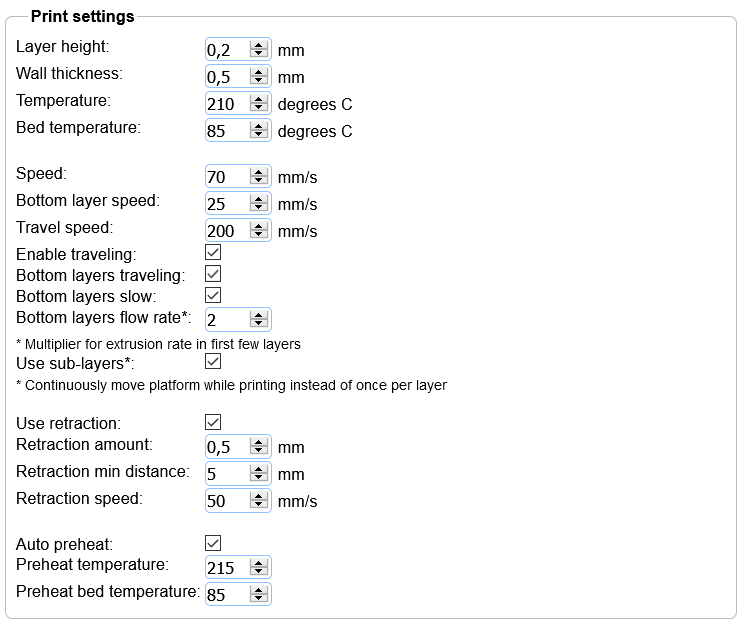
Doodle3D - Box Firmware updaten
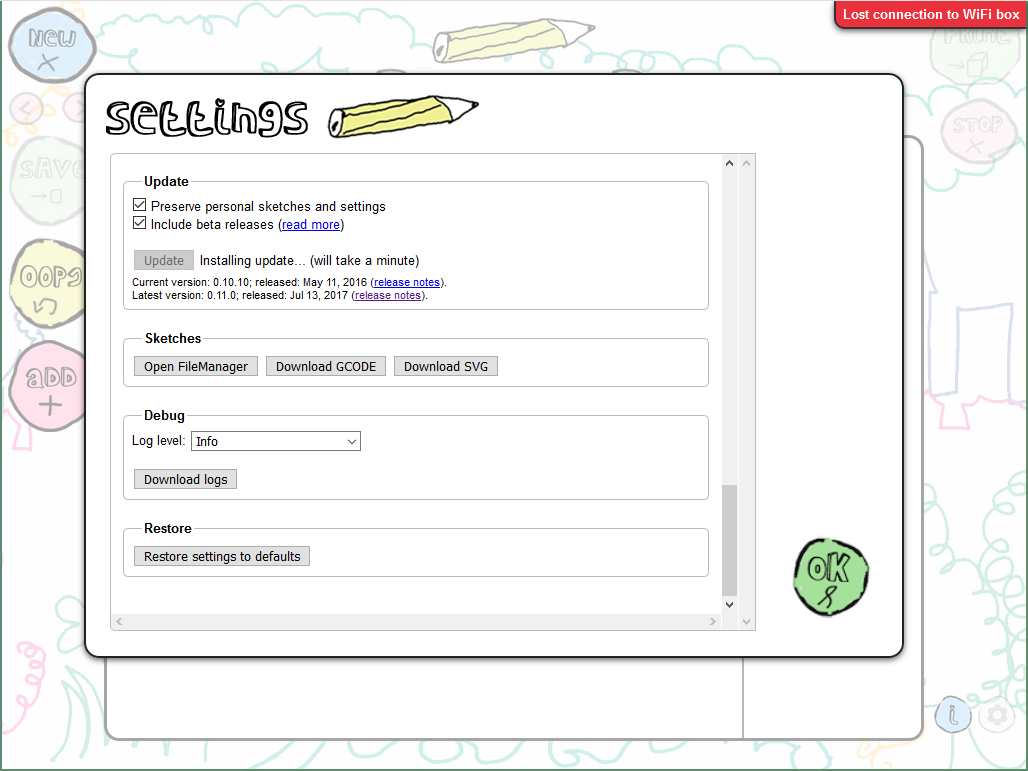
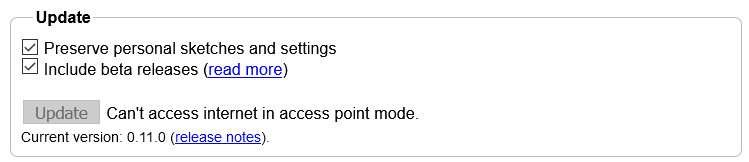
- Aktueller Update-Stand: 0.11.0 (13.07.2017)
- Gerät mit WLAN verbinden und direkt auf die IP des Gerätes im Browser verbinden. Dort öffnet sich die gewohnte Doodle-Maske, aus der heraus das Update durchgeführt werden kann. Danach wieder in den Access Point Modus umschalten!
3D-Drucker unbeaufsichtigt laufen lassen / offenem Nutzerkreis zur Verfügung stellen?
Die Qual der Wahl
In den letzten Jahren haben 3D-Drucker - seien es FDM, DLP, SLA oder andere Varianten - die Aufmerksamkeit von Privatpersonen, Unternehmen und Vereinen wie uns gewonnen. Immer mehr Drucker werden an Konsumenten verkauft und der Absatzmarkt wächst stetig, wenn man sich die Statistiken ansieht. Gefühlt gibt es mehr 3D-Drucker Modelle auf dem Markt als Toaster oder Smartphones. Hinsichtlich der Komplexität lassen sich 3D-Drucker und Smartphones jedoch nicht unbedingt vergleichen. Denn bei 3D-Druckern handelt es sich um CNC-Fertigungsmaschinen.
Da ist die Auswahl eines geeigneten Druckers gar nicht so leicht, wenn man sich einen zulegen möchte. Denn die Feature-Liste ist lang und gerade für Einsteiger nicht besonders plausibel. Es wird häufig geworben mit spannenden Designs, Druckgeschwindigkeiten und Qualitäten. Was häufig auf der Strecke bleibt sind die täglichen Wegbegleiter, wie die Software, die kompatiblen Verbrauchsmaterialien oder Sicherheitsaspekte.
Auf dieser Seite finden sich ein paar allgemeine Gedanken zur Auswahl von 3D-Druckern, wenn man ernsthaft über einen Kauf nachdenkt. Insbesondere in FabLabs oder offenen Spaces, wo Technik geteilt wird, gibt es andere Bedürfnisse als in den Privatgemächern.
Fragen, die man sich beim Kauf eines FDM/FFF 3D-Druckers stellen sollte - eine Liste mit Gedanken (kein Anspruch auf Vollständigkeit)
Kosten - Anschaffung, Wartung, Betrieb, Reparatur?
- Was kostet der Drucker in der initialen Anschaffung? Lieber ein teureres Gerät kaufen, was weniger Wartungs- und Modifikationskosten erfordert?
- Welche Kosten fallen im Betrieb an? Hierzu zählen unter anderem Verschleißteile (Druckbettbeschichtung, Düse "nozzle"), Wartungskosten (z.B. Fette, Reinigungsmittel), Strom, Raummiete (es braucht ja Platz!) und Energie (Strom).
- Was kosten Verbrauchsmaterialien?
Feature-Set des Gerätes - Wünsche und Ansprüche (oder auch: Pflichten- und Lastenheft)
- Welche Verbrauchsmaterialien möchte ich drucken und welche Parameter benötige ich dafür? Wichtig sind hier beispielsweise das Vorhandensein eines beheizten Druckerbauraums ("heat chamber"), die maximale Temperatur des Heizbettes, die maximale Temperatur des Extruders, der Filamentdurchmesser (1,75mm vs. 2,85/3,00 mm), die maximale Druckgeschwindigkeit sowie das Extruder-Prinzip ("remote" versus "direct").
- Wie groß möchte ich drucken und welche Eigenschaften soll der Drucker generell haben? z.B. Druckraum, Düsendurchmesser, Geschwindigkeit, Anzahl der Extruder/Filamentwechselsystem/Mehrfarbdruck, Sensoren für smarte Erkennung von Kollision o.ä., Beleuchtung, geschlossener Bauraum, Achssystem XYZ, Fließbanddrucker, ...
- Welche Schnittstellen bietet der Drucker, um vorbereitete Modelldatensätze vom Slicer zu drucken? Üblich sind LAN, WLAN, USB und SD-Karte
- Welche Probleme können beim Drucken entstehen? Kritisch sind beispielsweise abgelöste Teile. Ein paar Probleme sind beispielsweise gut abgebildet und erläutert unter https://www.simplify3d.com/support/print-quality-troubleshooting. Welche technischen Feature benötige ich dafür, um diese Probleme zu umgehen oder zu reduzieren? Das fließt direkt in die Auswahl des Gerätes
- Welche Software-Suite unterstützt meinen Drucker am besten? In der Regel benötigt man Slicer und Print Hosts. Üblich sind Programme bzw. Software Stacks wie PrusaSlicer, Slic3r, Cura, Simplify3D, IceSL, MatterControl, Miracle Grue, Repetier Host, Octoprint, Astroprint, uvm. - welche dieser Programme kann ich meinem Nutzerkreis geeigneterweise überlassen?
- Welche Firmware ist auf dem Drucker installiert? Üblich sind Originale oder Varianten von Marlin, Repetier Firmware, RepRap Firmware oder SmoothieWare. Die Firmware ist häufig ein Indikator für die Stabilität, das Handling, die Kompabilität und die Updatefähigkeit über einen längeren Zeitraum
Zubehör / Lagerung / Sicherheit
- Ist der Drucker gekapselt? Können Nutzer sich verletzen, weil sie in bewegliche Mechanik oder ein heißes Heizbett oder Extruder greifen? Wie leicht kann der Drucker dadurch beschädigt werden?
- Wie gesundheitsverträglich sind die verwendeten Verbrauchsmaterialien? Werkstoffe wie ABS können Kopfschmerzen verursachen und übliche Gerüche verursachen.
- Wie und wo lagere ich meine Verbrauchsmaterialien? Die Empfehlung lautet: trocken und temperiert, um Versprödung oder Wasseraufnahme zu vermeiden
- Welche Vorraussetzungen sind notwendig, damit meine Nutzergruppe an den Drucker darf? Wenn ein Drucker von jedem bedient werden soll, sollten die Nutzer sich im klaren sein, wie der Drucker funktioniert, welche Werkstoffe damit gedruckt werden können und welche Grundparameter dafür eingestellt sind (z.B. Düsendurchmesser, Schichthöhe, eingelegtes Material, Start- und Endroutinen, Saubermachen, etc.)
- Wie sichere ich meinen Drucker? Bei ungeeigneter Installation kann der Drucker vom Tisch fallen - zum Beispiel, wenn sich die daneben befindliche, gerade eingespannte Filamentrolle verknotet, und sich der Drucker wie an einem Seil am Filamentstrang entlang zieht. Die Aufstellung des Druckers spielt eine wichtige Rolle - auch im Bezug auf Zugluft im Raum, die den Druck im Falle eines offenen Bauruams negativ beeinflussen kann.
- Welche Konfigurationsparameter hat mein Drucker? Diese Informationen sollten für alle Nutzer ausliegen, die damit drucken wollen. Bzw. wer stellt einen Rechner/Server zur Verfügung, um an diesem die 3D-Modelle entsprechend vorzubereiten?
Vendor Lock - Die Bindung an Unternehmen
- Sind meine Verbrauchsmittel proprietär, hoch im Preis und gering in der Vielfalt oder Austauschbarkeit (Stichwort "gechippte Filamentrollen")? Viele Hersteller binden ihre Kunden dauerhaft an Geräte, Software und das verfügbare Spektrum. Was einfach, smart und toll aussieht, offeriert häufig auch Fallen der Abhängigkeit vom Anbieter. Was, wenn dieser pleite geht oder seine Preise absurd in die Höhe schnellen? Was, wenn der Hersteller nicht mehr das liefert, was vorher versprochen wurde? Was, wenn die Hardware nur funktioniert, wenn das Gerät mit Servern des Herstellers verbunden ist und Daten wie Lizenzen austauscht (und dieser Server dann offline geht)?
Siehe auch
- Risk analysis for Hangprinter with FDM extruder
- Eine genauere Übersicht zu Kunststoffen: Kunststoffe und ihre Gefahren
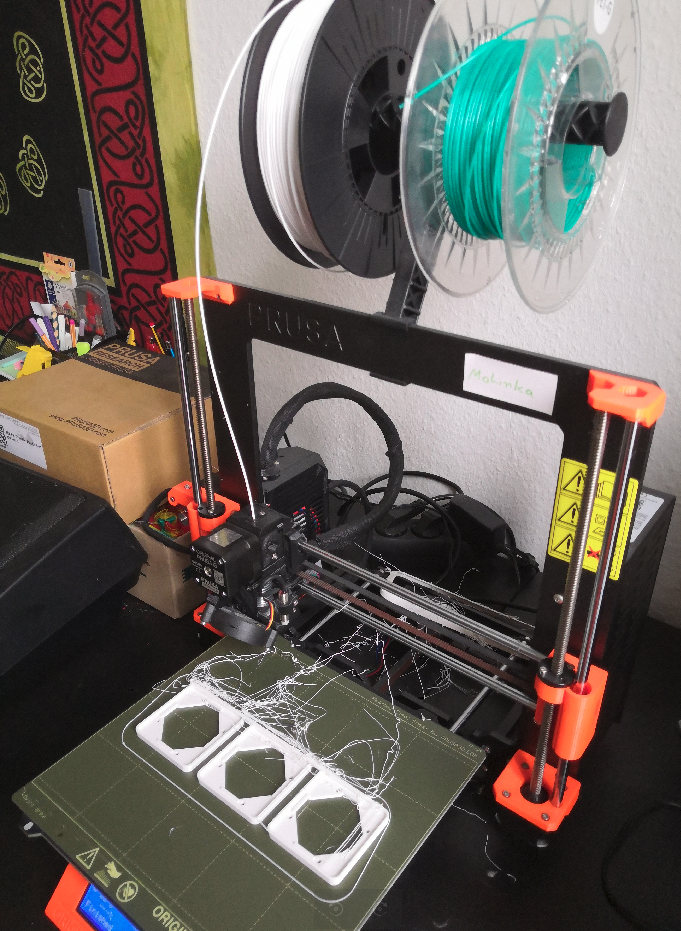
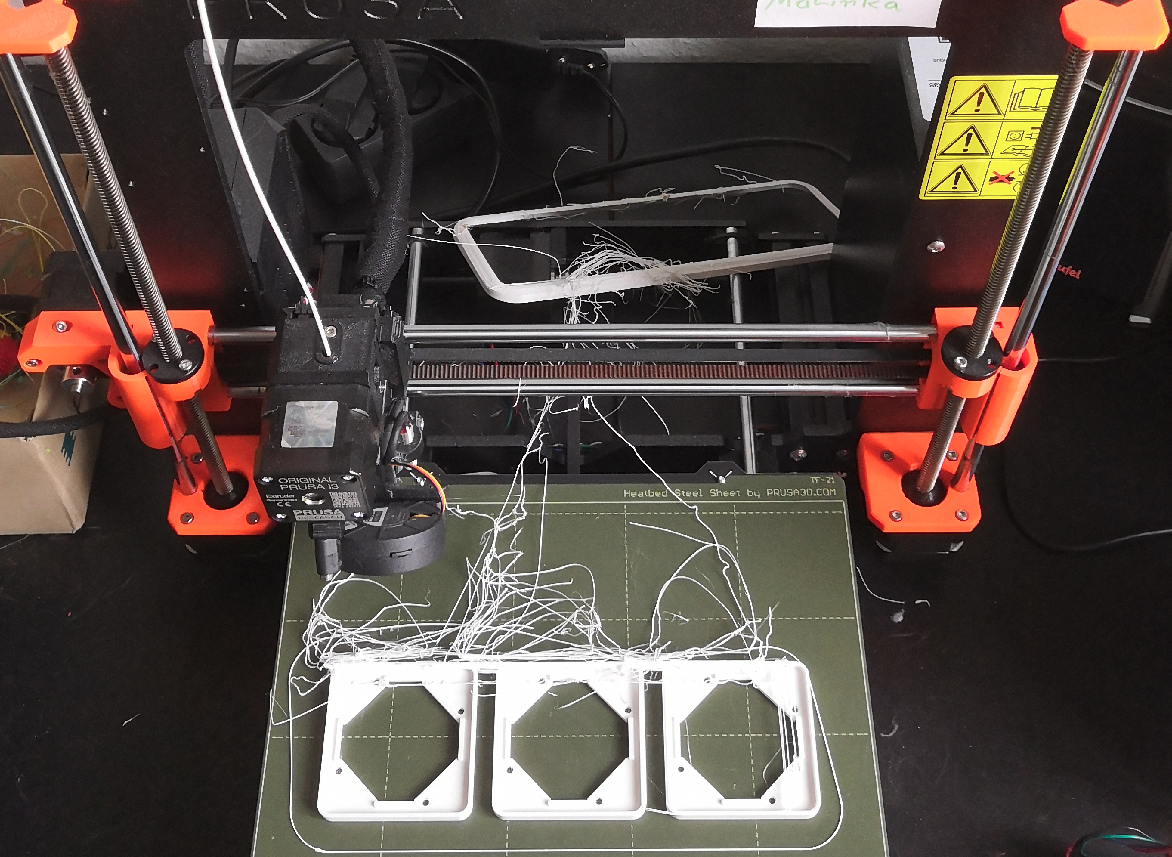
Ein gescheiterter Druck, der unbeaufsichtigt lief. Ein Beispiel für sinnlosen Materialverbrauch, Zeitvergeudung und Risiko für Beschädigungen
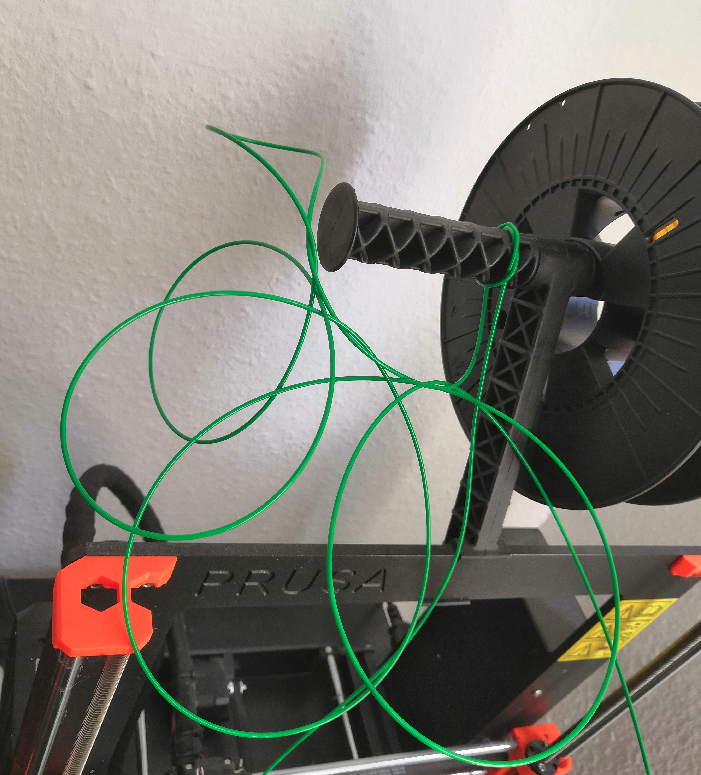
Knotenbildung auf dem Rollenhalter. Die Spule hat sich unkontrolliert abgewickelt und Schleifen erzeugt.
Das Foto zeugt einen strammen Knoten. Die Rolle wurde für das Foto entfernt.
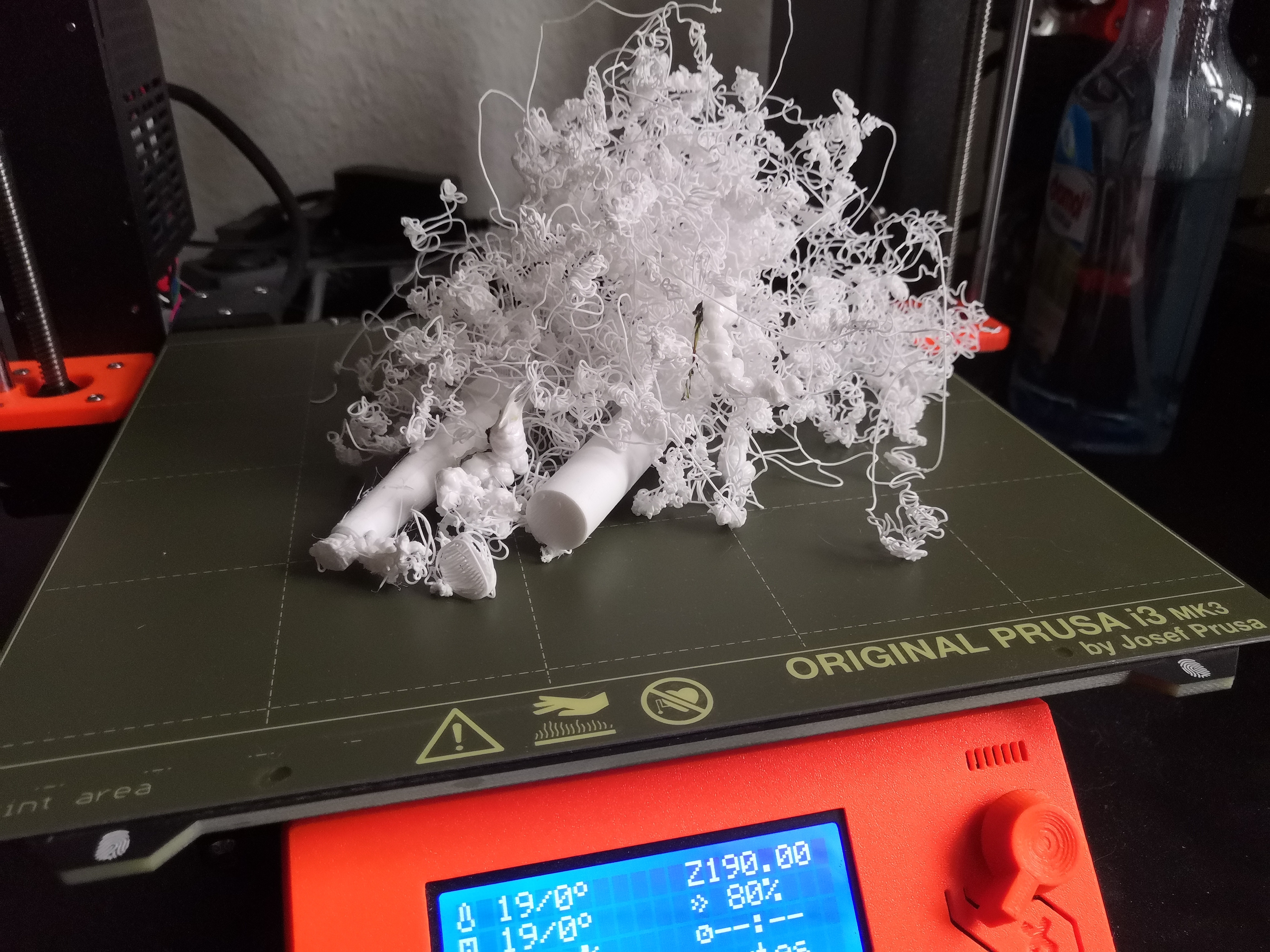
Noch ein Beispiel für einen gescheiterten Druck